Do Roku TVs Have Bluetooth Yes Heres Everything You Need
Do Roku TVs have Bluetooth? The short answer is yes, but with important limitations. Most Roku TVs support Bluetooth, but the feature works differently depending on your model. You can pair wireless headphones and speakers, but direct Bluetooth audio output varies. This guide covers everything from Roku TV Bluetooth setup to common issues and workarounds.
Do Roku TVs have Bluetooth? If you have been searching for this question, you are in the right place. The answer is not as simple as a yes or no. Roku TVs come in many models, and Bluetooth support varies from one to the next. Some Roku TVs include built-in Bluetooth, while others need a little extra help to go wireless.
In this guide, we will walk through everything you need to know about Roku TV Bluetooth. We will cover which models support it, how to pair devices, what works and what does not, and easy fixes for common problems. Whether you want to connect wireless headphones, a speaker, or a soundbar, you will find clear answers here.
Many people want to watch their favorite shows without disturbing others. Bluetooth headphones are a popular choice. But can you connect them to a Roku TV? Let us find out.
Key Takeaways
- Most Roku TVs support Bluetooth: Built-in Bluetooth is available on many models, but not all.
- Bluetooth works best with headphones: Roku TVs are designed primarily for wireless headphone pairing.
- Not all audio devices connect directly: Speakers and soundbars may need a Roku Audio Adapter.
- Model matters: Newer Roku TV models have better Bluetooth support than older ones.
- Workarounds exist: You can add Bluetooth to Roku TVs that lack built-in support.
- Setup is simple: Pairing devices takes just a few minutes through the Roku settings menu.
- Latency can be an issue: Some users experience audio delay when using Bluetooth with Roku.
📑 Table of Contents
- Do Roku TVs Have Bluetooth Built In?
- What Bluetooth Devices Work With Roku TVs?
- How to Pair Bluetooth Devices With Your Roku TV
- Common Bluetooth Problems With Roku TVs
- Can You Add Bluetooth to a Roku TV That Does Not Have It?
- Roku TV Bluetooth vs. Other Smart TV Bluetooth
- Expert Tips for Getting the Best Bluetooth Experience on Roku TV
- Final Thoughts
Do Roku TVs Have Bluetooth Built In?
The short answer is yes, most Roku TVs do have Bluetooth. But the type of Bluetooth support depends on your specific model and year. Roku TV Bluetooth is not the same across every single TV on the market.
How Roku TV Bluetooth Works
Roku uses Bluetooth mainly for two things. First, it connects wireless headphones to the TV. Second, it allows the Roku remote to communicate with the TV. This is important to understand. Roku TV wireless capabilities are built into the operating system, but they are limited in what they can do.
When you go to the settings menu on your Roku TV, you will find a Bluetooth option. This is where you can turn Bluetooth on or off. You can also search for nearby devices to pair. The process is simple and user-friendly.
Which Roku TV Models Support Bluetooth?
Most Roku TVs made after 2016 include Bluetooth support. Here is a quick breakdown:
- Roku TV models from 2016 and newer: These generally have Bluetooth built in.
- Roku Streaming Sticks and Roku Express: These devices also support Bluetooth for headphone pairing.
- Older Roku TV models (pre-2016): Some of these may not have Bluetooth at all.
- Roku TV models with Roku OS 9 or higher: These offer the best Bluetooth experience.
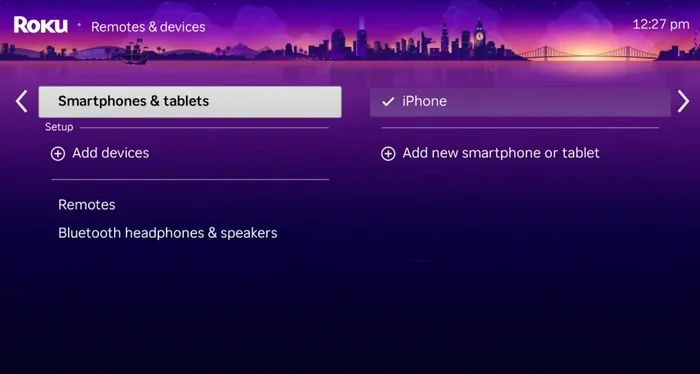
If you are not sure whether your TV has Bluetooth, you can check the settings menu. Look for the Bluetooth option under Settings > Remote & Devices. If you see it, your Roku TV supports Bluetooth.
What Bluetooth Devices Work With Roku TVs?
Not all Bluetooth devices work the same way with a Roku TV. Understanding what connects and what does not saves a lot of frustration.
Bluetooth Headphones
Bluetooth headphones are the most common device people want to pair with a Roku TV. The good news is that Roku TV Bluetooth headphone support is built right into the system. You can connect most standard wireless headphones without any extra equipment.
Here are some popular headphone brands that work well with Roku TVs:
- Sony wireless headphones
- Bose Bluetooth headphones
- JBL wireless earbuds
- Samsung Galaxy Buds
- Apple AirPods (with some limitations)
For a detailed guide on pairing headphones, check out our article on Can I Use Bluetooth Headphones With Roku. It covers the step-by-step process in detail.
Bluetooth Speakers
Can you connect a Bluetooth speaker to a Roku TV? The answer is more complicated. Roku TVs do not natively support Bluetooth speakers for audio output in the same way they support headphones. The Bluetooth feature on Roku is designed mainly for private listening with headphones.
However, there are workarounds. You can use a Roku Audio Adapter or a Bluetooth transmitter to connect speakers. These small devices plug into the Roku TV and send audio wirelessly to your speaker. It is an affordable and easy solution.
Bluetooth Soundbars
Soundbars are a great way to improve your TV audio. But connecting a Bluetooth soundbar to a Roku TV is not always straightforward. Most Roku TVs do not allow you to send audio output directly to a Bluetooth soundbar through the built-in Bluetooth feature.
Your best option is to use an HDMI ARC connection or optical cable for the soundbar. If you really want a wireless connection, a Bluetooth transmitter works well here too. Some soundbars also come with their own Roku integration built in.
How to Pair Bluetooth Devices With Your Roku TV
Setting up Roku TV Bluetooth is easy once you know the steps. Follow this simple guide to get your wireless device connected.
Step-by-Step Pairing Guide
- Turn on your Roku TV. Make sure it is connected to your home Wi-Fi network.
- Press the Home button on your Roku remote.
- Go to Settings. Scroll down and select Settings.
- Select Remote & Devices. This option is near the bottom of the settings menu.
- Choose Bluetooth. Tap on Bluetooth to open the Bluetooth menu.
- Turn Bluetooth On. Toggle the switch to turn Bluetooth on.
- Put your device in pairing mode. Make sure your headphones or speaker are ready to pair.
- Select your device. Your Roku TV will search for nearby Bluetooth devices. Tap on the one you want to connect.
- Wait for the connection. Once paired, audio will route to your Bluetooth device.
Quick Tips for Successful Pairing
- Keep your Bluetooth device close to the TV during pairing.
- Turn off Bluetooth on other devices nearby to avoid interference.
- Restart your Roku TV if the search does not find your device.
- Make sure your device is charged. Low battery can cause pairing issues.
- Check for Roku software updates. Go to Settings > System > System Update to make sure your TV is running the latest software.
Common Bluetooth Problems With Roku TVs
Even though Roku TV Bluetooth is generally reliable, you may run into issues from time to time. Here are the most common problems and how to fix them.
Bluetooth Not Showing Up in Settings
If you do not see the Bluetooth option in your settings, your TV model may not support it. Older Roku TVs or certain budget models may lack this feature. In this case, you can add Bluetooth using a Bluetooth transmitter. Just plug it into the audio output on your TV, and it will add wireless capability.
Another reason could be that your Roku software is out of date. Go to Settings > System > System Update and install any pending updates. This often fixes missing features.
Audio Delay or Latency
One of the most common complaints about Roku TV wireless audio is a delay. You see the lips move, but the sound comes a split second later. This is called audio latency, and it happens because Bluetooth has a slight processing delay.
Here is how to reduce audio delay:
- Use headphones that support low-latency Bluetooth codecs.
- Keep your Bluetooth device within 10 feet of the TV.
- Reduce interference by turning off other wireless devices nearby.
- Use the Roku headphone mode. Some Roku TVs have a private listening feature that reduces latency.
Device Keeps Disconnecting
If your Bluetooth device keeps disconnecting, try these fixes:
- Move closer to the TV.
- Make sure nothing is blocking the signal between the devices.
- Unpair the device and pair it again from scratch.
- Check if other devices are connected to the same Bluetooth device.
- Restart both your Roku TV and the Bluetooth device.
Poor Audio Quality
Bluetooth audio quality is usually good enough for casual watching. But if you notice muffled or low-quality sound, try these steps:
- Make sure your Bluetooth device is fully charged.
- Move closer to the TV to strengthen the signal.
- Check if other Wi-Fi devices are causing interference.
- Try unpairing and re-pairing the device.
Can You Add Bluetooth to a Roku TV That Does Not Have It?
Do Roku TVs have Bluetooth on every model? No. Some older or budget Roku TVs do not include Bluetooth. But you are not stuck. There are simple ways to add Bluetooth to Roku TV that lacks native support.
Option 1: Use a Bluetooth Transmitter
A Bluetooth transmitter is a small device that plugs into your TV’s audio output. It sends audio wirelessly to your Bluetooth headphones or speakers. These transmitters cost between $15 and $40. They are an easy and affordable fix.
Just plug the transmitter into the 3.5mm headphone jack or optical output on your Roku TV. Put it in pairing mode, and connect your Bluetooth device. It works just like built-in Bluetooth.
Option 2: Use a Roku Audio Adapter
Roku sells an official Roku Audio Adapter that connects to your TV and allows wireless headphone pairing. This adapter plugs into the audio output on your Roku TV or Roku streaming device. It is a reliable option that works seamlessly with the Roku system.
If you want to explore more about adding Bluetooth to your TV, our article on Can I Make My Tv Have Bluetooth has detailed options for different TV brands.
Option 3: Use a Streaming Device with Bluetooth
If your TV does not support Bluetooth, you can use a Roku streaming stick or Roku Express. These small devices plug into your TV’s HDMI port and add Bluetooth capability along with all the Roku streaming features. It is a great two-in-one solution.
Roku TV Bluetooth vs. Other Smart TV Bluetooth
How does Roku TV Bluetooth compare to other smart TVs? Let us look at the differences.
| Feature | Roku TV | Samsung Smart TV | LG Smart TV |
|---|---|---|---|
| Built-in Bluetooth | Yes (most models) | Yes | Yes |
| Bluetooth Headphone Support | Yes | Yes | Yes |
| Bluetooth Speaker Support | Limited | Yes | Yes |
| Bluetooth Soundbar Support | Limited | Yes | Yes |
| Ease of Pairing | Very Easy | Easy | Easy |
| Audio Latency | Moderate | Low | Low |
As you can see, Roku TVs are great for headphone pairing but a bit limited when it comes to speakers and soundbars. Other brands like Samsung and LG offer more full-featured Bluetooth support. If you want a TV with Bluetooth connectivity TV that supports all types of devices, you may want to compare options before buying.
Expert Tips for Getting the Best Bluetooth Experience on Roku TV
Want to get the most out of Roku TV Bluetooth? Here are some expert tips that make a big difference.
- Keep your Roku TV software updated. Updates often improve Bluetooth performance and fix bugs.
- Use the private listening feature. Press the Home button twice on your Roku remote, then select Private Listening. This routes audio directly to your paired headphones.
- Do not pair too many devices. Keep your Bluetooth device list clean. Remove old or unused pairings to avoid connection conflicts.
- Place your Roku TV in a central location. Walls and furniture can weaken the Bluetooth signal.
- Use Bluetooth 5.0 devices when possible. Newer Bluetooth versions offer better range and less latency.
For more tips on using Bluetooth with your TV setup, check out our guide on Can I Pair Bluetooth Headphones To My Lg Tv. It has helpful pairing advice that applies to Roku TVs too.
Final Thoughts
So, do Roku TVs have Bluetooth? Yes, they do, on most models. Roku TV Bluetooth is a convenient feature that lets you watch your favorite shows and movies without disturbing anyone around you. It works best with wireless headphones, and the setup process is quick and easy.
While Roku TVs may not support every type of Bluetooth device natively, there are simple workarounds. A Bluetooth transmitter or Roku Audio Adapter can add wireless capability to any Roku TV. And keeping your software updated ensures the best performance.
Whether you are a casual viewer or a late-night movie watcher, Roku TV wireless audio options give you the flexibility you need. Just remember to check your specific model for Bluetooth support, and you will be streaming in no time.
Do Roku TVs have Bluetooth? Now you know the full answer. Enjoy your wireless viewing experience!
Frequently Asked Questions
Do all Roku TVs have Bluetooth?
No, not all Roku TVs have Bluetooth. Most Roku TVs made after 2016 include built-in Bluetooth, but some older or budget models may not. You can check your TV’s settings menu under Remote & Devices to confirm. If Bluetooth is not listed, you can add it using a Bluetooth transmitter.
Can I connect Bluetooth headphones to any Roku TV?
Most Roku TVs support Bluetooth headphone pairing. However, the experience may vary depending on your model and Roku OS version. Newer models offer a smoother and more reliable connection. If your TV does not support Bluetooth, you can use a Roku Audio Adapter or Bluetooth transmitter.
Why is there a delay when using Bluetooth with my Roku TV?
Audio delay, or latency, is common with Bluetooth connections. This happens because Bluetooth requires a small amount of processing time to transmit audio. To reduce delay, keep your Bluetooth device close to the TV, use low-latency headphones, and make sure your Roku software is up to date.
Can I connect a Bluetooth speaker to my Roku TV?
Roku TVs do not natively support Bluetooth speakers for audio output. The built-in Bluetooth is designed mainly for headphones. To connect a speaker, you will need a Bluetooth transmitter or a Roku Audio Adapter. These affordable devices add wireless speaker support to any Roku TV.
How do I unpair a Bluetooth device from my Roku TV?
Go to Settings > Remote & Devices > Bluetooth on your Roku TV. Find the device you want to remove and select it. Choose the option to unpair or remove the device. This clears the connection and frees up the Bluetooth slot for a new device.
Can I use my phone as a Bluetooth remote for Roku TV?
Yes, you can use the Roku mobile app on your phone as a remote. The app connects to your Roku TV over Wi-Fi, not Bluetooth. It offers all the same controls and even lets you cast content from your phone to the TV. It is a great alternative if your physical remote is not working.
=== CONCLUSION ===
Do Roku TVs have Bluetooth? Yes, most do, and the feature works well for wireless headphone pairing. While Roku TV Bluetooth has some limitations with speakers and soundbars, simple workarounds like Bluetooth transmitters and Roku Audio Adapters fill the gap. Keep your TV updated, follow the pairing tips in this guide, and you will enjoy a seamless wireless audio experience every time you watch.
Now that you have all the answers, go ahead and set up your Roku TV wireless audio. You will wonder how you ever watched without it.