Can You Use Airpods As A Mic For Calls And Recording
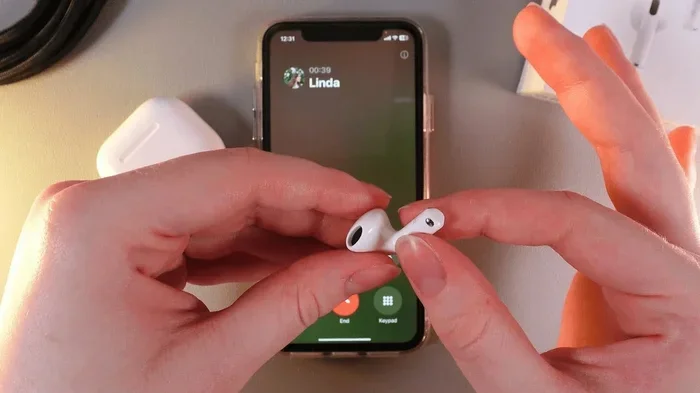
Yes, you can use Airpods as a mic for calls and recording. All Airpods models come with built-in microphones that work seamlessly with iPhones, Androids, and computers. Whether you are on a Zoom call, recording a voice memo, or streaming content, your Airpods can serve as a reliable wireless microphone with the right settings.
Have you ever been on a call and wished your Airpods As A Mic could do more? The good news is they already can. Your Airpods are not just earbuds for listening to music. They double as fully functional microphones for phone calls, voice recordings, video chats, and even podcasting. Whether you are using the basic Airpods, the Airpods Pro, or the premium Airpods Max, you have a wireless microphone right at your ears.
Using Airpods As A Mic is straightforward, but there are tricks to get the best sound quality. Many people do not know that their Airpods have multiple built-in microphones. These tiny mics work hard to pick up your voice clearly while blocking out background noise. In this guide, we will walk you through everything you need to know about using your Airpods as a microphone. From setup to troubleshooting, we have you covered.
If you have ever wondered whether your Airpods can replace a dedicated microphone, the answer is yes. People use Airpods for work meetings, gaming, content creation, and even recording music. The convenience of a wireless microphone you already own is hard to beat. Let us dive into how this all works and how you can get the most out of your Airpods.
Key Takeaways
- Airpods work as a mic on multiple devices: iPhones, Androids, Macs, and Windows PCs all support Airpods as a microphone.
- Setup is simple: You just need to pair your Airpods and select them as the input device in your settings.
- Mic quality varies by model: Airpods Pro and Airpods Max have better microphone arrays than older models.
- Common issues are fixable: Most mic problems with Airpods can be solved with a quick reset or settings adjustment.
- Positioning matters: Wearing your Airpods correctly improves mic pickup and reduces background noise.
- You can boost mic quality: Software settings and external apps can enhance your Airpods microphone performance.
📑 Table of Contents
How Airpods Work as a Microphone
Understanding how your Airpods capture sound helps you use them better. Every Airpods model has at least one built-in microphone. Some models have multiple microphones working together. These mics use advanced technology to focus on your voice and reduce unwanted noise.
Built-in Microphone Technology
Apple uses beamforming technology in Airpods microphones. This means the mics focus on the sound in front of them. When you wear your Airpods, the microphones point toward your mouth. They pick up your voice clearly while filtering out wind, traffic, and other background sounds.
The microphone system also uses inward-facing sensors. These sensors detect when the Airpods are in your ears. This helps the mics adjust their sensitivity. The result is cleaner audio and fewer complaints about people not hearing you during calls.
Which Airpods Models Have Microphones?
Every Airpods model includes microphones. Here is a quick look at what each version offers:
- Airpods (1st and 2nd generation): One microphone per earbud. Good for basic calls and voice notes.
- Airpods (3rd generation): Improved microphone array. Better noise rejection and voice clarity.
- Airpods Pro: Two microphones per earbud. Active noise cancellation enhances mic quality during calls.
- Airpods Max: High-quality microphone system. Best-in-class audio pickup for a wireless earpiece.
- Airpods Pro 2: The most advanced mic system. Inward-facing microphone and voice isolation mode make calls crystal clear.
If you want to explore more about Airpods versatility, check out our guide on Can I Use Airpods As Earplugs to see how multifunctional these devices really are.
Using Airpods as a Mic for Phone Calls
Making phone calls with your Airpods is one of the most common uses. Whether you are on a business call or chatting with friends, your Airpods serve as a hands-free microphone and speaker. The setup process is different depending on your phone type.
Setting Up Airpods for iPhone Calls
If you use an iPhone, the process is seamless. Apple designed Airpods to work perfectly with iOS. Here is how to set it up:
- Make sure your Airpods are charged and paired with your iPhone.
- Open the Settings app on your iPhone.
- Tap on Bluetooth.
- Find your Airpods in the device list.
- Tap the info icon next to your Airpods.
- Make sure “Microphone” is set to “Automatically Switch Airpods.”
Once this is done, your Airpods will automatically connect as a microphone when you make or receive calls. You can also use Siri to start calls hands-free. Just say “Hey Siri, call [contact name].”
Using Airpods with Android Devices
Airpods work with Android phones too, though the experience is slightly different. Android does not have the same seamless integration as iOS. Here is what you need to do:
- Pair your Airpods with your Android device via Bluetooth.
- Go to Settings and then Bluetooth.
- Find your Airpods in the paired devices list.
- Tap the gear icon next to your Airpods.
- Make sure the microphone is enabled.
Some Android phones may require you to manually select Airpods as the input device in specific apps. For example, in WhatsApp or Zoom, you need to go into the app’s audio settings and choose Airpods as the microphone. The mic quality is still excellent, but you may need to adjust settings per app.
For more on using Bluetooth audio devices across platforms, check out Can I Use Bluetooth Headphones With Roku for tips on Bluetooth connectivity across different devices.
Using Airpods for Recording Audio
Recording audio with Airpods opens up a lot of possibilities. You can record voice memos, podcast episodes, video narration, and even music demos. The microphone quality on newer Airpods models is surprisingly good for a wireless earpiece.
Recording Voice Memos
The Voice Memos app on iPhone works perfectly with Airpods. When you open the app and start recording, your Airpods act as the microphone. The recording captures your voice clearly and saves directly to your phone.
Here are some quick tips for better voice memo recordings:
- Speak about 6 to 8 inches from your mouth.
- Keep your phone on a stable surface or use a stand.
- Record in a quiet room to minimize background noise.
- Use Airpods Pro or Airpods Pro 2 for the best noise isolation.
Using Airpods for Podcasting and Streaming
Many content creators use Airpods as a microphone for podcasting and live streaming. The wireless freedom is a huge advantage. You can move around your recording space without being tangled in a cable.
For podcasting, you will need a few extra steps. First, connect your Airpods to your recording device. On a Mac, this is easy through Bluetooth. On Windows, you may need a Bluetooth adapter. Then, set your Airpods as the input device in your recording software like Audacity, GarageBand, or OBS Studio.
For streaming, platforms like Twitch and YouTube accept Airpods as a mic source. Just select Airpods as your audio input in your streaming software. The sound quality is good enough for most viewers, though professional streamers may prefer a dedicated USB microphone.
If you are interested in using Airpods for communication with other devices, you might also want to read about Can I Use Airpods With Cardo for information on pairing Airpods with communication headsets.
Tips to Improve Airpods Mic Quality
While Airpods mics are good out of the box, you can improve them further. A few simple adjustments can make a big difference in call quality and recording clarity.
Positioning and Placement
How you wear your Airpods affects mic performance. The microphones are located in the stem of each Airpod. For the best pickup, make sure the stems point toward your mouth.
- Wear your Airpods snugly in your ears. Loose fit causes sound leakage.
- Keep the microphone stems pointing forward toward your face.
- Avoid touching the microphone area while speaking.
- If using only one Airpod, wear it on the side closest to your mouth.
Software Settings and Boosts
Your device settings can also impact mic quality. Here are some adjustments to try:
- On iPhone: Go to Settings, then Accessibility, then Audio/Visual. Turn on “Phone Noise Reduction.”
- On Mac: Go to System Preferences, then Sound, then Input. Select your Airpods and adjust the input volume.
- On Windows: Go to Settings, then System, then Sound. Under Input, select your Airpods and check the microphone level.
- On Zoom: In Zoom settings, go to Audio and test your microphone. Adjust the input level slider.
You can also use third-party apps to boost your Airpods mic performance. Apps like “Dolby On” for iOS can enhance your recordings with noise reduction and EQ adjustments. For Android, “Recorder” by Google offers decent built-in audio enhancement.
Quick Tips for Better Audio
- Always update your Airpods firmware. Apple releases mic improvements through software updates.
- Clean your Airpods microphone mesh regularly. Earwax buildup muffles sound.
- Use a windscreen or cover during outdoor recordings to reduce wind noise.
- Record in a quiet environment whenever possible.
- Keep your recording device close to you for stronger signal strength.
Common Problems and Solutions
Even though Airpods are reliable, you might run into mic issues from time to time. Here are the most common problems and how to fix them.
Why Your Airpods Mic Might Not Work
Several things can cause your Airpods microphone to stop working. Understanding the root cause helps you fix it faster:
- Bluetooth connection issues: The Airpods may not be properly connected to your device. Try turning Bluetooth off and back on.
- Wrong input device selected: Your device might be using a different mic. Check your audio settings and make sure Airpods are selected.
- Low battery: Low battery can reduce mic performance. Charge your Airpods fully before important calls.
- Firmware needs updating: Outdated firmware can cause compatibility issues. Check for updates in the Airpods settings.
- Dirt or debris on the mic: The microphone mesh can get clogged. Gently clean it with a soft, dry brush.
Troubleshooting Steps
Follow these steps to fix most Airpods mic problems:
- Place both Airpods in the charging case.
- Wait 15 seconds.
- Open the case and take the Airpods out.
- Reconnect to your device via Bluetooth.
- Test the microphone by making a short recording.
- If the issue persists, reset your Airpods by holding the setup button on the back of the case for 15 seconds.
If none of these steps work, try unpairing your Airpods completely and pairing them again from scratch. This often resolves stubborn connection issues.
Airpods Mic vs Dedicated Microphones
It is fair to compare Airpods microphones with dedicated mics. While Airpods are incredibly convenient, they are not perfect replacements for professional microphones in every situation.
Here is a quick comparison:
- Convenience: Airpods win. They are always with you, wireless, and ready to use.
- Audio quality: Dedicated mics win. A USB condenser microphone will always produce better audio than a tiny earbud mic.
- Noise handling: Airpods Pro and Pro 2 do a great job with noise cancellation. But a dedicated dynamic mic in a quiet room is still better.
- Portability: Airpods are far more portable than any external microphone.
- Price: You already own Airpods. Using them as a mic costs nothing extra.
For everyday calls, casual recordings, and quick voice memos, Airpods are more than enough. For professional music production, studio-quality podcasts, or broadcast-level content, you will want a dedicated microphone.
Final Thoughts on Using Airpods As A Mic
Using Airpods As A Mic is one of the most underrated features of these devices. Whether you need a quick microphone for a business call, a way to record voice notes on the go, or a wireless mic for casual streaming, your Airpods deliver. They are convenient, reliable, and surprisingly good at capturing clear audio.
The key is knowing how to set them up properly and taking a few simple steps to improve quality. Keep your Airpods clean, update the firmware, position them correctly, and adjust your device settings. With these basics covered, you will get excellent mic performance every time.
Remember, your Airpods are a versatile tool. They play music, take calls, track your fitness, and now you know they also serve as a capable microphone. Next time you are on a call or need to record something, reach for your Airpods with confidence. You have everything you need right at your ears.
Frequently Asked Questions
Can I use Airpods as a mic for Zoom calls?
Yes, you can use Airpods as a mic for Zoom calls. Simply pair your Airpods with your computer or phone, open Zoom, and go to the audio settings. Select your Airpods as the microphone input. The mic quality is good enough for professional meetings and video calls.
Why is my Airpods mic quiet during calls?
A quiet Airpods mic is often caused by a low battery, dirt on the microphone mesh, or incorrect audio settings. Try cleaning the mic area, charging your Airpods, and checking that your device is using Airpods as the input device in the sound settings.
Can I use Airpods as a mic on a Windows PC?
Yes, you can use Airpods as a mic on a Windows PC. You need to pair them via Bluetooth and then select them as the input device in your sound settings. Some users find that a Bluetooth USB adapter provides a more stable connection than built-in Bluetooth.
Which Airpods model has the best microphone?
The Airpods Pro 2 and Airpods Max have the best microphone systems. They feature multiple microphones per earbud, active noise cancellation, and voice isolation technology. These models deliver the clearest audio pickup among all Airpods versions.
Can I use just one Airpod as a mic?
Yes, you can use just one Airpod as a mic. When you have only one Airpod in your ear, it will automatically serve as both the microphone and speaker during calls. However, using both Airpods gives you better noise cancellation and audio quality.
Do Airpods work as a mic for Android phones?
Yes, Airpods work as a mic for Android phones. The Bluetooth connection allows them to function as a microphone for calls, recordings, and voice assistants. Some Android-specific features may not be available, but basic mic functionality works perfectly.
=== CONCLUSION ===
Using Airpods As A Mic for calls and recording is simple, effective, and incredibly convenient. Your Airpods come equipped with built-in microphones that handle everyday audio tasks with ease. From phone calls to voice memos to podcast recordings, they prove themselves as a versatile tool in your tech arsenal.
Follow the setup steps, use the tips we shared, and troubleshoot any issues with the solutions provided. You will be making clear, professional-sounding calls and recordings in no time. The beauty of Airpods is that they combine audio playback and microphone functionality in one sleek, wireless package. Next time you need a microphone, just reach for your Airpods and get started.