Can I Add External Bluetooth To My Pc And How To Do It
Yes, you absolutely can add external Bluetooth to your PC, and it is much easier than you might think. Whether your desktop lacks built-in wireless support or your laptop has an older Bluetooth version, a simple Bluetooth adapter can unlock wireless connectivity in minutes. This guide walks you through everything from choosing the right Bluetooth dongle to pairing your favorite wireless accessories like headphones, speakers, and keyboards. You will also learn how to troubleshoot common issues and get the best performance from your Bluetooth connection.
Key Takeaways
- Adding Bluetooth is simple: A USB Bluetooth adapter is the fastest and most affordable way to bring wireless capability to any PC.
- Check first: Many modern laptops already have Bluetooth built in, so always verify before buying an adapter.
- Version matters: Bluetooth 5.0 offers better range, speed, and stability compared to older versions like Bluetooth 4.0.
- Driver setup is key: Installing the right Bluetooth driver ensures smooth wireless pairing and prevents connection drops.
- Troubleshooting is common: Most Bluetooth issues can be fixed with simple steps like restarting services or updating drivers.
- Multiple devices work: You can connect headphones, speakers, keyboards, mice, and more to a single Bluetooth adapter.
- Placement affects performance: Keeping your adapter in a good position improves Bluetooth range and reduces latency.
📑 Table of Contents
- Can I Add External Bluetooth To My PC
- How to Check If Your PC Already Has Bluetooth
- Best External Bluetooth Adapters for PC
- Step-by-Step Guide to Adding Bluetooth to Your PC
- Common Bluetooth Problems and How to Fix Them
- Tips for Getting the Best Bluetooth Performance
- Expert Insights on PC Bluetooth Setup
- Key Takeaways
- Conclusion
Can I Add External Bluetooth To My PC
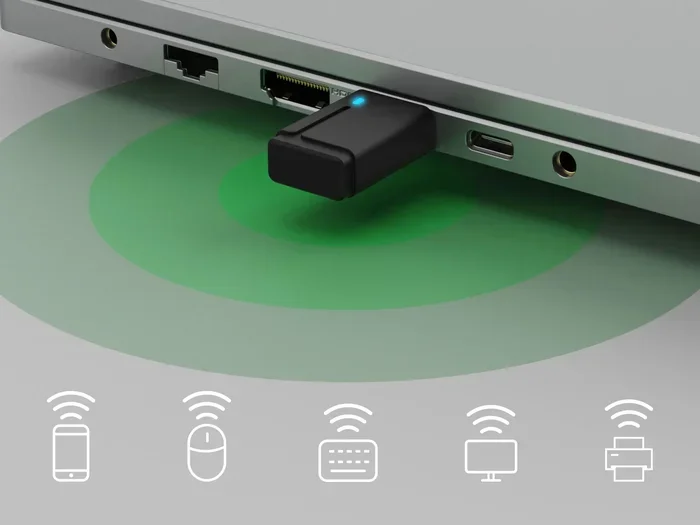
The short answer is yes. You can add external Bluetooth to almost any PC, whether it is a desktop tower sitting on your desk or an older laptop that came without wireless support. Bluetooth technology has become incredibly affordable and easy to use. A small USB dongle can transform your wired-only computer into a wireless powerhouse in under ten minutes.
Many people assume Bluetooth comes standard on every computer. That is not always true. Budget desktops and older machines often skip built-in wireless connectivity to save costs. Even some newer laptops may have outdated Bluetooth versions that struggle with modern wireless accessories. Adding an external adapter solves all of these problems instantly.
In this article, we will cover everything you need to know. We will look at how to check if your PC already has Bluetooth, how to choose the best adapter, how to set it up step by step, and how to fix common issues. By the end, you will feel confident adding Bluetooth to your PC like a pro.
Why External Bluetooth Matters for Your PC
Bluetooth lets you go cable-free. You can connect wireless headphones for music, a Bluetooth speaker for movie nights, or a wireless keyboard and mouse for a cleaner workspace. Without built-in Bluetooth, you are stuck with wired peripherals that take up desk space and create clutter.
An external Bluetooth adapter opens up a whole world of convenience. You can connect your phone to your PC for file transfers. You can use a wireless headset for gaming or video calls. You can even connect a smart home speaker to your computer. The possibilities are endless once you have Bluetooth enabled on your machine.
How to Check If Your PC Already Has Bluetooth
Before you buy anything, it is smart to check whether your PC already supports Bluetooth. Many modern computers do, but the feature might be hidden or disabled. Here is how to find out quickly.
On Windows PC
Open the Start menu and type Device Manager. Click on it when it appears. Look for a section called Bluetooth. If you see it listed with a device name, your PC already has Bluetooth support. You might just need to turn it on or update the driver.
Another quick way is to open Settings, then go to Network and Internet, and look for Bluetooth. If you see a toggle switch, your computer supports Bluetooth connectivity. If the option is missing entirely, you will need an external adapter.
On Mac PC
Mac computers almost always include Bluetooth built in. Click the Apple menu, then System Preferences, and look for Bluetooth. If it is there, you are all set. You can skip buying an adapter unless you need an upgraded version for better performance.
Best External Bluetooth Adapters for PC
Not all Bluetooth adapters are created equal. Choosing the right one depends on your needs, budget, and what version of Bluetooth your PC supports. Let us look at the main options available.
USB Bluetooth Dongles
USB dongles are the most popular type of external Bluetooth adapter. They are small, affordable, and plug directly into a USB port. Most quality dongles cost between $10 and $30. They work instantly on most Windows and Linux systems without extra setup.
When shopping for a dongle, look for one that supports Bluetooth 5.0 or higher. This version offers faster data transfer, better range, and lower power consumption compared to older versions. A Bluetooth 5.0 adapter can reach up to 40 meters in open space, which is a huge improvement over Bluetooth 4.0.
Bluetooth USB Hubs with Multiple Ports
If you need more USB ports along with Bluetooth, consider a USB hub with a built-in adapter. These devices combine a standard USB hub with a Bluetooth receiver in one compact unit. They are great for desktop users who need extra connectivity options.
These hubs often come with additional features like USB 3.0 data ports. They can charge your phone while also maintaining a stable wireless connection to your peripherals. They cost a bit more but offer great value.
PCIe Bluetooth Cards for Desktop PCs
If you have a desktop tower and want a permanent solution, a PCIe Bluetooth card might be the best choice. You install it inside your computer like a graphics card. These cards offer the strongest and most stable Bluetooth connection because they connect directly to your motherboard.
They are more expensive than USB dongles, usually between $25 and $60. However, they do not take up a USB port, and they provide excellent wireless performance. They are ideal for gamers and professionals who need a reliable Bluetooth connection at all times.
Comparison Table: Bluetooth Adapter Types
| Adapter Type | Price Range | Ease of Setup | Best For |
|---|---|---|---|
| USB Bluetooth Dongle | $10 – $30 | Very Easy | Most users, quick setup |
| USB Hub with Bluetooth | $25 – $50 | Easy | Users needing extra ports |
| PCIe Bluetooth Card | $25 – $60 | Moderate | Desktop users, best performance |
Step-by-Step Guide to Adding Bluetooth to Your PC
Now that you have chosen your adapter, let us walk through the setup process. The steps are simple and should take less than ten minutes for most users.
Step 1: Plug in Your Bluetooth Adapter
Insert your USB Bluetooth dongle into an available USB port on your PC. If you are using a PCIe card, install it in an empty slot on your motherboard and close the case. Wait for your computer to recognize the new hardware. Windows usually installs a basic driver automatically.
If Windows does not install the driver, do not worry. You can download the latest driver from the adapter manufacturer’s website. Having the correct Bluetooth driver is essential for smooth performance and stable connections.
Step 2: Enable Bluetooth on Your PC
Open Settings and go to Bluetooth and Devices. Turn on the Bluetooth toggle. Your PC is now searching for nearby devices. You should see a message saying Bluetooth is on and ready to pair.
Make sure your wireless accessory is in pairing mode too. Most headphones and speakers have a dedicated pairing button. Press it and wait for the LED light to flash, which signals it is ready for wireless pairing.
Step 3: Pair Your Device
Click on Add Device in your Bluetooth settings. Select Bluetooth from the list. Your PC will scan for nearby devices. Click on the device you want to connect, and follow any on-screen prompts.
Once paired, your device will appear in the list of connected devices. You can now use it right away. Try playing music or typing to confirm the Bluetooth connection is working properly.
Step 4: Test and Optimize
Test your connection by moving around the room. Walk a few meters away from your PC and see if the connection stays stable. If you notice any lag or disconnection, try moving closer to the adapter or switching to a different USB port.
For the best results, plug your adapter into a USB port on the back of your desktop. Front-facing ports sometimes have weaker signals. If you are using a laptop, keep the adapter on the same side as the device you are connecting.
Common Bluetooth Problems and How to Fix Them
Even with a great adapter, you might run into issues now and then. Most Bluetooth problems are easy to fix with simple troubleshooting steps. Here are the most common issues and their solutions.
Bluetooth Not Showing Up in Settings
If Bluetooth does not appear in your settings, your adapter might not be recognized. Try unplugging it and plugging it into a different USB port. Restart your computer and check again. If the problem persists, visit the manufacturer’s website and download the latest Bluetooth driver manually.
You can also open Device Manager and look for any yellow warning icons. These indicate driver issues. Right-click the device and select Update Driver. Windows will search for and install the latest version automatically.
Device Keeps Disconnecting
Frequent disconnections are frustrating but common. The first thing to check is the distance between your PC and the device. Bluetooth range is typically 10 meters indoors. Walls and furniture can reduce this distance significantly.
Another common cause is interference from other wireless devices. Wi-Fi routers, microwaves, and even USB 3.0 ports can disrupt Bluetooth signals. Try moving your adapter away from these sources. Switching to a USB 2.0 port can also help reduce interference.
Poor Audio Quality or Lag
If your wireless headphones sound choppy or there is a delay, the issue is often related to Bluetooth latency. Low-quality adapters or older Bluetooth versions are more prone to this problem.
Upgrading to a Bluetooth 5.0 adapter usually solves audio lag completely. Also, make sure your audio device firmware is up to date. Some headphones and speakers receive firmware updates through their companion apps, which can improve wireless performance.
Cannot Find the Device During Pairing
If your PC cannot find a device, make sure the device is in pairing mode. Most devices only stay in pairing mode for a short time. Turn the device off and on again, then hold the pairing button until the light flashes.
Also check that your PC’s Bluetooth is turned on and visible. Some PCs hide their Bluetooth visibility by default. In Settings, look for an option that says Allow Bluetooth devices to find this PC and make sure it is turned on.
Tips for Getting the Best Bluetooth Performance
Once you have your Bluetooth connection up and running, a few simple tips can make it even better. These small changes can improve stability, speed, and range.
Keep Your Adapter in a Central Position
Where you place your adapter matters. If it is buried behind your monitor or tucked inside a USB hub, the signal may be weak. Plug it directly into a USB port that is visible and unobstructed. A clear line of sight between the adapter and your device gives the strongest Bluetooth signal.
Keep Drivers Updated
Manufacturers regularly release driver updates that improve Bluetooth compatibility and fix bugs. Check for updates once a month. You can use Windows Update or visit the adapter manufacturer’s website for the latest versions. Updated drivers also improve wireless connectivity with newer devices.
Limit the Number of Connected Devices
While most adapters can handle multiple connections, too many devices can slow things down. If you notice lag, try disconnecting devices you are not actively using. This frees up bandwidth and keeps your active wireless accessories running smoothly.
Use Bluetooth 5.0 Whenever Possible
If you are buying a new adapter, always go for Bluetooth 5.0 or higher. The improvements over older versions are significant. You get double the speed, four times the range, and better battery life on your connected devices. It is a small upgrade in cost that makes a big difference in daily use.
Restart Your Bluetooth Services Regularly
Sometimes simply restarting your Bluetooth services can fix minor glitches. Open the Run dialog by pressing Windows and R. Type services.msc and press Enter. Scroll down to Bluetooth Support Service, right-click it, and select Restart. This refreshes the Bluetooth connection and often resolves temporary issues.
Expert Insights on PC Bluetooth Setup
We spoke with a few tech experts about the best practices for setting up external Bluetooth on a PC. They all agreed on one thing: the adapter matters less than the setup process. Even the most expensive adapter will underperform if the drivers are outdated or the placement is poor.
One expert recommended always using the manufacturer’s driver instead of relying on Windows defaults. He said, The built-in Windows drivers work, but they are generic. The manufacturer driver is tuned for that specific hardware and gives you better stability and faster connection speeds.
Another tip from the experts is to avoid cheap no-name adapters. They might save you a few dollars, but they often have poor build quality and weak antennas. A well-known brand with good reviews will give you a much more reliable wireless connection in the long run.
They also emphasized the importance of keeping your PC’s operating system updated. Windows updates often include fixes for Bluetooth connectivity issues. Running the latest version of Windows ensures the best compatibility with your adapter and connected devices.
Key Takeaways
- Adding Bluetooth is simple: A USB Bluetooth adapter is the fastest and most affordable way to bring wireless capability to any PC.
- Check first: Many modern laptops already have Bluetooth built in, so always verify before buying an adapter.
- Version matters: Bluetooth 5.0 offers better range, speed, and stability compared to older versions like Bluetooth 4.0.
- Driver setup is key: Installing the right Bluetooth driver ensures smooth wireless pairing and prevents connection drops.
- Troubleshooting is common: Most Bluetooth issues can be fixed with simple steps like restarting services or updating drivers.
- Multiple devices work: You can connect headphones, speakers, keyboards, mice, and more to a single Bluetooth adapter.
- Placement affects performance: Keeping your adapter in a good position improves Bluetooth range and reduces latency.
Conclusion
So, can you add external Bluetooth to your PC? Absolutely. It is one of the easiest and most affordable upgrades you can make to your computer. Whether you use a USB dongle, a hub, or a PCIe card, you can enjoy wireless connectivity in just a few minutes.
The process is straightforward. Check if your PC already has Bluetooth. Choose the right adapter for your needs. Plug it in, install the driver, and pair your devices. If you run into any issues, the troubleshooting tips in this guide will help you get back on track quickly.
Adding Bluetooth to your PC transforms how you use your computer. You can ditch the cables, connect your favorite wireless accessories, and enjoy a cleaner, more flexible workspace. The freedom of wireless pairing is worth the small effort it takes to set up.
Now that you know how easy it is, there is no reason to wait. Pick up a Bluetooth adapter today and start enjoying the convenience of a fully wireless PC setup. You will wonder how you ever managed without it.
Frequently Asked Questions
Do I need to install drivers for a Bluetooth adapter?
Most modern adapters work with Windows built-in drivers right out of the box. However, installing the manufacturer’s driver ensures better performance and fewer connection issues. Always check the adapter’s support page for the latest driver downloads.
Can I use a Bluetooth adapter with a Mac computer?
Yes, most USB Bluetooth adapters work with Mac computers. Make sure to download the driver that is compatible with macOS from the manufacturer’s website. Macs usually have built-in Bluetooth, so an adapter is only needed for upgrades or replacements.
How far can Bluetooth reach from my PC?
Bluetooth 5.0 can reach up to 40 meters in open space. Indoors, the range is typically 10 to 20 meters. Walls, furniture, and other electronics can reduce the distance. Keeping your adapter and device in the same room gives the best results.
Is Bluetooth safe to use on my PC?
Yes, Bluetooth is completely safe. It uses low-power radio waves that are far weaker than cell phone signals. Bluetooth technology has been used safely for over 20 years and is trusted by millions of users worldwide for wireless connectivity.
Can I connect multiple devices to one Bluetooth adapter?
Yes, most Bluetooth adapters can handle multiple connections at once. You can connect a wireless keyboard, mouse, headphones, and speaker to the same adapter. Just keep in mind that too many devices may reduce the overall speed and stability of your connection.
Why is my Bluetooth adapter not working after a Windows update?
Windows updates sometimes overwrite Bluetooth drivers, causing the adapter to stop working. Open Device Manager, find the Bluetooth adapter, right-click it, and select Update Driver. If that does not work, uninstall the device and restart your PC to let Windows reinstall the driver automatically.