How Do I Rename My Airpods On My Iphone Step By Step
Renaming your AirPods on your iPhone is quick, easy, and helps you identify them among other Bluetooth devices. You can change the name through the Bluetooth settings, iCloud, or even with a simple Siri command. This guide walks you through every method so you can customize your AirPods name in just a few minutes.
Have you ever grabbed a friend’s AirPods by mistake at a coffee shop? It happens more often than you think. The default name “AirPods” does not help much when multiple people around you have the same device. That is exactly why learning how do I rename my AirPods on my iPhone is such a useful skill. A simple name change makes your device easy to spot, easy to find, and easy to manage.
In this guide, we will walk you through every way to rename your AirPods. Whether you use the Bluetooth settings, Siri, or iCloud, we have you covered. The process takes only a few minutes, and you do not need any technical experience. Let us get started.
Key Takeaways
- Easy Bluetooth Method: You can rename your AirPods directly from your iPhone’s Bluetooth settings in under a minute.
- Siri Can Do It Too: Use a voice command to change your AirPods name without touching any menus.
- iCloud Syncs the Name: Once you rename your AirPods, the new name updates across all Apple devices signed into the same Apple ID.
- Helpful for Multiple Devices: A custom name helps you tell your AirPods apart from friends’ or family members’ AirPods.
- No Special Skills Needed: Anyone can follow the steps, even if you are not tech-savvy.
- Troubleshooting Tips Included: Learn what to do if the rename does not stick or does not sync properly.
📑 Table of Contents
- Why You Should Rename Your AirPods
- How to Rename AirPods on iPhone Step by Step
- How to Rename AirPods Using Siri
- Rename AirPods on Other Apple Devices
- How iCloud Syncs Your AirPods Name
- Tips for Naming Your AirPods Effectively
- Troubleshooting Rename Issues
- Quick Tips for Managing Your AirPods
- Final Thoughts
Why You Should Rename Your AirPods
Renaming your AirPods might seem like a small thing. But it makes a big difference in your daily routine. Here is why it is worth doing.
It Helps You Identify Your Device Fast
When you open your Bluetooth settings, you see a list of available devices. If every device is called “AirPods,” things get confusing fast. A custom name like “My Black AirPods” or “John’s AirPods Pro” helps you pick the right one instantly.
It Makes Sharing Easier
Do you share your AirPods with family members? A unique name prevents mix-ups. Everyone knows which pair belongs to whom. This is especially helpful in households where more than one person uses AirPods.
It Helps With Find My
The Find My app uses your AirPods name to show you where they are. A clear, recognizable name makes it easier to track down your device if it goes missing.
How to Rename AirPods on iPhone Step by Step
Now let us get into the main process. Renaming your AirPods through your iPhone is the most common method. Here is exactly how to do it.
Step 1: Open Your iPhone Settings
Unlock your iPhone and find the Settings app. It looks like a gray gear icon on your home screen. Tap on it to open the main settings menu.
Step 2: Go to Bluetooth
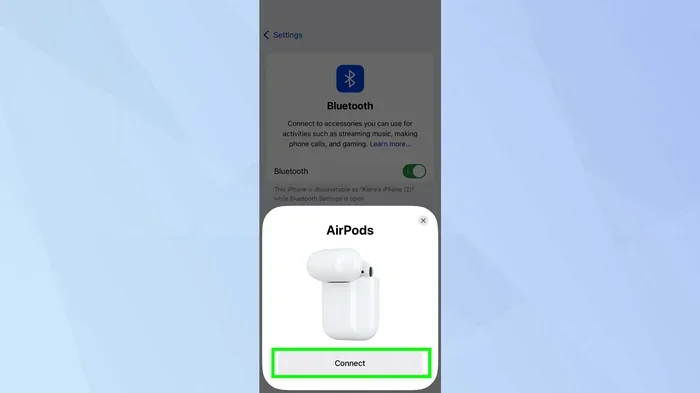
In the Settings menu, look for “Bluetooth” near the top. Tap on it. Make sure your Bluetooth is turned on. You should see a list of nearby devices, including your connected AirPods.
Step 3: Find Your AirPods
Look for your AirPods in the list of devices. They will show up with their current name. Tap the small “i” icon next to them. This opens the AirPods settings page.
Step 4: Tap on the Name Field
On the AirPods settings page, you will see the current name at the top. Tap on the name field. A keyboard will pop up, ready for you to type a new name.
Step 5: Type a New Name
Use the keyboard to type your preferred name. Be creative but keep it short and clear. Some good examples include:
- My Left AirPod — if you only use one
- Work AirPods — for office use
- Sarah’s AirPods Pro — to personalize
- Gym AirPods — for fitness use
Step 6: Tap Done
After typing your new name, tap “Done” on the keyboard. The name saves automatically. You can now see the new name in your Bluetooth list and in the Find My app.
How to Rename AirPods Using Siri
Not in the mood to type? Siri can rename your AirPods for you. This hands-free method is perfect when you are busy or on the go.
Using a Voice Command
First, make sure Siri is turned on. Go to Settings, then Siri & Search, and enable “Listen for Hey Siri.” Now, simply say:
“Hey Siri, rename my AirPods to Gym AirPods.”
Siri will confirm the change. It is that simple. You do not need to open any settings or tap any buttons. This method works great when your hands are full or when you are multitasking.
What If Siri Does Not Understand?
Sometimes Siri may not get the new name right. If this happens, repeat the command more clearly. You can also spell out the name letter by letter. For example, say “Rename my AirPods to capital G-Y-M space AirPods.” Siri will follow your instructions and update the name.
Rename AirPods on Other Apple Devices
Did you know that renaming your AirPods on one Apple device updates the name everywhere? This is because of iCloud syncing. Here is how it works across devices.
On iPad
The process on an iPad is almost identical to the iPhone. Open Settings, tap Bluetooth, find your AirPods, tap the “i” icon, and edit the name. The change syncs to your iPhone and other devices automatically.
On Mac
On a Mac, click the Apple menu, then System Preferences, then Bluetooth. Find your AirPods, click Options, and change the name. The new name will appear on your iPhone and iPad within seconds.
On Apple Watch
On your Apple Watch, go to Settings, then Bluetooth. Tap on your AirPods and edit the name. Again, iCloud handles the syncing for you.
How iCloud Syncs Your AirPods Name
Apple’s iCloud ecosystem is designed to keep your settings consistent across all devices. When you change your AirPods name on your iPhone, iCloud pushes that change to every device logged into the same Apple ID.
This means if you rename your AirPods on your iPad, the new name shows up on your Mac, your Apple Watch, and even in the Find My app on any device. It is a seamless experience that makes managing your Apple devices much easier.
To make sure iCloud syncing works properly, check that you are signed into the same Apple ID on all devices. Go to Settings, tap your name at the top, and verify your Apple ID. If everything is set up correctly, name changes will sync instantly.
Tips for Naming Your AirPods Effectively
Not all AirPods names are created equal. Here are some tips to help you choose a name that works well.
Keep It Short
Long names can get cut off in Bluetooth lists and on other devices. Aim for a name that is under 20 characters. Short and sweet works best.
Use Descriptive Words
Include details that help you identify the AirPods quickly. Mention the color, the model, or where you use them. For example, “Red AirPods Pro” is much clearer than just “AirPods.”
Avoid Special Characters
Some special characters may not display correctly on all devices. Stick to letters, numbers, and basic punctuation like hyphens or apostrophes. This ensures your name looks good everywhere.
Make It Personal
Use your name, a nickname, or something that makes you smile. “Alex’s Favorite Pods” adds a personal touch and makes it easy to recognize your device.
Update the Name When Needed
If you buy a new case or give your AirPods to someone else, update the name. Keeping the name current helps avoid confusion and keeps your device list organized.
Troubleshooting Rename Issues
Sometimes things do not go as planned. If your AirPods name is not changing or not syncing, try these fixes.
The Name Did Not Save
If you tapped “Done” but the old name is still showing, try restarting your iPhone. Turn Bluetooth off and back on. Then check the AirPods settings again. The new name should appear.
The Name Did Not Sync Across Devices
Make sure all your devices are connected to Wi-Fi. iCloud syncing requires an internet connection. Also, check that you are signed into the same Apple ID on every device.
Siri Will Not Rename the AirPods
If Siri is not responding to your rename command, check your Siri settings. Go to Settings, then Siri & Search, and make sure “Listen for Hey Siri” is turned on. You may also need to update your iOS to the latest version.
The New Name Shows Up on Some Devices but Not Others
This is usually a syncing delay. Wait a few minutes and check again. If the name still does not appear, try signing out of iCloud and signing back in on the device that is not updating.
Quick Tips for Managing Your AirPods
Renaming is just one way to get more out of your AirPods. Here are a few extra tips that help you manage them better.
- Check Battery Levels: Open your iPhone case near your phone to see the battery status of each AirPod and the case.
- Update Firmware: Keep your AirPods updated by placing them in the case near your iPhone. Updates happen automatically when you are connected to Wi-Fi.
- Reset When Needed: If your AirPods act up, reset them by holding the setup button on the back of the case for 15 seconds.
- Use Find My: The Find My app helps you locate lost AirPods. A clear name makes it easier to identify them on the map.
- Share Audio: You can share audio between two sets of AirPods. A unique name helps you confirm which pair you are sharing with.
Final Thoughts
Learning how do I rename my AirPods on my iPhone is one of those small things that makes a big difference. It takes less than two minutes, and the benefits last as long as you own the device. Whether you use the Bluetooth settings, Siri, or iCloud, the process is simple and straightforward.
A good name helps you find your AirPods faster, avoid mix-ups, and keep your device list organized. Use the tips in this guide to pick a name that works for you. And remember, you can always change the name again later if your needs change.
Now that you know all the methods, go ahead and rename your AirPods. It is one of the easiest ways to personalize your Apple experience and make your daily routine just a little bit smoother.
Frequently Asked Questions
Can I rename my AirPods without an iPhone?
Yes, you can rename your AirPods using other Apple devices like an iPad, Mac, or Apple Watch. As long as you are signed into the same Apple ID, the name change will sync across all your devices through iCloud.
Will renaming my AirPods affect their performance?
No, renaming your AirPods has no effect on how they work. It is purely a cosmetic change that helps you identify your device more easily in Bluetooth lists and the Find My app.
Can I change my AirPods name back to the default?
Yes, you can change the name back to “AirPods” at any time. Simply follow the same steps, go to Bluetooth settings, tap the “i” icon, and type “AirPods” as the new name.
How do I rename AirPods Max on my iPhone?
The process is the same as for regular AirPods. Open Settings, go to Bluetooth, find your AirPods Max, tap the “i” icon, and edit the name field. The change syncs through iCloud to all your devices.
Why does my renamed AirPods show the old name on my friend’s phone?
This happens because your friend’s phone has stored the old name in its Bluetooth cache. The change only affects devices signed into your Apple ID. Your friend’s phone will update to the new name if they forget the device and pair it again.
Can I use emojis in my AirPods name?
Yes, you can use emojis in your AirPods name. However, some older devices or Bluetooth lists may not display emojis correctly. Stick to emojis if you mainly use newer Apple devices for a fun and personalized touch.