How Do I Mirror My Phone To My Projector Using Hdmi
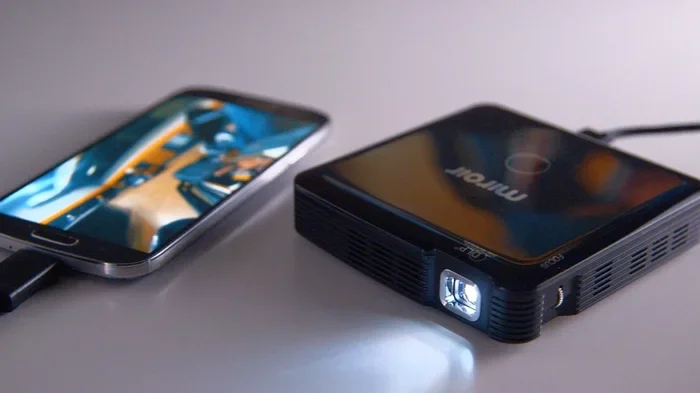
Mirroring your phone to a projector using HDMI is easier than you think. With the right adapter and a simple cable connection, you can share your phone screen on a big display in minutes. This guide walks you through every step, from choosing the right gear to fixing common issues.
Have you ever wanted to show photos, videos, or presentations on a big screen straight from your phone? Mirroring your phone to a projector using HDMI makes this possible. It is one of the simplest and most reliable ways to share your screen with a group. Whether you are at home, in a classroom, or at a business meeting, a wired connection gives you a stable and clear display.
In this guide, we will walk you through every step of the process. You will learn what equipment you need, how to set things up, and how to fix common problems. We will also share tips to make your experience better. By the end, you will feel confident casting your phone screen to a projector like a pro.
The good news is that you do not need to be tech-savvy. The process is straightforward and works with most modern smartphones. Let us dive in and get your phone connected to a projector right away.
Key Takeaways
- You need an HDMI adapter: The right adapter is essential for connecting your phone to a projector.
- Wired mirroring is reliable: HDMI connections offer stable, lag-free screen sharing compared to wireless options.
- Compatibility matters: Check your phone and projector specs before buying any adapter.
- Setup takes minutes: The actual process is quick and does not require technical skills.
- Troubleshooting is simple: Most issues have easy fixes like restarting devices or checking cable connections.
- Alternative methods exist: Wireless options like screen mirroring apps work when HDMI is not available.
📑 Table of Contents
- What Is Phone Mirroring to a Projector?
- What You Need to Mirror Your Phone to a Projector
- Step-by-Step Guide to Mirror Your Phone to a Projector
- Common Problems and How to Fix Them
- Tips for the Best Mirroring Experience
- Mirror Your Phone Without HDMI (Alternative Methods)
- Frequently Asked Questions About Mirroring Phone to Projector
- Final Thoughts on Mirroring Your Phone to a Projector
What Is Phone Mirroring to a Projector?
Phone mirroring means displaying your phone screen on a larger display in real time. When you mirror your device, everything you do on your phone appears on the big screen. This includes apps, videos, photos, games, and presentations.
Using HDMI for this purpose is called wired mirroring. It sends both audio and video through a single cable. This makes it one of the most dependable methods for screen mirroring. You do not have to worry about lag, Wi-Fi drops, or signal interference.
There are two main types of mirroring. Wireless mirroring uses Wi-Fi or Bluetooth. Wired mirroring uses a cable, usually HDMI. Each has its benefits, but wired connections tend to be more stable. If you want a hassle-free experience, mirroring with HDMI is the way to go.
Why Choose HDMI Over Wireless Methods?
Wireless methods like AirPlay or Chromecast are convenient. But they can suffer from delays or quality issues. HDMI provides a direct, plug-and-play connection. Here is why many people prefer it:
- No lag or delay: The image on your projector matches your phone in real time.
- Better quality: HDMI supports high-definition video output up to 1080p or even 4K.
- No Wi-Fi needed: You do not need a shared network to get things working.
- Stable connection: There is no risk of the connection dropping mid-presentation.
- Audio and video in one cable: You get both sound and picture through a single connection.
What You Need to Mirror Your Phone to a Projector
Before you start, make sure you have the right equipment. The setup is simple, but having the correct parts makes all the difference. Let us look at what you need for casting your phone to a projector.
1. An HDMI-Compatible Projector
Your projector needs an HDMI input port. Most modern projectors come with at least one HDMI port. Check the back or side of your device. If you see a small rectangular port labeled “HDMI,” you are good to go.
Some older projectors only have VGA ports. In that case, you would need a different adapter. But for this guide, we assume your projector has a standard HDMI input.
2. The Right HDMI Adapter for Your Phone
The adapter you need depends on your phone model. Here is a quick breakdown:
- For iPhones: You need a Lightning to HDMI adapter. Apple calls this their Digital AV Adapter.
- For Samsung Galaxy phones: A USB-C to HDMI adapter works well. Some older Samsung models use Micro-USB.
- For Google Pixel phones: A USB-C to HDMI adapter is the right choice.
- For other Android phones: Check your phone’s charging port and buy the matching adapter.
3. A Standard HDMI Cable
You also need a regular HDMI cable to connect the adapter to the projector. These cables are widely available and affordable. Make sure you get a good quality cable that supports high definition.
4. Power Source for Your Phone
Screen mirroring uses a lot of battery. It is a good idea to keep your phone plugged in while projecting. Some adapters include a USB port for charging. This way, your phone stays powered throughout your presentation.
Quick Comparison: Adapter Types
| Phone Type | Adapter Needed | Price Range |
|---|---|---|
| iPhone | Lightning to HDMI | $10 – $30 |
| Samsung (USB-C) | USB-C to HDMI | $8 – $25 |
| Google Pixel | USB-C to HDMI | $8 – $25 |
| Other Android (Micro-USB) | Micro-USB to HDMI | $7 – $20 |
Note: Prices may vary based on brand and quality. Always buy from trusted sellers.
Step-by-Step Guide to Mirror Your Phone to a Projector
Now that you have everything ready, let us walk through the setup process. Following these steps will get your phone screen on the projector in just a few minutes.
Step 1: Turn Off Both Devices
Start by turning off your projector and your phone. This is not strictly necessary, but it helps avoid any glitches during setup. Once both are off, plug in your HDMI cable to the projector.
Step 2: Connect the Adapter to Your Phone
Take your HDMI adapter and plug it into your phone’s charging port. Make sure it fits snugly and is seated properly. If your adapter has a USB port, plug in a charging cable to keep your phone powered.
Step 3: Connect the HDMI Cable
Take the other end of the HDMI cable and plug it into the adapter. Then plug the other end of the cable into the projector’s HDMI port. You should hear a click when the connection is secure.
Step 4: Turn On the Projector
Power on your projector and select the correct HDMI input. Most projectors have a button or menu option to switch between inputs. Look for “HDMI 1” or “HDMI 2” depending on which port you used.
Step 5: Turn On Your Phone
Turn on your phone. In most cases, the projector will immediately display your phone screen. Some phones may show a prompt asking you to allow screen mirroring. Tap “Allow” or “OK” to continue.
Step 6: Adjust Display Settings
Once you see your phone screen on the projector, you can adjust the display. Use your phone’s settings to rotate the screen or adjust the resolution. You can also change the projector’s focus and zoom for a clearer picture.
Pro Tips for a Smooth Setup
- Use a short cable: Shorter HDMI cables provide a stronger signal.
- Keep your phone cool: Mirroring can cause your phone to heat up. Remove thick cases if needed.
- Close unused apps: This frees up memory and makes mirroring smoother.
- Test before the big event: Always do a test run before presenting to an audience.
Common Problems and How to Fix Them
Even with the best setup, you might run into issues now and then. Do not worry. Most problems are easy to fix. Here are the most common issues people face when they try to mirror their phone to a projector and how to solve them.
No Signal on the Projector
This is the most common problem. If the projector shows no signal, check the following:
- Make sure both ends of the HDMI cable are firmly plugged in.
- Check that the projector is set to the correct HDMI input.
- Try a different HDMI cable to rule out a faulty cable.
- Unplug the adapter, wait a few seconds, and plug it back in.
Black Screen on the Projector
If your phone is on but the projector shows a black screen, try these steps:
- Restart your phone and the projector.
- Make sure your adapter is compatible with your phone model.
- Check if your phone supports MHL or Slimport technology. Some older adapters require this.
- Update your phone’s software to the latest version.
Poor Image Quality
If the image looks blurry or pixelated, try the following:
- Adjust the projector’s focus and keystone settings.
- Use a shorter HDMI cable for a better signal.
- Check that your adapter supports the resolution you need.
- Lower your phone’s screen resolution temporarily to test.
No Sound Through the Projector
HDMI should carry both video and audio. If you have no sound, check these:
- Make sure your phone’s volume is turned up.
- Check the projector’s volume and audio settings.
- Go to your phone’s sound settings and make sure HDMI audio output is selected.
- Try unplugging and replugging the HDMI cable.
Phone Overheating During Mirroring
Screen mirroring can make your phone warm. This is normal. To prevent overheating:
- Take short breaks during long presentations.
- Remove your phone case to help it cool down.
- Keep your phone in a cool, well-ventilated area.
- Plug your phone into a power source during use.
Tips for the Best Mirroring Experience
Once you have everything working, a few simple tips can make your experience even better. These small adjustments can have a big impact on how your phone projection looks and feels.
Use a High-Quality Adapter
Cheap adapters can cause lag, poor quality, or connection issues. Invest in a reputable brand. Look for adapters that are certified for your phone model. A good adapter ensures smooth video output every time.
Keep Your Devices Updated
Software updates often include fixes for display mirroring issues. Make sure your phone and projector firmware are up to date. This simple step can prevent many common problems.
Manage Your Phone’s Settings
Before you start mirroring, adjust a few settings on your phone:
- Turn on “Do Not Disturb” mode to avoid interruptions.
- Set your screen brightness to a comfortable level.
- Disable auto-lock so your screen stays on during the presentation.
- Turn off notifications to keep the focus on your content.
Optimize Your Projector Position
The placement of your projector affects the viewing experience. Here are some quick tips:
- Place the projector at eye level for the best viewing angle.
- Make sure the projector is focused and centered on the screen.
- Dim the room lights for a clearer image.
- Keep the projector at the recommended distance from the screen.
Mirror Your Phone Without HDMI (Alternative Methods)
Sometimes an HDMI connection is not possible. Maybe your projector does not have an HDMI port, or you do not have the right adapter. In these cases, you can use wireless methods to cast your phone to a projector.
Using a Wireless HDMI Kit
Wireless HDMI kits send your phone screen to the projector without a cable. You plug a small transmitter into your phone and a receiver into the projector. These kits work well for casual use but may have slight delays compared to wired connections.
Using Screen Mirroring Apps
Many apps allow you to mirror your phone wirelessly. Apps like AirScreen, Reflector, or AllCast can stream your phone screen to a projector over Wi-Fi. These are great options for quick presentations or sharing photos with friends.
Using a Smart Projector
Some modern projectors come with built-in smart features. These projectors can connect directly to your phone via Wi-Fi or Bluetooth. If you have a smart projector, check its manual for wireless display options.
Which Method Is Best?
For the most reliable and highest-quality experience, HDMI is the winner. It offers the best image quality, no lag, and a stable connection. Wireless methods are great for convenience, but they may not match the quality of a wired connection.
If you need a quick and easy solution, wireless mirroring works well. But for important presentations, lectures, or movie nights, mirroring with HDMI is the best choice.
Frequently Asked Questions About Mirroring Phone to Projector
Can I mirror any phone to any projector using HDMI?
Not all phones and projectors work together out of the box. Your phone needs to support video output, and your projector needs an HDMI input. Most modern smartphones and projectors are compatible. You may need an adapter specific to your phone model to make the connection work.
Do I need any special apps to mirror my phone via HDMI?
No, wired HDMI mirroring does not require any apps. The adapter handles the connection automatically. Your phone screen should appear on the projector right away. Some phones may ask for permission the first time you connect, but no extra software is needed.
Why is there a delay when I mirror my phone to the projector?
A slight delay is normal with some adapters, especially cheaper ones. Using a high-quality adapter and a short HDMI cable reduces lag significantly. If the delay is severe, try restarting both devices or testing a different adapter.
Can I mirror my iPhone to a projector without Apple’s official adapter?
Yes, there are third-party Lightning to HDMI adapters available. They work with most projectors and are often more affordable than Apple’s official adapter. Just make sure the adapter is compatible with your iPhone model and supports the resolution you need.
Does mirroring my phone drain the battery quickly?
Yes, screen mirroring uses more battery than normal use. Your phone is constantly sending video data to the projector. To preserve battery, keep your phone plugged in while mirroring and reduce screen brightness when possible.
Can I mirror my phone to a projector and still use my phone?
Yes, you can use your phone while it is mirrored. However, anything you do on your phone will also appear on the projector screen. If you want to hide what you are doing, consider using a separate device or pausing the mirror temporarily.
Final Thoughts on Mirroring Your Phone to a Projector
Mirroring your phone to a projector using HDMI is a simple and effective way to share your screen with others. It requires minimal equipment and just a few minutes to set up. Whether you are giving a presentation at work, showing vacation photos to friends, or watching a movie on a big screen, this method delivers excellent results every time.
The key is having the right adapter and a reliable HDMI cable. Once you have those, the rest is easy. Follow the steps in this guide, and you will be projecting your phone screen in no time. Remember to troubleshoot common issues if they arise, and do not hesitate to test your setup before the real event.
With the tips and advice in this article, you are now well-equipped to handle any phone-to-projector mirroring situation. Share this guide with friends or colleagues who might benefit from it. Happy mirroring!