How Do I Connect My Ps5 To My Phone Without Any Trouble
Learning how do I connect my PS5 to my phone is easier than most people think. You can use the built-in Remote Play feature, the PlayStation app, or Bluetooth to link your console with your smartphone. This guide walks you through every method step by step so you can game, stream, and control your PS5 from anywhere in your home.
So you want to know how do I connect my PS5 to my phone. Maybe you want to stream games in bed. Maybe you need to check your download progress from the couch. Or maybe you just want to use your phone as a second screen while you play. Whatever the reason, you are in the right place.
Connecting your PS5 to your phone opens up a lot of possibilities. You can use your smartphone as a remote control. You can stream your favorite games to a smaller screen. You can even use your DualSense controller with mobile games. The good news is that Sony made all of this pretty simple. You do not need to be a tech expert to get it working.
In this guide, I will walk you through every method. I will show you how to set up Remote Play, how to use the PlayStation app, and how to pair your controller. I will also share tips to fix common problems. By the end, you will know exactly how to connect your PS5 to your phone like a pro.
Key Takeaways
- Remote Play is the easiest way: You can stream your PS5 games to your phone using the free Remote Play app over Wi-Fi.
- The PlayStation app gives you extra control: Use it to manage downloads, chat with friends, and even buy games from your phone.
- Your DualSense controller pairs with phones too: Connect it via Bluetooth to play mobile games or use it as a general gamepad.
- A strong Wi-Fi connection matters: A stable network is the key to smooth streaming and low lag.
- Troubleshooting is simple: Most connection problems fix themselves with a quick restart or setting check.
- You do not need extra hardware: Everything you need is already built into your PS5 and phone.
📑 Table of Contents
- What You Need Before You Start
- How to Connect Your PS5 to Your Phone Using Remote Play
- Using the PlayStation App to Manage Your PS5
- Connecting Your DualSense Controller to Your Phone
- Troubleshooting Common Connection Problems
- Tips for the Best PS5 Phone Connection Experience
- Final Thoughts on Connecting Your PS5 to Your Phone
What You Need Before You Start
Before you try any connection method, make sure you have a few things ready. Having everything in place saves you time and frustration later on.
- A PlayStation 5 console: Make sure it is updated to the latest system software. You can check for updates in the Settings menu.
- A smartphone: Both iPhone and Android phones work well. Make sure your phone is connected to the same Wi-Fi network as your PS5.
- A strong Wi-Fi connection: Your wireless network speed matters a lot. A faster connection means smoother streaming and less lag.
- The free Remote Play app: You can download it from the App Store or Google Play Store.
- The PlayStation app: This is a separate app that lets you manage your console from your phone.
Quick tip: If your Wi-Fi signal is weak in the room where you plan to use your phone, consider moving your router closer. A strong internet connection makes all the difference when you are trying to stream PS5 games to your mobile device.
How to Connect Your PS5 to Your Phone Using Remote Play
The Remote Play feature is the most popular way to link your PS5 with your phone. It lets you stream your console games directly to your smartphone screen. Think of it as a portable monitor for your PS5. You can play almost any game from your library right on your phone.
Step 1: Enable Remote Play on Your PS5
First, you need to turn on Remote Play on your console. Here is how to do it:
- Turn on your PS5 and go to the Settings menu.
- Select System, then look for Remote Play.
- Toggle the switch to turn on Enable Remote Play.
- Make sure the option Allow Remote Play is also enabled.
Once you do this, your PS5 is ready to send its screen to other devices on your network. It is a simple process, and it only takes about a minute.
Step 2: Download and Set Up the Remote Play App
Now grab your phone and follow these steps:
- Open the App Store or Google Play Store on your smartphone.
- Search for PlayStation Remote Play.
- Download and install the app for free.
- Open the app and sign in with your PlayStation Network account.
- The app should automatically find your PS5 on the same Wi-Fi network.
If your phone does not find the console right away, do not worry. Make sure both devices are on the same wireless network. You can also try restarting your router. This fixes the problem most of the time.
Step 3: Start Streaming
Once the app finds your PS5, tap on it to connect. You should see your console screen appear on your phone. From here, you can:
- Launch any game from your library.
- Use your phone touchscreen as a virtual controller.
- Connect a physical game controller for a better experience.
- Adjust the video quality in the app settings for smoother performance.
Keep in mind that the quality of your stream depends on your Wi-Fi speed. A fast internet connection gives you a clear picture with very little delay. If your signal is weak, you might notice some lag or lower image quality.
Using the PlayStation App to Manage Your PS5
The PlayStation app is different from Remote Play. It does not stream your games. Instead, it lets you manage your console from a distance. This is great for everyday tasks that do not require you to sit in front of your TV.
What Can You Do With the PlayStation App?
This mobile app gives you a lot of power over your PS5. Here are some things you can do:
- Check download and update progress: See how big your game downloads are and how fast they are going.
- Send messages to friends: Chat with your PlayStation Network friends without turning on your TV.
- Buy games from the store: Browse the PlayStation Store and purchase new titles right from your phone.
- Set your PS5 to rest mode remotely: Turn off your console or put it in rest mode from anywhere.
- View your trophy collection: Check your progress and recent achievements on the go.
To get started, download the PlayStation app from your phone’s app store. Sign in with the same account you use on your PS5. The app will detect your console automatically if both devices are on the same network.
Expert insight: Many players use the PlayStation app alongside Remote Play. One app handles the streaming, and the other handles the management tasks. Together, they give you full control of your console from your mobile device.
Connecting Your DualSense Controller to Your Phone
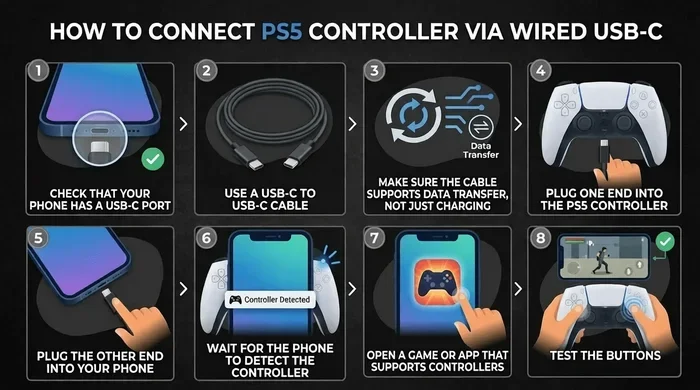
Did you know you can use your PS5 controller with your phone? The DualSense controller supports Bluetooth, which means you can pair it with almost any smartphone. This is perfect for playing mobile games that feel better with a proper game controller.
How to Pair Your DualSense Controller via Bluetooth
Here is the step-by-step process to connect your controller to your phone:
- Press and hold the PlayStation button and the Create button at the same time on your DualSense controller.
- The light bar on the controller will start flashing. This means it is in pairing mode.
- On your phone, go to Settings and then Bluetooth.
- Look for Wireless Controller in the list of available devices.
- Tap on it to pair.
Once paired, your controller will stay connected until you turn it off or disconnect it manually. You can use it with most mobile games that support external controllers. Popular games like Genshin Impact and Call of Duty Mobile work great with the DualSense.
Quick tip: If your phone does not find the controller, make sure it is charged. A low battery can sometimes cause Bluetooth pairing issues. Also, keep the controller close to your phone during the pairing process for the best results.
Using the DualSense for PS5 Remote Play
If you are using Remote Play to stream PS5 games to your phone, you have two options for controls. You can use the on-screen buttons on your phone screen. Or you can connect your DualSense controller to your phone via Bluetooth and use the real thing. The second option feels much better and gives you the full PS5 gaming experience on a smaller screen.
Most players prefer using the physical controller for Remote Play. It gives you the same feel as playing on your TV. The haptic feedback and adaptive triggers on the DualSense work through Remote Play too, which is a nice bonus.
Troubleshooting Common Connection Problems
Even though connecting your PS5 to your phone is usually smooth, you might run into issues now and then. Here are the most common problems and how to fix them.
Remote Play Will Not Connect
If the Remote Play app cannot find your PS5, try these fixes:
- Make sure both your phone and your PS5 are on the same Wi-Fi network.
- Restart your PS5 completely and try again.
- Restart your phone and reopen the Remote Play app.
- Check that Remote Play is turned on in your PS5 settings.
- Make sure your internet connection is stable and fast enough for streaming.
Lag or Stuttering During Streaming
Lag is the most frustrating part of streaming games to your phone. If your stream stutters or delays, try these solutions:
- Move closer to your Wi-Fi router to get a stronger signal.
- Lower the video quality setting in the Remote Play app.
- Close other apps on your phone that might be using bandwidth.
- Check if anyone else in your household is downloading large files.
- Consider using a 5GHz Wi-Fi band instead of 2.4GHz for faster speeds.
A fast internet connection is the single most important factor for smooth PS5 phone streaming. If your home network is slow, no amount of troubleshooting will fix the lag completely.
Bluetooth Pairing Fails
If your DualSense controller will not pair with your phone, try this:
- Turn off Bluetooth on your phone and turn it back on.
- Reset your DualSense controller by using the small reset button on the back.
- Remove the controller from your phone’s Bluetooth memory and try pairing again.
- Make sure your phone’s operating system is up to date.
Most Bluetooth issues are temporary and easy to fix. A simple restart of both devices solves the problem in most cases.
Tips for the Best PS5 Phone Connection Experience
Now that you know how to set everything up, here are some tips to make your experience even better.
Use a Quality Wi-Fi Router
Your router plays a big role in how well your PS5 and phone communicate. A good router with strong range and fast speeds makes streaming feel seamless. If you have an older router, upgrading to a newer model can seriously improve your wireless connection.
Keep Your Phone and Console Updated
Sony regularly releases updates for the PS5 system software. These updates often fix bugs and improve Remote Play performance. Similarly, keep your phone’s operating system and apps up to date. This ensures the best compatibility and the fewest connection problems.
Use a Phone Mount for Hands-Free Gaming
If you plan to stream games for a long time, a phone mount is a great accessory. You can clip your phone to your controller or attach it to a stand. This gives you a comfortable hands-free setup for gaming on the go or while relaxing on the couch.
Try Both Landscape and Portrait Mode
The Remote Play app works in both orientations. Some games look better in landscape mode because it fills more of your screen. Other games might work better in portrait mode if you are holding your phone vertically. Experiment with both to find what works best for each game.
Set Up a Guest Network for Better Performance
Advanced users can create a separate guest network on their router just for their PS5 and phone. This reduces network congestion from other devices and gives you a cleaner, faster connection for streaming. It is a small setup change that can make a big difference.
Key takeaway: The more you optimize your home network and device settings, the better your PS5 phone connection will perform. Small tweaks add up to a much smoother experience.
Final Thoughts on Connecting Your PS5 to Your Phone
Learning how do I connect my PS5 to my phone is a skill that every PS5 owner should have. It gives you flexibility and convenience that you did not even know you needed. Whether you use Remote Play to stream games, the PlayStation app to manage downloads, or Bluetooth to pair your DualSense controller, the process is straightforward and works really well.
The key to success is a strong Wi-Fi connection and a little patience during setup. Once you get everything working, you will wonder how you ever managed without it. You can check your messages, manage your library, and even play full games all from your phone.
Remember that technology is not always perfect. You might face a connection issue here or there. But with the troubleshooting tips in this guide, you can fix most problems in just a few minutes. Keep your devices updated, stay close to your router, and enjoy the freedom of PS5 phone integration.
Start with Remote Play since it is the easiest and most rewarding method. Once you see your PS5 games running on your phone screen, you will understand why so many players love this feature. It is a game changer for anyone who wants to enjoy console gaming without being tied to the TV.
So go ahead and try it out. Connect your PS5 to your phone today and discover a whole new way to play. You will be glad you did.
Frequently Asked Questions
Can I connect my PS5 to my phone without Wi-Fi?
No, you need a Wi-Fi connection for Remote Play and the PlayStation app. Both your PS5 and phone must be on the same wireless network to communicate. Bluetooth alone is not enough for streaming games from your console to your phone.
Is the Remote Play app free to download?
Yes, the PlayStation Remote Play app is completely free. You can download it from the App Store on iPhone or the Google Play Store on Android. There are no hidden fees or in-app purchases required to use it.
Can I use my phone to play PS5 games while someone else watches TV?
Yes, you can! Remote Play lets you stream your PS5 games to your phone while the console is still connected to your TV. Another person can watch a movie or play a different game on the television at the same time. This is one of the best features of connecting your PS5 to your phone.
Does connecting my DualSense controller to my phone drain its battery?
Using your DualSense controller with your phone via Bluetooth does use some battery power. However, the controller has a long battery life and can last for several hours of continuous use. You can also charge it while playing if needed.
Can I stream PS5 games to my phone over cellular data?
Remote Play works best on Wi-Fi, but you can technically use cellular data. However, streaming games uses a lot of data and can cause high charges on your mobile plan. It is strongly recommended to use a Wi-Fi connection for the best experience and to avoid data overage fees.
What internet speed do I need for smooth PS5 phone streaming?
Sony recommends at least 5 Mbps for a smooth Remote Play experience. For the best quality, aim for 15 Mbps or higher. A faster internet connection reduces lag and improves picture quality. Test your speed online before streaming to make sure your network is up to the task.