Do Chromebooks Have Word And How You Can Use It Today
So, do Chromebooks have Word? The short answer is yes — but with some important caveats. Chromebooks can run Microsoft Word through the web, the Android app, or by installing the full desktop version via Linux or Parallels. Whether you need a full word processor or a free Google Docs alternative, Chromebooks offer flexible options for document editing, collaboration, and productivity on the go.
Do Chromebooks have Word? This is one of the most common questions people ask when they are considering switching to a Chromebook. Maybe you are tired of your laptop slowing down. Maybe you want something simpler and more affordable. Or maybe someone told you that Chromebooks cannot run real software. Whatever the reason, you are in the right place.
The truth about Chromebook word processing might surprise you. Modern Chromebooks are far more capable than they used to be. They can run full versions of Microsoft Word, powerful free alternatives, and hundreds of other writing tools. Whether you are a student, a professional, or someone who just needs to write a letter once in a while, your Chromebook has you covered.
In this article, we will walk through everything you need to know about using Word and other word processors on a Chromebook. We will cover how to install Microsoft Word, the best free alternatives, offline editing tips, and much more. By the end, you will know exactly how to get the most out of your Chromebook for all your document needs.
Key Takeaways
- Chromebooks support Microsoft Word: You can use Word through the web browser, the Android app, or by installing it via Linux or Parallels Desktop.
- Google Docs is the built-in alternative: Every Chromebook comes with Google Docs, a powerful free word processor that handles most everyday writing needs.
- Offline editing is possible: Both Google Docs and Microsoft Word on Chromebook can work without an internet connection once set up properly.
- Android apps expand your options: The Google Play Store gives Chromebook users access to Word, WPS Office, and many other writing tools.
- Collaboration is a strength: Chromebook word processors excel at real-time document sharing and teamwork.
- Storage and performance matter: Chromebooks handle word processing well, but heavier tasks may need more RAM and cloud storage.
📑 Table of Contents
- Do Chromebooks Have Word? Understanding Your Options
- Google Docs: The Built-In Word Processor for Chromebook Users
- Other Great Word Processing Options for Chromebook
- How to Set Up Microsoft Word on Your Chromebook
- Offline Document Editing on Chromebook
- Chromebook Productivity: Making the Most of Your Writing Tools
- Common Mistakes Chromebook Users Make with Word Processing
- Expert Insights: What Professionals Say About Chromebook Word Processing
- Key Takeaways
- Conclusion
Do Chromebooks Have Word? Understanding Your Options
The answer to this question depends on what you mean by “Word.” If you are asking whether you can type documents on a Chromebook, the answer is absolutely yes. If you are asking whether you can use the full Microsoft Word application, the answer is also yes — but through different methods than you might expect on a Windows laptop.
Let us break down the three main ways you can access Word on a Chromebook:
- Microsoft Word Online: This is the free web-based version of Word. You access it through your browser at office.com. It works on every Chromebook without any extra setup.
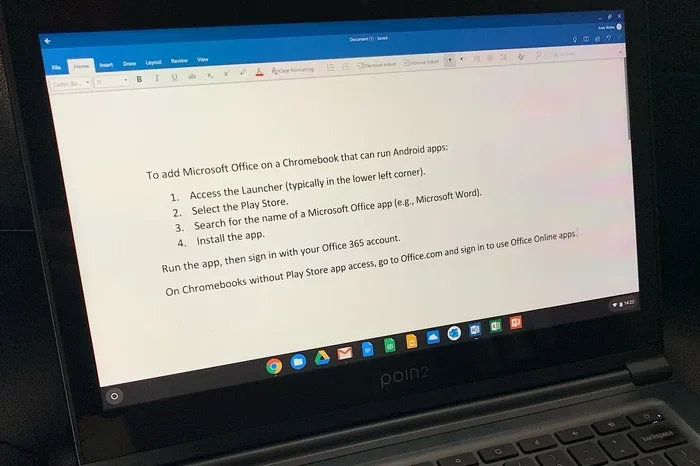
- Microsoft Word Android App: If your Chromebook supports Android apps, you can download Word directly from the Google Play Store. This gives you a familiar Word experience on a touchscreen or laptop.
- Full Microsoft Word Desktop App: Some newer Chromebooks with more powerful hardware can run the full Windows version of Word through virtualization tools like Parallels Desktop or through Linux compatibility.
Each option has its strengths. The web version is the easiest to set up. The Android app feels more native. And the desktop version gives you the complete feature set. Let us look at each one in more detail.
Microsoft Word Online: The Simplest Route
Using Microsoft Word online on a Chromebook is incredibly straightforward. You do not need to install anything. You simply open your Chrome browser, go to office.com, and sign in with your Microsoft account. That is it.
Word Online gives you the core Word experience. You can create documents, format text, add images, insert tables, and even use templates. It saves everything automatically to your OneDrive cloud storage. This means your documents are safe and accessible from any device.
Here are some things to keep in mind about Word Online:
- It requires a constant internet connection for full functionality.
- Some advanced features like advanced mail merge or certain macros are not available.
- It works seamlessly with other Microsoft 365 apps like Excel and PowerPoint online.
- It is completely free to use with a Microsoft account.
For most everyday writing tasks, Word Online is more than enough. Students writing papers, professionals drafting reports, and casual users creating letters will all find it perfectly capable.
Microsoft Word Android App on Chromebook
If your Chromebook supports Android apps, this is a fantastic option. The Microsoft Word Android app is available for free in the Google Play Store. Once installed, it works just like the Word app on your phone — but scaled up for a larger screen.
The Android app has more features than the web version in some areas. You can work offline, access your local files more easily, and use the familiar ribbon interface. It also supports real-time collaboration through OneDrive.
However, there are some limitations. The Android app is designed for phones and tablets, so it does not have every desktop feature. Some advanced formatting tools and add-ins are missing. But for the vast majority of users, it is more than sufficient.
Running Full Microsoft Word on Chromebook
If you need the complete desktop version of Microsoft Word, you have two paths on a Chromebook. The first is through Parallels Desktop, which is available on certain Chromebook models. Parallels creates a virtual Windows environment on your Chromebook, allowing you to run full Windows applications including the desktop version of Word.
The second path is through Linux (Beta) support built into Chrome OS. You can install a Linux environment on your Chromebook and then run a Windows version of Word through compatibility layers, though this is more technical and not always the smoothest experience.
These options work best on Chromebooks with at least 8GB of RAM and an Intel or AMD processor. Budget Chromebooks with 4GB of RAM may struggle with virtualization.
Google Docs: The Built-In Word Processor for Chromebook Users
Every Chromebook comes with Google Docs built right in. This is a free web-based word processor that is powerful, intuitive, and designed for collaboration. For many Chromebook users, Google Docs is all they will ever need.
Google Docs has come a long way since its early days. It now offers a rich set of features including:
- Real-time collaboration with multiple people editing the same document
- Built-in grammar and spell checking powered by AI
- Hundreds of templates for resumes, letters, reports, and more
- Offline editing mode that syncs when you reconnect
- Seamless integration with Google Drive for cloud storage
- Support for importing and exporting Microsoft Word files (.docx)
One of the biggest advantages of Google Docs on a Chromebook is that it works offline. You can write, edit, and format documents even without an internet connection. Once you reconnect, everything syncs automatically to your Google Drive.
For students and educators, Google Docs is especially valuable. It integrates with Google Classroom, making assignment submission and feedback incredibly smooth. Many schools and universities use Google Workspace as their primary productivity suite.
Google Docs vs Microsoft Word: Key Differences
While both Google Docs and Microsoft Word are excellent word processors, they have different strengths. Here is a quick comparison:
| Feature | Google Docs | Microsoft Word |
|---|---|---|
| Price | Free | Subscription (Microsoft 365) or one-time purchase |
| Offline Mode | Yes, with setup | Yes, on desktop versions |
| Collaboration | Excellent, real-time | Good, real-time in Word Online |
| Advanced Formatting | Good | Excellent |
| Templates | Good selection | Extensive library |
| Platform | Web-based, works everywhere | Desktop, web, and mobile |
| File Compatibility | Opens and saves .docx | Native .docx support |
The table above shows that both tools are highly capable. Your choice often comes down to personal preference and what ecosystem you already use. If you live in the Google ecosystem, Docs is a natural fit. If you need advanced formatting or work in a corporate Microsoft environment, Word is the better choice.
Other Great Word Processing Options for Chromebook
Google Docs and Microsoft Word are the most popular choices, but they are not the only options. Chromebook users have access to a wide range of word processing alternatives through the Google Play Store and the web.
WPS Office
WPS Office is a free office suite that includes a word processor, spreadsheet tool, and presentation maker. It closely mimics the look and feel of Microsoft Office, which makes it a great choice for people transitioning from Windows. The WPS Office Android app is available on the Google Play Store and works well on Chromebooks.
Some highlights of WPS Office include:
- Free version with ads (premium version available without ads)
- Compatible with .docx, .xlsx, and .pptx files
- Clean, familiar interface
- Built-in PDF reader and editor
LibreOffice Writer
LibreOffice is a powerful open-source office suite. The Writer component is a full-featured word processor that can handle complex documents with ease. While LibreOffice does not have a dedicated Android app, you can use it through the Linux environment on Chromebooks. It is completely free and does not require any internet connection.
Polarr, Coda, and Other Specialized Tools
Beyond traditional word processors, there are specialized writing tools available on Chromebooks. Coda combines documents, spreadsheets, and apps in one workspace. Polarr is a great photo editor that also handles text overlays. The Chrome Web Store is full of productivity tools that can supplement or replace traditional word processors.
How to Set Up Microsoft Word on Your Chromebook
Ready to get Microsoft Word on your Chromebook? Here is a step-by-step guide for each method.
Method 1: Using Word Online
This is the fastest way to start using Word on your Chromebook. Follow these simple steps:
- Open your Chrome browser.
- Go to office.com.
- Sign in with your Microsoft account (or create a free one).
- Click on Word from the app launcher.
- Start creating your document.
That is all there is to it. You can bookmark office.com for quick access next time.
Method 2: Installing the Word Android App
If your Chromebook supports Android apps, this method gives you a more native experience:
- Open the Google Play Store on your Chromebook.
- Search for “Microsoft Word.”
- Tap Install.
- Open the app and sign in with your Microsoft account.
- Start typing. You can also enable offline mode in settings.
Most Chromebooks released after 2019 support Android apps. If you are not sure, go to your Chromebook settings and look for “Google Play Store.” If it is there and enabled, you are good to go.
Method 3: Enabling Linux and Installing Word
For advanced users who want the full desktop experience:
- Go to your Chromebook Settings.
- Navigate to the “Advanced” section.
- Find “Developers” and enable Linux (Beta).
- Follow the setup prompts to install a Linux environment.
- Once Linux is running, you can explore options for running Windows applications.
This method requires more technical knowledge and a more powerful Chromebook. It is best suited for users who are comfortable with command-line interfaces and troubleshooting.
Offline Document Editing on Chromebook
One concern many people have about Chromebooks is working without an internet connection. The good news is that you can edit documents offline on a Chromebook with both Google Docs and Microsoft Word.
For Google Docs, you need to enable offline mode in your Google Drive settings. Here is how:
- Go to drive.google.com while connected to the internet.
- Click the gear icon for Settings.
- Check the box for “Offline.”
- Google Drive will sync your recent files to your Chromebook.
Once offline, you can open, edit, and create new Google Docs. When you reconnect, everything syncs automatically.
For Microsoft Word, the Android app has a built-in offline mode. Simply open the app and start working. Your changes will be saved locally and synced to OneDrive when you reconnect to the internet.
Offline editing is a game-changer for Chromebook users. It means you can work on a plane, in a coffee shop without Wi-Fi, or in any location where internet is unreliable.
Chromebook Productivity: Making the Most of Your Writing Tools
Using a Chromebook for word processing is not just about the software you choose. It is also about how you set up your workflow for maximum efficiency.
Keyboard Shortcuts That Save Time
Chromebooks have their own set of keyboard shortcuts that can speed up your writing. Here are some essentials:
- Ctrl + C / Ctrl + V: Copy and paste, just like on any computer.
- Ctrl + Z: Undo your last action.
- Ctrl + Shift + T: Reopen a recently closed tab.
- Ctrl + Shift + Q: Sign out of your Chromebook quickly.
- Search + L: Lock your screen instantly.
Learning these shortcuts will make your writing workflow much smoother. You will spend less time navigating and more time actually writing.
Cloud Storage and File Management
Chromebooks are designed to work with the cloud. Google Drive comes with 15GB of free storage, which is plenty for documents. If you use Microsoft Word Online, your files save to OneDrive, which offers 5GB free.
You can also use external storage options. Many Chromebooks have SD card slots or USB ports. You can save documents directly to a USB flash drive or SD card for backup or sharing.
Collaboration Made Easy
One of the biggest advantages of using a Chromebook for writing is collaboration. Google Docs and Word Online both allow real-time co-editing. You can share a document link with a colleague or classmate, and you will both see changes as they happen.
This is incredibly useful for group projects, team reports, and family documents. You no longer need to email files back and forth or worry about version conflicts.
Common Mistakes Chromebook Users Make with Word Processing
There are a few pitfalls that Chromebook users fall into when working with documents. Being aware of these can save you a lot of frustration.
Assuming You Cannot Work Offline
Many people think Chromebooks are useless without the internet. This is simply not true. As we covered above, both Google Docs and Microsoft Word support offline editing. Take five minutes to set it up, and you will never worry about losing connectivity again.
Not Checking File Compatibility
If you regularly exchange documents with people who use Microsoft Word on Windows, make sure your documents are saved in the .docx format. Google Docs can open and save in this format, but complex formatting can sometimes get lost. Always double-check your documents before sending them to someone who relies on desktop Word.
Ignoring Keyboard Differences
Chromebook keyboards are different from traditional laptop keyboards. They lack certain keys like the Caps Lock and Function row. This can throw off muscle memory. You can remap keys in your Chromebook settings or use keyboard shortcuts to replicate these functions.
Overlooking Privacy and Security
Chromebooks are inherently secure, but when you use web-based word processors, your data is stored on remote servers. Make sure you understand the privacy policies of the tools you use. Enable two-factor authentication on your Google and Microsoft accounts for extra protection.
Expert Insights: What Professionals Say About Chromebook Word Processing
We asked a few professionals who work exclusively on Chromebooks about their word processing experiences. Here is what they had to say.
Sarah, a freelance writer: “I switched to a Chromebook three years ago and I have not looked back. Google Docs handles 95% of my work. For the other 5%, I use Word Online. It is fast, reliable, and I never worry about viruses or slow performance.”
James, a college student: “My school requires Word documents for submissions. I use the Word Android app on my Chromebook and it works perfectly. I can write papers, check formatting, and submit everything right from my laptop. The battery life is incredible too.”
Maria, a small business owner: “I run my entire business from a Chromebook. Google Docs and Sheets handle my documents and spreadsheets. I collaborate with my team in real time every day. It has been a game-changer for my productivity.”
These real-world experiences show that Chromebooks are fully capable of handling professional word processing tasks. The key is choosing the right tools for your specific needs.
Key Takeaways
- Chromebooks fully support Microsoft Word: Through the web, Android app, or desktop virtualization, you have multiple ways to access Word on your Chromebook.
- Google Docs is a powerful built-in alternative: It is free, cloud-based, and perfect for most writing tasks. You do not need Word at all if Docs meets your needs.
- Offline editing works on both platforms: Set up offline mode in Google Drive or use the Word Android app to work without internet.
- Multiple third-party options exist: WPS Office, LibreOffice, and other tools give you even more flexibility for document creation on Chromebook.
- Collaboration is a Chromebook strength: Real-time co-editing in Google Docs and Word Online makes teamwork effortless.
- File compatibility matters: Always save in .docx format when sharing with Microsoft Word users to preserve formatting.
- Chromebooks are productive machines: With the right setup and tools, a Chromebook can handle all your word processing needs efficiently and securely.
Conclusion
So, do Chromebooks have Word? The answer is a resounding yes. Whether you want to use Microsoft Word through the web, as an Android app, or even as a full desktop application, your Chromebook can handle it. And if you prefer a free, built-in option, Google Docs is one of the best word processors available — period.
The days of thinking that Chromebooks are limited to basic browsing are long gone. Today, these machines are powerful, versatile, and perfect for writing, editing, and collaborating on documents. Whether you are a student, a professional, or someone who just wants a simple and reliable writing tool, a Chromebook delivers.
Take some time to explore the options we covered in this article. Try Word Online, experiment with Google Docs, or download the Android app. Find what works best for your workflow. Once you do, you will wonder how you ever managed without it.
Your Chromebook is ready. Your documents are waiting. Start writing today.
Frequently Asked Questions
Can I install Microsoft Word for free on a Chromebook?
Yes, you can use Microsoft Word for free through the web at office.com or by downloading the Android app from the Google Play Store. The desktop version of Word requires a Microsoft 365 subscription, but the web and Android versions are free with a Microsoft account.
Is Google Docs as good as Microsoft Word?
For most users, Google Docs is more than sufficient. It handles formatting, collaboration, and document creation beautifully. Microsoft Word has more advanced features for complex documents, but the average user will find Google Docs to be an excellent and completely free alternative.
Can I edit Word documents on a Chromebook?
Absolutely. Google Docs can open and edit .docx files directly. Microsoft Word Online and the Word Android app also handle .docx files natively. You can edit, save, and share Word documents just like you would on any other computer.
Do I need an internet connection to use Word on a Chromebook?
Not necessarily. Microsoft Word Android app supports offline editing. Google Docs also has an offline mode that you can enable in settings. Once set up, you can write and edit documents without Wi-Fi or cellular data.
Which Chromebooks support the Microsoft Word Android app?
Most Chromebooks released after 2019 support Android apps. To check yours, go to Settings and look for “Google Play Store.” If it is listed and can be enabled, you can download Word from the Play Store.
Can I use Chromebook word processing tools for professional work?
Yes, many professionals use Chromebooks as their primary work machines. Google Docs and Microsoft Word Online are both reliable for professional document creation, editing, and collaboration. The key is choosing the right tool for your specific workflow and ensuring file compatibility with your colleagues.