How Do I Connect Google To My Home and Smart Devices
Learning how do I connect Google to my home is easier than you think. This guide walks you through setting up your Google Home device, linking smart devices, and using voice commands with Google Assistant. You will discover practical tips for creating routines, troubleshooting issues, and getting the most out of your smart home setup.
Setting up a smart home can feel overwhelming at first. But learning how do I connect Google to my home is one of the easiest steps you can take. Google Home offers a simple and powerful way to bring all your smart devices together under one roof. Whether you want to control lights, play music, or manage your thermostat, Google makes it possible with just your voice.
In this guide, we will walk you through every step of the process. You will learn how to set up your Google Home device, connect your favorite smart gadgets, and create helpful routines that make daily life easier. We will also cover common problems and share expert tips to get the most out of your setup. By the end, you will feel confident running your own smart home with Google.
The whole process starts with a few simple tools. You need a Google Home device, a Wi-Fi network, a smartphone, and the Google Home app. That is it. No special skills are needed. Let us dive in and get your home smarter today.
Key Takeaways
- Simple Setup Process: Connecting Google to your home takes just a few minutes using the Google Home app and a stable Wi-Fi network.
- Wide Device Compatibility: Hundreds of smart home devices work with Google Home, including smart lights, plugs, thermostats, and cameras.
- Voice Control Made Easy: Google Assistant lets you control your entire home using simple voice commands from anywhere in the house.
- Smart Routines Save Time: You can automate daily tasks like turning on lights, playing music, and adjusting the thermostat with a single command.
- Troubleshooting Is Straightforward: Most connection issues can be resolved quickly by restarting your device, checking Wi-Fi, or updating the app.
- Security Matters: Using a guest network and keeping firmware updated helps keep your smart home safe and running smoothly.
📑 Table of Contents
- What Is Google Home and Why Should You Connect It?
- Setting Up Your Google Home Device Step by Step
- Connecting Smart Devices to Google Home
- Using Voice Commands and Google Assistant
- Creating Smart Home Routines and Automations
- Troubleshooting Common Connection Issues
- Keeping Your Smart Home Secure and Up to Date
- Conclusion
What Is Google Home and Why Should You Connect It?
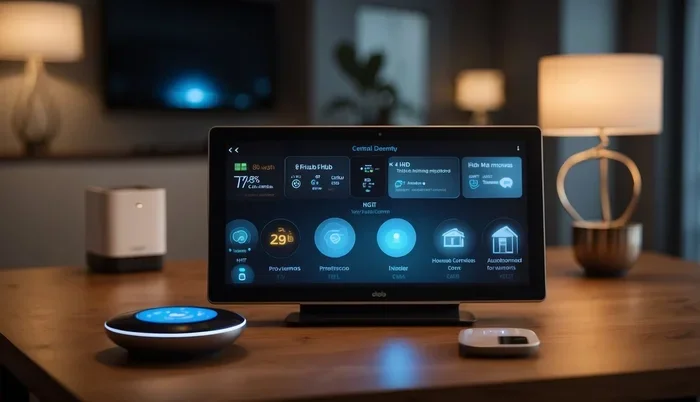
Google Home is a smart speaker platform built around Google Assistant. It lets you control compatible devices using your voice. Think of it as a central hub for your entire home. Instead of juggling multiple apps, you can manage lights, locks, cameras, and more from one place.
Understanding the Google Home Ecosystem
The Google Home ecosystem includes several product lines. Google Nest devices are the most popular. They range from the tiny Nest Mini to the powerful Nest Hub Max. Each device offers different features, but they all work together seamlessly. The Google Home app acts as your command center. It lets you add, organize, and control all your connected devices.
One of the biggest advantages of home automation with Google is simplicity. You do not need to be a tech expert. The setup is designed for everyone. Google also supports a huge library of compatible devices from brands like Philips Hue, TP-Link, Ring, and many more. This means you have plenty of choices when building your smart home.
- Voice control hands-free operation
- Multi-device support for a unified experience
- Routine automation to simplify daily tasks
- Wide brand compatibility with thousands of devices
- Free setup with no subscription required
Setting Up Your Google Home Device Step by Step
Before you can control anything, you need to set up your Google Home device properly. The process is quick and straightforward. Follow these steps to get started with your Google Home setup.
Downloading the Google Home App
First, grab your phone or tablet. Go to the App Store on iPhone or the Play Store on Android. Search for Google Home and download the app. Make sure you are signed in with your Google account. This account is essential because it links all your devices and settings together.
Once the app is installed, open it. You will see a welcome screen. Tap on the plus sign to add a new device. The app will scan for nearby Google Home devices automatically.
Connecting to Your Wi-Fi Network
Your Google Home device needs a strong Wi-Fi connection to work properly. Make sure your router is on and you know your Wi-Fi password. When the app prompts you, select your network and enter the password.
Wait for the device to connect. You will hear a chime when it is ready. If the connection fails, try moving your router closer to the device. A strong signal makes a big difference in performance.
Quick Tips for a Smooth Setup:
- Place your device in a central location for the best coverage
- Use a 2.4 GHz Wi-Fi band for better compatibility
- Keep your phone within 15 feet of the device during setup
- Restart your router if you encounter connection issues
- Make sure your Google account is the same one used on your phone
Updating Firmware After Setup
After your device connects, check for firmware updates. Open the Google Home app and tap on your device. If an update is available, the app will prompt you to install it. Keeping your device updated ensures the best performance and security. Updates often include new features and bug fixes that improve your experience.
Common Mistakes to Avoid:
- Skipping the firmware update after initial setup
- Using a weak Wi-Fi signal or dead zone in your home
- Forgetting to sign in with the correct Google account
- Placing the device near interference sources like microwaves
Connecting Smart Devices to Google Home
Now comes the fun part. Once your Google Home device is ready, you can start adding smart home devices. The process is simple and works with a wide range of brands and product types.
Compatible Devices You Can Connect
Google Home supports thousands of devices. Here are some of the most popular categories you can connect:
- Smart lights from Philips Hue, LIFX, and Wyze
- Smart plugs from TP-Link Kasa and Wemo
- Smart thermostats like Nest and Ecobee
- Smart cameras from Ring, Arlo, and Wyze
- Smart locks from August and Yale
- Smart speakers from various brands
- Chromecast devices for streaming content
- Robot vacuums from iRobot and Roborock
Most of these devices use device pairing through the Google Home app. Simply open the app, tap the plus sign, and select the device type. Follow the on-screen instructions to complete the pairing.
Comparison of Popular Google Home Devices
| Device | Price Range | Key Feature | Best For |
|---|---|---|---|
| Nest Mini | $49 | Compact size, voice control | Budget-friendly smart speaker |
| Nest Audio | $99 | Rich, full sound | Music lovers and casual listeners |
| Nest Hub (1st gen) | $99 | 7-inch touchscreen display | Kitchen and visual control |
| Nest Hub Max | $229 | 10-inch screen with camera | Video calls and large display needs |
Each device offers different features, but they all connect to the same Google Home app. You can mix and match devices across your home. For example, place a Nest Mini in the bedroom and a Nest Hub Max in the living room. They all work together as one unified system.
Pairing Process for Popular Devices
The pairing process is similar for most devices. Open the Google Home app. Tap the plus icon. Select Set up device and choose the brand. Follow the prompts on your screen. You may need to open the device brand’s app first to link your account with Google.
For example, if you want to connect Philips Hue bulbs, open the Hue app first. Create your account and set up the bridge. Then go back to Google Home and select Philips Hue from the list. Sign in with your Hue account, and the bulbs will appear in your Google Home app.
Expert Insight: Always check the compatibility list before buying a new smart device. Look for the “Works with Google Assistant” badge on the product page. This ensures a smooth and hassle-free setup experience.
Using Voice Commands and Google Assistant
Once your devices are connected, you can start using voice commands to control them. Google Assistant is the brain behind everything. It understands natural language, so you do not need to memorize complex commands.
Essential Voice Commands to Get Started
Here are some basic commands you can try right away:
- “Hey Google, turn on the living room lights.”
- “Hey Google, set the thermostat to 72 degrees.”
- “Hey Google, play jazz music.”
- “Hey Google, what is on my schedule today?”
- “Hey Google, lock the front door.”
- “Hey Google, show me the camera feed.”
These commands work once your devices are properly linked. Just say “Hey Google” followed by your request. The assistant will respond and take action immediately.
Advanced Voice Control Features
As you get comfortable, you can explore more advanced features. Google Assistant supports multi-room audio. This means you can play music across multiple speakers at the same time. Just say, “Hey Google, play music in every room.”
You can also create voice match profiles. This lets Google recognize different voices in your household. Each person can get personalized responses, calendar reminders, and music preferences. It is a great feature for families who share one Google Home device.
Quick Tip: Speak clearly and at a normal volume when giving commands. You do not need to shout. Google Assistant is designed to pick up your voice from across the room, even with background noise.
Creating Smart Home Routines and Automations
One of the best features of connecting Google to your home is the ability to create routines and automation. Routines let you trigger multiple actions with a single voice command. This saves time and makes your home feel truly smart.
Setting Up Daily Routines
To create a routine, open the Google Home app. Tap the Routines tab at the bottom. Tap the plus icon to start a new routine. You can set a trigger, which is the command that starts the routine. Then add actions that happen one after another.
Here are some popular routine ideas:
- Good Morning Routine: Turns on lights, reads the news, and starts your coffee maker
- Good Night Routine: Turns off all lights, locks doors, and sets the alarm
- Movie Night Routine: Dims lights, closes smart blinds, and turns on the TV
- Leaving Home Routine: Turns off all devices, locks doors, and arms security cameras
Routines make home automation feel effortless. You set them up once, and they run every day. Over time, you can refine and expand your routines to fit your lifestyle perfectly.
Multi-Room Audio and Group Control
Google Home supports multi-room audio, which is perfect for larger homes. You can group speakers together and control them as one unit. In the Google Home app, go to Settings and select Groups. Create a group for each floor or room in your home.
Once your groups are set up, you can say, “Hey Google, play music upstairs.” The speakers in that group will start playing simultaneously. This is great for parties, background music, or just keeping the whole house entertained.
Common Mistakes to Avoid:
- Creating too many routines that overlap and cause conflicts
- Forgetting to name your devices clearly for easy voice control
- Not testing routines after setting them up
- Ignoring firmware updates that may affect routine performance
Troubleshooting Common Connection Issues
Even with the best setup, you may run into occasional issues. Do not worry. Most problems are easy to fix. Here are the most common issues and how to solve them.
Device Not Responding?
If a device stops responding to voice commands, the first step is to check your Wi-Fi. A weak or unstable connection is the most common cause. Restart your router and wait a minute before trying again. You can also restart your Google Home device by unplugging it for 30 seconds.
Another common issue is that the device needs to be re-paired. Open the Google Home app, remove the device, and add it again. This often resolves connection problems quickly.
Wi-Fi Connectivity Problems
If your Google Home device keeps losing connection, consider these solutions:
- Move your router closer to the Google Home device
- Switch to a guest network to reduce congestion on your main network
- Update your router firmware to the latest version
- Reduce interference from other electronic devices
- Consider a Wi-Fi mesh system for better whole-home coverage
Expert Insight: Many people overlook the importance of their router placement. Keep your router in a central, elevated location away from walls and metal objects. This small change can dramatically improve your smart home performance.
When to Factory Reset Your Device
If none of the above steps work, you may need to factory reset your Google Home device. This wipes all settings and returns the device to its original state. To do this, press and hold the microphone mute button on the device for about 15 seconds. The device will restart and be ready for a fresh setup.
After a reset, go through the setup process again in the Google Home app. You will need to reconnect your Wi-Fi and re-link your smart devices. It takes a few minutes, but it often solves stubborn connection problems.
Quick Tip: Before factory resetting, write down your Wi-Fi password and note which devices are linked. This saves time and prevents frustration during the re-setup process.
Keeping Your Smart Home Secure and Up to Date
Security is an important part of any smart home setup. When you connect Google to your home, you are bringing internet-connected devices into your living space. Taking a few simple precautions keeps your data and devices safe.
First, always use a strong, unique password for your Wi-Fi network. Avoid using default router passwords. Enable WPA3 encryption if your router supports it. This adds an extra layer of protection against unauthorized access.
Second, keep all your devices updated. Manufacturers release firmware updates regularly to patch security vulnerabilities. Check the Google Home app and individual device apps for updates at least once a month.
Third, consider setting up a guest network for your smart home devices. This separates them from your main network where your personal computers and phones are connected. If a smart device is ever compromised, the guest network limits the damage.
Finally, review your device permissions in the Google Home app. Make sure only trusted devices and accounts have access to your smart home. Remove any devices or services you no longer use.
Conclusion
Learning how do I connect Google to my home opens up a world of convenience and control. From setting up your first Google Home device to creating automated routines, the process is designed to be simple and rewarding. You do not need technical expertise. Just follow the steps, explore the features, and enjoy the benefits of a connected home.
Start small if you prefer. Add a smart speaker first. Then gradually expand to lights, plugs, and other devices. Over time, your home will become smarter and more responsive to your needs. The key is to take it one step at a time and have fun with it.
With Google Home and Google Assistant, you have a powerful yet approachable platform at your fingertips. Your smart home journey starts today. Connect your devices, try out voice commands, and discover how much easier daily life can be when your home works for you.
Frequently Asked Questions
What devices work with Google Home?
Google Home works with thousands of devices from popular brands like Philips Hue, TP-Link, Ring, Nest, Ecobee, and many more. Look for the “Works with Google Assistant” label when shopping for new smart home devices. Most smart lights, plugs, thermostats, cameras, and locks are compatible.
Do I need a Google account to use Google Home?
Yes, you need a Google account to set up and use Google Home. The account links your devices, preferences, and routines together. You can use the same Google account that you use for Gmail, YouTube, or other Google services. This makes the setup process seamless and convenient.
Can I connect Google Home without Wi-Fi?
No, a Wi-Fi connection is required for Google Home to work. The device needs internet access to communicate with the Google servers and control your smart devices. However, some basic features like setting timers and alarms may work offline, but full smart home control requires a connection.
How many devices can I connect to Google Home?
You can connect a large number of devices to Google Home. There is no strict limit set by Google, but performance may vary depending on your router and network capacity. Most users connect between 20 and 50 devices without any issues. For best results, use a reliable router and a stable Wi-Fi network.
Is Google Home secure for smart home use?
Google Home includes several security features to keep your smart home safe. Data is encrypted during transmission, and Google offers regular firmware updates to address vulnerabilities. You can also use a guest network and enable two-factor authentication on your Google account for added protection.
Can I use Google Home without a smartphone?
You need a smartphone or tablet for the initial setup process. However, once your devices are configured, you can control them using voice commands without your phone. Some advanced settings and troubleshooting may still require the app, but day-to-day use is entirely voice-controlled.
=== KEY TAKEAWAYS ===
Key Takeaways
- Simple Setup Process: Connecting Google to your home takes just a few minutes using the Google Home app and a stable Wi-Fi network.
- Wide Device Compatibility: Hundreds of smart home devices work with Google Home, including smart lights, plugs, thermostats, and cameras.
- Voice Control Made Easy: Google Assistant lets you control your entire home using simple voice commands from anywhere in the house.
- Smart Routines Save Time: You can automate daily tasks like turning on lights, playing music, and adjusting the thermostat with a single command.
- Troubleshooting Is Straightforward: Most connection issues can be resolved quickly by restarting your device, checking Wi-Fi, or updating the app.
- Security Matters: Using a guest network and keeping firmware updated helps keep your smart home safe and running smoothly.