How Do I Check A Reading Level In Microsoft Word Quickly
Checking the reading level in Microsoft Word is simple and fast. You can use built-in readability statistics to see how easy your document readability is for any audience. How Do I Check A Reading Level In Microsoft Word? This guide walks you through every step so you can proofread documents with confidence and improve your writing clarity.
How Do I Check A Reading Level In Microsoft Word? The answer is easier than most people think. Microsoft Word has built-in tools that measure your document readability in seconds. You do not need any extra software or plugins. Everything you need is already inside the program you use every day.
This guide will show you exactly how to find and use these tools. You will learn how to turn on the feature, understand the scores, and improve your writing. Whether you write academic papers, business documents, or blog posts, this information will help you reach your readers more effectively.
Readability is not just a nice-to-have. It directly affects how your audience engages with your content. When your text is easy to read, people stay longer. They understand your message better. They are more likely to take action. Checking your reading level in Word gives you the power to control how your writing lands with every reader.
Key Takeaways
- Easy to Enable: Turning on readability stats in Microsoft Word takes just a few clicks and works across all recent versions.
- Two Key Scores: The Flesch Reading Ease and Flesch-Kincaid grade level are the main metrics you need to understand.
- Quick Improvement Tips: Shortening sentences and using active voice can boost your scores fast.
- Useful for All Writers: Whether you write academic papers, business documents, or blog posts, this tool helps you reach your audience better.
- Built-In and Free: You do not need any extra software or plugins to check your reading level in Word.
- Regular Checking Matters: Making this a habit during your editing process leads to consistently better content quality.
📑 Table of Contents
- Why Reading Level Matters In Microsoft Word
- How To Enable Reading Level Statistics In Word
- Understanding The Readability Scores
- Step-by-Step Guide: How Do I Check A Reading Level In Microsoft Word
- Tips To Improve Your Document Readability
- Comparing Word’s Readability Tools With Other Options
- Conclusion
Why Reading Level Matters In Microsoft Word
Writing is not just about putting words on a page. It is about making sure your readers understand your message. When you write for a broad audience, your document readability becomes just as important as your ideas. If your text is too complex, readers will lose interest. If it is too simple, you might not convey the depth you need.
This is where Microsoft Word tools shine. The program has built-in features that help you measure how easy or hard your text is to read. These tools are part of the grammar check and editing tools you already have. You just need to know where to look and how to turn them on.
Why Readability Affects Your Audience
Every reader has a different level of comfort with written text. A college professor might enjoy complex sentences and advanced vocabulary. But a general reader prefers clear and simple language. When you know your readability score, you can adjust your text to match your audience.
Think about it this way. You would not speak the same way to a five-year-old as you would to a colleague at work. Your writing should work the same way. The readability metrics in Word help you find the right tone and complexity for your readers. This is one of the most overlooked editing tools available to writers today.
The Impact On Search And Engagement
If you write for the web, content quality directly affects how people find your work. Search engines like Google prefer content that is easy to read. Articles with good document readability tend to rank higher and keep readers on the page longer.
This is especially true for blog posts and online guides. Readers scan content quickly. If your sentences are too long or your words are too hard, they will click away. Using Word’s built-in tools helps you avoid that problem before you even publish. The text analysis happens automatically, so you get real-time feedback on your writing clarity.
How To Enable Reading Level Statistics In Word
Before you can check your reading level, you need to turn on the feature. This is a one-time setup that works in most versions of Microsoft Word. Once enabled, the tool runs every time you run a spell check or grammar review. It is a simple process that takes less than a minute.
Step-by-Step For Word 2016, 2019, And Microsoft 365
Follow these simple steps to enable readability statistics:
- Open Microsoft Word and click on the File menu.
- Select Options from the left sidebar.
- Click on Proofing in the options menu.
- Look for the section called “When correcting spelling and grammar in Word.”
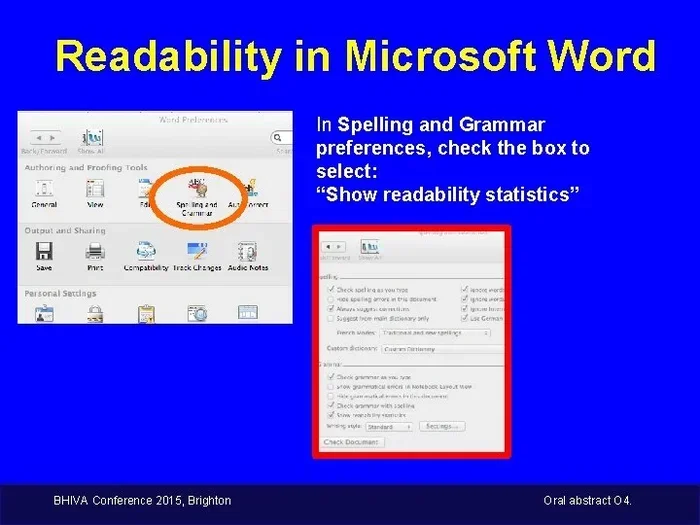
- Check the box that says Show readability statistics.
- Click OK to save your changes.
That is it. You are now set to check your reading level every time you run a grammar or spelling check. The process is the same across Word 2016, Word 2019, and Microsoft 365. Once this setting is on, you will never have to worry about manually finding the scores again.
Quick Tips For Enabling The Feature
- Check your version first: The steps are slightly different for Word 2013 and earlier versions, but the option is still available under Proofing settings.
- Restart Word if needed: Sometimes you need to close and reopen Word for the setting to take effect properly.
- Use the grammar check shortcut: Press F7 to run a full grammar and spelling check. The readability stats will appear automatically after the check finishes.
- Turn on automatic proofreading: You can also enable real-time grammar checking so Word flags issues as you type, keeping your writing style on track.
What If The Option Is Grayed Out?
Sometimes the readability statistics option might be grayed out or missing. This usually happens if you are using a work or school account with restricted settings. In that case, contact your IT administrator. They can enable the feature for you on your organization’s Word installation. This is a common issue in corporate environments where IT policies limit certain features.
Understanding The Readability Scores
Once you enable the feature and run a check, Word shows you two main scores. Understanding what these scores mean is key to using them effectively. Let us break down each one so you know exactly what your numbers are telling you.
Flesch Reading Ease Score
The Flesch Reading Ease score is the first number you will see. It ranges from 0 to 100. Higher scores mean easier reading. A score of 90 to 100 means your text is very easy to read, like a conversation with a friend. A score of 0 to 30 means the text is very difficult, like a legal document or academic journal.
For most general writing, you want a score between 60 and 70. This level is easy for the average adult to understand. If you are writing for a younger audience or a broad public, aim for 70 to 80 or higher. The Flesch Reading Ease is the most commonly used metric for readability analysis and is a great starting point for any writer.
| Score Range | Reading Level | Best For |
|---|---|---|
| 90 – 100 | Very Easy | Children, general audiences |
| 60 – 70 | Standard | Most adult readers |
| 30 – 50 | Difficult | College-level readers |
| 0 – 30 | Very Difficult | Academic or legal documents |
Flesch-Kincaid Grade Level
The second score is the Flesch-Kincaid grade level. This number tells you what grade level of education a person needs to understand your text. For example, a score of 8.0 means an eighth grader can read and comprehend your content. This score is especially useful when you are writing for specific age groups or education levels.
For most business documents and online content, a grade level of 6 to 8 is ideal. For academic papers or technical writing, you might see scores of 10 to 14, which is normal for those fields. The Flesch-Kincaid grade level pairs perfectly with the Flesch Reading Ease score to give you a complete picture of your document readability.
Quick Tips For Interpreting Scores
- Do not chase perfect scores: Every document has a purpose. A technical report will naturally score lower than a blog post, and that is perfectly fine.
- Compare similar documents: The best use of these scores is comparing your current draft to previous versions of the same type of content.
- Look at trends: If your scores improve over several drafts, your editing process is working. Track your progress over time.
- Use both scores together: The Flesch Reading Ease and Flesch-Kincaid grade level give you a complete picture of your text analysis and readability metrics.
Step-by-Step Guide: How Do I Check A Reading Level In Microsoft Word
Now that you know what the scores mean, let us walk through the actual process of checking your reading level. This is the core process for anyone who wants to improve their document readability and proofread documents more effectively.
Opening The Readability Statistics
Here is how you access the readability stats after enabling the feature:
- Open your document in Microsoft Word.
- Press F7 on your keyboard to run the spelling and grammar check.
- Wait for Word to finish checking your document.
- After the check completes, a dialog box will appear with readability statistics.
- Review the scores and note any areas for improvement.
- Click OK to close the dialog box.
The readability statistics window shows you the total number of words, sentences, paragraphs, and characters. It also displays the two key scores we discussed: Flesch Reading Ease and Flesch-Kincaid grade level. This gives you a quick snapshot of your writing clarity at a glance. You can use this information to make targeted improvements to your text.
Interpreting Your Results
When you see your scores, do not panic if they are not perfect. Use them as a guide, not a strict rule. Here is a simple way to think about your results:
- If your Flesch Reading Ease is below 60, try breaking up long sentences and reducing word complexity.
- If your Flesch-Kincaid grade level is above 10, look for simpler word alternatives and shorter sentence length.
- If your scores are in the ideal range, your document is ready for your target audience.
You can run these checks as many times as you want. Each time you make changes and re-run the check, you can see if your scores improve. This makes Word a powerful readability checker that is always available. The more you use it, the better your writing style becomes over time.
Expert Insights: Using Scores For Different Document Types
Professional writers and editors use readability scores differently depending on the type of document they are working on. Here are some practical insights from experienced editors:
- For blog posts and web content: Aim for a Flesch Reading Ease of 60 to 80. This keeps your content accessible to a wide audience and boosts engagement.
- For academic papers: A grade level of 12 to 16 is normal and expected. Focus on precision over simplicity, but still aim for clear writing clarity.
- For business emails and reports: Keep the grade level at 8 or below. Busy professionals appreciate clear and concise writing that respects their time.
- For marketing copy: Aim for a Flesch Reading Ease of 70 to 90. Your goal is to engage quickly and clearly, driving action from your readers.
These guidelines help you use the readability statistics in a way that actually improves your work. Without a target in mind, the scores are just numbers. With a target, they become a powerful editing tool that improves every piece of writing you produce. Make it a habit to set a target score before you start drafting.
Tips To Improve Your Document Readability
Checking your reading level is only half the battle. The real value comes from using the results to make your writing better. Here are practical steps you can take right away to boost your document readability and content quality.
Shorten Your Sentences
Long sentences are the biggest enemy of readability. When a sentence has too many clauses and ideas, readers get confused. Aim for an average sentence length of 15 to 20 words. If a sentence is longer than 25 words, consider breaking it into two shorter ones.
For example, instead of writing “The project which was initiated by the marketing team in January has now reached its final phase and is expected to deliver results by the end of the quarter,” you could write “The marketing team started this project in January. It has now reached its final phase and should deliver results by the end of the quarter.” See the difference? The second version is clearer and more direct.
Reduce Word Complexity
Big words are not always better words. Replace complex words with simpler alternatives whenever possible. Use “use” instead of “utilize.” Use “help” instead of “facilitate.” Your writing style should serve your reader, not impress them with vocabulary.
This does not mean you should avoid all advanced words. Technical documents need precise language. But for most writing, simplicity wins every time. Think about your audience and choose words they will understand easily. This is one of the fastest ways to improve your readability score.
Use Active Voice
Active voice makes your writing clearer and more direct. Compare these two sentences:
- Passive voice: “The report was written by the team.”
- Active voice: “The team wrote the report.”
The active version is shorter, clearer, and more engaging. Word’s grammar checker can help you spot passive voice constructions. Use it to find opportunities to make your writing more direct. This single change can significantly boost your Flesch Reading Ease score and make your proofread documents much more compelling.
Break Up Long Paragraphs
Dense blocks of text scare readers away. Break your paragraphs into smaller chunks. Each paragraph should cover one main idea. This makes your content quality easier to scan and digest. A good rule of thumb is to keep paragraphs to three to five sentences. This creates more white space on the page and makes your document feel more inviting to read.
Quick Tips For Better Readability
- Read your text out loud: If you stumble over a sentence, your reader will too. This simple trick catches awkward phrasing instantly.
- Use bullet points: They break up text and make key points stand out. Readers love scannable content.
- Check your paragraph length: Aim for 3 to 5 sentences per paragraph to maintain a clean and readable flow.
- Use transition words: Words like “however,” “also,” and “therefore” guide your reader through your ideas and improve writing clarity.
- Run the check after every major edit: This helps you track progress and stay consistent with your readability checker results.
Common Mistakes When Checking Reading Level
Even experienced writers make mistakes when using readability tools. Here are the most common ones to avoid so you get the most value from Word’s built-in features:
- Ignoring the scores entirely: Some writers run the check but never look at the results. This defeats the whole purpose of enabling the feature in the first place.
- Relying on only one metric: The Flesch Reading Ease and Flesch-Kincaid grade level work together. Using only one gives you an incomplete picture of your readability analysis.
- Chasing a perfect score: No document scores perfectly on every metric. Focus on steady improvement rather than hitting an exact number every time.
- Forgetting to check after revisions: If you make changes to your document, you need to run the check again. Old scores do not reflect new edits you have made.
- Applying the same target to all content: A legal contract and a social media post have different readability needs. Set appropriate targets for each type of writing style you use.
Avoiding these mistakes helps you get the most value from Word’s built-in tools. It turns a simple feature into a powerful editing tool that improves every piece of writing you produce. The key is to make this part of your regular editing routine, not a one-time check.
Comparing Word’s Readability Tools With Other Options
Microsoft Word is not the only tool that checks reading level. But for most users, it is the most convenient one because it is already built into the software you use every day. Let us compare Word’s tools with a few popular alternatives so you can see where Word stands.
| Tool | Built Into Word? | Scores Provided | Ease Of Use | Cost |
|---|---|---|---|---|
| Microsoft Word Readability Stats | Yes | Flesch Reading Ease, Flesch-Kincaid | Very Easy | Free (included) |
| Grammarly | No (plugin) | Multiple readability scores | Easy | Free and paid tiers |
| Hemingway Editor | No (web tool) | Grade level, readability | Very Easy | Free (basic) |
| ProWritingAid | No (plugin) | Multiple readability metrics | Moderate | Paid |
As you can see, Word’s built-in tools are hard to beat for convenience. You do not need to install anything or pay extra. The scores may not be as detailed as some paid tools, but they cover the essentials. For most writers, the built-in readability statistics in Word are more than enough to improve your document readability and writing clarity.
If you need more detailed analysis, you can always use Word’s free tool alongside a dedicated readability checker. But for everyday editing and proofread documents, Word’s native feature does the job well. It is fast, free, and always available right where you write. That is a powerful advantage that many writers overlook.
Conclusion
How Do I Check A Reading Level In Microsoft Word? Now you know the answer. You have learned how to enable the feature, understand the scores, and use them to improve your writing. These built-in tools are powerful yet simple to use. They are right there inside the program you already trust.
Regularly checking your document readability helps you write for any audience. Whether you are working on academic papers, business documents, or casual blog posts, the readability scores guide you toward clearer and more effective writing. The grammar check and editing tools in Word do more than just fix typos. They help you become a better writer over time.
Start by enabling the feature today. Run a check on your next document. Use the scores to make targeted improvements. Over time, you will notice your writing clarity and content quality improve naturally. The best part is that all of this is built right into the tool you already use. You do not need any extra software or complicated workflows.
Make checking your reading level a regular part of your editing routine. Your readers will thank you for it. Clear writing builds trust, keeps attention, and gets results. Word gives you the tools to make that happen, one document at a time.
Frequently Asked Questions
Can I check the reading level in older versions of Microsoft Word?
Yes, you can. The readability statistics feature is available in Word 2013, Word 2010, and even Word 2007. The steps to enable it are slightly different for older versions, but the option is still there. Go to the Proofing section in Word Options and look for the readability statistics checkbox to turn it on.
What is a good Flesch Reading Ease score for most writing?
A score between 60 and 70 is considered standard for most general writing. This level is easy for the average adult to understand. If you are writing for a broader audience, aim for 70 or higher. Technical and academic writing may naturally score lower, and that is perfectly fine for those fields.
Does checking the reading level slow down Microsoft Word?
No, it does not. The readability statistics feature runs during the normal grammar and spelling check process. It adds only a few seconds to the check time. You will not notice any slowdown in your workflow, even on longer documents.
Can I check the reading level of a specific section of my document?
Yes, you can. Simply select the text you want to check before running the grammar check. When the readability statistics window appears, it will show scores only for the selected text. This is great for reviewing specific paragraphs, chapters, or sections of a longer document.
Are the readability scores in Word accurate?
The scores in Word use well-established formulas like the Flesch Reading Ease and Flesch-Kincaid grade level. These formulas are widely used in education and publishing. While they are not perfect, they give you a reliable baseline for measuring your document readability and tracking improvements over time.
How often should I check the reading level of my documents?
Make it a habit to check the reading level every time you edit a document. The more you do it, the more natural it becomes. Regular checking helps you develop an instinct for clear and readable writing, and it ensures your content quality stays high across all your work.