How Can You Mute An Iphone Using These Simple Steps
Finding out how can you mute an iPhone is easier than you think. Whether you need silence during a meeting, at night, or in public, your iPhone has several built-in options. This guide walks you through every method, from the physical mute switch to software settings, so you can quickly and confidently silence your device whenever you need to.
Have you ever been in a meeting, a movie theater, or a quiet room and suddenly realized your iPhone is about to ring? It happens to all of us. The good news is that how can you mute an iPhone is a simple question with several easy answers. You do not need to be a tech expert to silence your phone. In fact, it takes just a few seconds once you know where to look.
This guide covers every way you can mute your iPhone. From the physical switch on the side to software settings inside the iPhone settings menu, you will find clear steps for each method. We also share tips and common mistakes to avoid. By the end, you will know exactly how to keep your phone quiet whenever you need it.
Key Takeaways
- Physical Mute Switch: The side switch on your iPhone is the fastest way to turn on silent mode instantly.
- Do Not Disturb: This feature lets you silence calls and alerts while still allowing important exceptions through.
- Volume Buttons: Pressing the down volume button is a simple and quick way to mute your iPhone.
- Control Center: You can access mute options from any screen using the Control Center panel.
- Call Mute: You can mute your microphone during an active phone call or FaceTime chat.
- Alarm and Timer Settings: Muting your iPhone does not stop alarms, which is an important thing to know.
- Customization Options: You can set up custom silent profiles using Focus modes and scheduling tools.
📑 Table of Contents
- What Does It Mean to Mute an iPhone?
- Method 1: Use the Physical Mute Switch on Your iPhone
- Method 2: Use the Volume Buttons to Mute Your iPhone
- Method 3: Use Control Center for Quick Mute Options
- Method 4: Turn On Do Not Disturb Mode
- Method 5: Mute During a Phone Call or FaceTime
- Method 6: Use Focus Modes to Create Custom Silent Profiles
- Common Mistakes People Make When Muting Their iPhone
- Quick Tips for Better iPhone Silence
- Which Mute Method Should You Use?
- Does Muting Your iPhone Affect Alarms?
- Can You Schedule Automatic Mute on Your iPhone?
- Final Thoughts
What Does It Mean to Mute an iPhone?
When you mute an iPhone, you turn off sounds and alerts. Your phone stops ringing, buzzing, or playing notification noises. However, muting does not turn off your phone. You can still receive calls, messages, and alerts. They just do not make any noise. This is different from turning your phone off completely. Muting keeps you connected while giving you peace and quiet.
There are different levels of muting too. You can mute all sounds, or you can mute only certain types of alerts. For example, you might want to silence phone calls but still get text messages. We will show you how to do both in this article.
Method 1: Use the Physical Mute Switch on Your iPhone
Locating the Side Switch
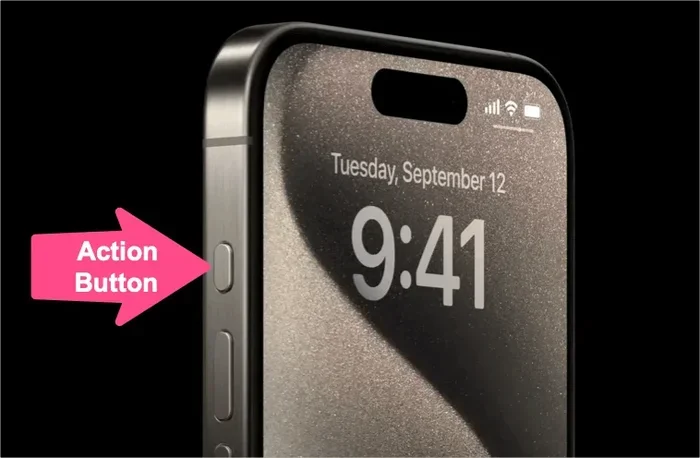
The fastest way to mute your iPhone is by using the physical switch on the left side of the device. This is called the ring/silent switch or the iPhone mute switch. It has been a standard feature on iPhones for many years. You will find it just above the volume buttons.
When the switch is flipped toward the back of the phone, you will see a small orange line. This means your iPhone is in silent mode. When it is flipped forward, the orange line is hidden, and your phone will make sounds for calls and alerts.
What Happens When You Flip the Switch?
Once you flip the switch to silent mode, here is what changes:
- Your ringtone turns off for incoming calls.
- Notification sounds stop for apps like Messages and Mail.
- Your alarm clock still rings on time.
- Timer alerts continue to work normally.
- Emergency alerts may still make noise depending on your settings.
This is one of the easiest ways to turn off ringer sounds on your phone. You do not need to go into any menus. Just flip the switch and you are done. It works on most iPhone models, including the iPhone 15, iPhone 14, iPhone 13, and older versions too.
Quick Tip
If you cannot see the orange line on your switch, go to Settings > Sounds & Haptics and make sure the Ring/Silent switch is set to control the ring mode. Some people accidentally turn this feature off without realizing it.
Method 2: Use the Volume Buttons to Mute Your iPhone
Another simple way to silence your iPhone is by using the volume buttons. This method works well when you want quick control without flipping a switch. Almost everyone uses their volume buttons already, so it feels natural.
Step-by-Step Instructions
- Press the volume down button on the left side of your iPhone.
- Keep pressing it until the volume slider reaches zero.
- Your iPhone is now muted. No sounds will play for calls or notifications.
You can also use this method during a call. If someone is speaking too loudly on a speakerphone, just press the volume down button to lower the sound. Press it all the way down, and the call becomes silent from your end.
Difference Between Volume Mute and Switch Mute
It is important to understand the difference. The volume buttons control media volume, like music and videos. The side switch controls the ringer and alert sounds. When you press the volume buttons all the way down, your media goes silent. But your phone might still ring for calls unless you also flip the side switch.
For full silence, we recommend using both methods together. Flip the switch and turn the volume all the way down. This ensures nothing makes unexpected noise.
Method 3: Use Control Center for Quick Mute Options
Control Center is one of the most useful features on your iPhone. It gives you fast access to important settings without opening the iPhone settings app. You can use it to mute notifications and control your sound levels quickly.
How to Open Control Center
- On iPhone X and newer: Swipe down from the top-right corner of your screen.
- On iPhone SE and iPhone 8: Swipe up from the bottom edge of your screen.
Muting From Control Center
Once Control Center is open, look for the volume slider at the top left. Drag it all the way to the left to mute your phone. You will also see a Do Not Disturb icon, which looks like a crescent moon. Tapping this icon turns on silent mode for your calls and alerts.
Control Center also gives you access to Focus modes. These are powerful tools that let you customize which alerts come through and which ones are silenced. You can create a personal Focus mode that only allows calls from your favorite contacts.
Method 4: Turn On Do Not Disturb Mode
Do Not Disturb is one of the best features for people who want quiet without missing important calls. It is more advanced than simply flipping the mute switch. With Do Not Disturb, you can set rules about who can reach you and when.
How to Turn On Do Not Disturb
- Open the Settings app on your iPhone.
- Tap Focus and then select Do Not Disturb.
- Toggle it on. You can also set a schedule so it turns on automatically at certain times.
Customizing Do Not Disturb
One of the best things about Do Not Disturb is how customizable it is. You can choose to allow calls from:
- Everyone — No one is silenced.
- No One — All calls and alerts are muted.
- Favorites — Only people in your Favorites list can reach you.
- All Contacts — Everyone in your contacts list can call through.
- Repeat Callers — If someone calls twice within three minutes, the call goes through.
This is especially helpful at night or during important work hours. You stay connected to the people who matter most while keeping everything else quiet.
Method 5: Mute During a Phone Call or FaceTime
Sometimes you need to mute your microphone during a call without ending it. Maybe you are in a noisy place or need to step away briefly. How can you mute an iPhone during an active call? It is very simple.
Muting on a Regular Phone Call
- During an active call, tap the Mute button on the screen.
- It looks like a microphone icon with a line through it.
- Tap it again to unmute and let the other person hear you.
Muting on FaceTime
- Open FaceTime and start or join a call.
- Tap the Microphone icon to turn off your mic.
- The other person will not hear you until you tap the icon again.
You can also mute yourself on FaceTime by pressing the volume down button during the call. This is a handy trick many people do not know about.
Method 6: Use Focus Modes to Create Custom Silent Profiles
Focus modes are a newer feature on iPhones that go beyond Do Not Disturb. They let you create custom profiles for different situations. For example, you can set up a Work Focus that silences social media alerts but keeps work emails coming through.
Setting Up a Focus Mode
- Go to Settings > Focus.
- Tap New Focus and choose a type.
- Select which apps and contacts are allowed to send notifications.
- Turn on Silence Notifications for everything else.
You can schedule Focus modes to turn on automatically. For instance, you might set a Sleep Focus that activates every night at 10 PM. This way, your phone stays quiet while you rest without you having to do anything each night.
Common Mistakes People Make When Muting Their iPhone
Even though muting an iPhone is simple, people make mistakes that cause confusion. Here are some common mistakes to avoid:
- Thinking alarms are silenced: Your alarm clock will still ring even when your phone is fully muted. This catches many people off guard. If you want to skip an alarm, you need to turn it off manually.
- Forgetting the side switch is off: Some people flip the switch but do not notice the orange line. They think the phone is muted when it is not. Always check the switch position.
- Confusing media volume with ringer volume: Lowering the volume on your music player does not mute phone calls. You need to adjust both separately.
- Not checking notification settings: Some apps have their own sound settings. You can mute individual apps by going to Settings > Notifications and turning off sounds for specific apps.
- Ignoring Do Not Disturb schedules: If you set up a schedule but do not review it regularly, it might interfere with calls you actually want to receive.
Expert Insight
Apple designed the mute system on iPhone to be flexible but layered. This means there is no single “silence everything” button that covers every scenario. The best approach is to understand what each mute method controls and combine them when you need complete silence. For example, flipping the side switch and turning on Do Not Disturb together gives you the quietest possible experience.
Quick Tips for Better iPhone Silence
Here are some practical tips that make muting your iPhone even easier:
- Use the Accessibility Shortcut: You can set up a triple-click of the side button to toggle silent mode quickly. Go to Settings > Accessibility > Accessibility Shortcut and select AssistiveTouch or Silent Mode.
- Check your vibration settings: Muting sound does not always stop vibration. Go to Settings > Sounds & Haptics and turn off vibration if you want complete quiet.
- Use the mute microphone in apps: Many apps like Zoom and WhatsApp have their own mute buttons. Learn where they are in each app you use often.
- Set up Emergency Bypass: For contacts you absolutely must hear from, enable Emergency Bypass. Go to their contact card, tap Edit, and turn on Emergency Bypass under the ringtone settings.
- Restart if sounds act weird: If your phone will not mute or will not unmute, a simple restart often fixes the issue. Hold down the side button and swipe to power off, then turn it back on.
Which Mute Method Should You Use?
Choosing the right method depends on your situation. Here is a quick comparison to help you decide:
| Method | Best For | Speed |
|---|---|---|
| Side Switch | Quick, everyday silence | Instant |
| Volume Buttons | Media and call control | Very Fast |
| Control Center | On-the-go adjustments | Fast |
| Do Not Disturb | Scheduled and selective silence | Moderate |
| Focus Modes | Custom, situation-based profiles | Moderate |
| Call Mute Button | Muting your mic during calls | Instant |
For most people, the side switch is the go-to option. It is fast, reliable, and always works. But combining it with Do Not Disturb or a Focus mode gives you the most control over your iPhone silent mode experience.
Does Muting Your iPhone Affect Alarms?
This is one of the most common questions people ask. The answer is no. Muting your iPhone does not stop alarms. Your alarm clock, timer alerts, and calendar reminders will still sound at their scheduled times. This is by design. Apple wants to make sure you never miss an important alarm, even if your phone is on silent.
If you are traveling or need complete quiet, this is great news. You can keep your phone muted all night and still wake up on time. Just make sure your alarm volume is turned up separately in Settings > Sounds & Haptics.
Can You Schedule Automatic Mute on Your iPhone?
Yes, you can! Focus modes and Do Not Disturb both offer scheduling options. You can set your iPhone to automatically go into silent mode at certain times each day. For example:
- Set a bedtime schedule that activates Do Not Disturb every night at 10 PM.
- Create a Work Focus that silences your phone during meeting hours.
- Use a custom Focus mode for driving, studying, or exercising.
This takes the hassle out of muting your phone every day. Once you set it up, your iPhone handles everything for you.
Final Thoughts
Now you know exactly how can you mute an iPhone using multiple methods. Whether you prefer the physical side switch, the volume buttons, Control Center, or advanced Focus modes, you have all the tools you need. Each method serves a different purpose, and combining them gives you the best results.
Start by trying the side switch if you want the fastest solution. Then explore Do Not Disturb and Focus modes to create a more personalized experience. You will be amazed at how much more control you have over your phone’s sound. Keep these tips handy, and you will never be caught off guard by a loud ringtone again.
Take a few minutes right now to go through these steps on your own phone. Practice flipping the switch, opening Control Center, and setting up a Focus mode. The more you use these features, the more natural they will feel. Your phone is a powerful tool, and knowing how to control its sound is an important part of using it well.
Frequently Asked Questions
How can you mute an iPhone without using the side switch?
You can mute your iPhone by pressing the volume down button until the slider reaches zero. You can also open Control Center and drag the volume slider all the way down. Another option is to turn on Do Not Disturb mode from the Settings app or Control Center.
Will my iPhone alarm still ring if the phone is muted?
Yes, your alarm will still ring even when your iPhone is fully muted. Apple designed the alarm system to work independently of your mute and volume settings. This ensures you never sleep through an important alarm.
Can I mute specific apps on my iPhone?
Yes, you can. Go to Settings, tap Notifications, and select the app you want to silence. From there, you can turn off sounds and alerts for that specific app while keeping other notifications active.
What is the difference between silent mode and Do Not Disturb?
Silent mode, controlled by the side switch, turns off all ringer and alert sounds. Do Not Disturb is a software feature that gives you more control. It lets you schedule silence, choose which contacts can reach you, and set custom rules for different situations.
Can I mute my microphone during a FaceTime call?
Yes, you can. During a FaceTime call, tap the microphone icon on the screen to mute your mic. The other person will not hear you until you tap the icon again to unmute.
Why does my iPhone still make sounds even when I think it is muted?
This can happen if the side switch is not fully flipped into silent mode. Check for the orange line on the switch. Also, some apps have their own notification sounds that are not controlled by the mute switch. You may need to adjust those settings individually in the Notifications menu.
=== CONCLUSION ===
How can you mute an iPhone is a question with many straightforward answers. You now know about the side switch, volume buttons, Control Center, Do Not Disturb, Focus modes, and call mute options. Each method gives you a different level of control over your phone’s sound. The side switch is the fastest option, while Do Not Disturb and Focus modes offer the most customization.
Remember that muting your iPhone does not stop alarms or timers. And always check your notification settings for individual apps if you want complete control over what makes noise. With these tips and methods, you can enjoy quiet moments without worrying about missing what matters most. Start using these techniques today, and you will have full control over your iPhone’s sound whenever you need it.