How Can I Share Wi Fi From Another Phone Step By Step
Sharing Wi-Fi from another phone is easier than you think. Whether you need to connect a laptop, tablet, or second phone to the internet, you can use built-in hotspot features, Bluetooth tethering, or USB sharing. This guide covers every method step by step so you can get connected fast without needing extra equipment or technical skills.
Ever found yourself in a situation where your phone has Wi-Fi but your laptop, tablet, or friend’s phone does not? It happens more often than you’d think. Maybe you’re at a coffee shop, staying in a hotel room, or simply sharing a home network with guests. The good news is that sharing Wi-Fi from another phone is something almost anyone can do. You don’t need special equipment or advanced tech skills. In this guide, we walk you through every method step by step so you can get any device online quickly and easily.
We will cover the most popular ways to share internet from one phone to another. You’ll learn about mobile hotspots, Bluetooth tethering, USB sharing, and even Wi-Fi Direct. Each method has its own strengths, and we’ll help you pick the right one for your situation. By the end of this article, you’ll have the confidence to share your connection with anyone, anytime.
Key Takeaways
- Mobile Hotspot Method: The fastest and most common way to share Wi-Fi from another phone using built-in settings.
- Bluetooth Tethering: A low-power alternative that works when Wi-Fi hotspot isn’t available or convenient.
- USB Tethering: The most stable connection method, ideal for laptops and desktops.
- Wi-Fi Direct Sharing: Lets you share your Wi-Fi password directly with nearby devices without typing.
- Third-Party Apps: Useful tools that simplify the process and add extra features like password generation.
- Security Matters: Always use a strong password and monitor connected devices to keep your network safe.
📑 Table of Contents
- Why Would You Need to Share Wi-Fi From Another Phone?
- Method 1: Share Wi-Fi Using Mobile Hotspot (The Easiest Way)
- Method 2: Share Wi-Fi Using Bluetooth Tethering
- Method 3: Share Wi-Fi Using USB Tethering
- Method 4: Share Wi-Fi Password Using Wi-Fi Direct
- Method 5: Use Third-Party Apps for Wi-Fi Sharing
- How to Keep Your Shared Connection Secure
- Comparison of All Wi-Fi Sharing Methods
- Common Problems and How to Fix Them
- Expert Tips for Better Wi-Fi Sharing
- Frequently Asked Questions
- Final Thoughts
Why Would You Need to Share Wi-Fi From Another Phone?
There are many real-life situations where Wi-Fi sharing from a phone becomes essential. Understanding these scenarios helps you see why this skill is so valuable.
You Have Limited Devices
Some homes and offices only have one Wi-Fi router. If you have more devices than available ports or connections, using your phone as a bridge solves the problem. Your phone connects to the main network, and then it shares that connection with your other devices.
You Are Traveling
Hotels, airports, and cafes often have Wi-Fi that only works on one device. Many networks require a login page that only appears on the first connected device. By sharing from your phone, you can get your laptop or tablet online too.
You Are Hosting Guests
If friends or family visit, they may need internet access. Instead of giving them your main Wi-Fi password, you can share the connection temporarily from your phone. This keeps your primary network more secure.
Emergency Situations
When your home internet goes down but your phone still has cellular data, you can quickly turn your phone into a portable hotspot. This keeps your important work or communication going without interruption.
Method 1: Share Wi-Fi Using Mobile Hotspot (The Easiest Way)
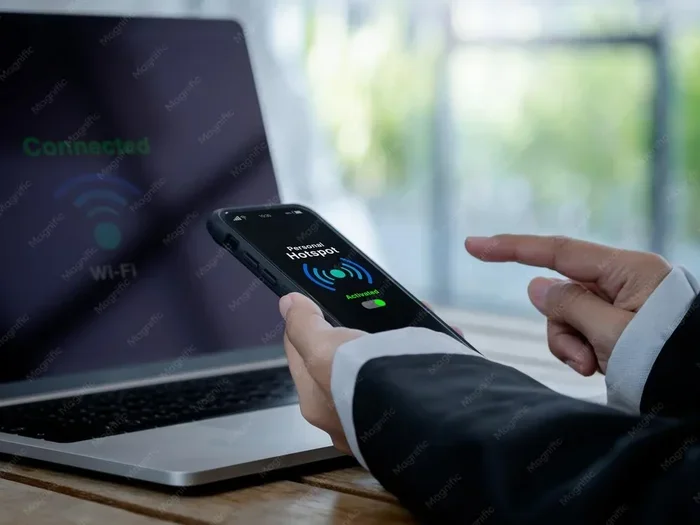
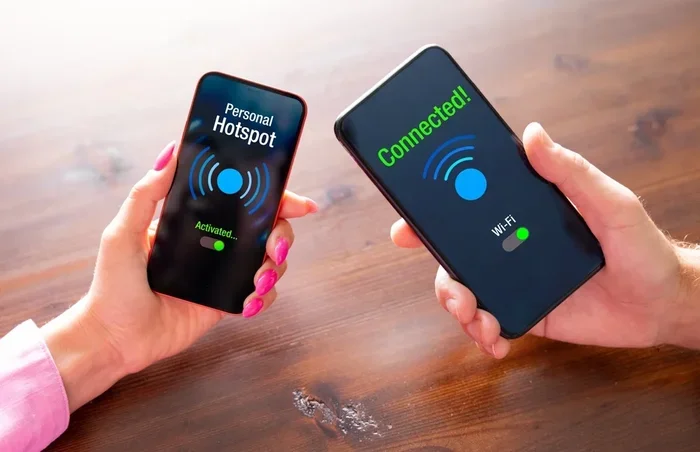
The mobile hotspot method is the most popular and straightforward way to share Wi-Fi from another phone. Both Android and iPhone support this feature natively. It turns your phone into a Wi-Fi router that other devices can connect to.
How to Set Up a Mobile Hotspot on Android
Android phones make this process very simple. Follow these steps to get started:
- Open Settings on your phone. Look for the gear icon on your home screen or app drawer.
- Tap on Network & Internet or Connections, depending on your phone brand.
- Find Hotspot & Tethering. On some phones, this is called Portable Hotspot or Wi-Fi Hotspot.
- Tap Wi-Fi Hotspot and turn it on.
- Set a hotspot name and password. Make the password strong but something you can remember easily.
- Save your settings and look for the hotspot icon in your status bar. It should appear when the hotspot is active.
Now go to the device you want to connect. Open its Wi-Fi settings, find your hotspot name, enter the password, and connect. That is it! Your second device is now online through your phone.
How to Set Up a Mobile Hotspot on iPhone
iPhone users can also share their connection easily. Here is how:
- Open Settings on your iPhone.
- Tap Personal Hotspot. You may need to go to Cellular first, then Personal Hotspot.
- Turn on Allow Others to Join.
- Set a Wi-Fi password. Use at least eight characters with a mix of letters and numbers.
- Share the password with the device you want to connect.
Other devices will see your iPhone’s hotspot name in their Wi-Fi list. Simply select it and enter the password.
Quick Tips for Using Mobile Hotspot
- Check your data plan. Hotspot usage eats through cellular data quickly. Make sure you have enough data or a good unlimited plan.
- Place your phone near the devices you are sharing with. Walls and distance weaken the signal.
- Turn off the hotspot when not in use. This saves battery and keeps your connection secure.
- Change the default hotspot name. A custom name makes it easier to find and harder for strangers to guess.
Method 2: Share Wi-Fi Using Bluetooth Tethering
Bluetooth tethering is a great alternative when you don’t want to broadcast a Wi-Fi signal. It uses Bluetooth to share your internet connection with another device. This method uses less battery than a mobile hotspot and works over shorter distances.
When to Use Bluetooth Tethering
Bluetooth tethering shines in specific situations. Use it when you want a low-power sharing option. It also works well in crowded places where many Wi-Fi networks might cause interference. If you only need to connect one or two devices, Bluetooth is a smart choice.
Step-by-Step Guide for Bluetooth Tethering
Here is how to share internet via Bluetooth between two phones:
- Turn on Bluetooth on both phones. Go to Settings and toggle Bluetooth on.
- Pair the devices. On the host phone, tap Pair New Device and select the other phone from the list.
- Accept the pairing request on the second phone. You may need to confirm a pairing code on both devices.
- Go to Hotspot & Tethering settings on the host phone.
- Turn on Bluetooth Tethering. The toggle should turn blue or green when active.
- On the second phone, go to Bluetooth settings. Find the paired device and look for an option to connect through it for internet access.
Your second phone should now have internet access through the Bluetooth connection. The speeds will be slower than Wi-Fi hotspot, but it works well for basic browsing and messaging.
Common Bluetooth Tethering Mistakes to Avoid
- Forgetting to pair the devices first. Bluetooth tethering only works between paired devices.
- Keeping the devices too far apart. Bluetooth range is about 30 feet. Stay within that distance.
- Not checking if Bluetooth tethering is enabled. It is a separate toggle from regular Bluetooth.
- Ignoring battery drain. While it uses less power than hotspot, it still drains your battery faster than normal use.
Method 3: Share Wi-Fi Using USB Tethering
USB tethering gives you the most stable and fastest connection. You connect your phone to another device using a USB cable, and the phone shares its internet connection through that cable. This method works great for laptops and desktop computers.
Why Choose USB Tethering?
USB tethering has several advantages. It provides the most reliable connection with the least interference. It also charges your phone while sharing, which is a nice bonus. The speeds are often faster than both Wi-Fi hotspot and Bluetooth tethering because the connection is wired.
How to Set Up USB Tethering
Follow these steps to share your internet through a USB cable:
- Connect your phone to the other device using a USB cable.
- On your phone, tap the USB notification that appears in the notification bar.
- Select USB Tethering from the options. On some phones, you may need to select File Transfer mode first, then go to settings.
- Go to Settings > Network & Internet > Hotspot & Tethering.
- Toggle USB Tethering on.
- On the connected device, the internet should work automatically. No extra setup is usually needed on the receiving end.
That is all there is to it. Your laptop or other device now shares your phone’s internet connection through the USB cable.
Quick Tips for USB Tethering
- Use a good quality USB cable. Cheap cables can cause connection drops and slow speeds.
- Make sure your phone is unlocked. Some phones require you to unlock them before USB tethering activates.
- Check that your phone recognizes the connection. Look for the USB tethering icon in your status bar.
Method 4: Share Wi-Fi Password Using Wi-Fi Direct
Wi-Fi Direct is a newer technology that lets devices connect directly to each other without a traditional Wi-Fi router. You can use it to share your Wi-Fi password with nearby devices quickly and securely.
How Wi-Fi Direct Works
Wi-Fi Direct creates a peer-to-peer connection between two devices. One device acts as the source and shares the network credentials. The other device receives them and connects automatically. This method is especially handy when you want to connect a smart TV, printer, or another phone to your Wi-Fi network without typing the password.
Using Wi-Fi Direct to Share Your Connection
Here is how to use Wi-Fi Direct on Android devices:
- Open Settings and go to Wi-Fi.
- Tap Wi-Fi Direct or Peer-to-Peer in the Wi-Fi menu.
- Select the device you want to share with. Both devices need to have Wi-Fi Direct enabled.
- Accept the connection request on the receiving device.
- The devices will connect directly. You can now share files, screen content, and in some cases, network access.
On iPhones, the equivalent feature is AirDrop for file sharing, but for Wi-Fi password sharing, iPhones use Nearby Share or simply ask you to type the password. Apple’s ecosystem is more closed, so Wi-Fi Direct sharing options are more limited.
Method 5: Use Third-Party Apps for Wi-Fi Sharing
If the built-in methods feel too complicated or don’t meet your needs, third-party apps can help. Several apps on both Google Play Store and Apple App Store make Wi-Fi sharing between phones simpler and add useful extra features.
Popular Wi-Fi Sharing Apps
- Wi-Fi Share (Android): A simple app that lets you create a hotspot and manage connected devices easily.
- Portable Hotspot (Android): Offers advanced settings like bandwidth control and device limits.
- My Hotspot Pro (Android): Provides detailed logs of connected devices and data usage.
- Personal Hotspot (iOS): Apple’s built-in solution that works seamlessly with other Apple devices.
- WiFi Map (Android/iOS): Helps you find shared Wi-Fi networks and also lets you share your own.
Benefits of Using Sharing Apps
- Better control over connected devices. You can see who is using your connection and block unwanted users.
- Data usage monitoring. Track how much data each connected device uses.
- Password management. Some apps generate strong random passwords for your hotspot.
- Scheduled sharing. Set times when your hotspot turns on and off automatically.
Are Third-Party Apps Safe?
Most reputable apps are safe to use. However, you should always download apps from official stores like Google Play or the Apple App Store. Read user reviews and check the app’s permissions before installing. Avoid apps that ask for unnecessary access to your personal data. Stick with well-known developers with good ratings.
How to Keep Your Shared Connection Secure
When you share your Wi-Fi or internet connection, you are opening a door to your network. It is important to take security seriously so your personal data stays safe.
Use a Strong Password
Never use the default hotspot password that comes with your phone. Create a unique password with at least 12 characters. Mix uppercase letters, lowercase letters, numbers, and symbols. A strong password keeps strangers from accessing your shared connection.
Limit Connected Devices
Most hotspot settings let you see how many devices are connected. Keep an eye on this number. If you see devices you do not recognize, change your password immediately. Some phones let you set a maximum number of connected devices, which is a great security feature.
Turn Off Hotspot When Not in Use
Leaving your hotspot on all the time is a security risk. It also drains your battery quickly. Get into the habit of turning it off when you no longer need to share your connection.
Use WPA2 or WPA3 Encryption
Modern phones use WPA2 or WPA3 encryption by default for hotspots. This encrypts the data flowing between your phone and connected devices. If your phone gives you an option, always choose the strongest encryption available.
Monitor Data Usage
Sharing your connection can use a lot of data fast. Keep an eye on your data usage through your phone’s settings or your carrier’s app. If you notice unusual data spikes, someone might be using your connection without permission.
Comparison of All Wi-Fi Sharing Methods
Not sure which method is best for your situation? Here is a quick comparison of all the methods we covered.
| Method | Speed | Battery Use | Range | Best For |
|---|---|---|---|---|
| Mobile Hotspot | Fast | High | 30-50 feet | Connecting multiple devices over Wi-Fi |
| Bluetooth Tethering | Moderate | Low | 30 feet | Connecting one device with low power use |
| USB Tethering | Very Fast | Low (charges phone) | Cable length only | Laptops and desktops needing stable connection |
| Wi-Fi Direct | Fast | Medium | 30-50 feet | Sharing password with nearby smart devices |
| Third-Party Apps | Varies | Varies | Varies | Advanced control and monitoring |
As you can see, each method has its own strengths. Mobile hotspot is the go-to for most people because it is simple and works with many devices. USB tethering is the best choice when you need a fast, stable connection for a laptop. Bluetooth tethering saves battery when you only need to connect one device temporarily.
Common Problems and How to Fix Them
Even when you follow the steps correctly, you might run into issues. Here are the most common problems and their solutions.
Hotspot Not Showing Up on Other Devices
This is a common issue. Try turning the hotspot off and on again. Also check if your phone’s hotspot name is set to visible. Some phones have a hidden network option that makes the hotspot invisible to other devices. Make sure this is turned off.
Connected But No Internet Access
If a device connects to your hotspot but cannot browse the web, try forgetting the network on the receiving device and reconnecting. Also check that your phone has an active data connection. Airplane mode can sometimes interfere, so toggle it off and on again.
Slow Speeds on Connected Devices
Slow speeds usually happen when the phone is far from the connected device. Move closer to improve the signal. Also, too many connected devices can slow things down. Disconnect devices you are not using. If you are using cellular data, check your signal strength in your phone’s status bar.
Battery Draining Too Fast
Hotspot usage is a battery hog. To reduce drain, lower the screen brightness, close unused apps, and plug your phone into a charger while sharing. You can also reduce the number of connected devices to save power.
Other Devices Cannot Find the Hotspot
Make sure your phone is not in battery saver mode, as this can disable hotspot features. Restart both the host phone and the receiving device. Also, check if your carrier has blocked hotspot tethering on your plan. Some carriers require a specific data add-on for hotspot use.
Expert Tips for Better Wi-Fi Sharing
Here are some insider tips that make sharing your internet connection smoother and more effective.
- Use the 5GHz band when available. Many modern phones support dual-band hotspots. The 5GHz band is faster and less crowded than 2.4GHz, though it has a shorter range.
- Keep your phone plugged in. Hotspot usage drains battery fast. A portable charger or wall plug keeps your phone powered while sharing.
- Update your phone’s software. System updates often include fixes for hotspot bugs and improvements to connection stability.
- Restart your phone before sharing. A quick restart clears temporary glitches that might interfere with hotspot performance.
- Name your hotspot something unique. Avoid default names like AndroidAP or iPhone. A custom name helps you find it quickly and adds a layer of security.
- Set a device limit. Most phones let you limit how many devices can connect. Set this to the number you actually need.
Frequently Asked Questions
Can I share Wi-Fi from one phone to another phone without using a hotspot?
Yes, you can use Bluetooth tethering or Wi-Fi Direct to share your connection without creating a traditional hotspot. These methods work well for quick, short-range sharing between two phones. Bluetooth tethering is especially useful when you want to conserve battery.
Is sharing Wi-Fi from my phone free?
Sharing your connection is free in terms of cost, but it does use your cellular data if you are not connected to a Wi-Fi network. Check your data plan to avoid unexpected charges. If you are already connected to Wi-Fi, sharing that connection does not use any additional data.
How many devices can connect to my phone’s hotspot?
Most phones allow between 5 and 10 devices to connect to a hotspot at the same time. The exact number depends on your phone model and carrier. You can usually adjust this limit in your hotspot settings.
Can I share Wi-Fi from an iPhone to an Android device?
Yes, you can. iPhone’s personal hotspot works with any device that supports Wi-Fi, including Android phones and tablets. Simply enable the personal hotspot on your iPhone and connect the Android device using the password you set.
Why is my shared Wi-Fi connection so slow?
Slow speeds can happen for several reasons. Distance from the host phone, too many connected devices, weak cellular signal, and network congestion all contribute. Try moving closer to the host phone, reducing the number of connected devices, or switching to USB tethering for a faster wired connection.
Does sharing Wi-Fi drain my phone battery quickly?
Yes, hotspot and tethering use significant battery power. To reduce drain, keep your phone plugged in, lower the screen brightness, and turn off the hotspot when you are not actively sharing. Bluetooth tethering uses less battery than Wi-Fi hotspot if you need a longer-lasting option.
Final Thoughts
Sharing Wi-Fi from another phone is a simple skill that comes in handy more often than you might expect. Whether you use mobile hotspot, Bluetooth tethering, USB sharing, or Wi-Fi Direct, each method gives you a reliable way to get any device online. The key is knowing which method works best for your situation and following the steps carefully.
Start with the mobile hotspot method if you want the easiest and most versatile option. Switch to USB tethering when you need the fastest and most stable connection. Use Bluetooth tethering when battery life matters most. And always keep security in mind by using strong passwords and monitoring connected devices.
Now that you know how to share your internet connection from one phone to another, you are prepared for any situation. Try these methods today and enjoy the convenience of staying connected no matter where you are. Share this guide with friends and family who might need it too. Once you learn these steps, you will never be stuck without internet again.