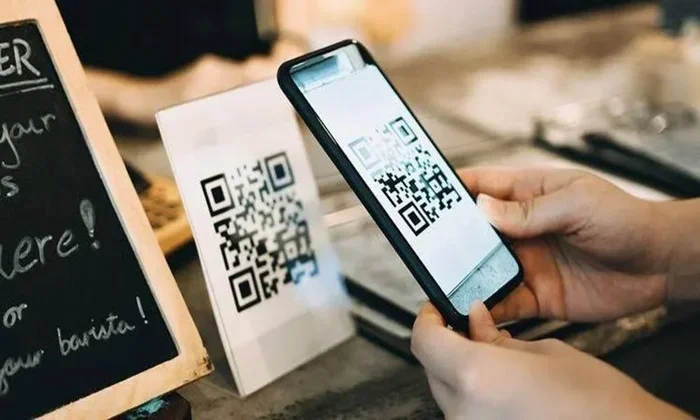
Does Google Have A QR Code Generator And How To Use It
Does Google have a QR code generator built into its search tools? The short answer is no, but Google offers several workarounds and integrations that make creating QR codes simple. You can use Google Chrome, Google Lens, and free online QR code makers that work seamlessly with Google products. This guide walks you through every method, so you can generate, scan, and use QR codes like a pro.
You have probably seen QR codes everywhere. They are on restaurant menus, product packaging, business cards, and even billboards. It is natural to wonder whether Google offers a built-in way to create them. After all, Google seems to have a tool for everything. So, does Google have a QR code generator? Let us dive into the answer and explore every option available to you.
The truth is that Google does not have a standalone QR code generator tool. You will not find one on Google.com or in the Google Search console. However, that does not mean you are stuck. Google Chrome has a built-in QR code feature for web pages. Google Lens can scan QR codes with ease. And there are many free online QR code makers that work perfectly alongside Google products. In this article, we will cover all of these methods in detail. You will learn how to create QR codes, scan them, and use them effectively for personal or business purposes.
Key Takeaways
- No Native Tool: Google does not offer a dedicated QR code generator within its core products, but there are easy alternatives.
- Google Chrome Has a Built-In QR Feature: You can generate a QR code for any webpage directly from the browser.
- Google Lens Scans QR Codes: Android and iOS users can scan QR codes using the Google Lens app or built-in camera tools.
- Free Online Generators Work Great: Tools like QR Code Generator, Beaconstac, and others integrate well with Google services.
- QR Codes Are Useful for Business: They boost engagement, simplify payments, and bridge print and digital content.
- Avoid Common Pitfalls: Using low-resolution codes, ignoring analytics, and placing codes in poor locations are frequent mistakes.
📑 Table of Contents
- Does Google Have A QR Code Generator Built Into Its Search Tools?
- How To Create A QR Code Using Google Chrome
- How To Scan QR Codes Using Google Products
- Best Free QR Code Generators That Work Well With Google
- QR Codes For Business: Practical Use Cases
- Common Mistakes To Avoid When Using QR Codes
- How Google QR Codes Fit Into The Broader Digital Landscape
- Final Thoughts On Does Google Have A QR Code Generator
Does Google Have A QR Code Generator Built Into Its Search Tools?
Many people assume that because Google is so powerful, it must have a QR code generator. Unfortunately, that is not the case. Google Search does not include a QR code creation feature. You cannot type “create QR code” into the search bar and get a built-in generator. However, Google has found clever ways to work with QR codes in other areas of its ecosystem.
For example, Google Chrome on desktop and mobile lets you generate a QR code for any open webpage. This is a hidden gem that many people do not know about. Also, Google Lens, which is available on Android and iOS, can scan QR codes instantly. So while Google does not have a dedicated QR code maker, it still plays a big role in the QR code world.
Why Google Does Not Offer A Standalone QR Code Tool
Google tends to focus on search, advertising, and cloud services. QR code generation is a niche need compared to those core products. Google likely leaves QR code creation to third-party developers. This lets specialized tools innovate faster and offer more features. For most users, a simple QR code generator online is more than enough.
How To Create A QR Code Using Google Chrome
Even though Google does not have a standalone QR code generator, Google Chrome comes with a built-in feature that lets you create QR codes for any webpage. This is probably the easiest method if you already use Chrome. Here is how it works.
First, open Google Chrome on your computer or phone. Navigate to the webpage you want to turn into a QR code. Look at the top-right corner of the browser window. You will see a share icon that looks like a box with an arrow pointing up. Click on it. A menu will pop up with several options.
In that menu, you will see a QR code icon. Click on it. Chrome will instantly generate a QR code for that specific webpage. You can then download the image or share it directly with others. On mobile, the process is similar. Tap the three-dot menu in the top-right corner, and you will find the QR code option there too.
Limitations Of Chrome’s QR Code Feature
While Chrome’s built-in QR code maker is convenient, it has some limitations. It only works for web pages. You cannot use it to create a QR code for contact information, Wi-Fi credentials, or plain text. The QR codes it generates are static, which means you cannot track how many times they are scanned. If you need more advanced features, you will want to look at a dedicated QR code generator online.
Quick Tips For Using Chrome’s QR Feature
- Use it for sharing links: It is perfect for sending a webpage to your phone or another device.
- Print the QR code: You can save the image and print it for offline use.
- Check the QR code before printing: Always scan it with your phone to make sure it works correctly.
- Combine it with Google Docs: Paste the QR code image into a Google Doc or Google Slides presentation for a polished look.
How To Scan QR Codes Using Google Products
Creating QR codes is only half the story. You also need to know how to read them. Google makes scanning QR codes very easy through several of its products. Whether you are on an Android phone or an iPhone, you have options.
On Android devices, Google Lens is the go-to tool for scanning QR codes. You can open Google Lens from the Google app, from your camera app, or by long-pressing the home button. Point your camera at a QR code, and Google Lens will recognize it instantly. It will then show you the link or information encoded in the code. You can tap to open it right away.
On iPhones, the camera app has built-in QR code scanning. You do not need any extra apps. Simply open the Camera app, point it at a QR code, and a notification will appear at the top of the screen. Tap the notification to open the link. Google Chrome on iPhone also supports QR code scanning within the browser.
Google Lens vs. Camera App For Scanning
Both Google Lens and the iPhone camera app work well for scanning QR codes. Google Lens offers extra features like translating text and identifying objects. The camera app is simpler and faster for just scanning codes. If you already use Google products, Google Lens is a natural choice. If you want something quick and no-fuss, the built-in camera scanner is great.
Best Free QR Code Generators That Work Well With Google
Since Google does not have a dedicated QR code generator, you will want to use a reliable third-party tool. The good news is that there are many excellent free options available. These tools integrate well with Google services, and most of them let you create both static and dynamic QR codes.
A static QR code holds fixed information that cannot be changed after creation. A dynamic QR code lets you update the destination URL without changing the code itself. Dynamic codes also provide scan analytics, which is valuable for businesses. Here are some of the best free QR code generators you can use right now.
Comparison Of Popular QR Code Generators
| QR Code Tool | Free Plan | Dynamic Codes | Analytics | Google Integration |
|---|---|---|---|---|
| QR Code Generator | Yes | Limited | Basic | Works with Google Drive |
| Beaconstac | Yes | Yes | Yes | Google Sheets compatible |
| QRCode Monkey | Yes | No | No | Easy download to Google Drive |
| GoQR.me | Yes | No | No | Simple and fast |
| Unitag QR | Yes | Yes | Yes | Cloud-based |
QRCode Monkey is a great choice if you want a simple, no-fuss QR code maker. It lets you customize colors and logos. Beaconstac is better for businesses that need dynamic codes and scan tracking. GoQR.me is one of the fastest options if you just need a quick QR code generator online.
How To Choose The Right QR Code Generator
When picking a QR code creator, think about what you need. Do you want to track scans? Then choose a tool with analytics. Do you need to update the destination URL later? Go for a dynamic QR code generator. Do you just need a simple code for a personal project? A free static code maker will work perfectly. Always make sure the tool you choose is secure and does not add unwanted watermarks to your codes.
QR Codes For Business: Practical Use Cases
QR codes are not just a tech novelty. They are powerful tools for businesses of all sizes. Whether you run a small local shop or a large company, QR codes can help you connect with customers in new ways. Here are some of the most practical and effective use cases.
1. Menu Sharing For Restaurants
Many restaurants switched to QR code menus during the pandemic, and the trend has stuck. Instead of printing expensive menus, you can place a single QR code on each table. Customers scan it with their phones and view the full menu instantly. This saves money, reduces waste, and makes it easy to update items or prices.
2. Business Cards And Networking
A QR code on your business card can link directly to your website, LinkedIn profile, or digital portfolio. When someone scans your card, they instantly have all your contact information. It makes networking easier and leaves a modern, professional impression.
3. Payment Links
Small businesses can use QR codes to accept payments. Services like Google Pay and PayPal allow you to generate QR codes that customers can scan to make a quick payment. This is especially useful for farmers markets, food trucks, and pop-up shops.
4. Event Registration And Ticketing
QR codes simplify event check-ins. You can send attendees a QR code via email or Google Forms. At the event, staff simply scan the code to confirm attendance. It eliminates the need for paper tickets and speeds up the entry process.
5. Product Information And Warranty Registration
Manufacturers can print QR codes on product packaging. When customers scan the code, they are taken to a page with setup instructions, warranty registration, and support links. This improves the customer experience and reduces support calls.
Common Mistakes To Avoid When Using QR Codes
QR codes are simple to use, but there are common pitfalls that can make them ineffective. Avoiding these mistakes will save you time and frustration.
Mistake 1: Using a low-resolution QR code. If you print a QR code that is too small or blurry, scanners will not be able to read it. Always generate a high-resolution image and test it before printing.
Mistake 2: Placing QR codes in poor locations. A QR code on a curved surface or in a dark corner is hard to scan. Make sure the code is on a flat, well-lit surface with enough contrast. The code should also be large enough to scan from a comfortable distance.
Mistake 3: Forgetting to provide context. People are more likely to scan a QR code if they know what to expect. Add a short call-to-action like “Scan to visit our website” or “Scan for a discount.” Without context, many people will ignore the code.
Mistake 4: Using only static codes for business. Static QR codes cannot be updated after creation. If you need to change the destination URL, you have to print a new code. Dynamic QR codes solve this problem and also give you valuable scan data.
Mistake 5: Ignoring analytics. If you are using QR codes for marketing, tracking scans is essential. Many free QR code generators offer basic analytics. Use this data to understand how your audience interacts with your codes.
Expert Insight: How To Make Your QR Codes Stand Out
According to digital marketing experts, the best QR codes are the ones that feel natural and purposeful. Do not just slap a code on a flyer and hope for the best. Make sure it fits the design, matches your brand colors, and offers real value to the person scanning it. A well-designed QR code can boost engagement significantly.
How Google QR Codes Fit Into The Broader Digital Landscape
QR codes have been around since the 1990s, but their popularity surged during the COVID-19 pandemic. Restaurants, retailers, and service businesses all adopted them quickly. Google recognized this shift and made sure its products could support QR code scanning and generation through Chrome and Google Lens.
Today, QR codes are a key part of the bridge between physical and digital experiences. A QR code on a printed flyer can lead someone to a Google Form, a Google Doc, or a Google Sheets spreadsheet. The possibilities are endless. And while Google does not have a dedicated QR code generator, its ecosystem makes it easy to create, share, and scan codes using tools you probably already have.
If you want to create QR codes at scale for business purposes, you may want to explore a dedicated QR code generator online that integrates with Google Sheets or Google Analytics. These tools let you track performance and manage multiple codes from one dashboard. Many of them also offer API access, which is useful for developers building custom solutions.
Final Thoughts On Does Google Have A QR Code Generator
So, does Google have a QR code generator? Not as a standalone tool, but Google still gives you everything you need to work with QR codes effectively. Google Chrome lets you generate QR codes for any webpage in seconds. Google Lens makes scanning codes effortless on both Android and iOS. And the wide range of free QR code makers online means you are never limited by Google’s offerings.
Whether you are a small business owner, a marketer, or just someone who wants to share a link more easily, QR codes are a simple and powerful solution. Start by using Chrome’s built-in feature for quick personal use. Then explore free online generators for more advanced needs. Always test your codes before printing, and consider using dynamic codes if you plan to track scans or update destinations.
The world of QR codes is evolving fast, and Google continues to play an important role in making them accessible. With the right tools and a little creativity, you can use QR codes to connect with people in ways that feel modern, professional, and genuinely useful.
Frequently Asked Questions
Can I create a QR code directly from Google Search?
No, Google Search does not have a built-in QR code generator. However, you can use Google Chrome to generate a QR code for any webpage, or visit a free QR code generator online to create codes for other types of content.
Is Google Chrome’s QR code feature free to use?
Yes, the QR code feature in Google Chrome is completely free. You can generate, download, and share QR codes for any webpage without paying anything or creating an account.
Can I track how many times my QR code is scanned?
Google Chrome’s built-in QR code feature does not offer scan tracking. To get analytics, you need to use a dynamic QR code generator online, such as Beaconstac or Unitag QR, which provide detailed scan data.
What is the difference between a static and dynamic QR code?
A static QR code holds fixed information that cannot be changed after creation. A dynamic QR code lets you update the destination URL and track scan analytics without changing the code itself. Dynamic codes are better for business use.
Does Google Lens work for scanning QR codes on iPhone?
Yes, Google Lens is available on iPhone through the Google app. You can also use the built-in iPhone Camera app to scan QR codes, which works just as well and does not require any extra apps.
Are there any Google Workspace tools that support QR codes?
Google Workspace does not have native QR code features in Docs, Sheets, or Forms. However, you can download QR code images from free generators and insert them into your Google Docs, Sheets, or Slides presentations easily.