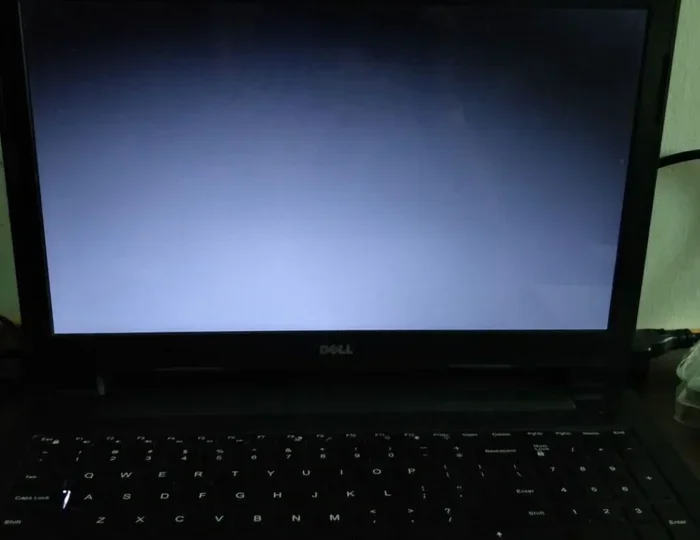
Can You Fix A Black Screen Monitor And Save Your Display
Can you fix a black screen monitor? Yes, in most cases you can. A black screen monitor does not always mean your display is dead. This guide covers the most common causes and proven fixes to bring your screen back to life.
You sit down at your desk, press the power button, and nothing happens. Your computer display not working can be one of the most frustrating experiences, especially when you have work to finish or a favorite show to watch. But before you panic or start shopping for a replacement, take a deep breath. The good news is that a black screen monitor is often fixable, and you do not need to be a tech expert to handle it.
Can you fix a black screen monitor on your own? In the vast majority of cases, the answer is yes. Whether it is a loose cable, a driver glitch, or a simple power issue, there are several steps you can take to bring your display back to life. This guide walks you through every troubleshooting method, from the quickest fixes to more advanced solutions. By the end, you will know exactly what is causing the problem and how to solve it.
Let us dive into the world of monitor troubleshooting and get your screen working again. You might be surprised at how many of these fixes take just a few minutes and require no special tools or technical knowledge.
Key Takeaways
- Most black screen issues are fixable: power cycles, cable checks, and driver updates resolve the problem in the majority of cases.
- Start with the simplest fixes: check power cables, connections, and brightness settings before moving to advanced troubleshooting.
- Inspect your cables carefully: loose or damaged HDMI and display port cables are the most common cause of a black screen.
- Your GPU might be the issue: outdated or corrupted graphics drivers can cause a monitor to go black even when everything else looks fine.
- Know when to replace: if your monitor has a backlight failure or physical damage, repair costs may exceed the price of a new display.
- Test with another device: connecting your monitor to a different computer or TV helps isolate whether the problem is the monitor or the source device.
📑 Table of Contents
Why Does A Monitor Go Black?
A screen stays black for many different reasons. Sometimes the fix is as simple as unplugging and replugging a cable. Other times, the issue points to a deeper hardware problem. Understanding the root cause is the first step toward a solution. Let us look at the most common reasons your display might go dark.
When your monitor not turning on or showing a blank screen, the cause usually falls into one of a few categories. Power problems sit at the top of the list. If the monitor is not receiving electricity, it will not turn on, and you will see nothing but a dark screen. Loose power cables, faulty power strips, and blown fuses are all common monitor power issue sources. A simple loose connection fix at the power outlet can sometimes be all it takes.
Common Causes Of A Black Screen
Display cable issues are the second most frequent cause. HDMI cables, VGA cables, and DisplayPort connections can become loose over time. A cable that is barely seated might work intermittently or not at all. Dust and debris in the ports can also interfere with the signal, leading to a no signal on monitor situation. This is especially common if you move your desk or clean around your setup and accidentally bump a cable.
Software problems round out the list. Windows updates, driver conflicts, and incorrect display settings can all cause your screen to go black even when the computer is running fine in the background. A GPU not detected error is a perfect example of a software-related black screen issue. Sometimes a hard reset monitor approach combined with a driver rollback is all that is needed.
Hardware Versus Software Issues
It helps to understand the difference between hardware and software problems when you are doing monitor troubleshooting. Hardware issues involve physical components. These include the monitor itself, the cables, the ports, and the graphics card. If you can see a faint image or a logo when you shine a flashlight on the screen, the monitor is likely receiving power but has a backlight failure. This is a common hardware issue that often requires professional repair or replacement.
Software issues, on the other hand, involve the operating system and drivers. Your computer might be running perfectly, but the display signal is not being sent correctly. Graphics card issue problems often fall into this category. The good news is that software problems are usually easier and cheaper to fix than hardware problems. A driver update or a system restore can often resolve a software-related black screen in minutes.
Here are some monitor test tips to help you quickly identify the type of problem you are facing. First, check if the monitor power light is on. If it is off, the issue is likely power-related. If the light is on but the screen is black, the issue is likely signal-related. If you can faintly see an image with a flashlight, the backlight has failed. These simple checks can save you a lot of time and guesswork.
Quick Fixes To Try First
Before you dig into complex troubleshooting, try these simple steps. Many people have saved themselves hours of frustration by starting with the basics. These quick fixes take only a few minutes and resolve the problem more often than you might think. Do not skip past them just because they seem obvious.
Power Cycle Your Monitor
The oldest trick in the book is still one of the best. Unplug your monitor from the wall, wait at least 30 seconds, and then plug it back in. This hard reset monitor technique clears any residual electrical charge and resets the internal circuits. It is like giving your monitor a fresh start. This simple step alone fixes a surprising number of black screen monitor cases.
Make sure the power indicator light comes on when you plug it back in. If the light does not turn on at all, the problem might be with the power cable or the wall outlet. Try a different outlet or a different power cable to rule those out. Also check if your power strip or surge protector has tripped. These small devices can fail without you noticing, leaving your monitor without power.
Check Your Cables And Connections
Display cable issues are incredibly common and often overlooked. Start by checking every cable connection on both ends. Unplug the HDMI or DisplayPort cable from your computer and from the monitor, then plug them back in firmly. You want to hear a click if you are using a secure connection type. A loose connection fix like this resolves the problem more often than people realize.
While you are at it, inspect the cables for visible damage. Frayed wires, bent pins, and cracked connectors can all cause a screen stays black scenario. If a cable looks damaged, replace it. Replacement cables are inexpensive and widely available. Do not try to tape up a damaged cable and hope for the best. That is a temporary fix at best and can even create safety hazards.
Quick Tips
- Try a different cable first. It is the fastest way to rule out a faulty connection.
- Test your monitor with another device like a laptop or gaming console to isolate the problem.
- Clean the cable ports with compressed air before reconnecting anything. Dust buildup is more common than you think.
- Make sure your monitor brightness settings are not turned all the way down by accident.
- Check that the correct input source is selected on your monitor using the on-screen menu buttons.
Troubleshooting The Display Connection
If the quick fixes did not solve the problem, it is time to dig deeper into your display connection setup. A loose connection fix might be all you need, but sometimes the issue is more complex. Let us walk through the diagnostic steps carefully. Proper monitor troubleshooting at the connection level can save you from unnecessary repairs or replacements.
HDMI And Cable Problems
HDMI cable problems are among the most common reasons for a black screen. HDMI cables carry both audio and video signals, and a single damaged wire can disrupt both. If you are using an HDMI connection and your computer display not working, try these steps:
- Unplug the HDMI cable from both the computer and the monitor.
- Inspect the cable ends for bent or broken pins.
- Try a different HDMI port on your monitor if available.
- Test with a different HDMI cable.
- Check if the cable is long enough. Cables over 15 feet can sometimes lose signal quality.
Do not underestimate the value of a high-quality cable. Cheap HDMI cables can cause intermittent signal loss, especially at higher resolutions like 4K. If you are using an adapter or converter, that could also be the source of the problem. Adapters add another point of potential failure in the signal chain.
Port Issues And Loose Connections
Display port problems can also cause a black screen. Dust and lint can accumulate in the port openings over time, preventing a solid connection. Use compressed air to blow out any debris from your computer’s video output port and the monitor’s input port. A few seconds of cleaning can make a big difference.
If you are using a display port problems scenario with a docking station or USB-C hub, try connecting the monitor directly to your computer. Sometimes the intermediary device is the culprit. A loose connection fix like this can save you a lot of headaches. Also, make sure your monitor not turning on issue is not simply a matter of the wrong input source being selected on the monitor itself.
Common Mistakes To Avoid
- Do not force a cable into a port. If it does not fit easily, check for bent pins or the wrong port type.
- Do not ignore the monitor input setting. Many monitors have multiple input sources, and you might be sending a signal to the wrong one.
- Do not assume the cable is fine just because it looks okay. Internal wire damage is not always visible from the outside.
- Do not skip testing with another device. This is the fastest way to determine if the monitor or the computer is the problem.
- Do not overlook your graphics card drivers. A driver conflict can mimic a hardware failure and cause a black screen monitor scenario.
When The Graphics Card Is The Culprit
If your cables and connections are fine, the next most common cause of a black screen monitor is a graphics card problem. Your GPU is responsible for sending the visual signal to your display, and when something goes wrong, the result is often a completely black screen. Graphics card issue problems are more common than most people realize, especially after Windows updates or when running demanding applications.
GPU Detection Problems
A GPU not detected error can happen for several reasons. Your graphics card might not be seated properly in its PCIe slot. Over time, vibrations from daily use can cause it to shift slightly. If you feel comfortable opening your computer case, try reseating the graphics card. Remove it carefully, clean the contacts with a dry cloth, and slide it back in firmly. This simple loose connection fix can restore your display instantly.
Another common cause is a graphics card issue related to power. Your GPU needs adequate power from the PSU (power supply unit). If your power supply is failing or cannot handle the card’s demands, your display may go black, especially under heavy load like gaming or video editing. Listen for any unusual sounds from your power supply, as that can be an early warning sign.
Driver Issues And Updates
Outdated or corrupted graphics drivers are a leading cause of display problems. Sometimes a Windows update can override your current driver, causing compatibility issues that result in a screen stays black situation. This is especially common after major Windows feature updates.
Here is how to address driver problems step by step:
- Boot your computer in Safe Mode. This loads Windows with minimal drivers and can help you access your desktop even when the display is acting up.
- Open Device Manager and expand the Display Adapters section.
- Right-click your graphics card and select Update Driver.
- Alternatively, select Uninstall Device, restart your computer, and let Windows reinstall the driver automatically.
- Visit the GPU manufacturer’s website (NVIDIA, AMD, or Intel) to download the latest driver manually.
Expert Insights
Many experienced technicians recommend keeping a backup driver on hand. If a new driver update causes your black screen monitor problem, you can roll back to the previous version through Device Manager. This simple habit can save you significant troubleshooting time when driver updates go wrong. Also, consider using a driver management tool that creates restore points before installing updates. That way, you can always revert to a known-good state if a new driver causes issues.
Software And Settings Solutions
Not every black screen monitor problem is caused by cables or hardware. Sometimes the issue lies in your software settings. These fixes are often overlooked but can resolve the problem quickly. Before you spend money on repairs, make sure you have ruled out these software-related causes.
Brightness And Power Settings
It sounds too simple, but check your monitor brightness settings first. Some monitors have physical buttons on the front or back that control brightness and contrast. If the brightness gets accidentally turned all the way down, the screen will appear completely black even though it is powered on. Use the monitor’s on-screen menu to adjust the brightness back to a visible level.
Also check your power settings in Windows. Your computer might be configured to turn off the display after a short period of inactivity. Go to Settings, then System, then Power & Sleep, and increase the display timeout. This is a common reason people think their monitor is broken when it is simply in sleep mode. A monitor power issue like this is easy to fix and costs nothing.
Windows Display Settings
Incorrect display settings in Windows can also cause a computer display not working situation. If you have recently connected a second monitor or changed your resolution, the primary display might have shifted to a port that is not currently active. This is a common issue after adding new hardware or updating Windows.
To fix this, press Windows Key + P to open the Project menu. Try selecting “Extend” or “PC Screen Only” and see if your display returns. You can also go to Settings, System, Display, and make sure the correct monitor is set as the primary display. If you recently installed new software or updated Windows, a system restore might help. System Restore lets you roll back your computer to a previous state when everything was working correctly. This is a powerful monitor troubleshooting tool that many people overlook.
When To Replace Instead Of Repair
Sometimes a black screen monitor cannot be saved. Knowing when to repair and when to replace is an important part of monitor troubleshooting. Let us look at the signs that your monitor might be beyond saving and how to make the right decision for your situation and budget.
Signs Your Monitor Is Dead
There are clear indicators that your monitor has reached the end of its life. If the monitor powers on (you can hear the lights or fans) but the screen remains completely black even after all the fixes above, the panel itself might be failing. A dead monitor often shows these telltale signs:
- The power light turns on but there is no image at all.
- You can faintly see an image when you shine a bright flashlight on the screen, indicating a backlight failure.
- The monitor shows discoloration, lines, or flickering before going completely black.
- The monitor is physically damaged, such as a cracked panel or swollen capacitors.
- The monitor is more than five to seven years old and has had repeated issues.
If you notice any of these signs, it is time to seriously consider a replacement. Continuing to troubleshoot a dead panel is a waste of time and money. However, always try the free fixes first before making this decision.
Cost Comparison: Repair Versus Replacement
When deciding whether to repair or replace a black screen monitor, cost is usually the deciding factor. Here is a helpful comparison to guide your decision:
| Factor | DIY Repair | Professional Repair | Replacement |
|---|---|---|---|
| Cost Range | $10 – $50 (cables, parts) | $100 – $300 | $150 – $500+ |
| Time Required | 30 minutes – 2 hours | 3 – 7 days | 1 – 2 days (shipping) |
| Skill Level Needed | Basic | None (you pay for expertise) | None |
| Risk Level | Low | Low | None |
| Warranty | None | Usually 90 days | 1 – 3 years |
As you can see from the table, replacing your monitor is often the most practical choice when repair costs exceed half the price of a new display. However, if your monitor is under warranty, always check with the manufacturer first. Many monitor power issue and display cable issues are covered under standard warranties. Also consider the age of your monitor. If you are running a five-year-old model, investing in repairs might not make sense. Newer monitors offer better energy efficiency, higher resolutions, and improved color accuracy that can enhance your overall computing experience.
Can You Fix A Black Screen Monitor And Keep Your Data Safe?
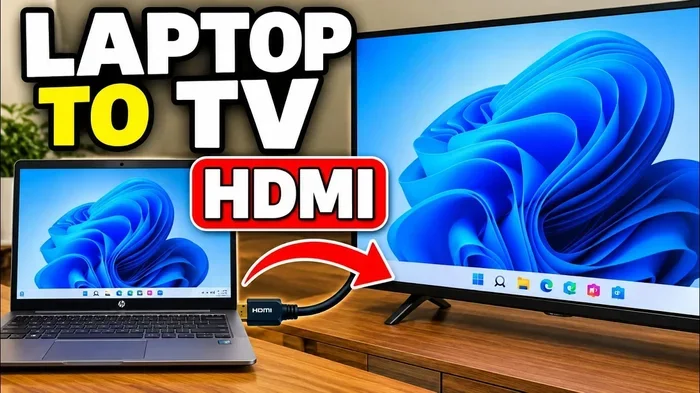
One concern many people have when their screen stays black is whether their data is still safe. The good news is that a black screen does not mean your files are lost. Your computer is likely still running even if you cannot see it. You can access your data by connecting your computer to a different display, such as a television or a laptop screen, using the same cable type. This is one of the most practical monitor test tips you can use in an emergency.
Another approach is to boot into Safe Mode, which loads Windows with minimal drivers. From Safe Mode, you can back up your important files to an external drive or cloud storage. This is a smart precaution whenever your computer display not working and you are unsure of the cause. Even if your monitor is completely dead, your data remains safe on your hard drive or SSD.
Remember, the monitor is just the display. It does not store your data or run your programs. Unless the issue is caused by a broader system failure, your files are almost certainly safe and sound. Focus on the display problem itself and do not worry about losing your work or personal files.
Conclusion
So, can you fix a black screen monitor? Absolutely. Most black screen issues are caused by simple problems like loose cables, power issues, or outdated drivers that are easy to fix at home. Start with the basics: power cycle your monitor, check your connections, and update your graphics drivers. If those steps do not work, move on to more advanced troubleshooting like checking your GPU and adjusting your display settings.
Knowing when to stop troubleshooting is just as important as knowing how to start. If your monitor has a backlight failure or physical damage, it may be time to invest in a replacement. Use the cost comparison table above to make an informed decision. The key takeaway is that a black screen monitor is rarely the end of the world. With patience and the right approach, you can often bring your display back to life and save yourself both money and hassle.
Now that you have the knowledge and tools to tackle this problem, go ahead and try these fixes. Your monitor might be back up and running in just a few minutes. Do not let a black screen slow you down. Take action today and get back to what matters most.
Frequently Asked Questions
Why does my monitor turn on but show a black screen?
This usually means your monitor is receiving power but not getting a video signal. Check your HDMI or DisplayPort cables first. Try a different cable or port. If the problem persists, the issue might be with your graphics card or drivers. A GPU not detected error often causes this exact symptom.
Can a black screen monitor be fixed for free?
Yes, many black screen monitor issues can be fixed at no cost. Loose cables, incorrect brightness settings, and driver updates are all free fixes. Even reseating a graphics card costs nothing but a few minutes of your time. Start with these zero-cost solutions before spending any money.
How do I know if my monitor is dead or just has a black screen?
Shine a flashlight on the screen in a dark room. If you can see a faint image, your monitor is likely alive but has a backlight failure. If you see absolutely nothing, the monitor might be completely dead. Also check if the power light is on and if the monitor makes any sounds when you turn it on.
What should I do if my monitor goes black while gaming?
A screen stays black during gaming often points to a GPU or driver problem. First, check that your graphics card is properly seated and receiving enough power. Update your GPU drivers through Device Manager or the manufacturer’s website. Lowering your game’s resolution or settings can also help if the issue is related to overheating or insufficient performance.
Is it worth repairing a monitor with a black screen?
It depends on the cause and the age of the monitor. Simple fixes like replacing a cable or updating a driver cost very little. But if the panel itself is damaged or the backlight failure requires professional repair, the cost might exceed the price of a new monitor. Use the cost comparison table in this guide to help you decide.
Can a loose HDMI cable cause a black screen?
Absolutely. A loose or damaged HDMI cable is one of the most common causes of a black screen monitor. Even if the cable looks fine on the outside, internal wires can be damaged. Always try a different cable first when troubleshooting. This simple loose connection fix resolves the problem in many cases.