How Do I Reconnect My Watch To My Phone Step By Step
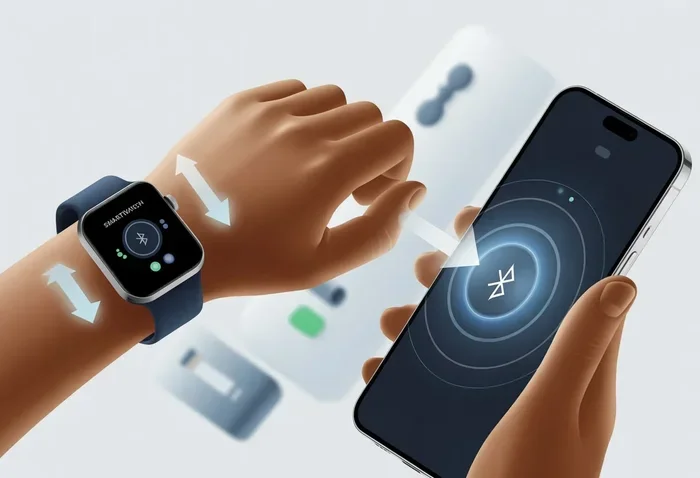
Reconnecting your smartwatch to your phone is easier than you think. This guide walks you through every step to fix Bluetooth pairing issues, reset your connection, and sync your device again. Whether you use an Apple Watch, Samsung Galaxy Watch, or another brand, you will find clear instructions that get your watch and phone talking again fast.
There is nothing more frustrating than looking down at your wrist and realizing your smartwatch has disconnected from your phone. You miss notifications, your fitness tracking stops, and your favorite apps go silent. Whether your watch lost connection after a software update, a phone reset, or simply for no clear reason, the good news is that reconnecting it is usually straightforward.
This guide shows you exactly how to reconnect your watch to your phone step by step. We cover every major brand, common problems, and proven fixes that work every time. By the end, your watch and phone will be synced again and working like a team.
Before you start, make sure both your watch and phone have enough battery. A low battery on either device can cause pairing problems. Also, keep your phone within a few feet of your watch during the setup process. These small preparations save you time and prevent unnecessary frustration.
Key Takeaways
- Turn Bluetooth off and on: This simple fix resolves most connection problems between your watch and phone.
- Use the correct app: Each watch brand has its own companion app that manages pairing and syncing.
- Restart both devices first: A quick restart of your watch and phone can clear temporary glitches instantly.
- Forget old pairings: Removing the previous connection from both devices helps establish a clean new link.
- Keep software updated: Outdated watch or phone software often causes reconnection failures.
- Factory reset as a last resort: If nothing else works, a factory reset can solve deep-rooted sync issues.
📑 Table of Contents
- Why Does Your Watch Keep Disconnecting From Your Phone?
- How Do I Reconnect My Watch To My Phone Step By Step
- Brand-Specific Reconnection Guides
- Common Problems When Reconnecting Your Watch
- How to Prevent Future Disconnection Problems
- When to Factory Reset Your Watch
- Quick Tips for Faster Reconnection
- Expert Insights on Watch Connectivity
- Key Takeaways
- Conclusion
Why Does Your Watch Keep Disconnecting From Your Phone?
Understanding why your watch disconnects helps you prevent it from happening again. Several common reasons can break the connection between your wearable and your phone.
Bluetooth Interference
Bluetooth signals can get blocked or weakened by other wireless devices. Microwaves, Wi-Fi routers, and even other Bluetooth gadgets in your pocket can interfere with the signal between your watch and phone. When too many devices compete for the same frequency, your connection drops.
Software Glitches
Sometimes a simple software bug causes the disconnect. This happens after operating system updates on either your phone or your watch. The new software may not play well with the older version on the other device, causing your smartwatch to lose connection unexpectedly.
Low Battery or Power Saving Mode
When your watch or phone battery drops below a certain level, Bluetooth power gets reduced to save energy. Power saving mode on your phone can also shut down Bluetooth connections to extend battery life. This is one of the most overlooked reasons your watch stops syncing.
Distance and Obstacles
Bluetooth works best within about 30 feet. Walls, water, and metal objects can weaken the signal. If you leave your phone in another room, your watch may lose the connection entirely.
How Do I Reconnect My Watch To My Phone Step By Step
The process for reconnecting your watch to your phone depends slightly on your device brand. However, the core steps are very similar across Apple Watch, Samsung Galaxy Watch, Fitbit, Garmin, and other popular brands. Here is the universal method that works for most devices.
Step 1: Restart Both Devices
Start with the simplest fix that solves the most problems. Turn off your watch and your phone completely. Wait about 30 seconds. Then turn your phone back on first, followed by your watch. This clears temporary memory and refreshes the Bluetooth connection on both ends.
Restarting your devices is like giving them a fresh start. Many connection issues are just temporary glitches that disappear after a reboot. Do not skip this step, even if it seems too simple.
Step 2: Check Bluetooth on Your Phone
Go to your phone settings and make sure Bluetooth is turned on. Look for the Bluetooth icon in your notification bar or status bar. If it is not showing, toggle Bluetooth off and then back on again. This forces your phone to search for available devices again.
On iPhone, you can swipe down from the top right corner to access Control Center. On Android, swipe down from the top left. Tapping the Bluetooth icon turns it off and on quickly without diving into settings.
Step 3: Remove Old Pairing From Both Devices
Go to your phone Bluetooth settings and find your watch in the list of paired devices. Tap on it and select “Forget This Device” or “Unpair.” Do the same on your watch by going into its Bluetooth or connection settings and removing the phone from the paired list.
This step is crucial because old pairing data can become corrupted. When you start fresh, both devices create a clean connection without any leftover conflicts. Many people skip this step and wonder why the reconnect keeps failing.
Step 4: Open the Companion App
Each watch brand uses a specific app for setup and syncing. Apple Watch uses the Watch app. Samsung Galaxy Watch uses the Galaxy Wearable app. Fitbit uses the Fitbit app. Garmin uses the Garmin Connect app.
Open the correct app on your phone and make sure it is up to date. If you are not sure which app you need, search your app store for your watch brand name. Download the official app from the developer to avoid fake or outdated versions.
Step 5: Put Your Watch in Pairing Mode
Most watches need to be in pairing mode before your phone can find them. On Apple Watch, this happens automatically when you open the Watch app. On Samsung Galaxy Watch, hold the back button or go to Settings, then Connection, and tap Pair New Device.
For Fitbit and Garmin watches, hold the button on the side to wake the screen, then follow the on-screen prompts. Your watch should display a pairing request or a Bluetooth icon showing it is ready to connect.
Step 6: Complete the Pairing Process
Follow the on-screen instructions in the companion app. You will typically see your watch name appear on your phone screen. Tap on it and wait for the confirmation. Both devices will exchange pairing keys and establish a secure Bluetooth connection.
Once paired, your watch should vibrate or show a confirmation screen. Check that notifications are flowing by sending a test message from your phone. If everything works, your watch reconnection is complete and you are good to go.
Brand-Specific Reconnection Guides
Different watch brands have slightly different reconnection methods. Here are the most popular ones with specific instructions that make the process even smoother.
Apple Watch Reconnection
Apple Watch makes reconnection very smooth if you follow these steps. First, make sure your iPhone has the latest iOS version. Open the Watch app on your iPhone. If your Apple Watch appears on the My Watch tab, tap on it and tap “Pair Apple Watch.” If it does not appear, try restarting both devices and check Bluetooth again.
Apple Watch also supports automatic reconnection. When both devices are within range and Bluetooth is on, they should reconnect within seconds. If your Apple Watch keeps disconnecting, check for pending software updates on both the watch and the iPhone.
Samsung Galaxy Watch Reconnection
For Samsung Galaxy Watch users, open the Galaxy Wearable app on your phone. Make sure Bluetooth is enabled. If your watch does not appear, tap the “Search for devices” option. Select your Galaxy Watch from the list and follow the pairing prompts.
Samsung Galaxy Watch also works with the SmartThings app for newer models. If you have a recent Galaxy Watch, try using SmartThings instead of the older Galaxy Wearable app. This can resolve reconnection issues that the older app cannot handle.
Fitbit Watch Reconnection
Fitbit watches use the Fitbit app for all syncing and pairing tasks. Open the app, tap the profile icon, and select your watch from the device list. If it does not show up, tap “Set Up a Device” and follow the prompts. Make sure your Fitbit app is updated to the latest version.
Fitbit watches also have a quick reconnect method. Simply open the Fitbit app on your phone and bring your watch within a few feet. The app should detect the watch and sync automatically. If it does not, try turning Bluetooth off and on again.
Garmin Watch Reconnection
Garmin watches connect through the Garmin Connect app. Open the app and go to Devices. Tap “Add Device” and follow the pairing instructions. Make sure your Garmin Connect app is up to date, as older versions sometimes fail to find newer watch models.
Garmin watches also support Bluetooth Smart technology, which uses less battery while maintaining a stable connection. If your Garmin watch disconnects often, check the battery optimization settings on your phone to make sure Garmin is not being restricted in the background.
Common Problems When Reconnecting Your Watch
Even when you follow all the steps, things can still go wrong. Here are the most common problems people face when trying to reconnect their watch to their phone and how to fix each one.
Watch Does Not Show Up in Bluetooth List
If your watch does not appear in your phone Bluetooth list, the most common cause is that the watch is not in pairing mode. Check your watch manual for the specific method to enter pairing mode. On most watches, you need to hold down a button or navigate to Settings, then Bluetooth, then Pair New Device.
Another reason is that your phone Bluetooth is turned off or stuck. Toggle Bluetooth off and on, or restart your phone entirely. Also make sure your watch is charged. A watch with less than 5 percent battery may not broadcast a Bluetooth signal.
Paired But No Notifications
If your watch connects but you do not receive notifications, check the notification settings in the companion app. On iPhone, go to the Watch app, tap Notifications, and make sure your desired apps are enabled. On Android, open the Galaxy Wearable or Fitbit app and check the notification access permissions.
Also check your phone Do Not Disturb mode. If this is on, notifications will not reach your watch even though the Bluetooth connection is active. Turn off Do Not Disturb and test again.
Connection Keeps Dropping
A watch that connects but then drops frequently usually has a Bluetooth interference problem. Move away from crowded Wi-Fi areas and other Bluetooth devices. Restart both devices and try again. If the problem persists, check for software updates on both your watch and phone.
Some phones have aggressive battery optimization settings that kill Bluetooth connections in the background. Go to your phone battery settings and whitelist your companion app so it can run freely in the background.
Pairing Fails Repeatedly
If pairing keeps failing, the old pairing data is likely corrupted. Forget the device on both your phone and watch, then try again from scratch. Make sure both devices are close together and that nothing blocks the Bluetooth signal.
Also check the date and time on both devices. Incorrect date and time settings can prevent Bluetooth pairing from working. Set both devices to automatic date and time and try pairing again.
How to Prevent Future Disconnection Problems
Once you successfully reconnect your watch to your phone, you want to keep the connection stable. Here are simple habits that prevent most disconnection problems.
Keep Software Updated
Always install the latest updates for both your watch and phone. Updates fix bugs that cause Bluetooth problems and improve connection stability. Set your devices to update automatically if possible.
Maintain Good Battery Levels
Keep both your watch and phone charged above 20 percent. Low battery triggers power saving mode, which weakens Bluetooth signals and causes disconnections. Charge your watch every night and keep your phone above a comfortable level.
Limit Bluetooth Device Crowding
Too many Bluetooth devices in the same area can cause interference. If you are in a crowded place with many wireless devices, your watch connection may become unstable. Moving closer to your phone helps in these situations.
Restart Weekly
A weekly restart of both your watch and phone clears cached data and refreshes Bluetooth connections. This simple habit prevents most minor connection issues before they become real problems.
When to Factory Reset Your Watch
If none of the above steps work, a factory reset might be the answer. This erases all data on your watch and restores it to its original settings. Use this as a last resort when your watch will not reconnect no matter what you try.
Before factory resetting, make sure you back up any important data. Apple Watch backs up to your iPhone automatically. Samsung Galaxy Watch backs up to your Samsung account. Fitbit and Garmin watches sync data to the cloud through their respective apps.
After the reset, set up your watch as new and pair it with your phone using the steps described earlier. A factory reset almost always resolves deep connection issues that no other fix can address.
Quick Tips for Faster Reconnection
- Always keep Bluetooth on on both devices unless you are trying to save battery intentionally.
- Restart your phone before restarting your watch. This ensures your phone is ready to detect the watch.
- Use the official companion app from the watch manufacturer. Third-party apps can cause pairing conflicts.
- Keep your phone and watch close during the initial pairing process for the strongest signal.
- Disable battery saver mode on both devices while reconnecting to avoid signal drops.
- Check for pending software updates on both devices before attempting to reconnect.
Expert Insights on Watch Connectivity
Bluetooth technology has improved significantly over the past few years. Modern watches use Bluetooth 5.0 or later, which offers stronger signals and better battery efficiency. However, connection issues still happen because of the complex interaction between different phone models, watch models, and operating system versions.
Tech experts recommend keeping both devices within 10 feet during the initial pairing process for the best results. They also suggest clearing your phone Bluetooth cache if problems persist. On Android phones, you can clear the Bluetooth cache by going to Settings, then Apps, then Bluetooth, and tapping Clear Cache. This removes corrupted Bluetooth data without deleting your paired devices.
Another expert tip is to toggle Airplane Mode on your phone for 10 seconds and then turn it off. This resets all wireless connections including Bluetooth and often fixes stubborn connection problems. It is a quick trick that works surprisingly well for watch reconnection issues.
If you travel internationally and your watch and phone are on different cellular networks, the connection may behave differently. Roaming settings on your phone can affect Bluetooth performance. When you return home, the connection usually normalizes on its own.
Key Takeaways
- Restart both devices first: A simple reboot clears temporary glitches and fixes most connection problems instantly.
- Forget old pairings: Removing the previous connection from both devices ensures a clean, conflict-free reconnection.
- Use the right companion app: Each watch brand needs its specific app for proper pairing and syncing.
- Check Bluetooth and notifications settings: These are the two most common culprits for reconnection failures.
- Keep software updated: Outdated software on either device is a leading cause of Bluetooth problems.
- Factory reset as a last resort: When nothing else works, a factory reset restores your watch to a clean state that pairs easily.
- Prevent future issues: Regular updates, good battery habits, and periodic restarts keep your connection stable long term.
Conclusion
Reconnecting your watch to your phone does not have to be stressful. By following the steps in this guide, you can fix most connection problems quickly and get back to tracking your fitness, receiving notifications, and enjoying all the features of your wearable device. Start with the simple fixes like restarting both devices and toggling Bluetooth. Move on to forgetting old pairings and using the correct companion app if those do not work. Reserve factory resets for situations where nothing else helps.
The key to a stable connection is regular maintenance. Keep your software updated, monitor your battery levels, and restart your devices weekly. These small habits prevent most disconnection problems before they start. Now that you know exactly how to reconnect your watch to your phone step by step, you can handle any connection issue with confidence and get back to using your favorite wearable without delay.
Frequently Asked Questions
Why won’t my watch connect to my phone even though Bluetooth is on?
Your watch may not show up if it is not in pairing mode or if the old pairing data is corrupted. Try forgetting the device on both your phone and watch, then restart both devices before attempting to pair again. Also make sure your companion app is updated to the latest version.
How long does it take to reconnect a watch to a phone?
Most reconnections take less than two minutes when both devices are nearby and Bluetooth is enabled. If you need to factory reset or clear Bluetooth cache, the process can take 10 to 15 minutes. The actual pairing step itself usually takes under a minute.
Do I need to reset my watch to reconnect it to my phone?
No, a full reset is rarely needed. Most reconnection issues are resolved by restarting both devices, forgetting the old pairing, and pairing fresh. Only use a factory reset if all other troubleshooting steps have failed and the connection problems persist.
Can I reconnect my watch to a different phone?
Yes, you can pair your watch with a different phone. First, unpair the watch from the old phone using the companion app. Then follow the normal pairing steps with the new phone. Note that some watch brands require you to back up and restore data when switching phones.
Why does my watch disconnect frequently even after reconnecting?
Frequent disconnections are usually caused by Bluetooth interference, low battery, or aggressive battery optimization settings on your phone. Move closer to your phone, disable battery saver for your companion app, and make sure both devices have sufficient charge to maintain a stable connection.
Is it safe to factory reset my watch to fix connection issues?
Yes, a factory reset is safe but it erases all data on your watch. Back up any important data before resetting. Most watch brands sync data to the cloud automatically, so your fitness history and settings should be recoverable after the reset and re-pairing process.