How Do I Connect My Phone To My Home Stereo Step By Step
Want to hear your phone’s music through your home stereo? This guide shows you exactly how to connect your phone to your home stereo in simple steps. You’ll learn Bluetooth pairing, wired AUX connections, and wireless streaming options that work with any receiver or speaker system. Follow our step-by-step instructions to get great sound fast.
There’s nothing quite like hearing your favorite song fill the room through a proper home stereo system. Big, warm sound from real speakers makes every playlist feel alive. But many people never connect their phone to their stereo because they think it’s too hard. The truth is that linking a smartphone to a home audio system is simple once you know the steps. If you’ve ever wondered how do I connect my phone to my home stereo, you’re in the right place. This guide walks you through every method, from wireless Bluetooth to a basic aux cord. You’ll be playing music on your speakers in no time.
We’ll cover the gear you need, the setup process for each connection type, and how to fix common problems. You’ll also find tips to get the best sound quality possible. Whether you have a modern Bluetooth receiver or an older stereo with only an AUX input, there’s a solution for you. Let’s turn your phone into a powerful music player for your whole home.
Key Takeaways
- Bluetooth is the easiest wireless method: Most modern stereos support Bluetooth pairing, so you can stream music without any cables.
- An AUX cable gives reliable wired sound: A simple aux cord eliminates lag and works with almost every home audio system.
- Wi-Fi streaming offers high-quality audio: AirPlay and Chromecast let you send music over your home network for richer sound.
- An FM transmitter works when there’s no AUX or Bluetooth: This handy device plugs into your phone’s headphone jack and broadcasts to an empty FM frequency.
- Updating firmware solves most issues: Keeping your phone and stereo updated fixes connection problems and improves compatibility.
- Use the right cable or adapter: The correct aux cord, USB cable, or RCA adapter prevents damage and ensures a clean signal.
- Adjust your equalizer for the best experience: Small tweaks to your phone’s sound settings can make a big difference in listening pleasure.
📑 Table of Contents
- Why Connect Your Phone to Your Home Stereo?
- What You Need Before You Start
- How Do I Connect My Phone to My Home Stereo? Try Bluetooth First
- Wired Options: AUX Cable and USB
- Wireless Streaming with Wi-Fi, AirPlay, and Chromecast
- Alternative Methods: FM Transmitter and Bluetooth Adapters
- Troubleshooting Common Connection Problems
- Tips for the Best Sound Quality
Why Connect Your Phone to Your Home Stereo?
Your phone holds your entire music library and all your favorite streaming apps. But the tiny built-in speaker can’t do that music justice. A home stereo system brings out details you never knew were there. The bass hits deeper, the vocals sound clearer, and the overall experience feels completely different. Here are a few reasons to make the connection.
- Better sound quality: Home speakers are designed to reproduce a full range of frequencies. Your phone’s speaker just can’t compete with that.
- Share music with others: Play a song for the whole room instead of huddling around one person’s phone.
- Use apps you already love: Spotify, Apple Music, YouTube Music, and podcasts all sound richer through a stereo.
- Control from your couch: Use your phone as a remote to pause, skip, or adjust volume without getting up.
- Fill your home with sound: Connect to a receiver and amplifier to push audio to multiple rooms.
Once you see how easy it is, you’ll wonder why you didn’t do it sooner. The next step is to check what kind of connections your stereo supports.
What You Need Before You Start
Before you grab your phone and start pressing buttons, take a quick look at your stereo. Knowing your options saves time and frustration. You’ll need one of a few common items depending on the method you choose.
Check Your Stereo’s Inputs
Look at the back or front panel of your stereo receiver or amplifier. You’ll see a set of audio inputs. The most common ones are listed below. If you spot one of these, you’re ready to go.
- AUX input: A single 3.5mm jack that looks like a headphone port. Almost every stereo made in the last 20 years has one.
- Bluetooth capability: Look for the Bluetooth logo on the stereo or check the menu for wireless settings.
- USB port: Some receivers have a USB input that can play music directly from a phone cable.
- RCA inputs: Red and white circular jacks used for older equipment. You’ll need an adapter to connect a phone to these.
- Optical or HDMI ARC: Digital inputs found on higher-end models. These require specific cables or adapters.
Gather the Right Cables or Adapters
Once you know what your stereo has, grab the matching cable. You probably already own most of these items. Here’s what you might need for a smartphone connection to your home audio system.
- Aux cable (3.5mm to 3.5mm): The standard audio cord with a plug on each end. Perfect for AUX inputs.
- Aux cable with RCA plugs: Has a 3.5mm jack on one side and red/white RCA plugs on the other. Use this for older stereos.
- USB cable: A standard charging cable can work if your stereo has a USB port for audio.
- FM transmitter: A small device that plugs into your phone’s headphone jack and broadcasts to an FM frequency. Great for stereos without AUX.
- Bluetooth adapter: If your stereo is older and lacks Bluetooth, a USB Bluetooth dongle can add wireless capability.
With the right cable in hand, you’re ready to pick a connection method. The next sections walk you through each one step by step.
How Do I Connect My Phone to My Home Stereo? Try Bluetooth First
Bluetooth is the most popular way to link your phone to your stereo without any wires. It’s fast, easy, and works with most devices made after 2015. If your stereo has Bluetooth, this is the method to try first. You’ll be streaming music in just a few minutes.
Step-by-Step Bluetooth Pairing
Follow these simple steps to pair your phone with your stereo. The process is almost the same on both iPhone and Android.
- Turn on your stereo: Power up the receiver or speaker system and set it to Bluetooth mode if it has a dedicated button.
- Put the stereo in pairing mode: Look for a Bluetooth button on the remote or the unit itself. Press it and wait for a light to blink. This tells the stereo it’s ready to be found.
- Open Bluetooth on your phone: Go to your phone’s settings and tap Bluetooth. Make sure the toggle is turned on.
- Find the stereo in the list: Your phone will scan for nearby devices. Look for the name of your stereo. It might say something like “Home Stereo” or “Receiver BT.”
- Tap to pair: Select the stereo name from the list. You may see a pairing code on your stereo screen. Enter that code on your phone if prompted.
- Start playing music: Once paired, open your music app and hit play. The sound should now come from your stereo speakers.
Quick Tip: If your phone connects to the wrong device, go to your Bluetooth settings and forget the old connection before trying again. This simple step solves many pairing headaches.
Troubleshooting Bluetooth Connections
Sometimes Bluetooth pairing doesn’t work the first time. Don’t worry. Here are a few fixes that almost always work.
- Turn Bluetooth off and on again: A quick toggle in your phone’s settings often resets the connection.
- Move closer to the stereo: Bluetooth works best within 30 feet. Walls and furniture can weaken the signal.
- Check for interference: Other wireless devices like microwaves or baby monitors can disrupt the connection. Move them away if possible.
- Update your phone’s software: A firmware update can fix Bluetooth bugs. Check for updates in your phone’s settings.
- Restart both devices: Turn off your stereo and phone, wait 10 seconds, and turn them back on. This clears temporary glitches.
Bluetooth gives you the freedom to move around the room while your music plays. But if you want a zero-lag, always-reliable connection, a wired method is the way to go.
Wired Options: AUX Cable and USB
A physical cable connects your phone directly to the stereo for a clean, uninterrupted signal. Wired connections never drop out or suffer from interference. They’re perfect for listening sessions where you want the best possible audio without any fuss. Let’s look at the two main wired options.
Using an AUX Cable for a Simple Plug-In Connection
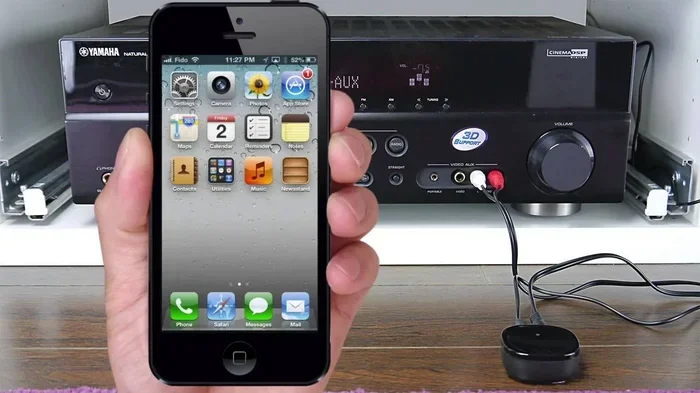
The AUX cable is the easiest wired method. It uses a standard 3.5mm jack, the same size as your phone’s headphone port. Almost every home stereo has an AUX input labeled “AUX” or “Line In.”
Here’s how to set it up in three easy steps.
- Plug one end into your phone: Insert the 3.5mm plug into your phone’s headphone jack or charging port (if using a USB-C to aux adapter).
- Plug the other end into the stereo: Push the plug into the AUX input on the back of the receiver. You’ll hear a faint click when it’s seated properly.
- Set the stereo to AUX mode: Use the stereo’s source or input selector to choose AUX. The display should show “AUX” or the input number.
Now adjust your phone’s volume to about 70% and use the stereo’s volume knob for the final level. This prevents distortion and protects your phone’s speakers. An audio cable like this gives you instant, high-quality sound with no setup at all.
Connecting via USB for Charging and Audio
Many modern stereos include a USB port that does double duty. You can charge your phone and send audio to the stereo at the same time. This method works best with Android phones and some iPhones that support USB audio class.
- Plug a USB cable into your phone: Use the cable that came with your phone.
- Connect the other end to the stereo’s USB port: The stereo will recognize your phone as a media device.
- Select USB as the source: Use the stereo’s input button to switch to USB mode.
- Open your music app: Your phone’s music library should now play through the stereo.
If your stereo doesn’t support USB audio, you’ll need a different cable. A USB-to-AUX adapter can bridge the gap. This small gadget plugs into the stereo’s AUX input and accepts a USB cable from your phone. It’s a handy cable management solution for setups with limited inputs.
Wireless Streaming with Wi-Fi, AirPlay, and Chromecast
For the best sound quality and the most features, consider wireless streaming over your home Wi-Fi network. Bluetooth compresses audio to save bandwidth, which can reduce detail. Wi-Fi streaming sends uncompressed or high-resolution audio, giving you studio-quality sound. Two popular technologies make this easy: AirPlay for Apple users and Chromecast for Android and Google Home setups.
AirPlay for Apple Users
If you have an iPhone, iPad, or Mac, AirPlay lets you beam music to compatible receivers and speakers. Many modern stereo receivers include built-in AirPlay. Here’s how to use it.
- Connect your phone and stereo to the same Wi-Fi network: This is essential. Both devices must be on the same network.
- Open the Control Center on your iPhone: Swipe down from the top right corner of the screen.
- Tap the AirPlay icon: It looks like a triangle with circles above it. You’ll see a list of available speakers.
- Select your stereo: Choose the AirPlay-compatible receiver from the list.
- Start playing music: The audio will stream wirelessly to your stereo with minimal delay.
Expert Insight: AirPlay 2 supports multi-room audio, so you can send music to several rooms at once. Check if your stereo receiver has AirPlay 2 built in for the full experience.
Chromecast and Wi-Fi Streaming
Google Chromecast works with both Android and iPhone. You can cast music from apps like Spotify, YouTube Music, and Google Play Music directly to a Chromecast Audio device or a stereo with Chromecast built in.
- Plug a Chromecast Audio into your stereo’s AUX input: Use an aux cord to connect the Chromecast to the stereo.
- Set up Chromecast through the Google Home app: Follow the on-screen prompts to connect it to your Wi-Fi.
- Cast from your phone: Open a supported music app, tap the Cast icon, and choose your Chromecast device.
Chromecast gives you access to millions of songs and podcasts through your stereo. It also handles smartphone mirroring for apps that don’t have a built-in cast button. The audio streams over Wi-Fi, so you get better range and quality than Bluetooth.
Using a Smart Speaker as a Bridge
Don’t have a Wi-Fi-ready stereo? No problem. You can pair a smart speaker like an Amazon Echo or Google Nest with your stereo. The smart speaker receives the audio stream and sends it to the stereo through an AUX cable or Bluetooth. This turns any older stereo into a smart, wireless speaker system. It’s a clever cable management trick that keeps your setup clean.
Alternative Methods: FM Transmitter and Bluetooth Adapters
What if your stereo has no AUX input and no Bluetooth? You still have options. An FM transmitter is a small gadget that plugs into your phone’s headphone jack and broadcasts your music to an empty FM radio frequency. Your stereo picks it up like a radio station. It’s not the highest quality method, but it works in a pinch.
FM Transmitter Basics
Here’s how an FM transmitter fits into your setup.
- Plug the transmitter into your phone: It uses the same 3.5mm jack as headphones.
- Set the transmitter to an empty FM frequency: Use the buttons on the device to choose a frequency that has no local radio station.
- Tune your stereo to that frequency: Use the stereo’s radio tuner to find the empty station.
- Play music on your phone: The stereo will pick up the signal and play it through the speakers.
Quick Tip: FM transmitters work best in areas with strong radio signals. If you hear static, try a different frequency or move the transmitter closer to the stereo’s antenna.
Bluetooth Adapter for Older Stereos
Some older receivers lack Bluetooth but have a USB port or AUX input. A Bluetooth USB adapter or a Bluetooth receiver with an AUX out can add wireless capability. You plug the adapter into the stereo, put it in pairing mode, and connect your phone just like you would with a built-in Bluetooth stereo. This is a great way to upgrade an older sound system without buying a whole new receiver.
Troubleshooting Common Connection Problems
Even with the right method, you might run into hiccups. Don’t panic. Most connection issues have simple fixes. Here are the most common problems and how to solve them.
No Sound After Pairing
If your phone connects but you hear nothing, check a few things first. Make sure the stereo is set to the correct input source. If you’re using Bluetooth, check that the volume on both your phone and stereo is turned up. On some phones, you must select the stereo as the audio output device in the Bluetooth settings. Go to your phone’s Bluetooth menu, find the stereo, and look for an option to “Media Audio” or “Audio Output.” Make sure that switch is turned on.
Static or Crackling Noise
Static noise often comes from a loose cable or electrical interference. If you’re using an AUX cable, try a different one. Cheap cables can pick up interference from nearby power cords. Keep audio cables away from power cables and transformers. If you’re using Bluetooth, move your phone closer to the stereo. Walls and metal objects can weaken the signal and cause crackling. A firmware update for your stereo or phone can also fix static issues.
Phone Won’t Find the Stereo
When your phone can’t see the stereo, the stereo might not be in discovery mode. Make sure the stereo’s Bluetooth is on and actively searching for devices. On some models, you need to hold the Bluetooth button for a few seconds to enter pairing mode. Also, check if the stereo is connected to another device. Some stereos remember previous connections and won’t show up until you disconnect them. Turn off Bluetooth on other nearby devices to reduce clutter.
Tips for the Best Sound Quality
Once you’ve got your phone connected, you can squeeze more quality out of your setup with a few simple tweaks. These tips help you get the most from your home stereo system and your smartphone connection.
- Adjust your phone’s equalizer: Many music apps have a built-in EQ. Boost the bass or treble to match your speaker’s strengths. Experiment until the sound feels balanced.
- Use lossless audio formats: If you stream from Spotify or Apple Music, choose the highest quality setting. This sends more data to your stereo for richer detail.
- Keep your phone charged: A low battery can cause audio dropouts. Plug your phone in during long listening sessions, especially when using USB audio.
- Position your phone wisely: If using Bluetooth, keep your phone near the stereo. Avoid placing it inside a metal case or behind a large appliance.
- Update your apps and firmware: Regular updates improve compatibility and fix bugs. Check for updates to your stereo’s firmware and your phone’s operating system once a month.
- Use a high-quality cable: A well-shielded aux cord or USB cable reduces noise and lasts longer. Spend a few extra dollars on a reputable brand.
Key Takeaway: The method you choose depends on your stereo’s features and your personal preference. Bluetooth offers freedom, AUX gives reliability, and Wi-Fi streaming delivers the best quality. With the right setup, your phone becomes the most powerful music player you own. Now that you know how do I connect my phone to my home stereo, you can enjoy your favorite tracks with room-filling sound anytime you want.
Take a few minutes to try each method. You’ll quickly discover which one fits your lifestyle best. Once connected, you’ll never go back to listening on your phone’s tiny speaker again. Your home stereo is waiting to bring your music to life.
Frequently Asked Questions
Can I connect my iPhone to any home stereo?
Yes, you can connect an iPhone to most home stereos using Bluetooth, an AUX cable, or Wi-Fi with AirPlay. If your stereo lacks these inputs, an FM transmitter or a Bluetooth adapter will work. iPhones use a standard 3.5mm headphone jack or a Lightning-to-aux adapter for wired connections.
Why does my Bluetooth connection keep cutting out?
Bluetooth cutouts usually happen when your phone is too far from the stereo or when walls and furniture block the signal. Other wireless devices like microwaves can also cause interference. Move closer to the stereo, reduce wireless clutter, and make sure both devices have the latest firmware updates to fix most dropouts.
Do I need special cables to connect my phone to a stereo?
You don’t need special cables for most connections. A standard 3.5mm aux cord works for AUX inputs. A regular USB cable works for USB audio. If your stereo only has RCA inputs, you’ll need a 3.5mm-to-RCA adapter cable. These are inexpensive and easy to find online.
Can I use my phone to control the stereo’s volume?
Yes, when connected via Bluetooth or Wi-Fi, your phone can control the stereo’s volume through the app or the phone’s volume buttons. For wired AUX connections, you typically adjust volume on the stereo itself. Some stereos also let you control volume from the phone’s notification panel when connected via Bluetooth.
Is Wi-Fi streaming better than Bluetooth for sound quality?
Wi-Fi streaming generally offers better sound quality than Bluetooth because it sends uncompressed audio over your home network. Bluetooth compresses audio to save bandwidth, which can slightly reduce detail. If you have a good Wi-Fi connection and a Wi-Fi-capable stereo, you’ll notice a clearer, more detailed sound with streaming methods like AirPlay or Chromecast.
What if my stereo doesn’t have any modern inputs?
If your stereo has no AUX, USB, or Bluetooth, an FM transmitter is a great solution. It plugs into your phone’s headphone jack and broadcasts your music to an empty FM frequency that your stereo can tune into. This method works with almost any stereo that has a radio tuner, even very old models.