How Do I Change My Optimum Wifi Name And Password Now
Changing your Optimum WiFi name and password is simple and takes just a few minutes. You can update your network settings through your router admin panel or the Optimum app. This guide walks you through every step to keep your wireless network safe and up to date.
Your home WiFi network is the gateway to everything you do online. From streaming movies to working remotely, a reliable connection matters. But did you know that keeping your Optimum WiFi name and password updated is one of the simplest ways to boost your network security?
Many people set up their router once and never touch the settings again. Over time, this can leave your network vulnerable. A default network name makes it easy for strangers to identify your router. And an old password? That is an open door for anyone nearby.
In this guide, we will show you exactly how to change your Optimum WiFi name and password. We cover every method, from using your router’s admin panel to the Optimum mobile app. You will also find tips to make your network faster and safer. Let us get started.
Key Takeaways
- Easy Access: You can change your Optimum WiFi name and password using your router’s admin panel or the Optimum app.
- Better Security: Regularly updating your network name and password helps protect your home network from unauthorized access.
- Quick Process: The entire process takes less than 10 minutes with no special tools required.
- Multiple Methods: You can use a web browser, the Optimum app, or contact Optimum support for help.
- No Extra Cost: Changing your WiFi name and password is free and does not require a new plan.
📑 Table of Contents
- Why You Should Change Your Optimum WiFi Name and Password
- How to Change Your Optimum WiFi Name and Password
- What Is a Good WiFi Password?
- How to Change Your Optimum WiFi Network Name
- How Often Should You Change Your Optimum WiFi Password?
- Troubleshooting Common Issues After Changing WiFi Settings
- Additional Tips for Securing Your Optimum WiFi Network
- Conclusion
Why You Should Change Your Optimum WiFi Name and Password
Changing your Optimum WiFi network name and password is not just a good idea. It is essential for keeping your home network secure. Here is why you should do it regularly.
Protect Your Network From Unauthorized Users
When you leave your WiFi password unchanged for months or years, it becomes a risk. Neighbors or even strangers can connect to your network without your knowledge. This slows down your internet speed and uses up your data allowance.
A strong, unique password keeps unwanted users out. It also prevents people from accessing shared files on your network. Think of it like locking your front door every night.
Improve Your Internet Speed
Every device connected to your network uses bandwidth. When too many devices are on your WiFi, your speed drops. By changing your password regularly, you can kick off any unknown devices.
This is especially important if you live in a dense area like an apartment building. Many networks overlap in these spaces, and someone might accidentally (or intentionally) hop onto your connection.
Keep Your Personal Data Safe
Your WiFi network carries sensitive information. Online banking, personal emails, and smart home devices all travel through your router. If someone gains access, they could intercept your data.
Changing your Optimum WiFi password and network name adds a layer of protection. It makes it harder for hackers to target your home network. Combine this with strong encryption, and your security improves dramatically.
How to Change Your Optimum WiFi Name and Password
Now that you know why it matters, let us get into the how. There are two main ways to change your Optimum WiFi settings. You can use the router admin panel through a web browser, or you can use the Optimum mobile app. Both methods are free and straightforward.
Method 1: Using the Router Admin Panel
This is the most common way to change your WiFi settings. You will need a computer or phone connected to your Optimum network. Follow these steps carefully.
First, open your web browser. In the address bar, type 10.0.0.1 and press Enter. This is the default gateway for most Optimum routers. It takes you straight to the login page.
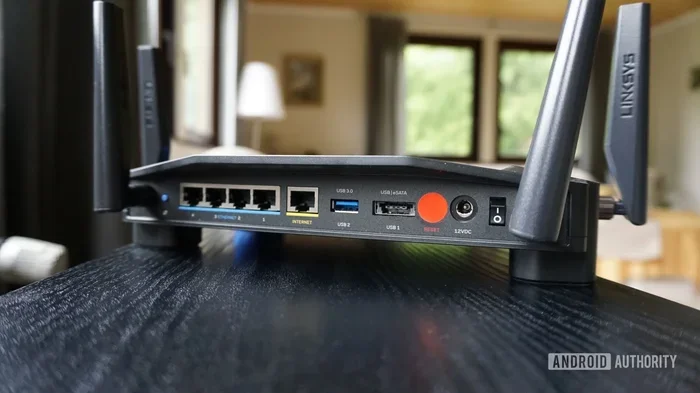
Next, enter your admin username and password. The default login is usually printed on a sticker on the back of your router. If you have changed these before, use your updated credentials.
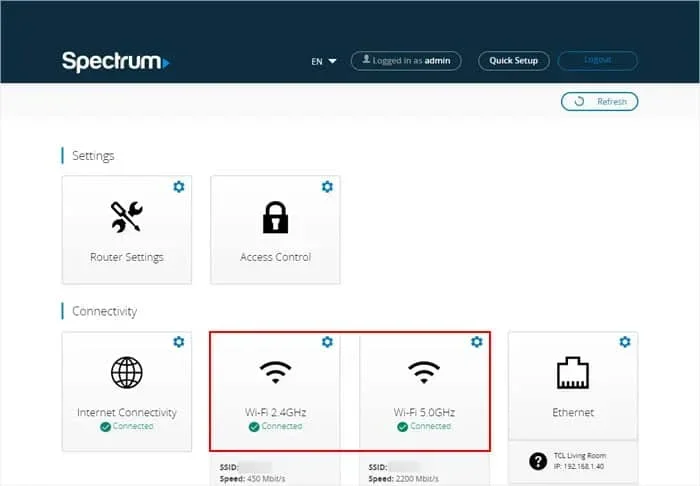
Once you are logged in, look for the wireless settings section. Here is where you can change both your network name and password. Type in your new WiFi name and create a strong password. Make sure to save your changes before you leave the page.
After saving, all your devices will disconnect briefly. You will need to reconnect them using the new network name and password. This only takes a moment and is well worth the effort.
Method 2: Using the Optimum Mobile App
If you prefer using your phone, the Optimum app makes this process even easier. Download the app from the App Store or Google Play if you have not already.
Log in with your Optimum account credentials. Navigate to the WiFi or internet settings section. From there, you can view and edit your network name and password directly on your phone screen.
The app also lets you see all devices currently connected to your network. This is a great way to spot any unknown devices. If you see something suspicious, you can disconnect it right away.
Many users prefer this method because it is fast and does not require typing in an IP address. It is a great option for those who are not comfortable with router settings.
Method 3: Contacting Optimum Support
If you run into trouble, you are not alone. Sometimes router settings can be tricky, especially if you have an older model. Optimum customer support can walk you through the process step by step.
You can reach support by phone or through the live chat on the Optimum website. They can also help you reset your router to factory settings if needed. Just keep in mind that a factory reset will erase all custom settings, so use this as a last resort.
Some customers also ask whether they can buy their own router for Optimum internet. The answer is yes, and using your own router gives you more control over your WiFi settings. Just make sure the router is compatible with Optimum’s network.
What Is a Good WiFi Password?
Now that you know how to change your password, let us talk about what makes a password strong. A weak password defeats the whole purpose of this process.
Use a Mix of Characters
The best WiFi passwords combine uppercase letters, lowercase letters, numbers, and symbols. Avoid using common words or personal information like your name or birthday. Hackers can guess these easily.
For example, instead of “John123,” try something like “J0hn!Sm1th_2024.” It looks random, but you can create a system to remember it. The longer your password, the better. Aim for at least 12 characters.
Avoid These Common Mistakes
Many people make the same mistakes when creating a WiFi password. Here are a few to avoid:
- Using “password” or “admin” as your password. These are the first guesses hackers try.
- Reusing a password from another account. If one account gets breached, your WiFi is at risk too.
- Using short passwords. A six-character password can be cracked in seconds.
- Writing your password on a sticky note. It might be convenient but it is not secure.
Consider Using a Password Manager
If you struggle to remember complex passwords, a password manager can help. These tools generate and store strong passwords for you. You only need to remember one master password. Popular options include LastPass, 1Password, and Bitwarden.
Your WiFi password is just one of many passwords you manage. A password manager keeps everything organized and secure. This is a small step that pays off big time for your overall digital security.
How to Change Your Optimum WiFi Network Name
Your WiFi network name, also called the SSID, is what you see when you search for available networks. Changing it can be fun, but it also serves a practical purpose. A unique network name makes your router less recognizable to potential attackers.
Step-by-Step Guide to Changing Your SSID
Follow these steps to update your Optimum WiFi network name:
- Log in to your router admin panel at 10.0.0.1.
- Navigate to the wireless settings or WiFi setup section.
- Find the field labeled “Network Name” or “SSID.”
- Delete the current name and type in your new network name.
- Save your changes and exit the admin panel.
That is it! Your new network name will appear in the list of available WiFi networks on all your devices. You will need to reconnect each device using the new name and your updated password.
Tips for Choosing a Great Network Name
When picking a new SSID, keep these tips in mind:
- Avoid personal information. Do not use your name, address, or phone number.
- Make it recognizable. Choose a name that helps you identify your network among others in your area.
- Have fun with it. Some people use creative names like “FBI Surveillance Van” or “No Free WiFi Here.”
- Keep it professional if needed. If you work from home, consider a name that fits your business setup.
Some users also wonder whether changing their network name affects their WiFi signal strength. The answer is no. Your SSID is just a label. It does not impact how far your signal reaches. If you want to improve your signal, consider boosting your WiFi signal outside with a repeater or mesh system.
How Often Should You Change Your Optimum WiFi Password?
There is no strict rule for how often you should update your WiFi password. However, most cybersecurity experts recommend doing it every three to six months. This keeps your network fresh and reduces the risk of unauthorized access.
You should also change your password immediately if any of these situations occur:
- You suspect someone else is using your network.
- A former roommate or guest still has your password.
- You notice slower internet speeds without explanation.
- Your router’s admin panel shows unknown connected devices.
Regular password changes are one of the simplest forms of network security. Think of it like changing the batteries in your smoke detector. It takes a few minutes but provides peace of mind.
Troubleshooting Common Issues After Changing WiFi Settings
Sometimes things do not go smoothly after you update your WiFi settings. Here are the most common issues and how to fix them.
Devices Will Not Connect to the New Network
If your phone, laptop, or smart TV cannot find the new network name, try this. Make sure you saved the changes on your router admin panel. Then restart your router by unplugging it for 30 seconds and plugging it back in.
On your device, forget the old network and search for the new one. Enter the new password carefully. Passwords are case-sensitive, so double-check for uppercase and lowercase letters.
Internet Connection Is Slow After the Change
A slow connection after changing your WiFi settings is usually temporary. Your devices need a moment to reconnect and renegotiate the connection. Wait a few minutes and test your speed again.
If the slowness persists, try moving closer to your router. Walls and furniture can block WiFi signals. You can also check whether your Optimum internet plan is delivering the speeds you pay for by running a speed test online.
You Forgot Your New Password
Forgotten passwords happen to everyone. If you cannot log in to your WiFi, you can reset your router to factory settings. This will restore the default network name and password printed on the router sticker.
Keep in mind that a factory reset erases all custom settings. You will need to set up your network again from scratch. Use this as a last resort and always write down your new password somewhere safe.
Additional Tips for Securing Your Optimum WiFi Network
Changing your WiFi name and password is a great start. But true network security goes beyond just these two steps. Here are some extra measures you can take.
Enable WPA3 or WPA2 Encryption
Your router’s encryption setting determines how secure your wireless connection is. WPA3 is the latest and most secure option. If your router does not support WPA3, WPA2 is the next best choice. Avoid WEP encryption, as it is outdated and easily cracked.
You can find this setting in your router admin panel under wireless security. Change it to WPA3 or WPA2 and save your settings.
Update Your Router Firmware
Router manufacturers release firmware updates to fix security vulnerabilities and improve performance. Check for updates regularly in your admin panel. Some Optimum routers update automatically, but it never hurts to verify.
Set Up a Guest Network
If you have visitors who need WiFi access, create a guest network. This keeps your main network and its connected devices separate. Guests get internet access without seeing your shared files or smart home devices.
You can set up a guest network in your router admin panel. Give it a different name and password from your main network. This is a simple step that adds a lot of extra security.
Consider a Mesh WiFi System
If your home is large or has dead spots, a mesh WiFi system can help. These systems use multiple nodes to spread your WiFi signal evenly throughout your home. They are easy to set up and manage through a smartphone app.
Some users also ask whether they can connect their WiFi directly to their TV for streaming. The answer depends on your TV and router setup, but a mesh system makes this process smoother by providing a stronger, more consistent signal throughout your home.
Another great option is to get a free router from Optimum if your current model is outdated. Newer routers come with better security features and faster speeds built in.
Conclusion
Changing your Optimum WiFi name and password is one of the easiest and most effective things you can do for your home network security. It takes just a few minutes, costs nothing, and makes a real difference. Whether you use the router admin panel, the Optimum app, or contact customer support, the process is straightforward and accessible to everyone.
Remember to create a strong password, choose a unique network name, and update your settings regularly. Combine these habits with WPA3 encryption and firmware updates, and your network will be well protected. Take a few minutes today to secure your WiFi. Your future self will thank you.
Now that you know exactly how to change your Optimum WiFi name and password, you have the power to take control of your home network. Stay safe, stay connected, and enjoy the peace of mind that comes with a secure setup.
Frequently Asked Questions
How do I find my Optimum router login credentials?
The default login information is printed on a sticker located on the back or bottom of your Optimum router. It usually lists the admin username, password, and the default network name. If you have changed these before and forgot them, you can reset the router to restore the defaults.
Can I change my Optimum WiFi name and password without a computer?
Yes, you can use the Optimum mobile app on your smartphone to change both your WiFi name and password. The app provides a user-friendly interface that guides you through the process step by step, no computer needed.
Will changing my WiFi password disconnect all my devices?
Yes, all devices will disconnect temporarily when you change your WiFi password. You will need to reconnect each device using the new password. This is normal and expected. Make sure your new password is easy to remember so reconnecting is quick.
What is the difference between a WiFi name and SSID?
There is no difference. SSID stands for Service Set Identifier, and it is simply the technical term for your WiFi network name. When you change one, you change the other. This name appears in the list of available networks on all nearby devices.
How can I see all devices connected to my Optimum WiFi?
You can view all connected devices by logging into your router admin panel at 10.0.0.1. Look for a section called “Connected Devices” or “Device List.” The Optimum mobile app also shows this information in its internet or WiFi settings area.
Is it safe to change my Optimum WiFi settings myself?
Absolutely. Changing your WiFi name and password is a safe and standard practice. You are simply updating settings that you have full control over as the network owner. Just be sure to save your changes before exiting and write down your new credentials in a safe place.