Does Your Phone Have A Built In QR Scanner Yes Or No
Does your phone have a built in QR scanner? The answer is yes for most modern smartphones. You can scan QR codes using your default camera app without needing to download extra software. This quick guide shows you exactly how to use this handy feature on your device.
Have you ever seen a square pattern on a poster or a menu and wondered how to use it? That pattern is called a quick response code. People use these codes every single day. They open web links. They share contact info. They even let you pay for things. But you need a tool to read them.
Many people ask the same question every day. Does your phone have a built in QR scanner? The answer is usually yes. Most modern phones can read these codes right out of the box. You do not always need to download a special program. This guide will show you exactly how it works on your device.
We will explore how your smartphone camera handles this task. We will look at both iPhone and Android devices. You will learn where to find the tool on your phone. We will also share tips to scan codes safely and quickly. By the end, you will know everything you need to scan any code with ease and confidence.
Key Takeaways
- Built-in capability: Most phones made in the last few years have a native QR scanner ready to use.
- No extra apps needed: You can scan codes right from your default camera or control center.
- Easy to find: The feature is usually hidden in plain sight within your phone settings or camera view.
- Works on both platforms: Both iPhone and Android devices support this native scanning tool.
- Instant access: Scanning a code takes just a second and opens the linked content immediately.
- Safety matters: Always check the destination link before tapping to avoid malicious websites.
📑 Table of Contents
- Why Do People Need To Scan QR Codes So Often?
- Does Your Phone Have A Built In QR Scanner? The Simple Answer
- How To Find And Use The QR Scanner On Your Device
- What If Your Phone Does Not Have A Built In Scanner?
- Quick Tips And Common Mistakes For Safe Scanning
- Expert Insights And The Future Of Mobile Scanning
- Comparison Table: Native Vs Third-Party QR Scanners
- Conclusion
Why Do People Need To Scan QR Codes So Often?
QR codes have become part of our daily lives. You see them on restaurant menus. You see them on store receipts. They are everywhere in the modern world. This contactless tech grew very fast over the last few years. People want quick and easy ways to get information. They do not want to type long words on a tiny screen.
Before QR codes, you had to type long web addresses. Typing a URL on a small screen is hard and slow. A QR code reader solves this problem perfectly. You just point your phone at the code. The code does the typing for you. It takes just a second. It is so much faster than typing.
Daily Uses For Quick Response Codes
Think about how often you use your phone to pay. Mobile payment systems rely on these codes every day. You might use your digital wallet at the grocery store. The cashier shows a code on their screen. You scan it with your phone. The payment goes through fast and smooth.
Restaurants use codes for their menus. You sit at a table. A small code sits on the table. You point your device camera at it. Boom. The menu opens on your screen. No need to wait for a paper menu. No need to ask a waiter for one. It is very convenient.
Even event tickets use this technology every day. Your plane ticket is a code. Your concert ticket is a code. You show the code on your phone. The guard scans it with their device. You get inside the venue. It is a very simple process that saves time for everyone. It makes lines move much faster.
You can also use codes to connect to Wi-Fi. A restaurant might show a code on the wall. You scan it. Your phone joins the network automatically. You do not have to type the long password. This is a huge time saver. It makes connecting to the internet so much easier.
Business cards are another great example. Instead of typing out a phone number, you just scan the code. The contact saves itself to your phone. You can call the person or email them right away. It is a very smart way to share info. The quick response code makes life simpler.
Does Your Phone Have A Built In QR Scanner? The Simple Answer
Does your phone have a built in QR scanner? Let us give you a clear answer. If your phone was made in the last five years, it likely has this feature. Both Apple and Google added this tool to their operating systems. They did this to make life easier for all users. It is a standard feature now.
You might think you need a third-party app. You might think you must visit an app store and search. But that is not always true. Your phone already has a native feature for this. It is built right into the system software. You just need to know where to look. It is very easy to find.
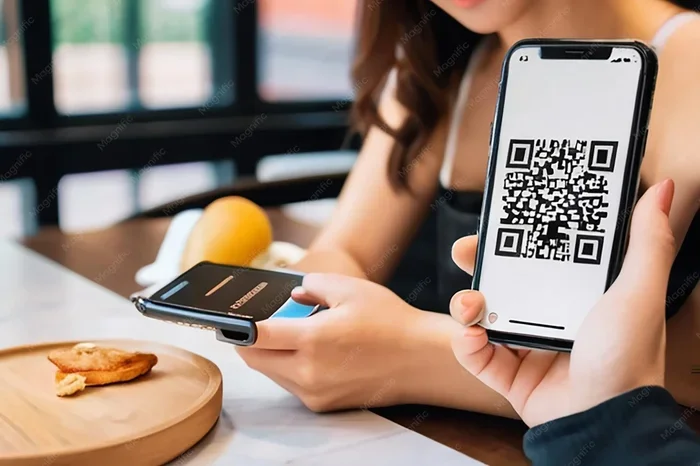
The scan QR code on phone process is very simple. You open your main camera app. You point it at the square code. Your phone reads the code automatically. A notification pops up on your screen. You tap the notification. The link opens right away. It takes less than two seconds.
Some older phones might not have this tool. Very old models might need a separate app to work. But almost all phones sold today include this built-in tool. It is a standard feature now. You should not need to search for a barcode scanner app anymore. Your phone already has everything you need.
It is a common question to ask, does your phone have a built in QR scanner, and the answer is almost always yes. The technology works by reading the black and white squares. The squares hold data. Your camera reads the pattern. The phone decodes the pattern. It turns the pattern into a web link or an action. This all happens in the blink of an eye. It is truly amazing technology that fits in your pocket.
How To Find And Use The QR Scanner On Your Device
Knowing where the scanner is helps you save time. You do not want to fumble around when you are in a hurry. Let us walk through the exact steps for both types of phones. You will be a pro at scanning in no time.
How iPhone Handles QR Scanning
Apple made iPhone scanning very easy and smooth. The camera app on an iPhone does the work for you. You do not need to press any special button. You just open the camera like you normally do for a photo. The phone knows what to do.
Hold your iPhone steady. Point the lens at the quick response code. Wait for a moment. Your phone recognizes the code. A yellow banner appears at the top of the screen. It shows the web link or the action. You just tap the banner to open it.
You can also change this setting if you want. Go to your Settings app. Look for the Camera section. Turn on the Scan QR Codes toggle. This makes sure your camera app is always ready to read codes. It is a great way to make sure you never miss a code. You can find this setting on any modern iPhone.
You can also scan codes from your lock screen. If a notification comes in with a code, you do not even need to unlock your phone. Just tap the notification. The link opens. It is that simple. Apple designed this feature to be as easy as possible. You can scan a code while walking down the street. You do not need to stop and open an app. The scan QR code on phone action happens in the background. It is a seamless experience.
How Android Devices Handle QR Scanning
Android phones work in a similar way. But the exact steps can vary a bit. Different brands like Samsung and Google have their own styles. However, the core Android QR scan method is the same. You use your main camera app to read the code.
Open your camera on the Android device. Point it at the code. Your phone should recognize the pattern. A small popup will appear on the screen. It shows what the code contains. Tap the popup to open the link. It is a very fast process.
Some Android phones put the scanner in a different place. You might find it in the Google App. Open the Google App. Look for the camera icon in the search bar. Tap the icon. Point at the code. This is another way to scan instantly without leaving your search app. It is very handy.
Google Pixel phones have a very smart scanner. It uses Google Lens built right in. When you open the camera, Google Lens is ready. It can read text too. It can identify objects around you. But for codes, it just opens the link. It is a very smart native feature. You get a lot of value from the camera app alone.
Samsung phones have their own built-in scanner too. You can pull down the notification panel. Look for the QR code icon. Tap it. The scanner opens right up. This is a very fast way to read codes. It is a great native feature for Samsung users. You can also add the QR scanner to your quick settings for even faster access.
Using The Control Center Or Notification Panel
You can also find the scanner in other quick places. On iPhone, swipe down from the top right corner. This opens the Control Center. Look for the QR code icon. Tap it. The scanner opens immediately. Point at the code. This is a great shortcut for quick scans.
On Android, swipe down from the top of the screen. Look for the QR code tile. You might need to edit your quick settings to find it. Add the QR tile if it is missing from your panel. Now you can scan with just one tap. It is very convenient for daily use.
These methods work great for wireless payment codes too. You can pay at a store by scanning their code. You can also scan codes to join Wi-Fi networks. It saves you from typing long passwords. The scan QR code on phone tool is very powerful and useful. It makes your phone much more handy.
What If Your Phone Does Not Have A Built In Scanner?
Sometimes older phones do not have this feature built in. Or maybe your camera app is acting a little funny. Do not worry. You still have options. You can still read these square codes easily and quickly.
Third-Party Apps To The Rescue
The app store has many free tools you can use. You can download a QR code reader app. These apps work just like the built-in tool. They use your smartphone camera to read the codes. You just open the app and point it at the code.
Before you download, read the reviews carefully. Some apps have annoying ads. Some might ask for too much permission. Stick to well-known apps from trusted companies. Google Lens is a great free option for Android users. It works perfectly for scanning codes and more.
On iPhone, you can use the built-in Photos app in a clever way. If you take a picture of a code, you can scan it later. Open the photo in your gallery. Look for the QR code icon at the bottom right. Tap it. The link opens right away. This is a great way to scan instantly without an extra app. It is a hidden gem on your phone.
Quick Tips And Common Mistakes For Safe Scanning
Scanning codes is very easy. But you must stay safe while doing it. Some bad actors put harmful links in codes. You need to protect yourself while using this contactless tech. Here are some quick tips and common mistakes to keep you safe.
Quick Tips For Fast Scanning
- Always check the link: Before you tap, look at the URL carefully. Does it look safe and correct? If it looks weird or misspelled, do not tap it at all.
- Good lighting helps: Make sure the code is bright and clear. Dark codes are hard to read. Use your phone flashlight if the code is in a dim area.
- Hold steady: Keep your phone still and stable. Moving too much can blur the code. Wait for the scan to finish completely before moving away.
- Keep distance: Do not put your phone too close to the code. Hold it about a foot away. This gives the camera time to focus and read the pattern.
- Clean your lens: A smudgy camera lens makes scanning hard. Wipe your lens with a soft cloth before you scan. It makes a big difference.
Common Mistakes People Make When Scanning
Many people make small mistakes when they scan codes. These mistakes slow them down and cause frustration. Let us fix those mistakes right now so you can scan like a pro.
The first mistake is using the wrong camera. Always use the back camera on your phone. The front camera usually cannot read these codes properly. The lenses are different. The back camera has much better focus and accuracy for reading patterns.
The second mistake is ignoring the notification. Sometimes the code scans perfectly, but you miss the popup. Look at the top of your screen. The banner might be there for just a few seconds. Swipe down from the top to find it if you miss it the first time.
The third mistake is scanning damaged codes. If the code is torn, wrinkled, or smudged, it might not work. Try to find a cleaner version of the code. You can always ask the person who gave you the code for a fresh copy.
The fourth mistake is not understanding what the code does. Always be aware of where you are scanning. A code in a trusted restaurant is safe. A code on a random sticker in a dark alley might be dangerous. Use your common sense when scanning.
Expert Insights And The Future Of Mobile Scanning
How QR Technology Has Evolved Over Time
QR codes started in Japan for car factories. They needed a way to track car parts during assembly. The codes held much more data than regular barcodes. Over time, the tech spread to the public. Now we use them for almost everything in our daily lives.
Today, the contactless tech is more important than ever before. We use it to order food at restaurants. We use it to board airplanes at the airport. We use it to share contact info with new friends. The device camera is the key to all of this magic. Your phone is now a powerful QR code reader sitting in your pocket.
Experts say that scanning QR codes on phone will only grow in the future. More businesses will use them every day. The technology is too useful to ignore. Your phone is already ready to go. You just need to know how to use it. Now you know exactly how to do it.
Comparison Table: Native Vs Third-Party QR Scanners
It is helpful to see the differences side by side. This table shows you the pros and cons of each method. Use this to decide which way works best for you.
| Feature | Native Scanner | Third-Party App |
|---|---|---|
| Installation | Already on your phone | Requires download from store |
| Speed | Very fast and smooth | Fast, but might have ads |
| Privacy | Very safe and secure | Varies by app developer |
| Extra Features | Basic scanning only | History saving, batch scan |
| Cost | Completely free | Free or paid options |
Conclusion
Does your phone have a built in QR scanner? Yes, it almost certainly does. You can scan codes right from your camera app. You do not need to download anything extra. This native feature makes your life much easier every single day.
Now you know how to find the tool on your iPhone or Android. You know the safe way to scan codes. You can pay at restaurants, get event tickets, and open web links in seconds. The quick response code is a powerful tool for modern life. Use it every day with total confidence.
Next time you see a square pattern, do not hesitate. Point your phone at it. Tap the notification that appears. You will be amazed at how fast and easy it is. Start scanning today and enjoy the speed of contactless tech. Your phone is smarter than you think.
Frequently Asked Questions
Is it safe to scan QR codes with my phone?
Yes, it is generally safe. Your smartphone camera just reads the pattern. However, always check the web link before you tap it. If the link looks strange or misspelled, do not open it. Stick to codes from trusted sources like restaurants or stores.
Do I need Wi-Fi to scan a QR code?
No, you do not need Wi-Fi to scan the code itself. The camera reads the pattern without internet. But you will need a data connection or Wi-Fi to open the web link that the code takes you to. Make sure you have internet access before tapping the notification.
Can I scan a QR code from a picture on my phone?
Yes, you can! On iPhone, open the photo in your gallery and look for the QR code icon at the bottom. On Android, open the Google App and tap the camera icon. You can also use the Google Lens feature to scan images saved on your device. This is great for codes you receive in text messages.
What does a QR code do?
A quick response code stores information like a web link, a phone number, or text. When your device camera reads it, it turns that information into an action. You might open a website, call a number, or join a Wi-Fi network. It is a very fast way to share data.
Where can I find my QR scanner settings?
On iPhone, go to Settings and then Camera. Look for the Scan QR Codes toggle. On Android, the settings vary by brand. You can usually find QR scanning options in the Camera app settings or within the Google App settings. You can also add the scanner to your quick settings panel for easy access.
Why is my phone not scanning a QR code?
This usually happens for a few simple reasons. First, make sure you are using the back camera. Second, check if the code is damaged or smudged. Third, ensure your camera lens is clean. Fourth, check your settings to make sure the QR scanner is turned on. If it still fails, try using a trusted third-party QR code reader app.