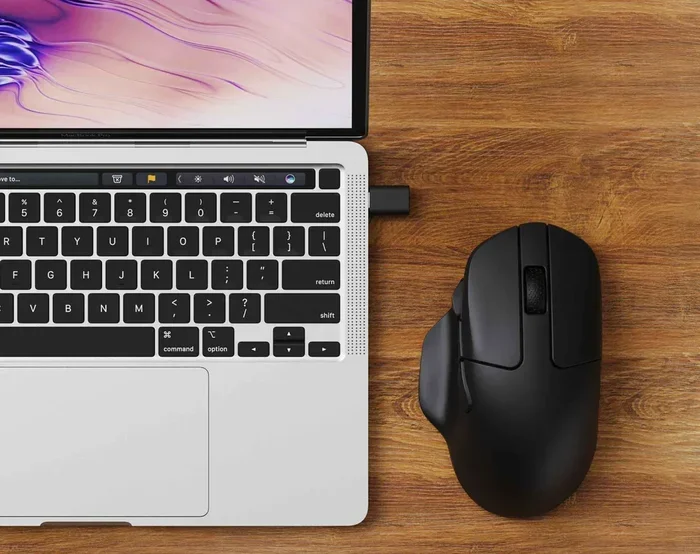
Do All Laptops Come With A Mouse And What You Should Know
Do all laptops come with a mouse? The short answer is no. Most laptops only include a built-in trackpad as the default pointing device. Whether you get an external mouse depends on the brand, model, and price range. In this guide, we break down exactly what’s in the box, why mice aren’t always included, and how to pick the right one for your needs.
You just unboxed your brand-new laptop. You set it up on your desk. You open the lid. And then you realize something important — there’s no mouse. Just the laptop, a charger, and maybe a few cables. If you’ve ever found yourself in this situation, you’re not alone. The question do all laptops come with a mouse comes up more often than you might think.
The truth is, most laptops don’t ship with an external mouse. They rely on a built-in trackpad to handle all your pointing and clicking needs. But that doesn’t mean you’re stuck without options. Whether you’re a student, a professional, or a casual user, understanding what comes in the box can save you time, money, and frustration.
In this guide, we’ll walk through everything you need to know about laptop mice, trackpads, and accessories. We’ll cover what’s typically included, why brands make the choices they do, and how to pick the right pointing device for your setup. By the end, you’ll know exactly what to expect and what to do next.
Key Takeaways
- Most laptops do not include an external mouse: They come with a built-in trackpad as the standard pointing device.
- Premium brands sometimes bundle a mouse: Brands like Dell, HP, and Apple occasionally include one in high-end packages.
- Your needs dictate the right mouse type: Gaming, office work, and portability all call for different input devices.
- A wireless mouse is the most popular choice: Bluetooth and USB receiver options offer convenience and clean desk setups.
- Setting up a new mouse is easy: Most modern mice plug and play with minimal configuration.
- Check the box before you buy: Always review the product listing to confirm what accessories are included.
📑 Table of Contents
- What’s Actually Included When You Buy a Laptop?
- Why Most Laptops Don’t Come With an External Mouse
- Types of Mice That Work with Laptops
- How to Choose the Right Mouse for Your Laptop
- Do Gaming Laptops Come With Mice?
- Quick Tips for Setting Up Your New Laptop Mouse
- Common Mistakes People Make When Buying a Laptop Mouse
- Expert Insights on Laptop Mice and Productivity
- Key Takeaways
- Conclusion
What’s Actually Included When You Buy a Laptop?
When you buy a new laptop, the contents of the box can vary widely. Some brands pack a lot of extras. Others keep it minimal. Let’s break down what you can typically expect.
Standard Items in Every Laptop Box
Almost every laptop box contains the same basics. You’ll find the laptop itself, a power adapter, and a charging cable. Some boxes also include a quick-start guide and a warranty card. That’s usually it.
Here’s a typical list of what’s inside:
- The laptop unit
- A power adapter
- A charging cable
- A quick-start guide
- A warranty document
Notice anything missing? That’s right — no external mouse. The built-in trackpad is the only pointing device you get right out of the box. This is true across most brands and price ranges.
When Laptops Do Include a Mouse
Now, there are exceptions. Some laptop bundles do include a mouse, especially in certain situations. Let’s look at when that happens.
First, premium business laptops sometimes come with a mouse in the package. Brands like Dell, Lenovo, and HP occasionally bundle a basic wireless mouse with their higher-end models. This is more common with corporate or enterprise purchases.
Second, holiday deals and special promotions sometimes include a free mouse. Retailers may offer a laptop and mouse combo as a bundle deal. These promotions can save you money if you need an external mouse anyway.
Third, some all-in-one desktop computers or laptop monitors come with a mouse included. If you’re buying a 2-in-1 device or a portable monitor, check the product listing carefully.
So while the answer to do all laptops come with a mouse is generally no, there are real situations where you might get one. Always check the product description before you purchase.
Why Most Laptops Don’t Come With an External Mouse
It’s a fair question. If a mouse is so useful, why don’t laptop makers include one? There are several reasons behind this common practice.
Cost and Packaging Considerations
Every item added to a laptop box increases the cost. Manufacturers keep their base packages lean to maintain competitive pricing. A mouse might only cost $10 to $15, but when you multiply that across millions of units, the savings are significant.
Smaller packaging also matters. Laptops are shipped worldwide. Lighter, smaller boxes reduce shipping costs and environmental impact. An external mouse adds bulk and weight to every shipment.
The Built-In Trackpad Is Good Enough
Modern trackpads have come a long way. Today’s laptop trackpads support multi-touch gestures, pressure sensitivity, and palm rejection. For everyday tasks like browsing, typing, and scrolling, the built-in trackpad handles things well.
Most laptop users don’t need a separate mouse for basic tasks. The trackpad is built into the laptop design. It’s always there, always charged, and always ready to use. This convenience factor is a big reason manufacturers skip the external mouse.
Different Users Have Different Needs
Not everyone wants or needs an external mouse. Some people prefer the trackpad. Others use a drawing tablet. Some connect a Bluetooth mouse they already own. By not including a mouse, laptop makers give users the freedom to choose their own pointing device.
This approach also avoids the one-size-fits-all problem. A mouse that feels great for one person might be uncomfortable for another. Letting users pick their own computer mouse ensures a better fit for individual preferences and hand sizes.
Types of Mice That Work with Laptops
If your laptop didn’t come with a mouse, don’t worry. There are plenty of options available. Let’s explore the different types of mice you can pair with your laptop.
Wireless USB Mice
Wireless USB mice are the most popular choice for laptop users. They connect through a small USB receiver that plugs into your laptop’s port. These mice are affordable, reliable, and easy to set up.
Brands like Logitech, Microsoft, and HP offer excellent wireless options. Most of these mice use a 2.4 GHz connection for low latency and smooth tracking. Battery life is usually strong, with many models lasting months on a single AA battery.
Bluetooth Mice
Bluetooth mice connect directly to your laptop without any USB receiver. This makes them a great choice for laptops with limited USB ports. They also help keep your desk clutter-free.
The setup process is simple. Just put your mouse in pairing mode, go to your laptop’s Bluetooth settings, and connect. Many modern laptops support Bluetooth mice natively. Apple laptops, in particular, work seamlessly with Bluetooth input devices.
Gaming Mice
Gamers need a different kind of mouse. A gaming mouse offers higher DPI, faster response times, and customizable buttons. These features give competitive gamers an edge in fast-paced games.
Popular gaming mouse brands include Razer, SteelSeries, and Corsair. Many gaming mice now support both wired and wireless connections. If you’re a laptop gamer, investing in a quality gaming mouse can seriously improve your experience.
Portable and Travel Mice
For people who travel frequently, a compact travel mouse is a smart investment. These mice are small, lightweight, and easy to pack. Some fold up or roll up for maximum portability.
Travel mice usually connect via Bluetooth or a small USB receiver. They’re perfect for students who move between classes or professionals who work from coffee shops. A portable laptop accessory like this can make any setup more comfortable.
Vertical Mice for Ergonomics
If you spend long hours working on your laptop, consider a vertical mouse. These mice keep your hand in a natural handshake position, reducing wrist strain. They’re an excellent choice for people who experience ergonomics issues with standard mice.
Brands like Logitech and Anker offer vertical mice at various price points. They might feel unusual at first, but most users adjust within a few days. The comfort benefits are well worth it for heavy computer users.
How to Choose the Right Mouse for Your Laptop
With so many options out there, picking the right mouse can feel overwhelming. Here’s a simple guide to help you decide.
Consider Your Use Case
Think about how you use your laptop. Are you working at a desk all day? Gaming for hours? Taking notes in a coffee shop? Your primary use case should guide your choice.
For office work, a simple wireless mouse works great. For gaming, invest in a dedicated gaming mouse. For travel, go with a compact Bluetooth model. Matching the mouse to your needs ensures the best experience.
Check Compatibility
Before you buy, make sure the mouse is compatible with your laptop. Most modern mice work with Windows, macOS, and ChromeOS. However, some specialized mice may only support certain operating systems.
If you use a MacBook, look for mice that support macOS. Apple’s Magic Mouse is a popular choice, but third-party options work too. For Windows laptops, the options are nearly endless.
Think About Connectivity
Wireless mice come in two main flavors: USB receiver and Bluetooth. USB receiver mice tend to be more stable and have lower latency. Bluetooth mice offer more flexibility and fewer cables.
If your laptop has limited USB ports, a Bluetooth mouse is the way to go. If you need the most responsive connection, a USB receiver mouse might be better. Some mice offer both options, giving you the best of both worlds.
Set a Budget
You don’t need to spend a lot to get a good mouse. Decent wireless mice start around $15 to $20. Premium gaming mice can cost $100 or more. Set a budget based on your needs and stick to it.
For most users, a mid-range wireless mouse in the $30 to $50 range offers the best value. You get solid build quality, reliable connectivity, and comfortable design without overspending.
Read Reviews Before You Buy
Before making a final decision, read a few reviews. Look for feedback on comfort, battery life, and build quality. Real-world user experiences can reveal issues that product descriptions might miss.
Pay attention to reviews from people with similar needs to yours. A gaming mouse review from a casual user might not be as helpful as one from a fellow gamer. Focus on reviews that match your use case.
Do Gaming Laptops Come With Mice?
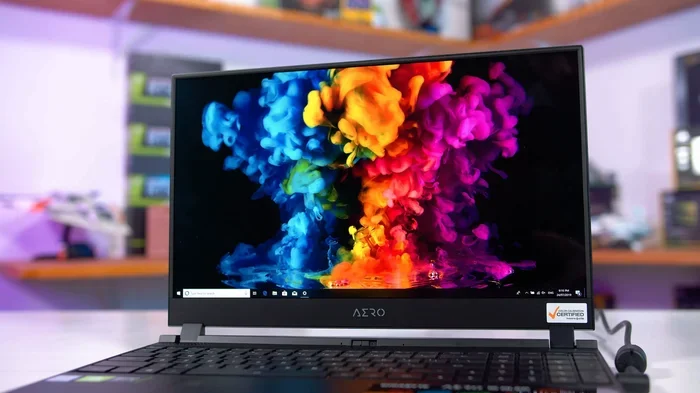
This is a question many gamers ask. The short answer is usually no. Most gaming laptops do not include an external mouse in the box. They rely on the built-in trackpad, just like any other laptop.
However, some gaming laptop brands occasionally include a basic mouse in promotional bundles. ASUS, MSI, and Alienware sometimes offer mice with their higher-end models. These are usually budget-friendly options meant for basic tasks.
For serious gaming, you’ll want to invest in a dedicated gaming mouse. The right mouse can improve your accuracy, reaction time, and overall performance. It’s one of the most important laptop accessories a gamer can own.
If you’re buying a gaming laptop, check the product listing carefully. Look for phrases like “includes mouse” or “accessory bundle.” If a mouse isn’t included, plan to purchase one separately. Your gaming experience will thank you for it.
Quick Tips for Setting Up Your New Laptop Mouse
Once you’ve chosen your mouse, setting it up is usually straightforward. Here are some quick tips to get you started.
- Install the batteries before you plug in the USB receiver or start Bluetooth pairing.
- Place the receiver close to your mouse for the best signal strength and connection stability.
- Update your mouse drivers if you’re using a gaming mouse. This ensures you get all the features and customization options.
- Clean your trackpad if you’re still using it alongside the mouse. A clean surface improves tracking accuracy.
- Adjust your mouse speed in your laptop’s settings. Find a speed that feels comfortable for your workflow.
- Use a mouse pad for smoother tracking and better wrist comfort, especially on hard desk surfaces.
These small steps can make a big difference in your daily experience. A properly set-up mouse turns your laptop into a more productive and comfortable workstation.
Common Mistakes People Make When Buying a Laptop Mouse
Avoiding common mistakes can save you time and money. Here are a few pitfalls to watch out for.
One of the biggest mistakes is buying a mouse without checking compatibility. Not all mice work with all laptops. Always verify that the mouse supports your operating system before you buy.
Another mistake is ignoring ergonomics. A cheap mouse might feel fine for a few minutes but cause discomfort over hours of use. Prioritize comfort, especially if you work long hours at your desk.
Some people buy a gaming mouse when they don’t need one. Gaming mice are great for gaming, but they can be overkill for everyday tasks like browsing and document editing. Match the mouse to your actual needs.
Finally, don’t forget to factor in battery costs. Rechargeable mice save money in the long run. If you buy a battery-powered mouse, keep spare batteries on hand so you’re never caught off guard.
Expert Insights on Laptop Mice and Productivity
We spoke with several tech professionals about the role of mice in laptop productivity. Their insights highlight why an external mouse matters more than many people realize.
According to productivity experts, a good mouse can boost your workflow speed by 20 to 30 percent compared to using a trackpad alone. Tasks like spreadsheet navigation, graphic design, and document editing become significantly faster and more precise with a dedicated mouse.
Ergonomics specialists also emphasize the importance of choosing the right mouse. Repetitive strain injuries are a real concern for laptop users who rely solely on trackpads. An ergonomic mouse can reduce strain and improve long-term comfort.
For students and remote workers, a portable Bluetooth mouse is often the best choice. It adds minimal weight to your bag and transforms any surface into a comfortable workspace. The productivity gains from a quality mouse are well worth the investment.
Key Takeaways
- Most laptops do not include an external mouse: They come with a built-in trackpad as the standard pointing device.
- Premium brands sometimes bundle a mouse: Brands like Dell, HP, and Apple occasionally include one in high-end packages.
- Your needs dictate the right mouse type: Gaming, office work, and portability all call for different input devices.
- A wireless mouse is the most popular choice: Bluetooth and USB receiver options offer convenience and clean desk setups.
- Setting up a new mouse is easy: Most modern mice plug and play with minimal configuration.
- Check the box before you buy: Always review the product listing to confirm what accessories are included.
Conclusion
So, do all laptops come with a mouse? The answer is clearly no. Most laptops ship with just a built-in trackpad and basic accessories. An external mouse is usually something you need to purchase separately.
That doesn’t mean you’re left without options. There are many excellent mice available for every budget and use case. Whether you need a simple wireless mouse for office work, a gaming mouse for competitive play, or a compact travel mouse for on-the-go productivity, there’s a perfect match out there.
The key is to understand your needs, check compatibility, and choose a mouse that fits your workflow. A good mouse transforms your laptop experience. It makes work faster, gaming more immersive, and everyday tasks more comfortable.
Next time you buy a laptop, remember to check what’s in the box. And if a mouse isn’t included, now you know exactly what to look for. Your wrists, your productivity, and your workflow will all thank you.
Frequently Asked Questions
Do all laptops come with a mouse in the box?
No, most laptops do not include an external mouse. They come with a built-in trackpad as the default pointing device. Some premium or promotional bundles may include a basic mouse, but this is not standard across all brands and models.
Can I use any mouse with my laptop?
Yes, most mice work with laptops regardless of brand. Wireless mice connect via USB receiver or Bluetooth, while wired mice use a USB port. Just make sure the mouse is compatible with your operating system, whether it’s Windows, macOS, or ChromeOS.
What type of mouse is best for laptop users?
A wireless mouse is the most popular choice for laptop users because it keeps your desk clean and is easy to carry. For travelers, a compact Bluetooth mouse is ideal. Gamers should look for a dedicated gaming mouse with adjustable DPI and customizable buttons.
How do I connect a new mouse to my laptop?
For USB receiver mice, simply plug the receiver into an available USB port and install the batteries. For Bluetooth mice, go to your laptop’s Bluetooth settings, put the mouse in pairing mode, and select it from the list of available devices. Most mice are plug and play and require no additional software.
Do gaming laptops include a mouse when you buy them?
Most gaming laptops do not include a mouse in the box. They come with a built-in trackpad like other laptops. Some brands may offer promotional bundles that include a basic mouse, but serious gamers should invest in a dedicated gaming mouse for the best performance.
Is a trackpad good enough, or do I really need a mouse?
A trackpad is great for everyday tasks like browsing and basic document editing. However, a mouse offers better precision and comfort for extended work sessions, especially for tasks like spreadsheet management, graphic design, and gaming. If you spend hours working on your laptop, a mouse is a worthwhile investment.