Can You Share Wi Fi Over Iphone With Other Devices
Sharing Wi-Fi over iPhone is simple and built right into iOS. You can use personal hotspot, Bluetooth, or USB to share your internet connection with other devices. This guide covers every method step by step with practical tips and examples. Whether you need to connect a laptop, tablet, or friend’s phone, you will find the right solution here.
Have you ever been in a situation where your friend’s phone has no internet, but your iPhone is connected to a strong Wi-Fi network? The good news is that you can share Wi-Fi over iPhone with other devices easily. Sharing Wi-Fi over iPhone is a built-in feature that lets you turn your phone into a mobile hotspot or pass your password directly to another device.
Whether you are traveling, working remotely, or simply helping a friend, knowing how to share your internet connection is incredibly useful. This guide covers every method available, from Wi-Fi hotspot to Bluetooth and USB tethering. You will learn step-by-step instructions, quick tips, and common mistakes to avoid. By the end, you will feel confident sharing your iPhone connection with any device.
Key Takeaways
- Personal Hotspot is the easiest way to share Wi-Fi over iPhone with other devices using Wi-Fi, Bluetooth, or USB.
- Sharing your Wi-Fi password directly works seamlessly between Apple devices running iOS 11 or later.
- Bluetooth tethering saves battery but offers slower speeds compared to Wi-Fi hotspot.
- USB tethering is the most stable option and charges your iPhone at the same time.
- Common mistakes like forgetting to enable hotspot or using outdated iOS can cause sharing failures.
- You can find and copy your Wi-Fi password directly from iPhone settings or Keychain.
- Carrier restrictions may apply to some mobile plans, so always check with your provider first.
📑 Table of Contents
- How to Share Wi-Fi Over iPhone Using Personal Hotspot
- Different Ways to Share Your iPhone Internet Connection
- Comparing Wi-Fi Sharing Methods on iPhone
- How to Find and Share Your Wi-Fi Password on iPhone
- Quick Tips for Better Wi-Fi Sharing
- Common Mistakes to Avoid When Sharing Wi-Fi
- Expert Insights on iPhone Wi-Fi Sharing
- Conclusion
How to Share Wi-Fi Over iPhone Using Personal Hotspot
The personal hotspot feature is the most popular way to share Wi-Fi over iPhone. It turns your phone into a wireless router. Other devices can connect to your iPhone just like they connect to any Wi-Fi network. This method works with laptops, tablets, and other phones.
Setting Up Personal Hotspot on Your iPhone
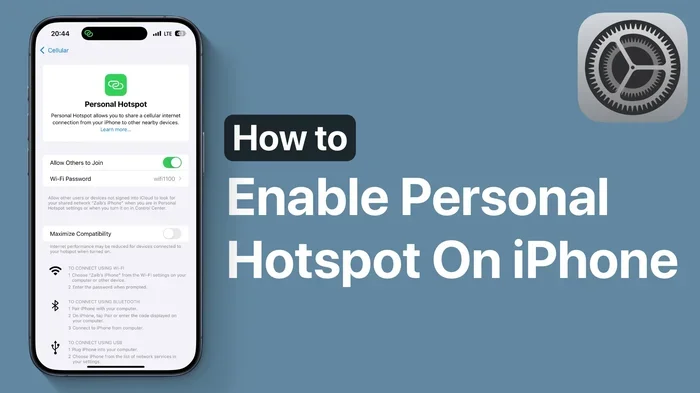
Setting up your hotspot takes only a few taps. Follow these simple steps to get started:
- Open the Settings app on your iPhone.
- Tap Personal Hotspot or go to Cellular > Personal Hotspot.
- Toggle Allow Others to Join to ON.
- Your Wi-Fi password will appear on the screen. Make sure it is strong and easy to remember.
Once enabled, other devices will see your iPhone in their Wi-Fi network list. Simply select your network, enter the password, and you are connected. The top of your iPhone screen will show a blue bar or hotspot icon when another device is connected.
Why Personal Hotspot Is the Best Choice
Personal hotspot gives you the fastest speeds for sharing Wi-Fi over iPhone. It uses your cellular data plan to create a Wi-Fi network. You can connect up to five devices at once, depending on your carrier. This method works well for streaming, video calls, and browsing.
One great thing about this feature is that it is built into every iPhone. You do not need to download any extra apps. Apple has made it simple and secure with WPA2 encryption. Your data stays protected while you share your connection.
Quick Tips for Personal Hotspot
- Change your hotspot password regularly to keep your connection secure.
- Use a password with at least 8 characters including letters and numbers.
- Turn off Allow Others to Join when you are not sharing to save battery.
- Check your cellular data usage in Settings if you have a limited data plan.
Different Ways to Share Your iPhone Internet Connection
There are three main methods to share Wi-Fi over iPhone. Each method has its own strengths. Let us explore them in detail so you can pick the best one for your situation.
Wi-Fi Hotspot Tethering
Wi-Fi hotspot tethering is what most people use every day. It creates a wireless network that other devices can join. The setup is simple, and the speeds are fast. This is the go-to method for sharing internet with laptops, tablets, and phones.
The main advantage of Wi-Fi hotspot is convenience. Any device within range can connect without cables. The downside is that it uses more battery than other methods. If you are sharing for a long time, consider keeping your iPhone plugged in.
Bluetooth Tethering
Bluetooth tethering is a slower but battery-friendly option. You can share your internet connection through Bluetooth instead of Wi-Fi. This method works well for basic browsing and sending emails.
To use Bluetooth tethering, you need to pair your iPhone with the other device first. Go to Settings > Bluetooth and turn on Bluetooth on both devices. Then select your iPhone from the other device’s Bluetooth list. Next, go to the other device’s network settings and choose Bluetooth tethering.
Bluetooth tethering is great when you want to conserve battery. It uses less power than Wi-Fi hotspot. However, the speeds are much slower. You should only use this method for light tasks like reading emails or checking messages.
USB Tethering
USB tethering connects your iPhone to another device using a cable. This is the most stable and fastest wired option. It also charges your iPhone while sharing your connection, which is a big plus.
To use USB tethering, you need a Lightning to USB cable. Connect your iPhone to the other device, then enable personal hotspot on your iPhone. On a Mac, your iPhone will appear as a network service. On Windows, you may need to install Apple mobile device support.
USB tethering is perfect for situations where Wi-Fi signal is weak. The cable connection is more reliable and secure. It is also the best choice if you need to share your connection for an extended period without draining your battery.
Comparing Wi-Fi Sharing Methods on iPhone
Not all sharing methods are the same. Each one has different speeds, battery impacts, and use cases. Here is a simple comparison to help you choose the right method.
| Method | Speed | Battery Impact | Ease of Use | Best For |
|---|---|---|---|---|
| Wi-Fi Hotspot | Fast | High | Very Easy | Streaming, video calls, multiple devices |
| Bluetooth Tethering | Slow | Low | Moderate | Light browsing, emails, conserving battery |
| USB Tethering | Fast | Low (charges iPhone) | Easy | Stable connection, long sessions, weak Wi-Fi areas |
As you can see, each method has a clear purpose. Wi-Fi hotspot is the most versatile. Bluetooth is great for saving power. USB tethering is the most reliable for long sessions. Choose the one that fits your needs best.
How to Find and Share Your Wi-Fi Password on iPhone
Sometimes you need to share your Wi-Fi password with someone. Maybe a friend is visiting and wants to connect to your home network. Or perhaps you need to give the password to a new smart TV. Your iPhone makes this process very easy.
Sharing Wi-Fi Password Between Apple Devices
If both devices are Apple products, sharing the Wi-Fi password is instant. Here is how it works:
- Make sure both devices have Bluetooth and Wi-Fi turned on.
- Connect the new device to the Wi-Fi network you want to share.
- A prompt will appear on your iPhone asking if you want to share the password.
- Tap Share Password and the other device connects automatically.
This feature works between iPhone, iPad, Mac, and Apple Watch. It uses iOS features like iCloud Keychain and Bluetooth to verify the devices. You do not need to type the password at all. It is one of the most convenient things Apple has built into their ecosystem.
Finding Your Wi-Fi Password on iPhone
If you need to find a saved Wi-Fi password on your iPhone, you can do this easily. Go to Settings > Wi-Fi. Tap the blue info icon next to the network you are connected to. Then tap Copy Password or Share Password. You can paste this password into a message or use it on another device.
On a Mac, you can use the Keychain Access app to view saved Wi-Fi passwords. This is helpful if you need to share a password with a Windows user or a non-Apple device.
Quick Tips for Wi-Fi Password Sharing
- Always verify the device requesting the password before sharing it.
- Change your home Wi-Fi password periodically to maintain security.
- Use a guest network for visitors instead of sharing your main password.
- Avoid sharing passwords in plain text messages when a safer option is available.
Quick Tips for Better Wi-Fi Sharing
Sharing Wi-Fi over iPhone works best when you follow a few simple best practices. These tips will help you get faster speeds, better battery life, and a more secure connection.
- Keep your iPhone close to connected devices. The closer your devices are, the stronger the signal and faster the speeds.
- Use a 5GHz hotspot when possible. Go to Settings > Personal Hotspot > Maximize Compatibility and toggle it off for faster 5G speeds.
- Monitor your cellular data usage. Sharing your connection uses data from your plan. Check your usage in Settings > Cellular to avoid surprises.
- Restart your iPhone if connections drop. A simple restart often fixes connectivity issues with personal hotspot.
- Update your iOS regularly. New updates improve hotspot performance and fix bugs related to Wi-Fi sharing.
These small changes can make a big difference. You will notice faster connection speeds and fewer dropped devices. Your shared Wi-Fi experience will be much smoother.
Common Mistakes to Avoid When Sharing Wi-Fi
Many people run into problems when trying to share Wi-Fi over iPhone. Most of these issues are easy to avoid. Here are the common mistakes you should watch out for.
- Forgetting to enable Personal Hotspot. This is the number one reason sharing fails. Always double-check that hotspot is turned on before troubleshooting.
- Using an outdated iOS version. Older versions of iOS may not support the latest sharing features. Keep your iPhone updated for the best experience.
- Ignoring carrier restrictions. Some mobile carriers limit or charge extra for hotspot use. Check your plan details before sharing extensively.
- Connecting too many devices at once. Most iPhones support up to five connected devices. Exceeding this limit can slow down or crash your hotspot.
- Leaving hotspot on all the time. This drains your battery quickly and uses your data plan even when you are not actively sharing.
- Using weak Wi-Fi passwords. A simple password makes your hotspot vulnerable. Always use a strong, unique password for your shared network.
Avoiding these mistakes will save you time and frustration. Your Wi-Fi sharing experience will be much more reliable and secure.
Expert Insights on iPhone Wi-Fi Sharing
Sharing Wi-Fi over iPhone is a feature that Apple has refined over many years. The iOS networking team has made significant improvements in recent versions. Here are some expert insights that can help you get the most out of your iPhone.
Network experts recommend using USB tethering for critical work. When you need a stable and fast connection for important tasks, a cable is more reliable than wireless. The wired connection is less prone to interference and signal drops.
Security researchers advise changing your hotspot password frequently. Since hotspot passwords are shared verbally or through messages, they can be exposed. A regular password change keeps your data safe from unauthorized users.
Tech reviewers also note that iOS 17 and later have improved hotspot discovery. Devices running the latest iOS and iPadOS can find your hotspot faster and connect more smoothly. If you frequently share your connection, staying on the latest iOS version is worth it.
One often overlooked tip is to name your hotspot something unique. Instead of using the default iPhone name, go to Settings > General > About > Name and give your iPhone a custom name. This makes it easier to identify your hotspot in crowded areas with many networks.
Conclusion
Sharing Wi-Fi over iPhone is a powerful and convenient feature that everyone should know how to use. Whether you choose personal hotspot, Bluetooth tethering, or USB connection, your iPhone makes it simple. You can share your internet connection with friends, family, and coworkers in just a few taps.
Can you share Wi-Fi over iPhone? Absolutely yes. The built-in tools are fast, secure, and easy to use. From sharing your Wi-Fi password directly to setting up a full mobile hotspot, you have everything you need right on your device.
Remember to follow the quick tips, avoid common mistakes, and keep your iOS updated. With these practices, you will always have a smooth and reliable sharing experience. Try these methods today and see how easy it is to keep everyone connected.
Frequently Asked Questions
Can I share my Wi-Fi password with an Android device from my iPhone?
Yes, you can. The easiest way is to share the password from your iPhone’s Wi-Fi settings. Go to Settings > Wi-Fi, tap the info icon next to the network, and select Copy Password. Then share it through a text message or QR code. Android devices can connect using the shared password just like any other device.
How many devices can connect to my iPhone hotspot at once?
Most iPhones allow up to five devices to connect to the personal hotspot simultaneously. However, the number may vary depending on your carrier and cellular plan. Connecting too many devices can slow down the speeds for everyone. It is best to limit connections to only the devices that need the internet.
Does sharing Wi-Fi over iPhone use a lot of cellular data?
Yes, sharing your internet connection uses data from your cellular plan. Streaming videos or downloading large files on connected devices will use data quickly. You can monitor your usage by going to Settings > Cellular and scrolling down to see how much data your hotspot has consumed. Consider setting data limits if you have a capped plan.
Why can’t other devices find my iPhone hotspot?
There are several reasons this might happen. First, make sure your personal hotspot is turned on. Second, check that your other device’s Wi-Fi is enabled and searching for networks. Third, restarting both your iPhone and the connecting device often fixes discovery issues. Finally, ensure your iPhone is not in Low Power Mode, as this can disable hotspot features.
Is it safe to share my Wi-Fi password with others?
Sharing your password is generally safe when done with trusted people. However, you should be cautious about sharing it publicly or with strangers. When possible, use a guest network for visitors instead of your main Wi-Fi password. You can also change your hotspot password regularly to maintain security and control over who has access.
Can I share Wi-Fi over iPhone without using cellular data?
Sharing Wi-Fi over iPhone requires a cellular data connection if you are not connected to a Wi-Fi network yourself. However, if your iPhone is already connected to a Wi-Fi network, you can use the Wi-Fi password sharing feature between Apple devices. This does not use cellular data at all. The password is shared securely through Bluetooth and iCloud Keychain.