Can You Connect Marshall Bluetooth Speakers Easily
Yes, you can connect Marshall Bluetooth speakers easily and enjoy wireless music in minutes. Whether you own a Marshall Stanmore, Emberton, or Stockwell, the pairing process is simple and straightforward. This guide walks you through every step, from initial setup to connecting two speakers for stereo sound. You will also learn troubleshooting tips, best practices, and expert advice to get the most out of your Marshall Bluetooth experience.
If you love music and own a Marshall Bluetooth speaker, you probably want to start listening right away. The good news is that connecting your speaker is quick and easy. Marshall designs its speakers with simplicity in mind, so even beginners can get started without any hassle.
In this guide, we will show you exactly how to connect Marshall Bluetooth speakers step by step. We will cover different models, pairing methods, and tips to improve your wireless experience. Whether you are at home, at a party, or on the go, you will know how to get your Marshall speaker connected in no time.
Key Takeaways
- Easy Pairing: Connecting Marshall Bluetooth speakers takes just a few simple steps and works with all Bluetooth-enabled devices.
- Multiple Models Supported: Marshall Bluetooth speakers like the Stanmore, Emberton, and Stockwell all use similar connection methods.
- Dual Speaker Pairing: You can pair two Marshall speakers together for True Stereo mode and richer sound.
- Troubleshooting Is Simple: Most connection issues can be fixed by resetting the speaker or moving closer to your device.
- Pro Tips Help: Keeping your speaker updated and within range ensures a stable wireless connection every time.
- Battery Matters: A charged speaker pairs faster and maintains a stronger Bluetooth signal.
- Marshall App Adds Value: The Marshall Bluetooth app offers extra control and customization options for your speaker.
📑 Table of Contents
How to Connect Marshall Bluetooth Speakers
Connecting a Marshall Bluetooth speaker is a simple process that works across all models. You do not need any special cables or technical skills. Just follow these easy steps and you will be listening to your favorite tunes in minutes.
Step 1: Power On Your Marshall Speaker
Before you start the pairing process, make sure your speaker is turned on. Most Marshall Bluetooth speakers have a power button on the top or side. Press and hold it until you see a light or hear a sound that tells you the speaker is on.
It helps to charge your speaker fully before the first connection. A full battery gives you a stronger Bluetooth signal and a smoother pairing experience. If your speaker has been sitting unused for a while, plug it in for at least 30 minutes first.
Step 2: Put the Speaker in Pairing Mode
Next, you need to activate Bluetooth pairing mode on your Marshall speaker. The method varies slightly depending on your model. On most Marshall speakers, you press and hold the Bluetooth button until the LED light starts flashing blue or white.
This flashing light means your speaker is ready to be found by other devices. If you do not see a flashing light, try turning the speaker off and on again. Some models may also require you to hold down the volume buttons to enter pairing mode.
Step 3: Open Bluetooth on Your Device
Now go to your phone, tablet, or laptop. Open the settings and turn on Bluetooth. Make sure your device is searching for new devices. You should see a list of available speakers appear on your screen.
Look for your Marshall speaker in the list. It may show up as “Marshall” followed by the model name, like “Marshall Stanmore II” or “Marshall Emberton.” Tap on the name to start the pairing process.
Step 4: Confirm the Connection
Once you tap the speaker name, your device will connect automatically. You will hear a sound from the Marshall speaker, and the flashing light should turn solid. This means the Bluetooth connection is successful.
Now you can start playing music from any app on your device. Spotify, Apple Music, YouTube, or even a simple ringtone will all play through your Marshall Bluetooth speaker. The sound quality is rich and full, which is one of the reasons Marshall speakers are so popular.
Step 5: Disconnect and Reconnect Easily
After the first connection, your Marshall speaker will remember your device. The next time you turn on both devices, they will reconnect automatically. This is called auto-reconnect, and it saves you time every time you want to listen to music.
If you want to connect a different device, simply put the speaker back in pairing mode and select it from the new device’s Bluetooth list. Marshall Bluetooth speakers can remember multiple devices, so switching between them is easy.
Which Marshall Speakers Support Bluetooth
Marshall makes several Bluetooth speaker models, and most of them support wireless connection. Here is a quick look at the most popular ones and what you need to know about each.
Marshall Stanmore
The Marshall Stanmore is one of the most loved Bluetooth speakers on the market. It offers deep bass, clear mids, and a classic Marshall design. The Stanmore supports Bluetooth 5.0, which gives you a stable connection and a range of up to 30 feet.
Connecting the Stanmore is very straightforward. You just follow the same pairing steps we shared above. The speaker also has an AUX input if you ever want to use a cable instead of Bluetooth. This gives you flexibility in how you listen to music.
Marshall Emberton
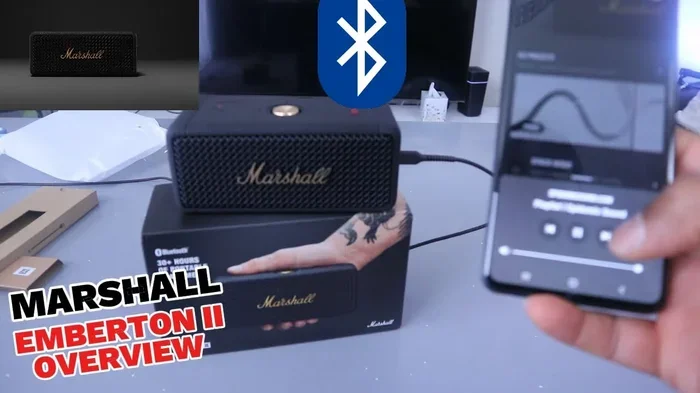
The Marshall Emberton is a portable Bluetooth speaker built for people on the move. It is small, lightweight, and waterproof, making it perfect for outdoor trips, beach days, and pool parties. The Emberton also uses Bluetooth 5.0 for a reliable wireless connection.
Pairing the Emberton is just as easy as the Stanmore. The speaker has a single button on top that controls Bluetooth pairing. Its battery lasts up to 20 hours, so you can enjoy wireless music all day long without worrying about recharging.
Marshall Stockwell
The Marshall Stockwell is another great portable option. It has a rugged build, a built-in handle, and a long-lasting battery. The Stockwell supports Bluetooth connectivity and pairs quickly with most devices.
One nice feature of the Stockwell is that it can connect to another Stockwell speaker for True Stereo mode. This means you can use two speakers to create a left and right channel setup. It makes your music sound much bigger and more immersive.
Marshall Willen
The Marshall Willen is a compact and modern Bluetooth speaker. It has a unique design, great sound, and supports wireless connection. The Willen is perfect for desks, small rooms, or personal listening.
Pairing the Willen follows the same simple process. It is a great option if you want a smaller Marshall Bluetooth speaker that still delivers excellent audio quality. The battery life is solid, and the Bluetooth range is reliable.
Tips for a Better Bluetooth Connection
Once you know how to connect Marshall Bluetooth speakers, you want the connection to stay strong and stable. Here are some practical tips that will improve your wireless experience every time.
Keep Your Speaker Close to Your Device
Bluetooth works best when the devices are within a reasonable distance. For most Marshall speakers, the ideal range is about 30 feet with no obstacles. If you are in another room, the signal may weaken or drop.
Try to keep your phone or laptop in the same room as the speaker. If you need more range, look at Bluetooth signal boosters or mesh Wi-Fi systems that can help extend the connection. But for most home and office use, keeping them close works perfectly.
Remove Obstacles Between Devices
Walls, furniture, and even water can weaken a Bluetooth signal. If your Marshall speaker is in one room and your phone is in another with a thick wall between them, the connection may suffer.
Place the speaker in an open area where it has a clear line of sight to your device. This simple change can make a big difference in sound quality and connection stability. It is one of the easiest ways to fix a weak Bluetooth signal.
Keep Your Speaker and Device Updated
Software updates can improve Bluetooth performance on both your speaker and your device. Marshall occasionally releases firmware updates that fix connection bugs and improve audio quality.
Check the Marshall app on your phone to see if any updates are available. For your phone or laptop, keep your operating system up to date. These small steps can prevent many common Bluetooth problems before they start.
Turn Off Other Bluetooth Devices
If you have many Bluetooth devices nearby, they can interfere with the connection. Smartwatches, fitness trackers, wireless headphones, and even smart home devices all use the same Bluetooth frequency.
When you are having trouble connecting, try turning off other Bluetooth devices temporarily. This reduces interference and helps your Marshall speaker connect faster and more reliably. It is a simple trick that works surprisingly well.
Charge Your Speaker Before Pairing
A low battery can affect how well your speaker connects. When the battery is low, the Bluetooth module may not work at its best. This can lead to slow pairing, weak signals, or frequent disconnections.
Always make sure your Marshall Bluetooth speaker has enough charge before you start the pairing process. A full or at least half-charged battery ensures the best possible connection. It also gives you longer listening time once you are connected.
Use the Marshall Bluetooth App
Marshall offers a free app that lets you control your speaker from your phone. The app helps you manage Bluetooth connections, update firmware, and adjust settings. It is available for both iOS and Android devices.
The app also lets you name your speaker, which makes it easier to identify when multiple Bluetooth devices are nearby. If you own more than one Marshall speaker, the app helps you manage all of them from one place. It is a great tool that adds value to your wireless experience.
Pairing Two Marshall Speakers Together
One of the best features of Marshall Bluetooth speakers is the ability to pair two speakers together. This is called True Stereo mode, and it creates a much richer listening experience. You get a left channel from one speaker and a right channel from the other.
How to Pair Two Speakers
To pair two Marshall speakers, you first need to connect one speaker to your device using Bluetooth. Then, you put the second speaker into pairing mode. On most models, you press the Bluetooth button twice quickly to enter stereo pairing mode.
Your phone should now detect both speakers. Select the second speaker from the Bluetooth list. Once both speakers are connected, they will automatically work together as a stereo pair. The sound will feel wider and more detailed.
Which Models Support Stereo Pairing
Not all Marshall speakers support stereo pairing. The Stockwell and Emberton models are the most common ones that do. The Stanmore series also supports linking two speakers together in some versions.
Check your specific model’s manual or the Marshall website to confirm stereo pairing support. The feature works best when both speakers are the same model. Mixing different models may not give you the best stereo effect.
Tips for Stereo Pairing
Place the two speakers about 6 to 10 feet apart for the best stereo effect. Put them at ear level when you are sitting or standing in your listening position. This creates a balanced soundstage that fills the room.
Keep both speakers charged before using them together. Stereo mode uses more power because two speakers are working at the same time. If one speaker runs out of battery, the stereo effect is lost and the music will only play from the remaining speaker.
Troubleshooting Common Connection Issues
Even though Marshall Bluetooth speakers are easy to use, you might run into connection problems sometimes. Most issues are simple to fix. Here are the most common problems and how to solve them.
Speaker Not Showing Up on Your Device
If your Marshall speaker does not appear in the Bluetooth list, the first thing to do is make sure it is in pairing mode. Check that the LED light is flashing. If it is not, press and hold the Bluetooth button again until it starts flashing.
Also, make sure Bluetooth is turned on your device and that it is actively searching. Sometimes you need to toggle Bluetooth off and on again to refresh the search. Restarting your device can also help it detect the speaker.
Connection Keeps Dropping
A connection that drops frequently is usually caused by distance or interference. Move closer to the speaker and remove other Bluetooth devices from the area. Walls and electronic devices like microwaves can also interfere with the signal.
If the problem continues, try resetting your Marshall speaker. Most models have a reset button or a specific button combination you can press. Check the user manual for your specific model to find the reset instructions.
Sound Quality Is Poor
If the sound is weak or distorted, check the distance between your device and the speaker. A weak Bluetooth signal can cause poor audio quality. Moving closer often fixes this problem immediately.
Also, check if your device is playing a low-quality audio file. Some streaming apps let you adjust the audio quality in settings. Higher quality streams sound much better on a Marshall speaker. Make sure your speaker volume is turned up and not muted on either the speaker or your device.
Speaker Won’t Connect to a New Device
If your Marshall speaker keeps connecting to an old device instead of a new one, you need to forget the old device. Go to the Bluetooth settings on the old device and select “Forget This Device” or “Remove Device.” This frees up the speaker to pair with a new one.
After forgetting the old device, put the speaker back in pairing mode and connect to the new device. This simple step solves many connection problems and takes only a few seconds.
Final Thoughts
Connecting Marshall Bluetooth speakers is simple, fast, and works with almost any device. Whether you own a Stanmore, Emberton, Stockwell, or Willen, the process is the same. Power on the speaker, enter pairing mode, and connect from your device. That is all it takes.
The wireless connection gives you freedom and flexibility. You can move around your home or office without being tied to a cable. And with stereo pairing, you can turn one speaker into a powerful two-speaker setup that fills any room with rich, immersive sound.
Keep these tips in mind for the best experience. Keep your speaker charged, stay within range, and reduce interference for a stable connection. The Marshall Bluetooth ecosystem is designed to be user-friendly, and once you connect your speaker, you will wonder how you ever lived without it.
Now that you know how to connect Marshall Bluetooth speakers, it is time to put this knowledge into action. Grab your speaker, follow the steps, and start enjoying your music the way it was meant to be heard. Wireless sound has never been this easy or this good.
Frequently Asked Questions
Can I connect more than one Marshall Bluetooth speaker to my phone?
Yes, you can connect multiple Marshall speakers to your phone, but you can only play audio through one speaker at a time unless you use stereo pairing mode. Stereo pairing lets you link two compatible speakers together for a richer sound experience.
How far can I go from my Marshall Bluetooth speaker before the connection drops?
Most Marshall Bluetooth speakers have a range of about 30 feet in open space. Walls, furniture, and other electronic devices can reduce this distance. Staying within a clear line of sight gives you the best and most stable connection.
Can I connect my Marshall Bluetooth speaker to a TV or laptop?
Yes, any device with Bluetooth capability can connect to a Marshall Bluetooth speaker. This includes smart TVs, laptops, tablets, and smartphones. Just put the speaker in pairing mode and select it from the device’s Bluetooth settings.
Why is my Marshall speaker not showing up in the Bluetooth list?
This usually happens when the speaker is not in pairing mode. Make sure the LED light is flashing. Also check that your device’s Bluetooth is turned on and actively searching. Restarting both the speaker and your device often fixes this issue quickly.
Does connecting two Marshall speakers drain the battery faster?
Yes, using stereo pairing with two speakers uses more battery than using a single speaker. Both speakers are working at the same time, so they need more power. Keeping both speakers fully charged before a stereo session helps prevent interruptions.
Can I use my Marshall Bluetooth speaker while it is charging?
Yes, you can use your Marshall speaker while it is plugged in. In fact, using it while charging can help maintain a strong Bluetooth signal since the battery is not draining. It is a great option for long listening sessions or parties.
=== CONCLUSION ===
Connecting Marshall Bluetooth speakers is easy and straightforward for everyone. From the first power-on to the final pair, the process takes just a few minutes. You now know how to connect Marshall Bluetooth speakers with confidence, whether you are using a Stanmore, Emberton, Stockwell, or Willen.
Remember to keep your speaker charged, stay within range, and use stereo pairing for the best sound. The tips and troubleshooting steps in this guide will help you solve most connection issues on your own. Marshall Bluetooth speakers deliver excellent sound quality and wireless freedom, and now you know exactly how to make the most of them.
Start connecting your Marshall Bluetooth speaker today and enjoy music the way it should be. With the right setup and a few simple habits, your wireless listening experience will be smooth, reliable, and incredibly satisfying every single time.