Can You Bluetooth A Soundbar To A Tv And Stream Better Sound
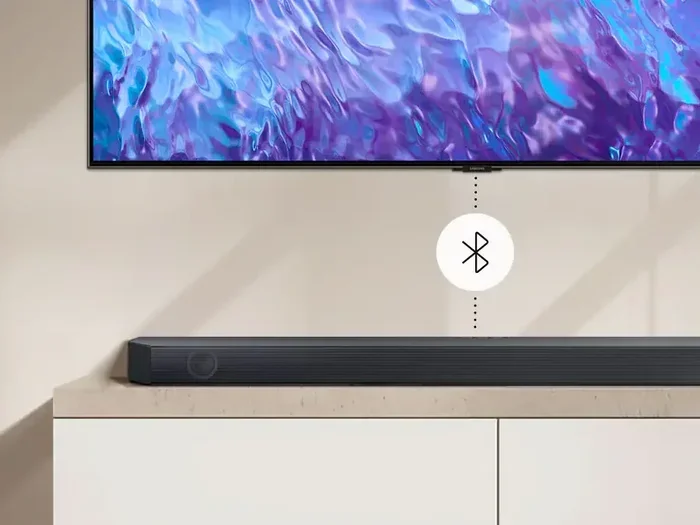
Yes, you can Bluetooth a soundbar to a TV and enjoy wireless streaming with better sound quality. Most modern soundbars and TVs support Bluetooth connections, making setup simple and fast. This guide covers everything from pairing steps to troubleshooting common issues. You will learn about compatibility, audio quality, and the best tips for a seamless wireless experience.
Can you Bluetooth a soundbar to a TV? The short answer is yes. And the experience is better than most people expect. Wireless soundbars have changed the way we enjoy audio at home. No more messy cables. No more limited placement. Just clean, crisp sound that fills your room.
Many people buy a soundbar and wonder how to connect it. The good news is that Bluetooth makes this incredibly simple. Whether you own a Samsung, LG, Sony, or any other brand, the process is similar. You just need to know a few basic steps. This guide will walk you through everything you need to know about Bluetooth soundbar connection and wireless streaming to your TV.
We will cover pairing methods, audio quality expectations, common problems, and expert tips. By the end, you will feel confident setting up your own wireless soundbar in minutes. Let us dive in.
Key Takeaways
- Bluetooth connectivity is supported on most modern soundbars and TVs, making wireless streaming easy.
- Pairing a soundbar to your TV takes just a few simple steps and usually under five minutes.
- Audio delay or lag can happen, but there are effective fixes to sync sound with video.
- Bluetooth range typically extends up to 30 feet, giving you flexible placement options.
- A Bluetooth transmitter can help older TVs connect to wireless soundbars effortlessly.
- Wireless audio from a soundbar delivers surprisingly good quality for movies, music, and gaming.
📑 Table of Contents
- Can You Bluetooth A Soundbar To A Tv And Stream Better Sound
- How To Pair Your Soundbar To Your TV
- Audio Quality: What To Expect From Wireless Streaming
- Common Problems And How To Fix Them
- Expert Insights On Wireless Soundbar Setup
- Quick Tips For The Best Wireless Soundbar Experience
- Common Mistakes To Avoid
- Final Thoughts
Can You Bluetooth A Soundbar To A Tv And Stream Better Sound
Why Bluetooth Soundbars Are So Popular
Bluetooth soundbars have become one of the most popular home audio upgrades. People want better TV audio without the hassle of wiring. A wireless soundbar solves this problem perfectly. You place it anywhere in the room and it connects to your TV instantly.
The demand for wireless audio has grown massively. Smart TVs now come with built-in Bluetooth support. Soundbar manufacturers have kept up with this trend. Today, most mid-range and premium soundbars include Bluetooth as a standard feature. This means you can stream better sound directly from your TV without any extra equipment.
Here are some reasons why Bluetooth soundbars are so loved:
- Easy setup — No cables needed between the TV and soundbar
- Flexible placement — Move the soundbar anywhere within range
- Clean look — No clutter on your entertainment center
- Quick switching — Connect multiple devices like phones and tablets
- Portability — Take the soundbar to another room easily
The beauty of a Bluetooth soundbar is simplicity. You do not need technical skills. Anyone can pair a soundbar to a TV within minutes. This is why wireless soundbar sales have skyrocketed in recent years.
Understanding TV Bluetooth Capability
Before you start, it helps to know whether your TV supports Bluetooth. Most TVs made after 2018 include this feature. However, some budget models may not. Here is how you can check.
Go to your TV settings and look for Bluetooth or Sound Output options. On Samsung TVs, this is under Settings > Sound > Sound Output. On LG TVs, go to Settings > Sound > Sound Out. Sony TVs usually list Bluetooth under Settings > Bluetooth Settings.
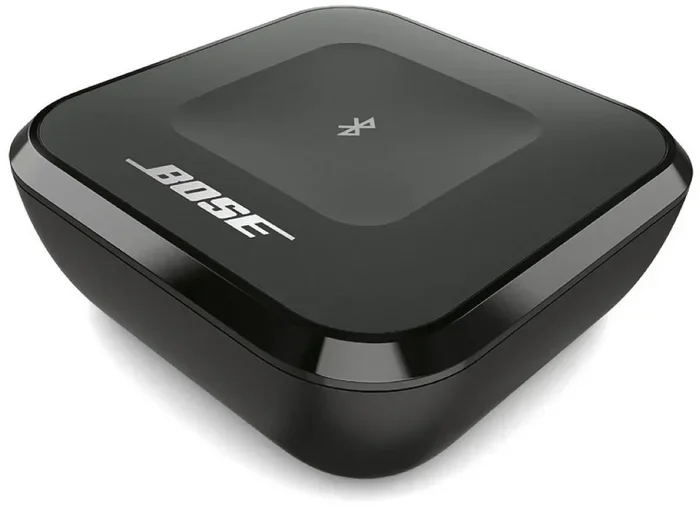
If your TV does not have built-in Bluetooth, do not worry. You can still use a Bluetooth transmitter. This small device plugs into your TV’s audio output and sends a wireless signal to your soundbar. It is an affordable and effective solution.
Here are some quick tips for checking TV Bluetooth capability:
- Check your TV manual — Look for Bluetooth or wireless features
- Visit the manufacturer website — Search for your TV model online
- Look in the settings menu — Bluetooth options are usually under sound or network settings
- Use a Bluetooth transmitter — This works for any TV with an audio output
Knowing your TV’s Bluetooth version also matters. Newer versions like Bluetooth 5.0 offer better range and stable connections. Older versions may have shorter range or occasional dropouts. But even Bluetooth 4.0 works well for most home setups.
How To Pair Your Soundbar To Your TV
Pairing a Bluetooth soundbar to your TV is a straightforward process. The steps may vary slightly depending on your brand, but the general process is the same. Let us walk through it step by step.
Step-by-Step Pairing Guide
Follow these simple steps to connect your soundbar connection wirelessly:
- Turn on your soundbar and put it in pairing mode. Most soundbars have a Bluetooth button on the remote or the top panel. Press it and wait for the LED light to flash.
- Go to your TV settings and find the Bluetooth menu. Select “Search for Devices” or “Pair New Device.”
- Select your soundbar from the list of available devices. The name usually starts with the brand name followed by a model number.
- Wait for the connection to establish. You should hear a confirmation sound from the soundbar. The TV screen may also show a paired message.
- Test the audio by playing a video or music. If you hear sound through the soundbar, you are all set.
The entire soundbar setup process usually takes less than five minutes. It is one of the easiest tech tasks you will ever do. No tools needed. No technical knowledge required.
Troubleshooting Pairing Issues
Sometimes the Bluetooth pairing process does not go smoothly. This is normal and easy to fix. Here are common issues and their solutions:
- Soundbar not showing up on TV — Make sure the soundbar is in pairing mode. Move it closer to the TV. Restart both devices and try again.
- Connection drops frequently — Check for interference from other wireless devices. Stay within the Bluetooth range of about 30 feet.
- No sound after pairing — Go to TV audio settings and select the Bluetooth soundbar as the output device.
- Paired but audio is delayed — This is a common issue called audio lag. We will cover fixes for this below.
Most pairing problems are caused by simple things. A quick restart of both devices solves the issue more than 80% of the time. Be patient and try again.
Audio Quality: What To Expect From Wireless Streaming
One of the biggest questions people ask is whether wireless streaming affects audio quality. The answer is both yes and no. Let us break it down.
Bluetooth technology has improved significantly over the years. Modern Bluetooth versions can deliver high-quality audio. Codecs like aptX and LDAC compress audio efficiently without losing much quality. For most listeners, the difference between wired and wireless is barely noticeable.
However, there are some limitations. Bluetooth uses compression to transmit audio. This means some fine audio details may be lost compared to a wired connection. For casual TV watching, this does not matter much. But for serious audiophiles, a wired connection via HDMI ARC or optical cable may sound slightly better.
Here is a comparison of wired vs wireless audio quality:
| Feature | Bluetooth (Wireless) | HDMI ARC / Optical (Wired) |
|---|---|---|
| Audio Quality | Very good for most content | Slightly better, uncompressed |
| Setup Ease | Very easy, no cables | Requires cable connection |
| Placement Flexibility | High, up to 30 feet | Limited by cable length |
| Latency | Small delay possible | Near zero delay |
| Device Compatibility | Works with most devices | Depends on TV ports |
For the average home viewer, Bluetooth audio quality is more than enough. You get clear dialogue, rich bass, and good surround effects. The convenience of wireless audio far outweighs the tiny quality difference for most people.
Tips To Improve Wireless Audio Quality
Want to get the best possible sound from your Bluetooth soundbar? Try these tips:
- Keep the soundbar close to the TV — Stay within 15 to 20 feet for the best connection
- Avoid walls and obstacles — Bluetooth signals weaken through thick walls
- Reduce wireless interference — Keep away from Wi-Fi routers and microwaves
- Update your soundbar firmware — Manufacturers often improve audio performance through updates
- Use the soundbar remote — Adjust EQ settings for better dialogue clarity and bass
These small adjustments can make a big difference in your audio quality. You will notice clearer voices and fuller sound. Your wireless streaming experience will feel premium.
Common Problems And How To Fix Them
Even though Bluetooth connections are reliable, you may encounter some issues. Here are the most common problems and how to solve them.
Audio Delay Or Lag
Audio delay is the number one complaint with wireless soundbars. You see lips move, but the sound comes a split second later. This audio delay can be annoying, especially during fast dialogue or action scenes.
The good news is that most modern soundbars have a feature called “audio sync” or “lip sync correction.” This adjusts the timing so sound matches video. Look for this setting in your soundbar remote or app.
Here are quick fixes for audio delay:
- Enable lip sync correction on your soundbar settings
- Reduce the Bluetooth buffer if your soundbar has this option
- Restart both devices — A fresh connection often fixes sync issues
- Update firmware on both the TV and soundbar
- Use a Bluetooth transmitter with aptX Low Latency — This dramatically reduces delay
For most users, enabling lip sync correction solves the problem completely. If you still experience delay, consider getting a Bluetooth transmitter designed for low latency. These devices are specifically built to minimize audio lag.
Connection Drops
If your soundbar connection keeps dropping, several factors could be at play. Interference from other wireless devices is the most common cause. Wi-Fi signals, microwaves, and even USB 3.0 ports can disrupt Bluetooth.
Try moving your soundbar closer to the TV. Also, make sure nothing is blocking the signal path between the two devices. A clear line of sight gives the best Bluetooth range and stability.
Soundbar Not Showing In TV Bluetooth List
This happens sometimes. The soundbar may not be in pairing mode. Or it may already be connected to another device. Try turning off Bluetooth on your phone or tablet first. Then put the soundbar back in pairing mode and search again.
Also check if your TV compatibility supports the Bluetooth profile your soundbar uses. Most soundbars use the A2DP profile for audio streaming. If your TV does not support A2DP, you will need a Bluetooth transmitter.
Expert Insights On Wireless Soundbar Setup
We asked audio experts about the best practices for Bluetooth soundbar setup. Here is what they recommend.
Place the soundbar at ear level when seated. This gives the best sound experience. If your TV is mounted high, consider a soundbar stand that raises it to the right height. The audio will sound much fuller and more immersive.
Use the soundbar’s EQ settings to match your room. Every room has different acoustics. A large, open room needs different settings than a small, carpeted room. Experiment with the equalizer until you find the sweet spot.
Keep your devices updated. Firmware updates often improve Bluetooth stability and audio quality. Check for updates at least once a month. This is a simple habit that keeps everything running smoothly.
Do not pair too many devices at once. If your soundbar remembers multiple devices, it can sometimes cause connection confusion. Clear old pairings if you experience issues. This keeps your soundbar connection clean and stable.
Quick Tips For The Best Wireless Soundbar Experience
Here are some bonus tips to get the most out of your wireless soundbar:
- Turn off your TV speakers after connecting the soundbar. This prevents echo and audio confusion.
- Use the soundbar’s night mode for late-night viewing. It compresses audio so you do not disturb others.
- Keep the soundbar firmware updated for the latest features and bug fixes.
- Place the soundbar on a flat surface or mount it on the wall for optimal sound projection.
- Use a dedicated Bluetooth transmitter if your TV has older Bluetooth or none at all.
- Restart your devices weekly to clear any connection cache and maintain performance.
These tips apply to all soundbar brands and TV models. They are simple habits that keep your wireless setup running at its best. A little maintenance goes a long way.
Common Mistakes To Avoid
Avoid these common mistakes when setting up your Bluetooth soundbar:
- Placing the soundbar too far from the TV — This weakens the signal and causes dropouts
- Ignoring firmware updates — Updates fix bugs and improve performance
- Not turning off TV speakers — This creates echo and reduces clarity
- Pairing in a crowded wireless environment — Too many devices can interfere with the connection
- Skipping the pairing process properly — Follow the exact steps in your soundbar manual
- Assuming all Bluetooth is the same — Different versions and codecs offer different quality levels
Steering clear of these mistakes saves you frustration. Your setup will be smoother and your wireless audio experience will be much better.
Final Thoughts
So, can you Bluetooth a soundbar to a TV and stream better sound? Absolutely yes. The process is simple, fast, and works with most modern TVs and soundbars. You get wireless freedom, cleaner setups, and surprisingly great audio quality.
A Bluetooth soundbar is one of the best upgrades you can make to your home entertainment setup. Whether you watch movies, listen to music, or play games, wireless streaming delivers a superior experience. The convenience alone is worth it.
Remember the key steps: check your TV’s Bluetooth capability, put the soundbar in pairing mode, connect through your TV settings, and adjust audio sync if needed. Follow the tips in this guide, and you will enjoy better sound in no time.
Do not let cable clutter or setup fears hold you back. Embrace wireless audio and transform your TV watching experience today. A soundbar connection via Bluetooth opens up a world of better sound and greater flexibility. Give it a try — you will love the difference.
Frequently Asked Questions
Can all TVs connect to a Bluetooth soundbar?
Most TVs made after 2018 have built-in Bluetooth support. However, some budget or older models may not. If your TV lacks Bluetooth, you can use a Bluetooth transmitter to add wireless capability. This small device plugs into your TV’s audio output and sends sound to your soundbar.
Does Bluetooth streaming reduce soundbar audio quality?
Bluetooth does compress audio slightly compared to wired connections. However, modern Bluetooth versions and codecs like aptX deliver excellent quality. For most listeners, the difference is barely noticeable. The convenience of wireless streaming far outweighs any minor quality trade-off.
How far can a Bluetooth soundbar be from the TV?
Bluetooth typically works within a range of about 30 feet. Walls and obstacles can reduce this distance. For the best connection, keep your soundbar within 15 to 20 feet of your TV. This ensures stable wireless audio without dropouts or delay.
Can I connect my phone to the soundbar while it is paired to the TV?
Yes, most soundbars support multiple device connections. You can switch between your TV and phone easily. Some soundbars even allow two devices to be connected at the same time. Check your soundbar manual for multi-device pairing instructions.
Why is there a delay between the video and sound on Bluetooth?
Audio delay, or latency, happens because Bluetooth transmits data wirelessly. This creates a small processing delay. Most soundbars have a lip sync or audio sync feature to fix this. Updating firmware and using aptX Low Latency transmitters also helps reduce delay significantly.
Do I need any special equipment to Bluetooth a soundbar to a TV?
No special equipment is needed if both your TV and soundbar support Bluetooth. You just need to pair them through the settings menu. If your TV lacks Bluetooth, a Bluetooth transmitter is the only extra device you need. These are affordable and widely available online.