Can Usb Cables Be Extended Everything You Need to Know
Yes, USB cables can be extended using several reliable methods. You can use extension cables, USB hubs, active repeaters, or fiber optic solutions to boost your connection. This guide covers every option so you can choose the right one for your setup and avoid signal loss or slow data speeds.
Have you ever been in a situation where your USB cable just wasn’t long enough? Maybe your desk setup is tight, or your device sits far from your computer. The question can USB cables be extended comes up all the time, and the short answer is yes. But the full answer is a lot more interesting than a simple yes.
Extending a USB cable isn’t as straightforward as plugging in a longer piece of wire. There are different methods, each with its own pros and cons. Signal quality, data transfer speed, and power delivery all change as cable length increases. That’s why understanding your options matters so much.
In this guide, we’re going to walk through every way you can extend a USB cable. From simple extension cables to advanced fiber optic solutions, we’ve got you covered. You’ll learn what works, what doesn’t, and how to avoid common mistakes that ruin your connection.
Whether you’re a gamer, a creative professional, or just someone who wants a cleaner desk setup, this article will help you make the right call. Let’s dive in.
Key Takeaways
- USB cables can absolutely be extended using extension cables, hubs, repeaters, and fiber optic solutions.
- Active extension cables boost the signal, while passive cables simply carry it further without amplification.
- Signal loss is real and increases with cable length, especially for USB 3.0 and USB-C connections.
- USB hubs with built-in repeaters offer a smart way to extend and add extra ports at the same time.
- Fiber optic USB cables can extend your connection up to 100 meters without any signal degradation.
- Power delivery drops over distance, so charging speed may slow down on longer cable runs.
- Choosing the right method depends on your device, cable type, and how far you need to extend the connection.
📑 Table of Contents
Why Would You Need to Extend a USB Cable?
There are plenty of reasons you might need a longer USB connection. Sometimes it’s about convenience. Other times, it’s about making your workspace actually work. Let’s look at the most common reasons people search for ways to extend their USB cables.
Desk Setup and Cable Management
A clean workspace is a productive workspace. When your monitor, keyboard, and peripherals are all connected, cables can pile up fast. Extending a USB cable lets you place your devices where they make the most sense, not just where the cable reaches.
Device Placement Flexibility
Maybe your printer sits on a shelf across the room. Or your external hard drive needs to live in a different spot. USB extension solutions give you the freedom to place devices wherever you need them without moving your whole setup.
Upgrading to USB-C Without Replacing Everything
If you’ve switched to USB-C devices but still have older equipment, extending a cable can bridge the gap. You don’t have to replace every peripheral just because your laptop changed ports.
Gaming and Streaming Setups
Gamers and streamers often need to run cables across a room to reach their PC from a desk or console. A reliable extension keeps your data transfer speed and connection quality intact while giving you the reach you need.
How USB Signal and Power Work Over Distance
Before you pick an extension method, it helps to understand what happens to a USB signal as it travels. USB cables carry both data and power. Both of these weaken over distance, and that affects how well your devices work.
Signal Loss and Attenuation
Signal loss, also called attenuation, is the gradual weakening of the electrical signal inside a cable. The longer the cable, the more the signal degrades. For USB 2.0, this isn’t a huge problem at moderate lengths. But for USB 3.0 and USB-C connections, signal loss becomes a real concern at longer distances.
Think of it like shouting across a field. At 10 feet, people hear you just fine. At 100 feet, your voice gets quieter and harder to understand. The same thing happens with USB signals.
Power Delivery Over Distance
USB cables don’t just carry data. They also deliver power to charge your devices. As a cable gets longer, the voltage drops. This means your device might charge more slowly or not charge at all on a long extension run.
For power delivery over extended distances, you need cables or devices that actively boost the electrical current. Passive cables alone won’t cut it for charging on long runs.
Data Transfer Speed Considerations
Your data transfer speed depends on the USB version and the cable quality. USB 2.0 maxes out at 480 Mbps. USB 3.0 jumps to 5 Gbps. USB 3.1 and 3.2 go even higher. When you extend a cable, you risk slowing down the connection if the extension doesn’t support the same speed tier.
Always match your extension to the USB version of your devices. Using a USB 2.0 extension on a USB 3.0 connection will cap your speed at USB 2.0 levels.
Methods to Extend USB Cables
Now that you understand the basics, let’s explore the different ways you can actually extend a USB cable. Each method has its own use case, and some work better than others depending on your needs.
USB Extension Cables
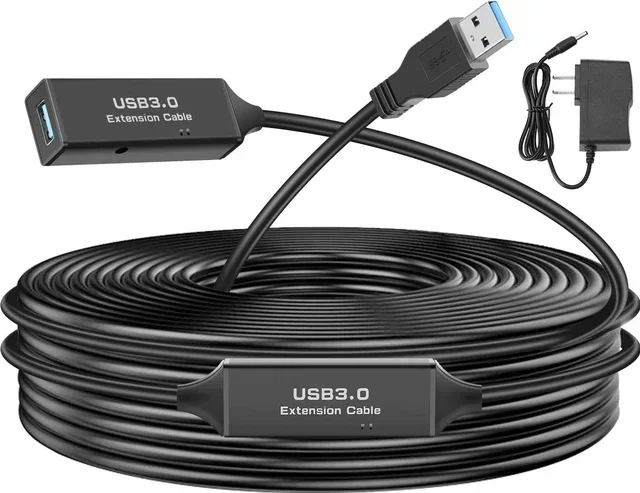
The simplest way to extend a USB connection is to use a USB extension cable. These come in male-to-female or female-to-female configurations. You plug one end into your computer and connect your device to the other end.
Passive extension cables are the most affordable option. They don’t have any built-in electronics to boost the signal. They just carry the existing signal further. These work great for short runs, typically up to 3 meters (about 10 feet).
For longer runs, you’ll want active extension cables. These have a chip or circuit built in that regenerates the signal as it travels. Active cables can extend your connection to 5 meters or more without significant signal loss.
Quick Tip: Always check the USB version rating on your extension cable. A cable labeled “USB 3.0” or “USB 3.1” will support faster speeds than one labeled “USB 2.0.”
USB Hubs with Extension
A USB hub is another excellent way to extend your connection. A powered USB hub sits between your computer and your device. It boosts the signal and gives you extra ports to connect multiple devices.
Many USB hubs include a built-in repeater that refreshes the signal as it passes through. This makes them ideal for longer cable runs. A powered hub also ensures your devices get enough current, which is especially important for external hard drives and other power-hungry peripherals.
When shopping for a hub, look for one that supports USB 3.0 or higher and includes its own power adapter. Unpowered hubs can cause connection issues and slow down your devices.
USB Repeaters
A USB repeater is a small device that sits inline between two cable segments. It receives the weakening signal, cleans it up, and sends it again at full strength. Repeaters are perfect for runs longer than 5 meters where a simple extension cable won’t cut it.
You can daisy-chain multiple repeaters together for even longer distances. Just keep in mind that each repeater adds a small amount of latency. For most everyday uses, this isn’t noticeable. But for real-time applications like gaming or audio production, it’s worth keeping in mind.
Fiber Optic USB Cables
If you need to extend a USB connection over really long distances, fiber optic USB cables are the gold standard. These cables use light instead of electrical signals to transmit data. That means virtually zero signal loss, even over hundreds of meters.
Fiber optic USB cables can extend your connection up to 100 meters or more without any drop in connection quality or data transfer speed. They’re more expensive than traditional copper cables, but they’re unbeatable for long-distance runs.
These cables are commonly used in professional settings like recording studios, security camera systems, and industrial setups where standard copper cables simply can’t reach.
USB Over Ethernet Adapters
Another creative solution is using USB over Ethernet adapters. These devices convert your USB signal into an Ethernet signal, send it over a network cable, and convert it back at the other end. Network cables can run up to 100 meters, so this is a great option for extending USB across a room or even a building.
You’ll need a sender unit and a receiver unit. The sender plugs into your computer, and the receiver plugs into your device. The Ethernet cable connects the two. It’s a slightly more complex setup, but it works incredibly well for long distances.
Comparison of USB Extension Methods
With so many options, it can be tough to decide which method is right for you. Here’s a side-by-side comparison of the most popular USB extension solutions.
| Method | Max Distance | Signal Boost | Power Delivery | Speed Support | Price Range |
|---|---|---|---|---|---|
| Passive Extension Cable | Up to 3 m | No | Limited | USB 2.0 / 3.0 | $5 – $15 |
| Active Extension Cable | Up to 5 m | Yes | Good | USB 3.0 / 3.1 | $15 – $40 |
| USB Hub with Repeater | Up to 10 m (daisy-chain) | Yes | Excellent (powered) | USB 3.0 / 3.1 / 3.2 | $20 – $60 |
| USB Repeater | Up to 30 m (daisy-chain) | Yes | Good | USB 2.0 / 3.0 | $15 – $35 each |
| Fiber Optic USB Cable | Up to 100 m | Yes (optical) | Good | USB 3.0 | $30 – $100 |
| USB over Ethernet Adapter | Up to 100 m | Yes | Good | USB 2.0 / 3.0 | $25 – $50 per pair |
As you can see, the right choice depends on how far you need to go, what devices you’re connecting, and how much you’re willing to spend. For most home and office setups, an active extension cable or a powered USB hub covers the majority of needs perfectly well.
Common Mistakes When Extending USB Cables
Extending a USB cable sounds simple, but people make mistakes all the time that cause frustration. Here are the most common errors and how to avoid them.
Using a Passive Cable for Long Runs
The biggest mistake is using a passive extension cable for distances longer than 3 meters. Without a signal booster, your connection will drop, your data transfer speed will plummet, and your device might not charge properly at all.
If you need more than 3 meters, go with an active cable, a repeater, or a hub. The small extra cost is worth avoiding connection headaches.
Mixing USB Versions
Plugging a USB 2.0 extension into a USB 3.0 port will slow your entire connection down to USB 2.0 speeds. Always make sure every cable and adapter in your chain supports the same USB version.
Check the labels on your cables and devices. If you see “SS” (SuperSpeed) on the connector, it’s USB 3.0 or higher. If it doesn’t say that, it’s probably USB 2.0.
Ignoring Power Requirements
Some devices need more power than others. External hard drives, monitors, and powered USB hubs all draw significant current. A long extension cable without proper power delivery will cause these devices to disconnect or malfunction.
Always use a powered USB hub when connecting power-hungry devices through an extension. The hub’s own power supply ensures everything gets the current it needs.
Buying Cheap, Low-Quality Cables
It’s tempting to grab the cheapest extension cable you can find. But cheap cables often have thin wires, poor shielding, and low-quality connectors. These issues lead to signal interference, data corruption, and unreliable connections.
Invest in cables from reputable brands. Look for cables that are certified for USB-IF compliance. A quality cable might cost a few dollars more, but it will save you from constant troubleshooting.
Coiling Excess Cable
If your extension cable is longer than you need, don’t coil the extra length up and tape it down. Coiled cables act like antennas and create electromagnetic interference. This can degrade your signal and slow down your data transfer.
Instead, use a cable management sleeve or velcro tie to keep excess cable neatly routed without coiling it tightly.
Expert Tips for the Best Extension Experience
Want to get the most out of your extended USB setup? Here are some expert-backed tips that make a real difference.
Keep Extension Runs as Short as Possible
Even with active cables and repeaters, shorter is always better. Every additional meter introduces a tiny bit of signal degradation. Plan your setup to minimize the total cable length you need.
Use Quality Connectors
Gold-plated connectors resist corrosion and provide a more reliable connection over time. They also make it easier to plug and unplug your cables without wearing out the contacts.
Test Your Setup Before Committing
Before you permanently route cables behind a desk or wall, test the full setup with all your devices connected. Check data transfer speeds, charging rates, and connection stability. This saves you from having to rework everything later.
Label Your Cables
If you have multiple extended USB cables running to different devices, label each one. It sounds simple, but it saves a ton of confusion when something goes wrong or you need to troubleshoot a connection issue.
Update Your Device Drivers
Sometimes connection issues aren’t about the cable at all. Outdated USB drivers can cause slow speeds and dropped connections. Keep your device drivers up to date for the smoothest experience.
Frequently Asked Questions
Can you extend a USB-C cable without losing speed?
Yes, you can extend a USB-C cable without losing speed by using an active extension cable or a USB 3.x compliant repeater. Passive USB-C extension cables longer than 1 meter may cause speed drops. Always check that the extension supports the same USB standard as your devices, such as USB 3.1 or USB 3.2, to maintain full speed.
What is the maximum length for a USB cable without a repeater?
The maximum recommended length for a standard USB cable without a repeater is about 3 meters (roughly 10 feet) for USB 2.0 and USB 3.0. Beyond that, signal loss becomes significant. For longer runs, you need an active cable, a repeater, or a hub to keep the connection strong and stable.
Does extending a USB cable slow down data transfer?
Extending a USB cable can slow down data transfer if the extension doesn’t support the same USB version as your devices. Using a USB 2.0 extension on a USB 3.0 connection will cap your speed. Also, longer passive cables experience more signal degradation, which can reduce speeds. Always match the USB version and use active solutions for longer runs.
Can I use a USB hub to extend my cable and charge my device?
Yes, a powered USB hub can both extend your cable and charge your device at the same time. The hub boosts the signal and provides its own power supply, so connected devices get enough current. Make sure the hub supports the USB version you need and has enough wattage for all your connected devices.
Are fiber optic USB cables worth the extra cost?
Fiber optic USB cables are absolutely worth it if you need to extend your connection over long distances. They can run up to 100 meters without any signal loss, and they maintain full data transfer speeds. For short runs under 5 meters, a standard active copper cable is more cost-effective. But for professional or long-distance setups, fiber optic is the best choice.
Can I daisy-chain multiple USB extension cables together?
You can daisy-chain extension cables, but it’s not recommended for long distances. Each connection point adds a small amount of signal loss and resistance. For runs over 3 to 5 meters, it’s better to use a single active extension cable or a USB repeater instead of chaining multiple passive cables together.
Final Thoughts
So, can USB cables be extended? The answer is a clear and definitive yes. Whether you need a few extra inches or a cable run that stretches across a room, there’s a solution that fits your needs and your budget.
The key is understanding your options and choosing the right method for your situation. Short extensions work well with passive cables. Longer runs need active cables, repeaters, or hubs. And for the longest distances, fiber optic USB cables are unmatched.
Avoid the common mistakes we covered, like mixing USB versions or using cheap cables. Take the time to plan your setup, test it thoroughly, and invest in quality equipment. A well-planned USB extension setup gives you flexibility, a cleaner workspace, and reliable connections every time.
Now that you have all the information you need, you’re ready to extend your USB cables with confidence. Pick the right method, grab the right cable, and enjoy a setup that actually works the way you need it to.