Can I Use USB C For Hard Drive And External Storage
Yes, you can absolutely use USB C for hard drives. USB C is the modern connector standard that offers faster speeds, reversible plugging, and broader compatibility with external storage devices. Whether you have a portable hard drive or an internal SATA drive, USB C makes connecting and transferring files simpler than ever.
Can I use USB C for hard drive? The short answer is a resounding yes. If you have been wondering whether your hard drive can work with a USB C connection, you are in the right place. This guide covers everything you need to know about using USB C for hard drives and external storage devices. We will look at compatibility, speed benefits, the gear you need, and common pitfalls to avoid.
USB C has become the go-to connector for modern laptops, tablets, and desktops. It replaced older USB Type A and Type B ports in many devices. This shift means that external storage, including hard drives and SSDs, now benefits from a smaller, faster, and more versatile connector. Whether you are a student backing up files or a professional managing large media projects, understanding USB C for hard drives is essential.
In this article, we break down every aspect of using USB C with your hard drive. From choosing the right cable to troubleshooting common issues, you will find practical advice you can use today. Let us dive in.
Key Takeaways
- Universal Compatibility: Most modern hard drives and external storage devices work with USB C connections right out of the box.
- Blazing Fast Speeds: USB C supports USB 3.1 and USB 4 standards, delivering transfer speeds up to 40 Gbps for large file transfers.
- Reversible Design: The USB C connector flips either way, so you never have to worry about orientation when plugging in your drive.
- Power Delivery: USB C can charge your drive and transfer data simultaneously through a single cable.
- Adapters Make It Flexible: USB C to SATA adapters and USB C hubs let you connect older hard drives to new USB C ports easily.
- Cross-Platform Support: USB C works with Windows, Mac, and Linux systems, making it a versatile choice for external storage.
📑 Table of Contents
- What Is USB C and Why Does It Matter for Hard Drives
- Can You Connect a Hard Drive Using USB C
- Benefits of Using USB C for External Storage
- What You Need to Get Started with USB C Hard Drives
- Common Issues and How to Fix Them
- Expert Tips for Maximizing USB C Hard Drive Performance
- Future of USB C and External Storage
- Conclusion
What Is USB C and Why Does It Matter for Hard Drives
Understanding USB C Technology
USB C is a universal connector standard developed by the USB Implementers Forum. It is a small, oval-shaped port that supports data transfer, video output, and power delivery through a single cable. USB C for hard drive connections has become increasingly popular because it offers significant advantages over older USB standards.
The USB C connector is reversible. This means you can plug it in either way. No more flipping the cable three times to get it right. It is a small design change that saves a lot of frustration. The connector is also more durable than older USB types, with a reinforced design built to last thousands of insertions.
USB C supports multiple protocols. It works with USB 3.0, USB 3.1, USB 3.2, and USB 4 standards. Each generation brings faster data transfer speeds. For hard drive users, this means quicker backups and faster file transfers. A USB C connection can also carry Thunderbolt 3 and Thunderbolt 4 signals, which further boosts performance for compatible drives.
How USB C Differs from Older USB Types
Older USB connectors like Type A and Type B are larger and only insert one way. USB C is much smaller, roughly the size of a micro USB connector but more rectangular. It fits a wider range of devices, from phones to desktop computers.
Here is a quick comparison of USB types:
- USB Type A: The classic rectangular port found on most computers. Supports USB 2.0 and USB 3.0 speeds.
- USB Type B: A square-shaped port often used with printers and larger devices.
- USB Type C: The modern oval connector that supports the fastest speeds and power delivery.
For external storage devices, USB C is clearly the best choice today. It offers the fastest speeds and the most convenience. Even if your computer only has USB A ports, you can use a simple USB C adapter to connect USB C drives.
Can You Connect a Hard Drive Using USB C
Internal Hard Drives and USB C
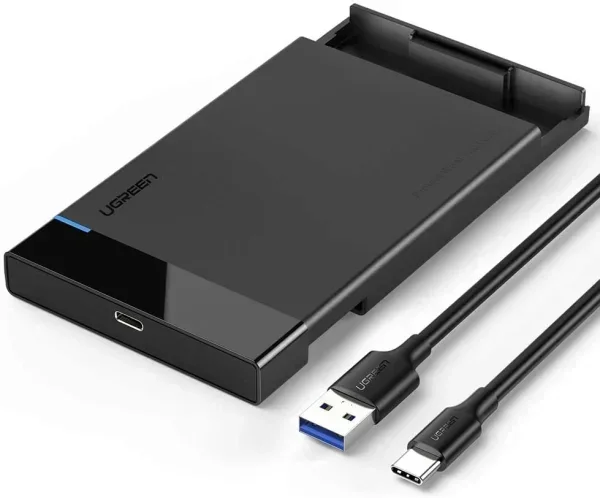
Yes, you can connect internal hard drives to your computer using USB C. You need a USB C to SATA adapter or a hard drive enclosure with a USB C output. These accessories let you connect a 2.5-inch or 3.5-inch SATA drive directly to a USB C port on your laptop or desktop.
This setup is very popular among people who want to recover data from old drives. If your internal hard drive fails or you upgrade to a new SSD, you can slide the old drive into a USB C enclosure and access your files. It is a simple and affordable solution that works with both HDDs and SATA SSDs.
The process is straightforward. You insert the hard drive into the enclosure or connect it with the adapter. Then plug the USB C end into your computer. Your operating system should recognize the drive within seconds. No software installation is usually needed.
External Hard Drives and USB C
Most modern external hard drives now come with USB C connectors. Brands like WD, Seagate, and Toshiba offer portable drives with USB C built in. These portable hard drives are compact, lightweight, and perfect for on-the-go storage.
External USB C hard drives come in two main types. The first is the portable hard drive, which runs off bus power from the USB port. The second is the desktop hard drive, which needs external power. Both types work great with USB C, but portable drives are more convenient for everyday use.
If you are buying a new external drive, look for one with a USB C connection. You will get faster transfer rates and a reversible connector. Many drives also include a USB A cable in the box for backward compatibility. This means you can use the drive with older computers too.
Benefits of Using USB C for External Storage
Faster Data Transfer Speeds
This is the biggest advantage of using USB C for hard drives. USB 3.1 Gen 2 supports speeds up to 10 Gbps. USB 3.2 Gen 2×2 pushes that to 20 Gbps. And USB 4 can reach speeds of 40 Gbps. Compare this to USB 2.0, which maxes out at 480 Mbps. The difference is massive.
What does this mean in real life? If you are transferring a 50 GB video file, USB 2.0 would take over 15 minutes. With USB C and USB 3.1, the same transfer takes about 40 seconds. For professionals working with large media files, this speed is a game changer.
Even for everyday users, faster speeds mean less waiting. Backing up your entire photo library or moving project folders takes a fraction of the time. USB C external hard drives make the whole experience smoother and more efficient.
Reversible Connector Design
We mentioned this briefly, but it deserves its own spotlight. The reversible USB C connector eliminates the hassle of figuring out which way is up. Just plug it in. It works. This small convenience adds up over hundreds of daily connections.
The connector is also more robust. The USB C design uses a sturdier housing and better contact points. It is less likely to bend or break compared to older USB connectors. This durability matters for external storage that gets plugged in and unplugged frequently.
Power Delivery and Charging
USB C supports USB Power Delivery, which can supply up to 100 watts of power. This means your hard drive can draw power directly from the USB C port. You do not need a separate power cable for portable drives.
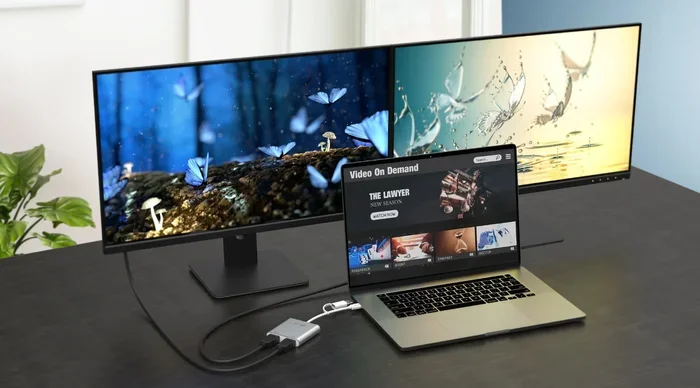
This is especially useful for backup drives that you carry around. One cable handles both data and power. You can even charge your laptop while using a USB C hard drive through a docking station. The versatility of USB C makes it ideal for a clean, clutter-free workspace.
Cross-Platform Compatibility
USB C works across different operating systems. Whether you use Windows, macOS, or Linux, USB C hard drives are compatible. Some drives come preformatted for specific systems, but you can easily reformat them to work with any platform.
This cross-platform support makes USB C drives great for people who work in mixed environments. You can share a single drive between your work laptop and home computer without worrying about compatibility issues. Just make sure you use a file system that all your devices can read, like exFAT.
What You Need to Get Started with USB C Hard Drives
Choosing the Right USB C Cable
Not all USB C cables are created equal. Some only support charging, while others support high-speed data transfer. When buying a cable for your hard drive, look for one that supports USB 3.1 or higher. Check the packaging for data transfer ratings.
A good USB C cable for hard drives should support at least 10 Gbps. Brands like Anker, Cable Matters, and Belkin make reliable options. Avoid cheap, unbranded cables, as they may not support full data speeds. A poor-quality cable can bottleneck your transfer rates and cause frustration.
Cable length matters too. For most setups, a 1 to 3 foot cable works perfectly. If you need more length, go for a shorter cable and place your drive closer. Longer cables can sometimes reduce signal quality and slow down transfers.
USB C Adapters and Hubs
If your computer does not have USB C ports yet, do not worry. You can use a USB C adapter or a USB C hub to connect your hard drive. These accessories plug into your existing USB A or USB Type B ports and provide a USB C connection for your drive.
USB C hubs are especially useful. They add multiple ports to a single USB C connection. You can connect your hard drive, a flash drive, and a charging cable all at once. Popular brands like Satechi, Anker, and CalDigit make high-quality hubs that work well with external storage.
For internal hard drives, a USB C to SATA adapter is the way to go. These adapters cost around $15 to $30 and let you connect any 2.5-inch SATA drive directly to a USB C port. They are a lifesaver for data recovery and drive cloning.
Compatible Hard Drives for USB C
Most modern hard drives support USB C. Here are some popular options:
- WD My Passport SSD: A portable USB C SSD with speeds up to 1,050 MB/s. Compact and durable.
- Samsung T7 Portable: Another excellent USB C SSD with read speeds of 1,050 MB/s. Very reliable.
- Seagate One Touch SSD: A slim USB C drive with solid performance for everyday use.
- LaCie Rugged USB C: A ruggedized external drive designed for travel and outdoor use.
- Generic USB C Enclosures: Affordable enclosures that let you turn any SATA drive into a USB C external drive.
When choosing a drive, consider your needs. If you need speed, go with an NVMe SSD in a USB C enclosure. If you need capacity on a budget, a traditional HDD with USB C works great. Both options connect easily to any USB C port.
Common Issues and How to Fix Them
Drive Not Recognized by Your Computer
If your USB C hard drive is not showing up, do not panic. This is a common issue with simple fixes. First, try a different USB C cable. Faulty cables are the number one cause of unrecognized drives.
Next, try a different USB C port on your computer. Some ports may only support charging and not data transfer. Check your computer’s manual to confirm which ports support data.
If the drive still does not appear, check your disk management tool. On Windows, open Disk Management. On Mac, open Disk Utility. The drive may be connected but not mounted or formatted correctly. Reformatting the drive can often solve this problem, but remember that formatting erases all data.
Slow Transfer Speeds
If your transfers are slower than expected, several factors could be at play. First, check your cable. A USB 2.0 cable will limit your speeds no matter what drive you use. Make sure you are using a cable rated for USB 3.1 or higher.
Second, check the port. Not all USB C ports support the same speeds. Some laptops have USB C ports that only support USB 3.0 or even USB 2.0. Look for ports labeled with the correct standard.
Third, the drive itself may be the bottleneck. Traditional HDDs connected via USB C will not reach the full speed of the connection. Solid-state drives (SSDs) benefit much more from USB C speeds. If you need maximum performance, an NVMe SSD in a USB C enclosure is your best bet.
Compatibility Problems Between Devices
Sometimes, a USB C hard drive works on one computer but not another. This usually happens due to driver issues or operating system differences. On Windows, you may need to install the USB C host controller driver. On Mac, most drives work plug and play, but some may need formatting.
Another common issue is power delivery. Some USB C ports do not supply enough power for certain drives. Desktop drives that require external power will not work from a bus-powered USB C port alone. Always check the power requirements of your drive before purchasing.
Using a powered USB C hub can solve many power-related problems. The hub provides its own power source, ensuring your drive gets the electricity it needs while maintaining full data speeds.
Expert Tips for Maximizing USB C Hard Drive Performance
Want to get the most out of your USB C hard drive? Follow these expert tips. First, always eject your drive properly before unplugging it. This prevents data corruption and extends the life of your drive.
Second, keep your drive cool. External drives can heat up during large transfers. Use a drive with a built-in heatsink or place it on a flat, hard surface during use. Overheating can slow down performance and shorten the drive’s lifespan.
Third, update your USB C drivers regularly. On Windows, check Device Manager for USB controller updates. On Mac, keep your operating system up to date. Updated drivers ensure optimal performance and fix known bugs.
Fourth, use the right file system. For drives used across Windows and Mac, exFAT is the best choice. It works on both platforms without limitations. For drives used only on Windows, NTFS is fine. For Mac-only drives, APFS offers the best performance.
Finally, back up your data. A USB C hard drive is a storage tool, not a replacement for a backup strategy. Use the drive as part of a broader backup plan that includes cloud storage and redundant local backups.
Future of USB C and External Storage
The future looks bright for USB C in the storage world. USB4 is rolling out across more devices, offering 40 Gbps speeds. This is fast enough to keep up with even the fastest NVMe SSDs. As more computers drop legacy USB ports in favor of USB C only, external storage will fully embrace this standard.
Thunderbolt 4, which uses the USB C connector, is also gaining traction. It supports docking stations, external GPUs, and high-speed storage all through a single port. For professionals who work with large datasets, video files, or 3D models, Thunderbolt 4 over USB C is the future of external storage.
In the near future, we can expect even more compact and faster USB C storage solutions. Portable NVMe drives will become cheaper and more widely available. The combination of USB C and NVMe technology is already delivering incredible performance at affordable prices.
Conclusion
So, can I use USB C for hard drive? Absolutely. USB C for hard drive connections is not only possible, it is the present and future of external storage. The combination of fast speeds, reversible design, power delivery, and cross-platform compatibility makes USB C the ideal connector for hard drives and SSDs.
Whether you are using a portable external drive, connecting an internal SATA drive through an adapter, or building a custom storage solution with a USB C enclosure, the ecosystem is mature and reliable. You have all the tools you need to get started today.
Remember to choose the right cable, check your port speeds, and format your drive correctly for your operating system. With these simple steps, your USB C hard drive will deliver excellent performance for years to come. Embrace the USB C standard and enjoy a faster, cleaner, and more convenient storage experience.
The world of external storage has moved on from bulky connectors and slow transfer rates. USB C is the connector that brings it all together. Your hard drive is ready. All you need is the right connection.
Frequently Asked Questions
Can I use any USB C cable for my hard drive?
Not all USB C cables support data transfer. Some cables are designed only for charging. Look for a cable rated for USB 3.1 or higher to ensure full data speeds. Check the packaging or product description for data transfer specifications before purchasing.
Do USB C hard drives work with Mac computers?
Yes, USB C hard drives work with Mac computers. Most external drives connect via USB C and are recognized automatically by macOS. If the drive is formatted for Windows (NTFS), you may need to reformat it to exFAT or APFS for full Mac compatibility.
Why is my USB C hard drive so slow?
Slow speeds usually come from the cable, the port, or the drive type. A USB 2.0 cable will limit speeds dramatically. Also, traditional HDDs cannot take full advantage of USB C speeds. For the fastest performance, use a USB 3.1 or higher cable with an SSD drive.
Can I connect multiple hard drives using one USB C port?
Yes, you can connect multiple drives through a USB C hub. A powered USB C hub provides enough bandwidth and power for multiple drives. Just make sure the hub supports the data speeds you need and can supply adequate power to all connected devices.
Are USB C hard drives more expensive than USB A drives?
USB C drives are slightly more expensive in many cases, but the price gap is closing fast. The performance benefits of USB C often justify the small premium. Over time, USB C is becoming the standard, and prices continue to drop as adoption increases.
Can I use a USB C hard drive with a gaming console?
Some gaming consoles support USB C external drives, but compatibility varies. Check your console’s specifications before buying. Many consoles work with USB C drives that are formatted in exFAT or FAT32. Always verify format requirements for your specific console.