Can I Use Something Other Than Hdmi For Ps4 Console
Can I Use Something Other Than Hdmi For Ps4? Yes, you can connect your PS4 to a TV without an HDMI port using alternative cables like composite, component, or VGA adapters. This guide covers every option, step-by-step setup, audio solutions, and troubleshooting tips to get your console running on older displays.
Can I Use Something Other Than Hdmi For Ps4? The short answer is yes. Your PS4 comes with an HDMI cable in the box, but not every TV has an HDMI input. Older models often only have RCA or component ports. You might also be using a projector or a PC monitor. Whatever the reason, you have options to get your PS4 running.
The PS4 only has an HDMI output port. So you cannot plug a composite or VGA cable directly into the console. You need an active converter box that changes the HDMI signal into another format. These boxes are affordable and easy to set up. This guide will walk you through every non-HDMI method step by step.
You will learn about composite cables, component video, VGA adapters, and how to handle audio without HDMI. I will also share quick tips and common mistakes to avoid. By the end, you will know exactly how to connect your PS4 to any display, no matter how old it is.
Key Takeaways
- PS4 only outputs HDMI natively: You need an active converter box to use composite, component, or VGA connections.
- Composite (RCA) works but offers lower quality: You get 480i resolution, which is fine for older TVs.
- Component video gives a sharper picture: It supports 480p and 720p with the right HDMI-to-component converter.
- VGA adapters are great for PC monitors: You need an HDMI-to-VGA active converter with audio support.
- Audio still works without HDMI: Use the converter’s audio outputs or your TV’s built-in speakers.
- Always buy powered converters: Unpowered adapters often fail and cause no-signal issues.
📑 Table of Contents
- Why You Might Need an HDMI Alternative for PS4
- PS4 Video Output Options Beyond HDMI
- Using Composite (RCA) Cables with Your PS4
- Component Video: A Sharper Alternative
- VGA and DVI Adapters for PS4
- Audio Solutions When You Drop HDMI
- Troubleshooting and Tips for Non-HDMI PS4 Setups
- Conclusion: Can I Use Something Other Than Hdmi For Ps4?
Why You Might Need an HDMI Alternative for PS4
Common Reasons Your TV Lacks HDMI Ports
Many families still use older TVs in bedrooms or kitchens. These TVs often only have RCA inputs or component ports. They do not have HDMI at all. You might also own an older home theater receiver that only has composite or component inputs. In those cases, you simply cannot plug the PS4 HDMI cable straight in.
Another reason is a shortage of HDMI ports on your TV. If your TV has only one HDMI port and it is already taken by a cable box or a Blu-ray player, you might look for alternatives. Using a converter lets you free up that precious HDMI port for another device.
Using Older Displays and Projectors
Projectors are a great example. Many older projectors only accept VGA input. They do not have HDMI ports. You can connect your PS4 to a projector using an HDMI-to-VGA converter. This gives you a big screen experience for movies and games. Just make sure the projector has built-in speakers or you use external audio.
Some older computer monitors also only have VGA or DVI inputs. You can use the same converter setup to turn your monitor into a PS4 display. This works well for desk setups where you want to game on a smaller screen.
PS4 Video Output Options Beyond HDMI
Why the PS4 Only Has HDMI
Sony designed the PS4 with only an HDMI output. HDMI carries both high-definition video and multi-channel audio through a single cable. It is the simplest and highest quality connection. The PS4 does not have built-in composite, component, or VGA outputs. So any alternative requires a signal converter.
You must use an active HDMI converter. These boxes take the HDMI signal from your PS4 and convert it to another format. They need power, usually from a USB port or an AC adapter. The converter then outputs the new signal type to your TV or monitor.
How Converters Make It Work
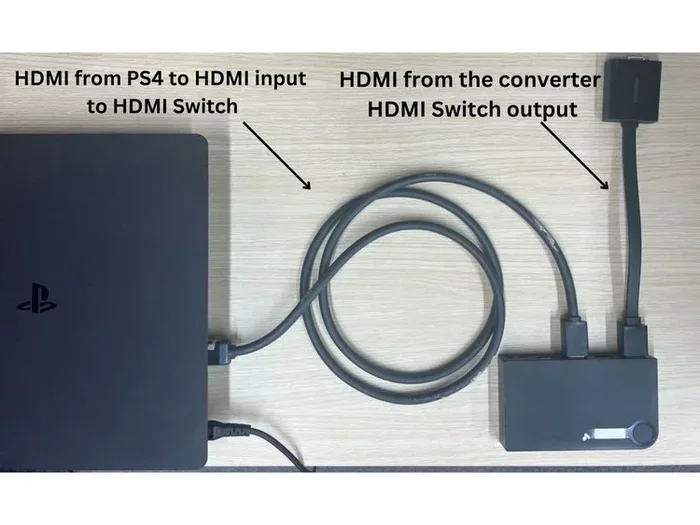
An HDMI-to-composite converter takes the digital HDMI signal and turns it into an analog composite signal. The converter box has an HDMI input and RCA output jacks. You plug the PS4 into the box with a short HDMI cable. Then you run RCA cables from the box to your TV. The box also passes through audio if it has the right outputs.
Similarly, HDMI-to-component converters use three RCA cables for video (YPbPr). They give a better picture than composite because they carry more color information. HDMI-to-VGA converters turn the digital signal into an analog VGA signal for monitors. Each type of converter is designed for a specific display input.
Using Composite (RCA) Cables with Your PS4
What Is Composite Video and Why It Works
Composite video uses a single yellow RCA connector. It carries all video information in one cable. The resolution is usually 480i, which is standard definition. The picture is not as sharp as HDMI, but it works fine on older TVs. Many people still have these TVs in guest rooms or basements.
To use composite with your PS4, you need an HDMI-to-composite converter. You also need a composite RCA cable (yellow, red, white). The yellow cable carries video. The red and white cables carry right and left audio. The converter box does the heavy lifting of changing the signal.
Step-by-Step Composite Connection
- Connect a short HDMI cable from your PS4 to the HDMI input on the converter box.
- Plug the composite RCA cables into the output ports on the converter. Match the colors: yellow to video, red and white to audio.
- Connect the other ends of the RCA cables to the corresponding inputs on your TV. Look for the AV input or RCA inputs.
- Plug the converter into power using the USB cable or the AC adapter.
- Turn on your TV and switch to the correct input source. This is often labeled AV, Video, or RCA.
- Turn on your PS4. You should see the home screen on your TV.
Quick Tips for Composite Setup
- Use a powered converter. Unpowered adapters often do not work with the PS4 because the console outputs a strong HDMI signal.
- Keep the HDMI cable short. A long cable can cause signal loss before it reaches the converter.
- If you see a black and white picture, check that the yellow cable is fully seated. A loose connection sometimes sends only luminance.
- You can buy all-in-one composite converter kits online. They include the box, cables, and power supply.
Common Mistake: Buying a Passive Composite Cable
Some sellers list “PS4 composite cable” as a direct plug-and-play option. Do not be fooled. The PS4 does not have composite output pins. A passive cable will not work. You must have an active HDMI converter box. Always check the product description to confirm it includes a powered converter.
Component Video: A Sharper Alternative
Component vs Composite Quality Difference
Component video uses three RCA cables for video: green, blue, and red (YPbPr). This separates the color signals, giving a much sharper picture than composite. You can often get 480p or even 720p resolution with a good converter. The image looks much better on larger screens.
Component video is analog, just like composite. It does not carry audio, so you still need the red and white RCA cables for sound. The advantage is the video quality. For PS4 gaming, component video is a big step up from composite if your TV supports it.
Setting Up PS4 Component Cables
- Get an HDMI-to-component converter. Make sure it supports the PS4’s output resolution.
- Connect the HDMI cable from your PS4 to the converter’s HDMI input.
- Attach the component video cables (green, blue, red) to the converter’s component output.
- Connect the red and white audio cables from the converter to your TV or audio system.
- Plug in the converter’s power supply.
- Switch your TV to the component input. You may need to set the TV to receive a YPbPr signal.
- Power on the PS4 and enjoy the improved picture.
Quick Tip: Check Your TV’s Component Support
Not all TVs label their component inputs clearly. Look for inputs marked Y Pb Pr or Component. Some TVs share the same RCA jacks for both composite and component. You must use the correct input mode. If you plug into a composite input, the component signal will not display properly.
Common Mistake: Using a Passive Component Cable
Just like composite, a passive component cable will not work with the PS4. The PS4 has no component output pins. You need an active converter box that accepts HDMI and outputs component video. Some cheap “component cables for PS4” listings are misleading. Always read reviews and confirm the product includes a powered converter.
VGA and DVI Adapters for PS4
VGA Converters for Older Monitors
VGA is a very common input on older computer monitors and some TVs. It uses a 15-pin D-sub connector. To connect your PS4 to a VGA monitor, you need an HDMI-to-VGA active converter. This box takes the HDMI signal and converts it to an analog VGA signal.
The converter usually has a VGA output port and a 3.5mm audio jack. You can plug the VGA cable into your monitor and the audio into the monitor’s headphone jack or external speakers. The picture quality will be good, but it is limited by the VGA standard. You will not get 4K or even full 1080p on all converters. Most support up to 1080p at 60Hz.
Can You Use DVI with PS4?
DVI is another option, especially on older LCD monitors. You can use an HDMI-to-DVI adapter or cable. DVI comes in two types: DVI-I (supports analog and digital) and DVI-D (digital only). The PS4 outputs a digital HDMI signal, so a DVI-D connection works fine. However, DVI does not carry audio. You must use separate speakers or a 3.5mm cable from the converter if your setup needs sound.
For the best results with DVI, use a high-quality HDMI-to-DVI cable. Make sure it is a full-size DVI-D connector. Some adapters are mini-HDMI to DVI, which do not fit the PS4’s standard HDMI port. Always check the adapter type before buying.
Expert Insight: Scaler Boxes for Better Image Quality
If you want the best picture on an older display, consider a scaler box. A scaler takes the HDMI signal and upscales or converts it to the display’s native resolution. Some scalers also deinterlace the signal, which reduces flicker on CRT TVs. Brands like RetroTINK and OSSC are popular among enthusiasts. They are more expensive than basic converters but offer superior image quality. For most casual setups, a simple HDMI-to-composite or HDMI-to-component converter is enough.
Audio Solutions When You Drop HDMI
Getting Sound Through AV Cables
When you use composite or component cables, audio comes through the red and white RCA connectors. Your TV or monitor must have RCA audio inputs. Most older TVs do. Simply plug the red and white cables into the matching audio inputs. The PS4 interface sounds will come through the TV speakers.
If you are using a VGA converter with a 3.5mm audio output, you can plug that into your TV’s headphone jack or an external speaker. Some VGA monitors have built-in speakers with a 3.5mm input. This makes setup very easy. You get both video and sound from the converter box.
Optical and Analog Audio Options
If you have a home theater system or soundbar, you might want better audio than what your TV provides. Many HDMI converters also have optical (TOSLINK) audio outputs. You can run an optical cable from the converter to your AV receiver. This gives you surround sound or high-quality stereo audio.
Another option is to use the HDMI audio extractor. This is a small box that splits the HDMI signal into HDMI video and audio outputs. You can then send the audio to your receiver and the video to your converter or directly to an HDMI TV. This is useful if you want to keep HDMI for video but use a different audio path.
Quick Tip: Check Audio Settings on Your PS4
Go to Settings > Sound and Screen > Audio Output Settings on your PS4. Set the primary output port to HDMI. Even when you use a converter, the PS4 needs to think it is sending audio through HDMI. The converter will then extract the audio and send it to your speakers or TV. If you set the output to something else, you might get no sound.
Troubleshooting and Tips for Non-HDMI PS4 Setups
No Signal Problems
If your screen is black and says “No Signal,” check a few things first. Make sure the HDMI cable is firmly plugged into both the PS4 and the converter. Check that the converter is powered on. Some converters have a power LED. If it is off, try a different USB port or the AC adapter.
On your TV, make sure you are on the correct input. For composite, look for AV or Video. For component, look for Component or YPbPr. For VGA, look for PC or VGA. Sometimes the TV auto-detects the signal, but older models need manual selection.
Image Quality Tips
Composite video will always look soft. That is normal. You cannot get HD resolution over composite. If you want a better picture, switch to component or VGA. Make sure your converter supports the resolution you want. Some cheap converters only output 480i or 576i. A good converter should support at least 480p or 720p.
You can also adjust the PS4’s video output settings. Go to Settings > Sound and Screen > Video Output Settings. Set the resolution to match your display. For composite or component, 480p is often the best choice. For VGA, 1080p might work if your monitor supports it. Lowering the resolution can sometimes fix flickering or rolling pictures.
Common Mistakes to Avoid
- Buying a passive adapter: The PS4 needs an active converter. Passive cables or adapters will not work.
- Using long HDMI cables before the converter: Keep the HDMI cable short, under 6 feet, to avoid signal loss.
- Ignoring audio settings: Always set the PS4 audio output to HDMI, even when using a converter.
- Using the wrong input on the TV: Double-check that you are on the right input for the cable type you are using.
- Overlooking power requirements: Some converters need a wall outlet, not just USB power. Check the box in the box.
Conclusion: Can I Use Something Other Than Hdmi For Ps4?
Can I Use Something Other Than Hdmi For Ps4? Absolutely yes. You have several great options to connect your PS4 to a TV or monitor without HDMI. Composite cables work well for older TVs and are easy to set up. Component video gives you a sharper picture if your TV supports it. VGA adapters are perfect for computer monitors and projectors. DVI can also work with the right adapter.
The key is to buy a powered HDMI converter that matches your display input. Always check that the converter is active, not passive. Follow the setup steps carefully and adjust your PS4 video settings. You will be gaming in no time, even on a display that is decades old. Do not let the lack of an HDMI port stop you from enjoying your PS4. With the right converter, you can play anywhere.
Remember to handle audio separately if your display does not support it through the video cable. Use the converter’s audio outputs or your TV’s built-in speakers. Keep your cables organized and powered properly. Now you have all the knowledge to set up your PS4 without HDMI. Enjoy your gaming sessions on any screen you have.
Frequently Asked Questions
Do I need a special cable to connect PS4 without HDMI?
You need an active HDMI converter box, not just a cable. The PS4 only has an HDMI output port. The converter changes the HDMI signal into composite, component, VGA, or DVI. The converter usually comes with the necessary output cables. So yes, you need a converter device, not just a different cable.
Will my PS4 look good on a composite TV?
The picture will be standard definition, usually 480i. It will not look as sharp as HDMI. However, for older TVs, it will look perfectly fine. The colors and motion are acceptable for casual gaming. If you want a better image, use component or VGA instead.
Can I get audio through VGA or composite cables?
Yes, but not through the video cable alone. Composite and component use separate red and white RCA cables for audio. VGA uses a 3.5mm audio output on the converter box. You plug that into your TV or external speakers. The PS4 settings must be set to output audio through HDMI for the converter to extract the sound.
Is an HDMI to component converter the same as a component cable?
No. A component cable is just three RCA cables. The PS4 cannot use a component cable directly because it has no component output pins. An HDMI to component converter is an active box that takes the HDMI signal and outputs component video. You must have the converter box for it to work.
Can I use a PS4 with a PC monitor that only has VGA?
Yes. You need an HDMI to VGA active converter. Connect the PS4 to the converter with HDMI, then run a VGA cable to your monitor. Use the converter’s 3.5mm audio output for sound. Most VGA monitors support up to 1080p with a good converter.
What resolution can I expect without HDMI?
With composite, you get 480i. With component, you can get 480p or 720p depending on the converter. With VGA or DVI, you can often get 1080p if your display and converter support it. Always check the converter’s specifications before buying to ensure it supports your desired resolution.