Can I Use An All In One Computer As A Second Monitor
Can I Use All In One Computer As A Monitor is an essential topic that provides valuable insights.
Key Takeaways
- Yes, you can use an all in one computer as a second monitor — it is possible through HDMI input, USB-C, docking stations, or wireless mirroring.
- Check your AIO’s ports first — the available ports on your computer determine which method will work best for your setup.
- Use the extend display mode — this gives you a true dual screen experience and boosts productivity significantly.
- Watch out for common mistakes — using the wrong cable, forgetting to switch input sources, and leaving Windows in mirror mode are the top issues to avoid.
- A docking station or capture card solves input problems — if your AIO lacks a direct video input, these affordable tools bridge the gap.
- Match resolution and scaling settings — this ensures both screens look sharp and comfortable to use together.
📑 Table of Contents
- Why Would You Use an All In One Computer As A Second Monitor?
- How To Use an All In One Computer As A Monitor
- Setting Up Your Dual Screen With an All In One PC
- Limitations of Using an All In One PC As A Monitor
- Common Mistakes When Setting Up an AIO As a Second Monitor
- Best All In One Computers for Use As a Second Monitor
- Maximizing Productivity With Your AIO Second Monitor
Why Would You Use an All In One Computer As A Second Monitor?
Before diving into the “how,” let us talk about the “why.” There are many good reasons to use your AIO PC as an extra screen. Some of these reasons might surprise you.
First, saving money is a big one. External monitors can be expensive, especially high-quality ones. If you already own an all in one computer, why spend more? You already have a great display sitting on your desk.
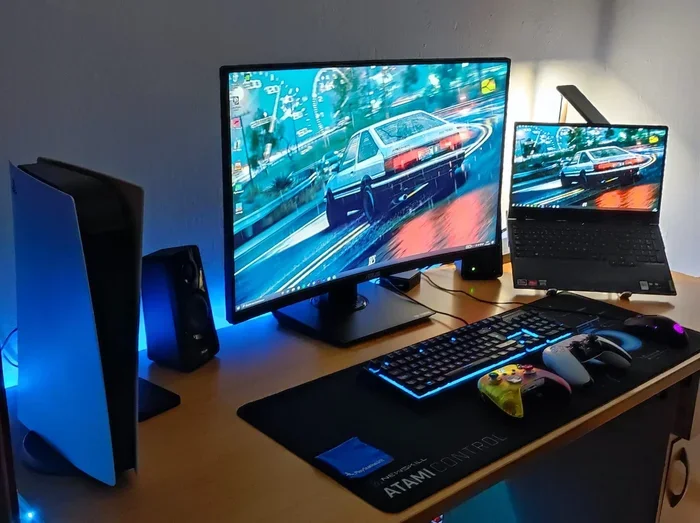
Second, space matters. AIO PCs take up less room than a traditional desktop tower plus a monitor. Using it as a second display means you get two screens without adding clutter to your workspace.
Third, it is great for productivity. Studies show that using multiple screens helps people work faster. You can have your email on one screen and your main work on the other. A productivity boost like this can change how you work every day.
Who Benefits Most From This Setup?
Many types of users can benefit from turning an AIO PC into a second display:
- Remote workers who need extra screen space at home
- Students who juggle research and writing at the same time
- Gamers who want a wider view without buying another screen
- Content creators who need to see timelines and previews side by side
- Stock traders and data analysts who watch multiple feeds at once
Quick Tip
Before you start, check what ports your AIO computer has on the back. Look for HDMI, USB-C, or DisplayPort. The ports you find will decide which method works best for you.
How To Use an All In One Computer As A Monitor
There are several ways to use your AIO PC as a second monitor. Each method has its own advantages. Let us go through them one by one.
Method 1: HDMI Input Connection
This is the simplest method if your all in one computer has an HDMI input port. Most AIOs only have HDMI output ports, but some models include an HDMI input as well.
Here is how to do it:
- Find the HDMI input port on the back of your AIO
- Connect an HDMI cable from your laptop or PC to the AIO
- Switch the AIO to the correct input source using its built-in menu
- On your laptop, go to display settings and choose to extend the screen
This method gives you a second display with minimal setup. The image quality will be excellent because HDMI carries both video and audio through one cable.
Method 2: USB-C with DisplayPort Alt Mode
Many modern AIO computers come with USB-C ports that support video output. Some also have USB-C ports that can receive video input. This is called DisplayPort Alt Mode.
To use this method:
- Get a USB-C to HDMI or USB-C to DisplayPort cable
- Connect your source device to the AIO
- Go to your display settings and detect the new screen
This works well for laptops with USB-C ports. It is clean, simple, and supports high resolutions.
Method 3: Using a Docking Station
A docking station is a great option if your AIO does not have a direct video input. The dock connects to your main computer and provides extra ports, including video output.
Here is what you need:
- A compatible docking station with video output
- The right cables (HDMI, DisplayPort, or USB-C)
- Your AIO PC set to the correct input
The docking station acts as a bridge between your computer and the all in one display. Some docks even charge your laptop while you work. This is a very clean and organized setup.
Method 4: Wireless Screen Mirroring
Not all connections need cables. If your AIO computer supports wireless display protocols, you can mirror or extend your screen without any wires at all.
Popular wireless options include:
- Miracast for Windows PCs
- AirPlay for Mac and iOS devices
- Chromecast for Chrome OS users
- Samsung DeX for compatible devices
Wireless methods are convenient, but they may have a slight delay. For gaming or video editing, a wired connection is better. For office work and browsing, wireless works great.
Comparison Table: Connection Methods
| Method | Ease of Setup | Quality | Best For |
|---|---|---|---|
| HDMI Input | Very Easy | Excellent | Simple plug-and-play setups |
| USB-C Alt Mode | Easy | Excellent | Modern laptops with USB-C |
| Docking Station | Moderate | Very Good | Organized workspace setups |
| Wireless Mirroring | Very Easy | Good | Casual use and presentations |
Setting Up Your Dual Screen With an All In One PC
Once you have connected your AIO as a second display, you need to configure your operating system. This part is quick and straightforward.
Windows Display Settings
On Windows, right-click your desktop and select “Display settings.” You will see two screens labeled “1” and “2.” Here is what to do:
- Click “Identify” to see which screen is which
- Choose “Extend these displays” for a true extended desktop
- Drag the screens to match their physical positions on your desk
- Adjust the resolution and scale for each screen
- Click “Apply” and then “Keep changes”
Your all in one computer is now acting as a proper second monitor. You can drag windows between screens just like with any external display.
Mac Display Settings
For Mac users, the process is similar:
- Go to System Settings and click “Displays”
- Your AIO should appear as a detected display
- Choose “Extend Display” instead of “Mirror Display”
- Arrange the displays by dragging them to match your desk layout
- Set the primary display by dragging the menu bar to your preferred screen
Expert Insight
Many users make the mistake of leaving their AIO in mirror mode. Mirroring shows the same image on both screens, which wastes the benefit of having two displays. Always choose “Extend” for maximum productivity.
Limitations of Using an All In One PC As A Monitor
Using an AIO as a monitor is not perfect. There are some limitations you should know about before you set this up.
No HDMI Input on Most Models
The biggest issue is that most all in one computers do not have HDMI input ports. They only have HDMI output. This means you cannot simply plug a cable from your PC into the AIO and expect it to work as a display. You will need to use alternative methods like a docking station or wireless mirroring.
Performance Considerations
When you use your AIO as a monitor, the AIO is not doing the computing — your main computer is. However, the AIO still needs to process the video signal it receives. This can add a small amount of latency. For most tasks, this is not noticeable. For fast-paced gaming or video editing, it might be a factor.
Built-In Speakers and Webcam
One fun benefit of using an AIO as a display is that you still have access to its built-in speakers and webcam. So even when it is serving as a monitor, it can also handle video calls and audio. This is a nice bonus that a regular monitor cannot offer.
Resolution and Refresh Rate Matching
Sometimes your source device and the AIO may not support the same resolution settings or refresh rate. In these cases, you may need to lower the output settings on your computer to match what the AIO can display. Check your AIO’s specs to find its native resolution and supported refresh rates.
Quick Tip
If your AIO only has HDMI output and no input, a USB-C to HDMI capture card can work as a workaround. These are affordable and widely available online. Just plug the capture card into your AIO and connect it to your source device.
Common Mistakes When Setting Up an AIO As a Second Monitor
Many people run into problems when setting up their all in one PC as a second display. Here are the most common mistakes and how to avoid them.
Using the Wrong Cable
Not all HDMI cables are the same. Using an old or cheap cable can result in poor image quality or no signal at all. Always use a high-quality cable that supports the resolution you need. For 4K displays, make sure your cable supports 4K at 60Hz.
Forgetting to Switch Input Sources
After connecting your cable, you must switch the AIO to the correct input source. Most AIOs have a built-in input selector in their settings menu. If you skip this step, the screen will stay blank even though everything is connected properly.
Leaving Windows in Mirror Mode
As mentioned earlier, mirror mode shows the same content on both screens. This defeats the purpose of having a second monitor. Always check your display settings and confirm you are in “Extend” mode.
Ignoring Display Scaling
If your AIO has a different screen size or resolution than your main display, the scaling might look off. Text and icons may appear too big or too small. Adjust the scaling settings in your operating system to fix this.
Not Checking for Firmware Updates
Some AIO models need a firmware update to support certain input methods or resolutions. Check your manufacturer’s website for any available updates before troubleshooting connection issues.
Expert Insight
A simple restart of both devices after making all connections can solve many issues. This fixes temporary glitches and helps both devices recognize each other properly.
Best All In One Computers for Use As a Second Monitor
If you are shopping for an AIO that works well as a second display, look for these features:
- HDMI input port — This is the easiest path to using the screen as a monitor
- USB-C with video input — Gives you more connection options
- High resolution — 1080p or 4K for a sharp image
- Good color accuracy — Important for design and photo work
- Adjustable stand — So you can position the screen at the right height
- VESA mount support — Lets you mount the AIO on a monitor arm for a cleaner desk
Some popular AIO models known for their versatility include brands like HP, Dell, Lenovo, and ASUS. Check each model’s specifications to confirm it has an input port if you plan to use it as a second monitor.
Quick Tip
If you already own an AIO without an input port, do not worry. A KVM switch or a capture card can bridge the gap. These small devices are affordable and expand your connectivity options significantly.
Maximizing Productivity With Your AIO Second Monitor
Once you have your dual screen setup working, here are some tips to get the most out of it.
Organize Your Workflow
Use one screen for your primary task and the other for reference material. For example, keep your document on the AIO and your research browser on your laptop screen. This keeps everything in view without constant switching.
Use Keyboard Shortcuts
Learning a few keyboard shortcuts can speed up your screen management:
- Windows + P — Quickly switch between display modes
- Windows + Shift + Left/Right Arrow — Move windows between screens
- Mac Mission Control — View all open windows across displays
Manage Cable Clutter
With multiple devices and cables, your desk can get messy quickly. Use cable management solutions like clips, sleeves, or a cable tray. A clean workspace helps you focus and keeps your setup looking professional.
Adjust Brightness and Color
Since your AIO and your main monitor may have different brightness levels, adjust them to match. This reduces eye strain during long work sessions. Most operating systems have built-in night light or blue light filters you can enable too.
Frequently Asked Questions
Can any all in one computer be used as a second monitor?
Not all AIOs can be used as a second monitor. The key factor is whether your AIO has an HDMI input port or a USB-C port that supports video input. If it only has output ports, you will need a workaround like a docking station or capture card. Always check your specific model’s specifications before attempting the setup.
Does using an AIO as a monitor affect its performance?
When your AIO serves as a second display, it handles video signal processing but does not run heavy computing tasks. This means performance impact is minimal for everyday use. However, if you are gaming or editing video on the main computer, the AIO may show slight input lag depending on the connection method you use.
Can I use an all in one computer as a monitor wirelessly?
Yes, wireless methods like Miracast, AirPlay, and Chromecast allow you to extend or mirror your screen without cables. Wireless setups are convenient and easy to configure. However, they may have a small delay compared to wired connections, making them less ideal for gaming or fast-paced video work.
What cable do I need to connect my laptop to an AIO as a monitor?
The cable you need depends on the ports available. If your AIO has an HDMI input, a standard HDMI cable works perfectly. For USB-C connections, you may need a USB-C to HDMI or USB-C to DisplayPort cable. Always choose a cable rated for the resolution and refresh rate you want to achieve.
Is it better to use an AIO as a monitor or buy a dedicated external monitor?
It depends on your needs and budget. Using an AIO you already own saves money and desk space. However, dedicated monitors often offer better color accuracy, faster refresh rates, and more adjustable stand options. If you do a lot of creative work or gaming, a dedicated external monitor may be the better choice.
Can I use an AIO as a monitor for a gaming console?
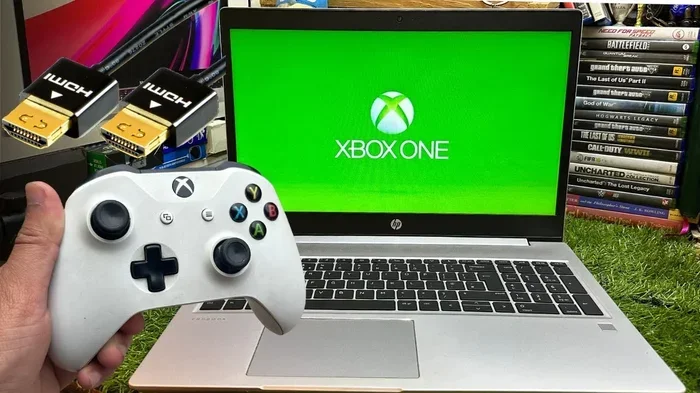
Yes, if your AIO has an HDMI input port, you can connect a gaming console like a PlayStation or Xbox to it. The experience will be similar to using any external monitor. Just make sure the AIO supports the resolution and refresh rate your console outputs for the best gaming experience.
=== CONCLUSION ===
Using your all in one computer as a second monitor is a smart, cost-effective way to expand your workspace without buying extra hardware. Whether you connect via HDMI, USB-C, a docking station, or wirelessly, the process is straightforward and well worth the effort. You get the benefits of a dual screen setup while keeping your desk clean and organized.
Remember to check your AIO’s ports, use the extend display mode, and avoid common setup mistakes. With the right approach, your AIO PC becomes a versatile and powerful second display. Start setting up your all in one computer as a monitor today and enjoy the productivity boost that comes with two screens.