Can I Customize My Gaming Laptop to Upgrade Your Rig
Yes, you can customize your gaming laptop in many powerful ways, from swapping RAM and storage to upgrading cooling systems and adding RGB lighting. Customizing a gaming laptop lets you improve performance, extend its lifespan, and build a setup that matches your style. This guide covers every upgrade option, common mistakes, and expert tips to help you get the most from your rig.
If you have been staring at your gaming laptop wondering whether you can do more with it, the answer is a resounding yes. Customizing a gaming laptop is one of the smartest moves any gamer can make. Whether you want better frame rates, a cooler-running machine, or a setup that looks exactly the way you want it, there are plenty of options waiting for you.
Many people think gaming laptops are sealed shut and impossible to change. That is a myth. Most gaming laptops come with access panels that let you swap out key parts. And even the sealed ones still have upgrade paths you can explore. Upgrading a gaming laptop can breathe new life into an older machine and delay the need for a full replacement.
In this guide, we will walk you through every way you can customize your gaming laptop. We will cover hardware upgrades, cooling improvements, aesthetic mods, and even software tweaks. By the end, you will know exactly what your laptop can handle and how to get the most out of it.
Key Takeaways
- Multiple upgrade paths exist: You can upgrade RAM, storage, GPU (externally), and cooling systems to boost performance.
- Customization goes beyond hardware: RGB lighting, keyboard swaps, and software tweaks let you personalize your rig.
- Know your limits: Not all laptops are equally upgradeable, so check your model before buying parts.
- Thermal management matters: Replacing thermal paste and using cooling pads can significantly improve gaming performance.
- External GPUs open new doors: An eGPU lets you use desktop graphics cards with your laptop.
- Budget-friendly upgrades first: Start with RAM and SSD upgrades for the best cost-to-performance ratio.
- Avoid common mistakes: Skipping compatibility checks and ignoring warranty terms are the top pitfalls.
📑 Table of Contents
- Why Customize Your Gaming Laptop?
- Hardware Upgrades You Can Make
- Aesthetic Customization: Making It Yours
- Software Tweaks to Boost Performance
- Common Mistakes to Avoid When Customizing
- How to Know What Your Laptop Can Handle
- Cost vs. Benefit: Which Upgrades Are Worth It?
- Final Thoughts on Customizing Your Gaming Laptop
Why Customize Your Gaming Laptop?
Before we dive into the how, let us talk about the why. Customizing a gaming rig is not just about showing off. It is about getting the best experience possible from your investment.
A brand-new top-tier gaming laptop can cost over two thousand dollars. That is a big chunk of change. But with the right hardware upgrades, you can keep your current machine running strong for several more years. This saves you money and reduces electronic waste, which is a win-win.
Beyond saving money, customization gives you control. You decide what matters most. Do you need more memory for multitasking? Maybe you want faster storage for near-instant game loads. Or perhaps your laptop runs too hot during long gaming sessions. Whatever the reason, customizing your setup puts you in the driver’s seat.
Performance Boost Without Replacing the Whole Laptop
One of the biggest advantages of laptop customization is the performance boost. Adding more RAM or swapping in a faster SSD can make your system feel brand new. These upgrades are affordable and usually take less than thirty minutes.
For example, upgrading from an 8GB stick of RAM to 16GB or 32GB can dramatically improve how your laptop handles modern games and heavy applications. Games that stuttered or crashed before may run smoothly after a simple laptop RAM upgrade.
Hardware Upgrades You Can Make
The heart of any custom gaming rig lies in its components. When it comes to gaming laptops, several internal parts can be swapped out or upgraded. Here is a detailed look at each one.
Upgrading Your RAM
Random Access Memory, or RAM, is where your laptop stores data it needs right now. More RAM means your system can juggle more tasks at once. For gaming, 16GB is the sweet spot in 2024 and beyond. But if you are still running 8GB, you will notice a huge difference after an upgrade.
Most gaming laptops have two RAM slots. Some even have four. Check your laptop’s manual or use a free tool like Crucial System Scanner to find out what your machine supports. Look for DDR4 or DDR5 RAM depending on your model. Upgrading laptop RAM is one of the easiest and most affordable gaming laptop upgrades you can make.
Here are some quick tips for a RAM upgrade:
- Match the RAM speed and type to your existing modules.
- Install matching pairs for dual-channel performance.
- Ground yourself before touching any internal components.
- Check your laptop’s maximum RAM capacity first.
Swapping Your Storage Drive
Storage speed has a massive impact on how fast your laptop boots up and loads games. If you are still using a hard disk drive, upgrading to a solid-state drive is the single best thing you can do. An SSD upgrade can cut game load times in half or more.
Most modern gaming laptops use NVMe M.2 SSDs. These tiny drives plug directly into the motherboard and offer blazing-fast speeds. You can find 1TB NVMe SSDs for around sixty to eighty dollars, which is a fantastic value.
If your laptop has room for a second drive, consider adding a second SSD instead of replacing your existing one. This gives you more storage space without losing your current data. Just make sure your laptop supports a second drive before you buy one.
Can You Upgrade the GPU?
This is the question most gamers ask, and the answer is complicated. In most gaming laptops, the graphics card is soldered directly to the motherboard. That means you cannot swap it out like you would on a desktop computer.
However, there is a workaround: an external GPU, or eGPU. An eGPU is a desktop graphics card housed in an external enclosure that connects to your laptop through a Thunderbolt 3 or 4 port. This setup gives you desktop-class graphics power while still letting you use your portable laptop.
eGPUs are not perfect. They add bulk and cost several hundred dollars on top of the graphics card itself. But for gamers who want a serious performance boost without buying a new laptop, an eGPU is a powerful option. Just make sure your laptop supports Thunderbolt before investing in one.
Upgrading the Cooling System
Heat is the enemy of performance. When a gaming laptop gets too hot, it slows itself down to protect its components. This is called thermal throttling, and it kills your frame rates. Upgrading your cooling system is one of the most overlooked ways to improve gaming performance.
You can start with a simple cooling pad. These pads sit under your laptop and push extra air across the bottom vents. They are affordable and easy to use. Look for a pad with large fans and adjustable height settings for the best results.
For more advanced users, you can open up your laptop and replace the thermal paste on the CPU and GPU. Over time, the thermal paste dries out and loses its effectiveness. Fresh thermal paste can drop temperatures by five to fifteen degrees, which is a big deal. Just be careful, and watch a few tutorial videos before you try this yourself.
Replacing the Keyboard and Palm Rest
Some gaming laptops allow you to swap out the keyboard or palm rest assembly. This is less common than RAM or storage upgrades, but it is possible on certain models. If your keyboard is worn out or you want a different feel, check if replacement parts are available for your specific laptop model.
Custom keyboards with different switch types or layouts can completely change how your laptop feels to type and game on. Some gamers even swap in mechanical keyboard modules for a more tactile experience.
Aesthetic Customization: Making It Yours
Performance is important, but looks matter too. A custom gaming setup should reflect your personality. The good news is that there are many ways to make your gaming laptop look unique.
RGB Lighting and Skins
Most gaming laptops come with some form of RGB lighting already built in. You can usually control the colors and effects through the laptop’s software. But you can go further with custom RGB lighting strips, stickers, or even removable skins.
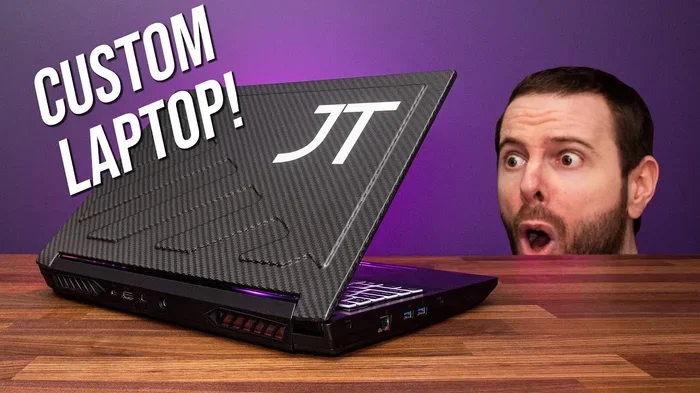
Vinyl wraps are a popular way to change the look of your laptop without permanent modifications. You can find wraps in every color and pattern imaginable. Matte black, carbon fiber, neon glow, or even custom artwork, the options are endless.
Just make sure any wraps or skins do not block your laptop’s vents. Blocking airflow can cause overheating, which defeats the purpose of your upgrade efforts.
Custom Keycaps and Peripherals
If your laptop has a removable keyboard, you can swap out the keycaps for custom ones. This is a popular mod among enthusiasts who want a more premium or unique typing feel. Custom keycaps come in all sorts of materials, from durable ABS plastic to sleek PBT polymer.
Pairing your laptop with custom peripherals like a gaming mouse, mechanical keyboard, and headset completes the look and feel of your custom build. These additions do not change your laptop internally, but they transform the entire experience.
Software Tweaks to Boost Performance
Hardware upgrades are great, but do not overlook the power of software tweaks. Sometimes a few simple changes can make your laptop feel significantly faster without spending a single dollar.
Overclocking Your GPU and CPU
Overclocking means pushing your components beyond their factory settings to squeeze out extra performance. Many gaming laptops allow you to overclock the GPU through software like MSI Afterburner or the manufacturer’s own tuning tool.
Overclocking does come with risks. It increases heat output and can shorten component lifespan if done improperly. Start with small increments, monitor your temperatures closely, and never overclock if your cooling system cannot handle the extra heat.
Optimizing Windows for Gaming
Windows has several built-in settings that can improve your gaming performance. Turn on Game Mode in your settings to prioritize system resources for games. Disable unnecessary startup programs to free up memory and processing power. And keep your graphics drivers updated to ensure the best compatibility and performance.
You can also use tools like NVIDIA GeForce Experience or AMD Software to optimize game settings automatically. These tools analyze your hardware and suggest the best settings for smooth gameplay.
Common Mistakes to Avoid When Customizing
Customizing your laptop is exciting, but mistakes can be costly. Here are some common pitfalls to watch out for.
Skipping Compatibility Checks
The biggest mistake people make is buying parts without checking compatibility. Not every RAM stick works with every laptop. Not every SSD fits every motherboard. Always verify the specifications of your laptop before purchasing any upgrade parts.
Ignoring the Warranty
Opening up your laptop to make upgrades can void your warranty. Before you start tearing anything apart, check your manufacturer’s warranty terms. Some companies allow RAM and storage upgrades without voiding the warranty, while others do not. Knowing this ahead of time can save you from expensive surprises.
Overlooking Thermal Management
Upgrading components without addressing heat can lead to throttling and instability. If you add more powerful parts, make sure your cooling system can handle the extra heat. A cooling pad or fresh thermal paste goes a long way in keeping temperatures under control.
Buying the Most Expensive Parts
You do not always need the most expensive upgrade to see big improvements. A budget SSD or a modest RAM upgrade can deliver 80% of the performance gain at 20% of the cost. Focus on upgrades that give you the best return on investment first.
How to Know What Your Laptop Can Handle
Not every gaming laptop is created equal when it comes to upgradeability. Before you buy any parts, you need to know what your specific model supports.
Start by checking your laptop’s manual or the manufacturer’s website. Look for information about RAM slots, storage types, and maximum supported capacity. You can also use system information tools built into Windows to see what components you currently have installed.
Online communities are another great resource. Forums like Reddit’s r/GamingLaptops or manufacturer-specific support boards are full of users who have already upgraded the same model. Search for your laptop model number and the word “upgrade” to find real-world experiences and advice.
If your laptop is very slim or ultra-portable, your upgrade options may be limited. These designs often sacrifice expandability for portability. But even in these cases, you can usually still upgrade the storage and sometimes the RAM. Always check before assuming the worst.
Cost vs. Benefit: Which Upgrades Are Worth It?
Not all upgrades deliver the same value. Here is a quick comparison of common upgrades and what you can expect from each one.
| Upgrade | Average Cost | Performance Impact | Difficulty Level |
|---|---|---|---|
| RAM Upgrade | $30-$80 | High for multitasking and gaming | Easy |
| SSD Upgrade | $50-$100 | Very High for load times | Easy |
| External GPU | $300-$800+ | Very High for graphics | Moderate |
| Cooling Pad | $20-$50 | Moderate for thermals | Very Easy |
| Thermal Paste Replacement | $10-$20 | Moderate for thermals | Moderate |
| Keyboard Swap | $40-$100 | Low (aesthetic/comfort) | Moderate |
| RGB Skins/Wraps | $15-$40 | None (aesthetic only) | Very Easy |
As you can see, RAM and SSD upgrades offer the best balance of cost, performance, and ease. If you are on a budget, start there. An external GPU is the most expensive upgrade on the list, but it delivers the biggest performance leap for graphics-heavy gaming.
Final Thoughts on Customizing Your Gaming Laptop
Customizing your gaming laptop is one of the most rewarding things you can do as a gamer. It saves money, extends the life of your machine, and gives you a setup that is truly your own. From simple RAM and storage upgrades to advanced cooling modifications and aesthetic tweaks, the possibilities are wide open.
Start with the upgrades that matter most to you. If slow load times frustrate you, invest in an SSD. If your laptop struggles with modern games, look into more RAM or an external GPU. If heat is your enemy, focus on cooling solutions and thermal paste replacement.
The key is to research your specific laptop model, buy compatible parts, and take your time during installation. Upgrading a gaming laptop does not require expert-level skills. With a little patience and the right guidance, anyone can do it. So go ahead, open up your laptop, and start building the rig you have always wanted.
Your custom gaming rig is waiting. The only question is, what will you upgrade first?
Frequently Asked Questions
Can I upgrade the GPU in my gaming laptop?
In most cases, the GPU in a gaming laptop is soldered to the motherboard and cannot be replaced. However, you can use an external GPU (eGPU) through a Thunderbolt port to get desktop-level graphics performance. This is the best way to boost your graphics power without buying a new laptop.
Is it worth upgrading an older gaming laptop?
It depends on the age and condition of your laptop. If your machine can handle an RAM and SSD upgrade, it is usually worth the investment. These upgrades are affordable and can make a noticeable difference. But if your laptop has a very old processor or limited upgrade options, a new laptop might be a better choice.
How much does it cost to customize a gaming laptop?
The cost varies widely based on what you upgrade. A RAM upgrade might cost thirty to eighty dollars, while an SSD upgrade runs fifty to one hundred dollars. More advanced upgrades like an external GPU can cost three hundred dollars or more. Start with the upgrades that give you the most bang for your buck.
Will upgrading my laptop void the warranty?
This depends on the manufacturer. Some companies allow RAM and storage upgrades without voiding the warranty. Others consider any internal modification a warranty violation. Always check your warranty terms before opening up your laptop. When in doubt, contact the manufacturer directly to ask.
Can I customize the look of my gaming laptop without opening it?
Absolutely. You can use vinyl wraps, skins, and RGB lighting accessories to change the appearance of your laptop without opening the case. Custom keycaps and external peripherals also add a personal touch. These cosmetic upgrades are easy, affordable, and fully reversible.
What is the easiest upgrade for a beginner?
An SSD upgrade is the easiest and most impactful upgrade for beginners. Most gaming laptops have a dedicated SSD slot that is easy to access. You simply slide in the new drive, clone your old drive, and enjoy faster load times. No special tools or technical skills are required for most models.