Can I Connect Xbox To Laptop With Hdmi And Why Not
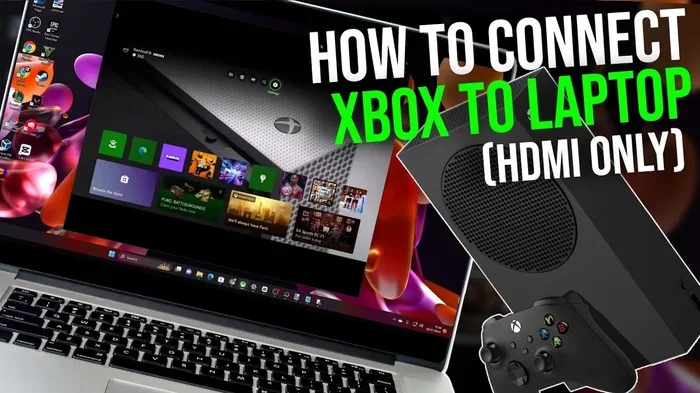
You cannot connect Xbox to laptop with HDMI directly because most laptops only have HDMI output ports, not input ports. This means the signal flows out of the laptop, not into it. However, there are real workarounds like capture cards and streaming apps that let you play Xbox games on your laptop screen. This guide breaks down every option so you can choose the best one for your setup.
Have you ever wanted to play your Xbox on your laptop screen? Maybe your TV is broken. Maybe you are traveling. Maybe you just want a more personal gaming setup. Whatever the reason, the question keeps popping up: Can I connect Xbox to laptop with HDMI?
The short answer is no, not directly. And the reason why is simpler than you think. Most laptops do not have HDMI input ports. They only have HDMI output ports. So plugging an Xbox into a laptop with a standard HDMI cable will not give you a picture. It will not work. At least not the way you are hoping it will.
But here is the good news. There are real, working solutions. You can still play Xbox games on your laptop. You just need the right tools and a little patience. This guide will walk you through everything. You will learn why the direct connection fails, what workarounds actually work, and which option fits your budget and needs best.
By the end of this article, you will have a clear path forward. No more guessing. No more wasting money on the wrong cables. Just practical, tested advice that gets you gaming.
Key Takeaways
- Laptops lack HDMI input: Most laptop HDMI ports are output-only, so they cannot receive a signal from your Xbox console.
- Capture cards are the best workaround: They allow you to route Xbox HDMI output into your laptop for gameplay on a bigger screen.
- Xbox Cloud Gaming works without cables: You can stream Xbox games directly through a browser with an Xbox Game Pass Ultimate subscription.
- Remote Play is a solid free option: Microsoft’s Xbox app lets you stream games from your Xbox console to your laptop over Wi-Fi.
- HDMI splitters and adapters have limits: Some workarounds exist but they often cause lag, quality loss, or extra costs.
- Your laptop’s hardware matters: Older laptops may struggle with HD Xbox gameplay even with the right accessories.
- Check your ports first: Before buying anything, look at what ports your laptop actually has to avoid wasting money.
📑 Table of Contents
- What Happens When You Plug Xbox Into a Laptop HDMI Port
- Why Most Laptops Do Not Have HDMI Input
- How to Connect Xbox to Laptop With HDMI Using Workarounds
- Using a Capture Card as an Alternative to Direct HDMI
- Best Ways to Play Xbox on Your Laptop Screen
- Common Mistakes People Make When Trying This Connection
- Final Thoughts on Connecting Xbox to Laptop
What Happens When You Plug Xbox Into a Laptop HDMI Port
Let us start with the basics. When you plug an Xbox console into a TV using an HDMI cable, the Xbox sends a video signal out through the cable. The TV receives that signal and displays the picture. It is a simple one-way flow of data.
Now imagine doing the same thing with a laptop. You plug the Xbox HDMI cable into your laptop’s HDMI port. What happens? Nothing. Or worse, you might get a brief flicker and then nothing at all. Here is why.
HDMI Output vs HDMI Input
Every HDMI port on a device has a specific role. HDMI output means the device sends video and audio out to another display. That is what your laptop does. It sends its own screen content out through the HDMI port to a monitor or TV.
HDMI input means the device receives a video signal from another source. Your TV has HDMI input ports. Your Xbox has an HDMI output port. The two work together perfectly.
Your laptop only has HDMI output. It was never designed to receive a signal from an external device. So when you try to connect Xbox to laptop with HDMI, the laptop simply ignores the incoming signal. It does not know what to do with it.
This is the same reason you cannot plug a DVD player directly into a laptop and expect it to show a movie. The port is not built for that job. It is a one-way street, and the laptop is always on the sending end.
Which Laptops Have HDMI Input Ports
You might be wondering if any laptops have HDMI input. The truth is, very few do. Most mainstream laptops from Dell, HP, Lenovo, ASUS, and Acer only offer HDMI output. Some older or specialized business laptops may have had input capabilities, but they are rare in today’s market.
Even gaming laptops, which are built for heavy visual performance, typically only have HDMI output ports. The manufacturers design these laptops to send their powerful graphics out to external monitors. They do not build them to receive signals from game consoles.
So unless you have a very specific and unusual laptop model, you can safely assume your HDMI port is output-only. Do not waste time or money trying to make it work as an input. It just is not designed for that.
Why Most Laptops Do Not Have HDMI Input
This question comes up a lot. Why would laptop makers skip HDMI input? The answer comes down to design choices and cost.
Laptops Are Built as Self-Contained Units
A laptop is a complete computer. It has its own processor, graphics card, memory, and display. It does not need to receive video from another device. The screen is built right into it. So there is no practical reason to add an HDMI input port.
Adding an HDMI input would increase manufacturing costs. It would also add complexity to the laptop’s internal design. Most users never need this feature. So manufacturers leave it out to keep prices low and designs clean.
USB-C and Thunderbolt Changed the Game
Modern laptops use USB-C and Thunderbolt ports instead of traditional HDMI. These ports are versatile. They can carry video, data, and power all at once. But they still operate as output ports when connected to external displays.
Some USB-C ports support DisplayPort Alt Mode, which lets you connect to external monitors. But again, this is output only. The laptop sends its screen to the monitor. It does not receive a signal from the Xbox or any other console.
So the shift to USB-C has not solved the HDMI input problem. It has only made it more confusing for people who are not sure what their ports can do.
How to Connect Xbox to Laptop With HDMI Using Workarounds
Even though the direct HDMI connection does not work, you are not stuck. There are several workarounds that let you play Xbox on your laptop. Some cost money. Some are free. All of them get the job done.
Method 1: Use a Capture Card
A capture card is the most popular and reliable way to get Xbox gameplay on a laptop screen. Here is how it works.
You connect the Xbox HDMI output to the capture card’s input port. Then you connect the capture card to your laptop via USB. The capture card receives the Xbox signal, converts it, and sends it to your laptop as a video feed.
Popular capture cards include the Elgato HD60 S+, AVerMedia Live Gamer Mini, and Roxio Game Capture HD Pro. Prices range from about 50 to 200 dollars depending on features and quality.
Once set up, your laptop essentially becomes a monitor for your Xbox. You see the Xbox dashboard and gameplay right on your laptop screen. Some capture cards also let you record and stream your gameplay at the same time.
Quick Tip: If you go this route, make sure your laptop has enough processing power. High-definition Xbox gameplay requires a decent CPU and GPU to run smoothly on the laptop screen.
Method 2: Use an HDMI Splitter
An HDMI splitter takes one HDMI signal and sends it to multiple outputs. You can plug your Xbox into the splitter, then run one output to a TV and another to… well, this is where it gets tricky.
Most HDMI splitters still output the signal in HDMI format. Your laptop cannot receive that signal directly. So an HDMI splitter alone will not solve your problem. You would still need a capture card or some other conversion device in the chain.
Some people try using an HDMI-to-USB capture adapter with a splitter, but this adds complexity and potential lag. It is not the most elegant solution, but it can work in a pinch if you already have the equipment on hand.
Method 3: Use an HDMI Adapter with USB Capture
There are compact HDMI-to-USB adapters that function as mini capture cards. You plug the Xbox HDMI cable into the adapter, and the adapter plugs into your laptop’s USB port. The laptop then recognizes the adapter as a video source.
These adapters are small and affordable. They work well for casual gaming and streaming. However, they may not support the highest Xbox resolutions or frame rates. If you want the best picture quality, a dedicated capture card is still the better choice.
Quick Tip: Before buying any adapter, check your laptop’s USB port type. USB 3.0 or USB-C ports work best for video capture. Older USB 2.0 ports may struggle with smooth HD playback.
Using a Capture Card as an Alternative to Direct HDMI
Since a capture card is the most reliable workaround, let us dive deeper into how to set one up for Xbox-to-laptop gaming.
Step-by-Step Setup Guide
Setting up a capture card is straightforward. Here is the process:
- Plug the Xbox HDMI cable into the capture card’s input. This is usually labeled HDMI IN or Input.
- Connect the capture card to your laptop using a USB cable. Most capture cards use USB 3.0 for best performance.
- Install the capture card software on your laptop. Elgato, AVerMedia, and other brands provide free software that lets you view and manage the video feed.
- Open the software and select the capture card as the video source. You should see the Xbox dashboard appear on your laptop screen.
- Adjust display settings if needed. Go to your laptop’s display settings and make sure the capture card feed is set to the correct resolution and refresh rate.
That is it. You are now playing Xbox on your laptop. The experience is close to using a real TV monitor. There may be a tiny bit of input lag, but for most casual and even competitive gaming, it is barely noticeable.
Pros and Cons of Using a Capture Card
Every solution has trade-offs. Here is a quick look at what you gain and what you give up.
- Pros: Reliable connection, good video quality, low latency, can record and stream, works with most Xbox models.
- Cons: Costs extra money, requires an additional device, takes up a USB port, setup takes a few minutes.
Overall, a capture card is the best option if you want to play Xbox on your laptop regularly. It is not perfect, but it gets you very close to the real thing.
Best Ways to Play Xbox on Your Laptop Screen
If you do not want to buy any extra hardware, there are still ways to play Xbox games on your laptop. These methods use your existing Wi-Fi connection and free software.
Xbox Remote Play Through the Xbox App
Microsoft offers a free Xbox app for Windows laptops. This app lets you stream Xbox games from your console to your laptop over your home Wi-Fi network. You control the game using the Xbox controller connected to your laptop.
Here is how it works. Both your Xbox console and your laptop need to be on the same Wi-Fi network. You open the Xbox app, go to the Remote Play section, and select your console. The game appears on your laptop screen, and your controller inputs travel back to the console in real time.
This method is completely free. You do not need any extra cables or adapters. The quality depends on your Wi-Fi speed and strength. A strong 5 GHz connection gives the best experience.
Quick Tip: For the lowest latency, sit close to your Wi-Fi router. Walls and distance can weaken the signal and cause lag during gameplay.
Xbox Cloud Gaming With Game Pass Ultimate
If you do not even own an Xbox console, Xbox Cloud Gaming lets you play Xbox games directly on your laptop through a web browser. You need an Xbox Game Pass Ultimate subscription, which costs about 15 dollars per month.
Cloud gaming streams the game from Microsoft’s servers directly to your laptop. There is no console needed. You just open the Xbox Cloud Gaming website, pick a game, and start playing. Your controller connects to your laptop via Bluetooth or USB.
The quality depends on your internet speed. A fast and stable connection is essential. But if you have good internet, cloud gaming is an incredibly convenient way to play Xbox titles anywhere.
Expert Insight: Cloud gaming works well for single-player campaigns and casual gaming. For competitive multiplayer where every millisecond counts, a direct connection through a capture card or Remote Play will give you better response times.
Common Mistakes People Make When Trying This Connection
Before you give up on playing Xbox on your laptop, make sure you are not making one of these common mistakes.
Assuming All HDMI Ports Are the Same
The biggest mistake is assuming any HDMI port can accept any signal. As we covered earlier, your laptop’s HDMI port is an output. It cannot receive a signal from your Xbox. This is the single most important thing to understand before you try any connection.
Buying the Wrong Cable
Some people buy special HDMI cables thinking they will make the direct connection work. No cable can change the fundamental nature of your laptop’s HDMI port. A cable cannot add input capability where the hardware does not support it. Save your money.
Ignoring Wi-Fi Requirements for Streaming
If you plan to use Xbox Remote Play or Cloud Gaming, your Wi-Fi connection matters a lot. A slow or unstable connection will cause lag, stuttering, and poor image quality. Make sure you are on a 5 GHz band and have at least 10 Mbps upload and download speeds for a smooth experience.
Not Checking Laptop Performance
Even with the right setup, your laptop needs to be able to handle Xbox-quality graphics. Older or low-end laptops may struggle to display high-resolution gameplay smoothly. Check your laptop’s specs before investing in a capture card or expecting perfect performance.
Forgetting About Audio
When you use a capture card or streaming method, audio routing can sometimes be tricky. You might get video but no sound, or sound from the wrong source. Most capture card software lets you select the audio input. Make sure it is set to your capture card or Xbox, not your laptop’s default microphone.
Final Thoughts on Connecting Xbox to Laptop
So can I connect Xbox to laptop with HDMI? The direct answer is no, and now you know exactly why. Your laptop’s HDMI port is an output, not an input. It was never designed to receive a signal from your Xbox console.
But that does not mean you are out of options. You have real, working alternatives. A capture card gives you the closest experience to using a TV. Xbox Remote Play is free and wireless. Cloud Gaming needs no console at all. Each option has its strengths, and the right choice depends on your budget, your setup, and what you want from your gaming experience.
The key is to start with the right expectations. Understand that a direct HDMI connection will not work, and then focus on the solutions that actually do work. Whether you are a casual gamer or a dedicated enthusiast, there is a way to get Xbox gameplay on your laptop screen.
Take action today. Check your laptop ports. Decide which method fits your needs. And get ready to enjoy your Xbox games on a bigger, more personal screen. You have all the information you need. Now it is time to put it to use.
Happy gaming, and enjoy every moment on your laptop.
Frequently Asked Questions
Can I use any HDMI cable to connect Xbox to a laptop?
A standard HDMI cable will not work for a direct connection because laptops do not have HDMI input ports. The cable itself is fine for connecting Xbox to a TV, but it cannot send a signal into your laptop. You need a capture card or streaming method instead of a direct cable connection.
Do I need an expensive capture card to play Xbox on my laptop?
No, you do not need an expensive capture card. Budget-friendly options like the Elgato HD60 or AVerMedia Live Gamer Mini work well for most users. You can also use free methods like Xbox Remote Play if you already own an Xbox console and a good Wi-Fi connection.
Will there be input lag when playing Xbox on a laptop?
There may be a small amount of input lag depending on your method. Capture cards usually have very minimal lag. Xbox Remote Play depends on your Wi-Fi strength and distance from the router. Cloud Gaming has slightly more lag due to the streaming nature. For most casual games, any lag is barely noticeable.
Can I use Xbox Cloud Gaming on any laptop?
Yes, Xbox Cloud Gaming works on almost any laptop with a modern web browser and a stable internet connection. You do not need a powerful laptop or an Xbox console. You do need an Xbox Game Pass Ultimate subscription, and a fast internet connection of at least 10 Mbps for the best experience.
Is it better to play Xbox on a laptop or a TV?
A TV generally offers a larger screen and better picture quality for the same price. Laptops are more portable and convenient for personal gaming. If you value screen size and visual quality, a TV is the better choice. If you value portability and privacy, playing on a laptop has clear advantages.
Can I connect my Xbox Series X to a laptop the same way as Xbox One?
Yes, the connection methods are the same for both Xbox Series X and Xbox One. Neither console can connect directly to a laptop via HDMI because laptops lack HDMI input ports. You can use a capture card, Xbox Remote Play, or Cloud Gaming with either console model. The setup process is identical regardless of which Xbox you own.