Can Raspberry Pi Be Powered By Laptop Yes Here Is How
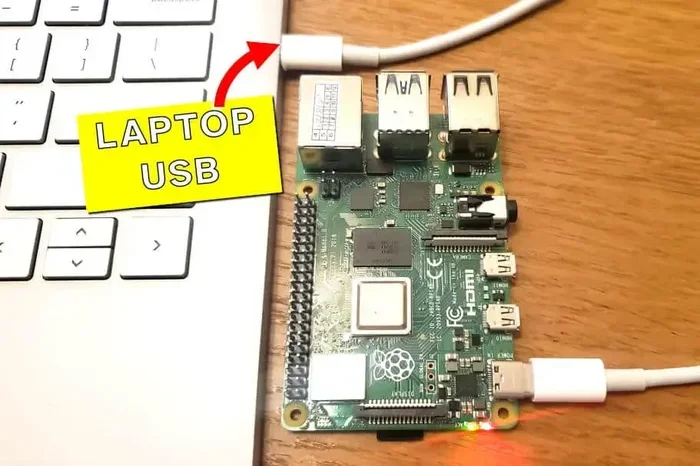
Yes, you can power a Raspberry Pi from a laptop. Using a simple USB cable, your laptop can deliver the energy your Raspberry Pi needs to run smoothly. This guide walks you through every method, compatibility detail, and troubleshooting tip so you can get started fast.
Key Takeaways
- Laptop USB ports can power your Raspberry Pi: Most laptops deliver enough wattage through USB-A or USB-C ports to run a Pi.
- Check compatibility first: Different Raspberry Pi models have different power needs, so match your Pi to the right port and cable.
- Use the right cable and adapter: A quality USB cable ensures stable power delivery and prevents disconnections.
- Troubleshooting is simple: Common issues like brownouts and undervoltage warnings have easy fixes.
- Portable projects become possible: Powering your Pi from a laptop opens the door to mobile and on-the-go setups.
- Avoid common mistakes: Overloading ports, using cheap cables, and ignoring wattage limits can cause problems.
- Power banks work too: If a laptop isn’t available, a good power bank is a great alternative for Raspberry Pi battery power.
📑 Table of Contents
- Can Raspberry Pi Be Powered By Laptop? Yes, Absolutely.
- How Does Powering a Raspberry Pi From a Laptop Work?
- Which Raspberry Pi Models Can a Laptop Power?
- Step-by-Step: How to Power Your Raspberry Pi From a Laptop
- Benefits of Powering Your Raspberry Pi From a Laptop
- Common Mistakes When Powering a Raspberry Pi From a Laptop
- Troubleshooting Power Issues With Raspberry Pi and Laptops
- Alternative Ways to Power Your Raspberry Pi
- Expert Tips for the Best Experience
- Final Thoughts
Can Raspberry Pi Be Powered By Laptop? Yes, Absolutely.
If you have a Raspberry Pi sitting on your desk and a laptop nearby, you might wonder whether you can skip the wall adapter entirely. The good news is yes, you can power a Raspberry Pi from a laptop. It is simpler than most people think, and it works with almost every Pi model on the market today.
Whether you are building a home server, a retro gaming console, or a smart home gadget, knowing how to power Raspberry Pi from USB gives you flexibility. You do not need a dedicated Raspberry Pi power supply sitting in a wall outlet all the time. Your laptop can do the job just fine.
This guide covers everything you need to know. We will look at the different methods, compatibility details, step-by-step instructions, and common mistakes to avoid. By the end, you will feel confident about running your Pi straight from your computer.
Let us dive in and explore how this works, what you need, and how to get the best results every single time.
How Does Powering a Raspberry Pi From a Laptop Work?
Your laptop has USB ports that do more than just transfer data. They also deliver electrical power. When you connect a Raspberry Pi to your laptop via USB, the laptop sends electricity through the cable to the Pi. This process is called USB power delivery.
Every Raspberry Pi model needs a specific amount of voltage and current to work properly. Most Pi models require 5 volts of power. The current demand varies depending on what you have plugged into the Pi. A basic Pi Zero needs very little power. A Raspberry Pi 4 with peripherals attached needs more.
Understanding USB Power Output
Not all USB ports are the same. Here is a quick look at what different port types can deliver:
- USB-A ports: These older ports typically deliver 5 volts at 0.5 to 2.5 amps. They work well for basic Pi models like the Pi Zero and Pi 3.
- USB-C ports: Modern laptops often include USB-C ports. These can deliver 5 volts at 3 amps or more, making them ideal for the Raspberry Pi 4 and Pi 5.
- USB 3.0 ports: These provide more stable power than USB 2.0 and reduce the chance of voltage drops.
When you power Raspberry Pi from USB, the key is making sure your laptop port can supply enough current. If it cannot, your Pi may not boot or may show warning signs like a lightning bolt icon on screen.
Which Raspberry Pi Models Can a Laptop Power?
Not every Pi model has the same power needs. Let us break down which ones work well with laptop power and which ones need extra attention.
Raspberry Pi Zero and Zero W
The Pi Zero is the easiest model to power from a laptop. It needs only about 1.2 amps at 5 volts. Almost any USB-A port on any laptop can handle this without breaking a sweat. You can use a micro USB cable or a USB OTG adapter to connect it.
Raspberry Pi 3 and 3B+
The Pi 3 series needs about 2.5 amps. Most laptops can supply this through a standard USB-A port. However, if you have many USB devices connected to the Pi, you might notice the laptop struggling a bit. In those cases, a powered USB hub can help.
Raspberry Pi 4 and Pi 5
The Raspberry Pi 4 and Pi 5 are more demanding. They need 3 amps or more. A standard USB-A port may not provide enough power. This is where USB-C ports on your laptop come in handy. A USB-C power delivery connection works much better for these models.
If your laptop only has USB-A ports, you may still be able to power a Pi 4, but you should avoid connecting too many peripherals at the same time. Keep it simple for the best results.
Step-by-Step: How to Power Your Raspberry Pi From a Laptop
Setting up your Raspberry Pi to run from a laptop is straightforward. Follow these steps and you will be up and running in minutes.
Step 1: Gather Your Cable and Accessories
You need the right cable for your Pi model. Here is what to grab:
- Micro USB cable: Works for Pi Zero, Pi 3, and older models.
- USB-C cable: Required for Raspberry Pi 4 and Pi 5.
- OTG adapter (if needed): Some Pi Zero setups need a USB On-The-Go adapter to connect properly.
Use a good quality cable. Cheap cables can cause voltage drops and intermittent disconnections. A sturdy cable makes a big difference in stable Raspberry Pi charging.
Step 2: Connect the Pi to Your Laptop
Plug the cable into your laptop first, then connect it to the Raspberry Pi. If you are using a Pi 4 or Pi 5, make sure you plug into the USB-C port, not the GPIO pins. The GPIO pins carry data and power but are not meant for primary power delivery unless you know exactly what you are doing.
Step 3: Check the Power Indicator
Once connected, look at the Pi. The red power LED should light up. If it does, you are getting power. If it flickers or stays off, try a different cable or port on your laptop.
Step 4: Boot Up and Verify
Wait for the Pi to boot. Once it starts, check the screen for any warnings. A lightning bolt icon means the power supply is insufficient. This tells you the laptop port is not providing enough current. Switch to a different port or use a powered USB hub.
Benefits of Powering Your Raspberry Pi From a Laptop
Using your laptop as a Raspberry Pi power source has several real advantages. Here are the ones that matter most.
Portability and Convenience
You can take your Raspberry Pi project anywhere. No need to find a wall outlet or carry a bulky adapter. Your laptop becomes a portable power station for your Pi. This is especially useful for portable Raspberry Pi setups like field testing or presentations.
No Extra Power Adapter Needed
One less thing to carry and one less thing to buy. If you already have a laptop, you have a power source for your Pi. This saves money and reduces clutter on your desk.
Easy Data Transfer
When your Pi is connected to your laptop via USB, you can also transfer files easily. You can SSH into the Pi, copy logs, update software, and manage your project all from one device. This makes development and testing much faster.
Safe and Stable Power
Laptop USB ports are regulated. They deliver consistent voltage, which protects your Raspberry Pi from power surges. A good wall adapter can do the same, but a laptop port is often more convenient for everyday use.
Common Mistakes When Powering a Raspberry Pi From a Laptop
Even though this process is simple, people make mistakes that cause frustration. Here are the most common ones and how to avoid them.
Using a Low-Quality Cable
A thin or damaged cable cannot carry enough current. This leads to intermittent boot failures and data corruption. Always use a thick, well-built cable rated for at least 3 amps if your Pi demands it.
Plugging Into the Wrong Port
Some users try to power a Raspberry Pi 4 through a USB-A port and wonder why it fails. USB-A ports often cannot supply 3 amps. Use USB-C when possible for the Pi 4 and Pi 5.
Connecting Too Many Peripherals
If you have a keyboard, mouse, external drive, and Wi-Fi dongle all plugged into your Pi, the power demand spikes. Your laptop may not be able to keep up. Disconnect unnecessary devices or use a powered hub for the peripherals.
Ignoring Undervoltage Warnings
A lightning bolt icon on your screen is a warning sign. Do not ignore it. It means your Pi is not getting enough power. This can cause SD card corruption and system instability. Address the power issue immediately.
Forgetting About Laptop Battery Drain
Your laptop will use more battery when powering a Raspberry Pi. If you are working unplugged, keep an eye on your battery percentage. Plug in your laptop when running long Pi sessions.
Troubleshooting Power Issues With Raspberry Pi and Laptops
If your Raspberry Pi is not working properly when powered from a laptop, do not panic. Most issues have simple fixes. Let us walk through the most common problems and solutions.
Pi Does Not Boot at All
This usually means the laptop port is not supplying enough current. Try a different USB port on your laptop. If your laptop has USB-C and USB-A ports, use the USB-C port. Also, make sure your cable is not damaged.
Pi Boots but Shows a Lightning Bolt Icon
This is the undervoltage warning. Your Pi is not getting enough power. Try these steps:
- Switch to a different USB port on your laptop.
- Use a shorter, higher-quality cable.
- Disconnect any unnecessary USB devices from the Pi.
- If using a Pi 4, make sure you are using the USB-C port, not the micro USB port.
Pi Keeps Disconnecting and Reconnecting
Intermittent power often comes from a loose or faulty cable. Try a different cable first. If that does not work, the laptop port may be malfunctioning. Test with another port or another computer to isolate the issue.
SD Card Gets Corrupted Frequently
Unstable power is the number one cause of SD card corruption. If your Pi keeps dying unexpectedly, the power supply from the laptop is likely inconsistent. Use a high-quality cable and consider adding a capacitor module to the Pi for more stable power delivery.
Alternative Ways to Power Your Raspberry Pi
While a laptop works great, it is not the only option. Here are other ways to power Raspberry Pi when a laptop is not available.
Using a Power Bank
A power bank for Raspberry Pi is a fantastic alternative. A good power bank with USB-C output and at least 3 amps can power a Pi 4 or Pi 5 for hours. Look for power banks that support USB power delivery for the best results.
Using a Wall Adapter
The official Raspberry Pi power supply is always a reliable choice. It delivers exactly the right amount of power and comes with the correct cable. If you want a permanent setup, a wall adapter is hard to beat.
Using a Solar Panel
For outdoor projects, a small solar panel paired with a battery pack can keep your Pi running all day. This is popular for weather stations, wildlife cameras, and other remote setups.
Comparison Table: Power Sources for Raspberry Pi
| Power Source | Best For | Portability | Cost |
|---|---|---|---|
| Laptop USB | Desk use, development, testing | High (uses existing device) | Free (uses existing laptop) |
| Power Bank | Outdoor projects, travel | Very High | $15-$40 |
| Wall Adapter | Permanent setups, servers | Low | $10-$25 |
| Solar Panel | Remote installations | Medium | $30-$100 |
Each option has its strengths. Your choice depends on what you are building and where you plan to use it. For most people, a laptop is the simplest and most accessible option.
Expert Tips for the Best Experience
Here are some pro tips that experienced Pi users swear by. These small tweaks make a big difference in reliability and performance.
- Always use a short cable: Shorter cables lose less voltage. A 1-foot USB cable is ideal for powering your Pi from a laptop.
- Monitor your laptop’s USB power budget: Some laptops limit the power output of each USB port. Check your laptop manual to see the maximum wattage per port.
- Use a powered USB hub for heavy setups: If you have many devices connected to your Pi, let the hub handle the peripherals and power the Pi directly from the laptop.
- Keep your firmware updated: Raspberry Pi OS updates sometimes include power management improvements that help with USB power delivery.
- Test with a multimeter if you are unsure: Measuring the voltage at the Pi’s power input can tell you if you are getting the right 5 volts. Anything below 4.75 volts is a red flag.
Final Thoughts
Can Raspberry Pi be powered by laptop? Absolutely yes. Your laptop is a convenient, safe, and effective power source for nearly every Raspberry Pi model. Whether you are a beginner just getting started or a seasoned maker working on a new project, knowing how to power Raspberry Pi from USB opens up new possibilities.
Follow the steps in this guide, avoid the common mistakes, and you will have a smooth and reliable setup every time. The key is using the right cable, the right port, and keeping an eye on your power levels.
Now that you know how easy this is, go ahead and try it. Plug in your Pi, fire it up, and enjoy the flexibility of having your laptop as a built-in power source. Happy making!