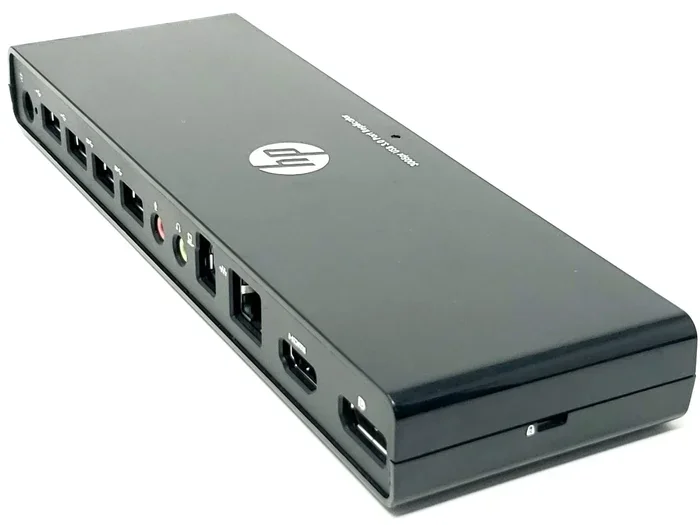
Can My Hp Laptop Use A Docking Station For Productivity
Yes, most HP laptops can use a docking station to boost productivity and simplify your workspace. Whether you own an HP EliteBook, Spectre, or Pavilion, a docking station lets you connect multiple monitors, peripherals, and accessories with a single cable. This guide covers compatibility, setup steps, dock types, and common issues so you can get the most out of your HP laptop and docking setup.
Have you ever looked at your HP laptop sitting on your desk and thought it would be nice to connect it to a bigger screen, a full keyboard, and all your peripherals without plugging in a dozen cables every morning? That is exactly where a docking station comes in. But here is the question most HP laptop users ask first: can my HP laptop use a docking station? The short answer is yes. Most HP laptops made in the last several years are fully compatible with modern docking stations. Whether you are working from home, managing a home office, or just trying to keep your desk tidy, a laptop docking station can transform the way you work.
In this guide, we will walk you through everything you need to know about using a docking station with your HP laptop. We will cover compatibility, the different types of docks available, how to set one up, and common problems you might run into. By the end, you will know exactly which dock works best for your HP model and how to get it running in minutes.
Key Takeaways
- Wide Compatibility: Most modern HP laptops support USB-C and Thunderbolt docking stations for seamless connectivity.
- Multiple Dock Types: You can choose from USB-C, Thunderbolt, and legacy docking stations depending on your HP model and needs.
- Easy Setup: Connecting a dock to your HP laptop usually takes just a few minutes with plug-and-play functionality.
- Productivity Boost: A docking station expands your workspace with dual monitors, external storage, and faster data transfer.
- Driver Updates Matter: Keeping your HP docking station drivers up to date prevents connection issues and ensures smooth performance.
- Check Your Ports: Verify your HP laptop has the right ports before buying a dock to avoid compatibility headaches.
- HP Has Official Docks: HP offers its own line of docking stations designed specifically for their laptop lineup.
📑 Table of Contents
- What Is A Docking Station And Why Do HP Laptops Need One?
- Which HP Laptops Are Compatible With Docking Stations?
- Types Of Docking Stations For HP Laptops
- How To Set Up Your HP Laptop With A Docking Station
- Benefits Of Using A Docking Station With Your HP Laptop
- Common Problems And How To Fix Them
- Quick Tips For Getting The Most From Your HP Docking Station
- Expert Insights On HP Laptop Docking
- Key Takeaways
- Conclusion
What Is A Docking Station And Why Do HP Laptops Need One?
A docking station is a hub that connects your laptop to multiple peripherals at once. Think of it as a central command center for your workspace. You plug your laptop into the dock, and suddenly you have access to external monitors, a wired internet connection, a full-size keyboard, a mouse, speakers, and more. All of this happens through one single cable connection.
For HP laptop users, a dock eliminates the hassle of plugging and unplugging cables every time you move between your desk and a conference room. It also turns your portable laptop into a full desktop workstation whenever you need it. This is especially useful for people who use their HP laptop both at home and in the office.
How Does A Docking Station Work?
A docking station connects to your HP laptop through a USB-C port, Thunderbolt port, or sometimes a proprietary connector. Once connected, the dock communicates with your laptop to recognize all the linked devices. Most modern docks use plug-and-play technology, which means your HP laptop should detect the connected monitors and peripherals automatically. You do not need to be a tech expert to get it working.
The dock essentially expands the number of ports available on your HP laptop. Many HP laptops today come with only two or three USB ports and a headphone jack. A docking station adds multiple USB ports, Ethernet jacks, display outputs, and even SD card readers. This makes it easy to connect everything you need in one go.
Which HP Laptops Are Compatible With Docking Stations?
The good news is that the vast majority of HP laptops can use a docking station. HP has been supporting dock compatibility across its lineup for years. However, the type of dock you need depends on your specific HP model and the ports it has. Let us break this down by popular HP laptop series.
HP EliteBook Series
The HP EliteBook line is built for business professionals, and these laptops are fully compatible with HP docking stations. Most EliteBook models come with Thunderbolt 3 or Thunderbolt 4 ports, which means they work with both USB-C and Thunderbolt docks. The EliteBook 840, 860, and 1040 series are all excellent choices for dock users. If you own an EliteBook, you will have no trouble finding a compatible dock.
HP Spectre Series
The HP Spectre series is known for its sleek design and powerful performance. These laptops also support modern docking stations through USB-C and Thunderbolt connections. The Spectre x360 and Spectre 13 are popular models that work beautifully with docks. Since Spectre laptops often have limited ports, a docking station becomes even more essential for expanding your connectivity options.
HP Pavilion Series
If you own an HP Pavilion laptop, you can still use a docking station. Most Pavilion models come with USB-C ports that support video output and data transfer. However, some older Pavilion models might only have USB-A ports, which means you would need a USB-C adapter or hub to use a modern dock. Always check your specific Pavilion model to confirm its port options before purchasing a dock.
HP ProBook Series
The HP ProBook line is another strong option for dock users. These business-oriented laptops typically feature USB-C and Thunderbolt ports. The ProBook 440, 460, and 640 series all work well with docking stations. If you are a small business owner or a freelancer using a ProBook, a dock can seriously upgrade your daily workflow.
HP Stream Series
The HP Stream is a budget-friendly laptop series, and compatibility with docking stations can vary. Some Stream models include USB-C ports, while others rely solely on USB-A connections. If your Stream laptop has a USB-C port, you can use a basic USB-C dock. If not, you may need a different type of adapter to make it work.
Types Of Docking Stations For HP Laptops
Not all docking stations are the same. Different types of docks offer different features, and choosing the right one depends on your HP laptop model and what you need from your workspace. Here are the main types of docking stations available for HP laptops.
USB-C Docking Stations
USB-C docks are the most popular option for HP laptop users today. They connect through the USB-C port on your HP laptop and support video output, data transfer, and charging through a single cable. Most USB-C docks are compact, affordable, and easy to set up. If your HP laptop has a USB-C port, a USB-C dock is usually the best place to start.
Thunderbolt Docking Stations
Thunderbolt docking stations offer the fastest data transfer speeds and the most display support. Thunderbolt 3 and Thunderbolt 4 docks can handle multiple 4K monitors, fast external storage, and charging all at the same time. HP EliteBook and Spectre laptops with Thunderbolt ports benefit the most from these high-performance docks. They are ideal for professionals who need maximum bandwidth and reliability.
Proprietary HP Docking Stations
HP sells its own line of docking stations designed specifically for HP laptops. These include the HP USB-C Dock G5, HP Thunderbolt Dock G2, and HP E24m G4 Monitor with Dock. Proprietary HP docks are designed to work seamlessly with HP laptops, and they often come with dedicated driver support from HP. If you want a hassle-free experience, an official HP dock is a solid choice.
Legacy Docking Stations
For older HP laptops that do not have USB-C or Thunderbolt ports, legacy docking stations are still an option. These docks connect through USB-A or proprietary connectors. They may offer fewer features and slower speeds, but they can still expand your connectivity. Just be aware that legacy docks are becoming less common as laptops move toward newer port standards.
How To Set Up Your HP Laptop With A Docking Station
Setting up a docking station with your HP laptop is straightforward. You do not need any special technical skills. Here is a step-by-step guide to get your dock up and running quickly.
Step 1: Check Your HP Laptop Ports
Before buying a dock, look at the ports on your HP laptop. Identify whether you have USB-C, Thunderbolt, or USB-A ports. This will determine which type of dock you need. If you are unsure, check your HP laptop model number on the HP support website for detailed specifications.
Step 2: Choose The Right Dock
Select a docking station that matches your HP laptop’s ports and your productivity needs. Consider how many monitors you want to connect, what peripherals you use daily, and whether you need charging support through the dock. Our comparison table below can help you decide.
| Dock Type | Best For | HP Laptop Compatibility | Price Range |
|---|---|---|---|
| USB-C Dock | Basic connectivity, single monitor | Most HP laptops with USB-C | $30 – $80 |
| Thunderbolt Dock | Multiple 4K monitors, fast data | HP Thunderbolt laptops | $150 – $400 |
| HP Official Dock | Seamless HP integration | Most modern HP laptops | $100 – $350 |
| USB-A Hub Dock | Older HP laptops, budget setups | HP laptops with USB-A only | $20 – $50 |
Step 3: Connect The Dock To Your HP Laptop
Plug the docking station into your HP laptop using the appropriate cable. If your dock supports charging, connect the power adapter to the dock as well. Your HP laptop should recognize the dock within a few seconds. You may see a notification on your screen confirming the connection.
Step 4: Connect Your Peripherals
Now it is time to connect your external devices. Plug in your monitors to the dock’s display outputs. Connect your keyboard, mouse, and any other USB devices to the dock’s ports. If your dock has an Ethernet jack, plug in your network cable for a wired internet connection.
Step 5: Install Drivers And Update Software
While most docks work without extra software, installing the latest HP docking station drivers can improve performance and fix potential issues. Visit the HP support website, enter your laptop model number, and download the latest drivers for your dock. Keeping your drivers updated is one of the best ways to ensure a smooth experience.
Benefits Of Using A Docking Station With Your HP Laptop
Using a docking station with your HP laptop offers several real-world benefits that can make a noticeable difference in your daily productivity. Here are the key advantages.
Single Cable Connection
The biggest benefit of a dock is the single cable connection. You plug one cable into your HP laptop, and everything else connects through the dock. When you leave your desk, you unplug one cable and go. No more fumbling with multiple cables or forgetting to disconnect something. This simple change saves time and reduces frustration every single day.
Expanded Display Setup
A docking station allows you to connect one, two, or even three external monitors to your HP laptop. A multi-monitor setup dramatically improves productivity by giving you more screen space for multitasking. You can have your email open on one screen, your work documents on another, and a video call on a third. For HP laptop users, this is a game-changer for workflow efficiency.
Improved Ergonomics
When you use a dock, you can position your external monitor at eye level and use a full-size keyboard and mouse. This setup is much better for your posture and long-term health compared to hunching over a 14-inch laptop screen all day. Better ergonomics means less neck strain, fewer headaches, and more comfortable work sessions.
Faster Data Transfer
Modern docking stations offer fast data transfer speeds through USB-C and Thunderbolt connections. You can connect external hard drives, transfer large files quickly, and back up your work with ease. For HP laptop users who work with large files or creative projects, this speed makes a real difference.
One Dock For Home And Office
If you work both from home and in an office, a docking station makes transitions seamless. You can have one setup at home and one at the office, both using the same dock. Just carry your HP laptop between locations and plug into the dock at each spot. Your entire workspace is ready in seconds.
Common Problems And How To Fix Them
While using a docking station with your HP laptop is generally smooth, you might encounter a few issues along the way. Here are the most common problems and how to solve them.
Dock Not Recognized By HP Laptop
If your HP laptop does not recognize the dock, try unplugging it and plugging it back in. Make sure the USB-C or Thunderbolt cable is firmly connected. If the problem persists, restart your laptop and check for driver updates. Sometimes a simple driver reinstall fixes the issue completely.
No Video Output To External Monitors
If your external monitor shows no signal, check the display cable connection between the dock and the monitor. Make sure the monitor is set to the correct input source. You may also need to adjust your HP laptop’s display settings by pressing the Windows key plus P and selecting the display mode you want.
Slow Charging Through The Dock
Some docks do not provide enough power to charge your HP laptop while in use. If you notice slow charging, check the dock’s power rating and make sure it supports your laptop’s wattage requirements. Using the original HP power adapter alongside the dock can help maintain optimal charging speeds.
Intermittent Connection Drops
If your dock keeps disconnecting, the USB-C cable might be damaged or too short. Try using a different high-quality cable. Also, make sure your HP laptop’s firmware and dock firmware are up to date. Firmware updates often fix connection stability issues.
Quick Tips For Getting The Most From Your HP Docking Station
- Use a Thunderbolt cable for the fastest speeds and most reliable connection with your HP laptop.
- Keep your dock drivers updated by checking the HP support website regularly.
- Place your dock on a flat, ventilated surface to prevent overheating during long work sessions.
- Label your cables so you can quickly identify which cable goes where in your setup.
- Invest in a quality dock from HP or a reputable brand to ensure long-term reliability and performance.
- Test your setup before important meetings or presentations to make sure everything works correctly.
- Consider a dual-monitor dock if your work involves comparing documents, coding, or creative tasks that benefit from extra screen space.
Expert Insights On HP Laptop Docking
According to HP’s own support documentation, the company designs its laptops with docking compatibility in mind. Most modern HP laptops include USB-C or Thunderbolt ports specifically to support docking stations. HP recommends using their own branded docks for the best compatibility, but third-party docks that meet USB-C or Thunderbolt standards work just as well in most cases.
Technology experts also suggest that HP laptop users should pay attention to the Thunderbolt certification of their dock. Thunderbolt-certified docks guarantee compatibility with HP Thunderbolt laptops and deliver the full range of features including high-speed data transfer, multiple display support, and fast charging. Investing in a certified dock gives you peace of mind and ensures your setup will work reliably for years.
Key Takeaways
- Most HP Laptops Work With Docks: The majority of HP laptops made in recent years support USB-C and Thunderbolt docking stations without any issues.
- Match Your Dock To Your Ports: Check your HP laptop’s ports before buying a dock to ensure compatibility and avoid unnecessary returns.
- Thunderbolt Docks Offer The Best Performance: If your HP laptop supports Thunderbolt, investing in a Thunderbolt dock unlocks the fastest speeds and most features.
- Setup Is Simple And Fast: Plug in your dock, connect your peripherals, and you are ready to go in under five minutes.
- Drivers And Firmware Updates Help: Keeping your HP laptop and dock software up to date prevents most common connection problems.
- HP Official Docks Are Reliable: HP-branded docking stations are designed specifically for HP laptops and offer excellent plug-and-play performance.
- A Dock Transforms Your Workflow: From single-cable convenience to multi-monitor productivity, a docking station is one of the best investments for any HP laptop user.
Conclusion
The answer to the question can my HP laptop use a docking station is a resounding yes. Almost every modern HP laptop, from the EliteBook to the Spectre to the Pavilion, supports docking stations in some form. Whether you choose a USB-C dock, a Thunderbolt dock, or an official HP docking station, you will enjoy a more organized, productive, and comfortable workspace.
Setting up a dock with your HP laptop is quick and straightforward. You plug in one cable, connect your monitors and peripherals, and your workspace comes to life. The benefits are immediate and lasting. You save time, reduce cable clutter, improve your posture, and boost your daily productivity. If you have been on the fence about getting a docking station for your HP laptop, now is the perfect time to take the leap.
Start by checking your HP laptop’s ports, choosing the right dock for your needs, and following the simple setup steps outlined in this guide. With the right HP laptop docking station, you will wonder how you ever worked without one. Your productivity will thank you.
Frequently Asked Questions
Can I use any docking station with my HP laptop?
Most modern HP laptops can use any USB-C or Thunderbolt docking station. However, for the best experience, check that the dock matches the ports on your specific HP model. HP-branded docks are guaranteed to work, but third-party docks from reputable brands also work well as long as they support the right connection standard.
Do I need to install drivers for my HP docking station?
Many docking stations work without installing any drivers thanks to plug-and-play technology. However, installing the latest drivers from the HP support website can improve performance, fix display issues, and ensure all features work correctly. It is a quick and easy step worth taking.
Can I connect two monitors to my HP laptop with a docking station?
Yes, you can connect two or even three monitors to your HP laptop using a compatible docking station. The number of monitors you can support depends on your HP laptop’s graphics capabilities and the dock’s display outputs. Thunderbolt docks generally offer the best multi-monitor support for HP laptops.
Will a docking station charge my HP laptop?
Many docking stations support charging through their USB-C or Thunderbolt connection. Check the dock’s power delivery rating to make sure it can charge your specific HP laptop model. Some HP laptops require higher wattage charging, so always verify compatibility before relying on the dock for power.
Can I use a docking station with an older HP laptop?
Older HP laptops that lack USB-C or Thunderbolt ports can still use docking stations, but you may need an adapter or a legacy dock. USB-A docking hubs are available for older models, though they offer fewer features than modern USB-C or Thunderbolt docks.
What is the difference between a USB-C hub and a docking station?
A USB-C hub is a smaller device that adds a few extra ports to your HP laptop. A docking station is a more powerful hub that typically supports multiple monitors, Ethernet connections, and higher power delivery. For HP laptop users who want a full desktop setup, a docking station is the better choice over a basic hub.