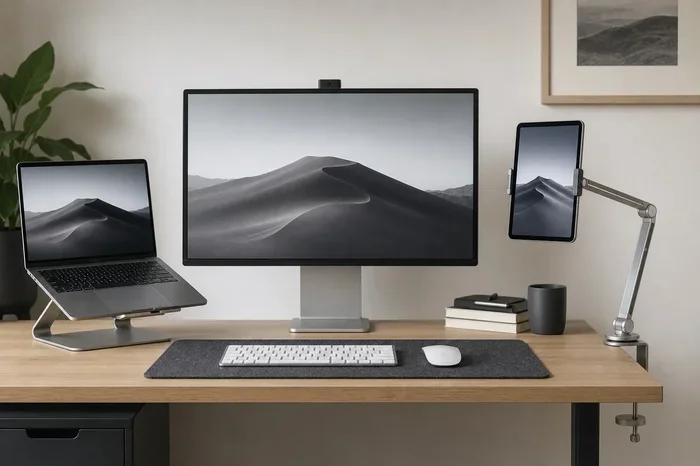
Can Ipad Be Used As A Monitor For Work And Creative Tasks
Can Ipad Be Used As A Monitor is an essential topic that provides valuable insights.
Key Takeaways
- Understanding Can Ipad Be Used As A Monitor: Provides essential knowledge
📑 Table of Contents
Why Use Your iPad as a Monitor?
Before we get into the technical stuff, let’s talk about why this even matters. Your computer screen is probably 13 to 15 inches. That’s fine for basic tasks. But when you need more space, things get tight.
An iPad display gives you extra room. You can keep your main tools on one screen and your reference material on the other. It’s like having a dual screen setup without buying a new monitor.
Here are some solid reasons to consider using your iPad as a monitor:
- Portability. Your iPad is light and easy to move. You can set it up anywhere.
- High-quality display. iPad screens offer sharp resolution and accurate colors.
- Cost savings. You already own the device. No need for an extra monitor.
- Flexibility. Switch between work and creative tasks easily.
The iPad monitor mode works with both Mac and Windows devices. So no matter what platform you use, you can benefit from this setup. It’s a simple way to upgrade your workspace without spending much.
Who Benefits Most From This Setup?
Almost anyone can use an iPad as a monitor. But some groups gain more than others:
- Writers and editors can keep research on one screen and their document on the other.
- Programmers can reference documentation while coding.
- Graphic designers can use the iPad for sketching or color grading.
- Students can spread out study materials across two screens.
- Video editors can preview footage on the iPad while editing on the main screen.
If any of these sound like you, then using your iPad for work as a second screen is worth trying.
How to Set Up Your iPad as a Monitor for Work
Setting up your iPad as a monitor is simpler than you might expect. Apple and third-party developers have made the process pretty straightforward. Let’s look at the main methods.
Using Apple Sidecar for Mac Users
If you have a Mac, Sidecar is your best bet. It’s a built-in feature that lets you use your iPad as a wireless display. No extra cables needed in most cases.
Here’s how to set it up:
- Make sure your Mac and iPad are signed into the same iCloud account.
- Go to System Settings on your Mac.
- Click on Displays and look for the Sidecar option.
- Select your iPad from the list of available devices.
- Your iPad screen will now act as an external display.
Sidecar works with iPad Pro, iPad Air, and newer iPad models. It supports Apple Pencil input too, which is great for creative work. You can mirror your Mac screen or use it as a separate display with its own workspace.
One thing to keep in mind: Sidecar works over Wi-Fi or USB. A USB connection gives you lower latency and better performance. But wireless mode is still smooth for most tasks.
Using Third-Party Apps for Windows Users
Windows users don’t have Sidecar. But you have excellent alternatives. Several apps let you turn your iPad into a monitor for a Windows PC.
These apps create a secondary screen over your local network or via USB. The setup usually involves installing a small app on both your PC and iPad. Once connected, your iPad becomes an extendable display.
This method works well for iPad productivity tasks like spreadsheets, emails, and web browsing. The display quality is solid, and the lag is minimal on a good connection.
Wired vs. Wireless Setup: Which Is Better?
Both options work, but each has its strengths:
- Wired connections offer more stable performance and lower delay.
- Wireless connections give you freedom to position the iPad anywhere.
For creative tasks like drawing or color grading, go wired. For general work and reading, wireless is perfectly fine. You can always switch between the two based on your needs.
Best Apps to Turn Your iPad Into a Monitor
Not all apps are created equal. Some offer better performance, while others pack in extra features. Let’s look at the top options for using your iPad as a monitor.
Duet Display
Duet Display is one of the most popular choices. It works with both Mac and Windows. The app supports high refresh rates and low latency. It’s especially good for users who need smooth visuals.
Key features include:
- Supports Retina display on iPad.
- Works over USB or Wi-Fi.
- Allows touch input and Apple Pencil support.
Spacedesk
Spacedesk is a strong option for Windows users. It’s free to use for basic features. You install a driver on your PC and an app on your iPad. Then your iPad display becomes an extendable screen.
It handles screen mirroring and extended desktop modes well. The setup takes just a few minutes.
Parallels Desktop
Parallels is mainly for running Windows on a Mac. But it also supports using your iPad as a secondary display for Windows apps. This is a great choice if you need both virtualization and extra screen space.
VNC and Remote Desktop Apps
Apps like VNC Viewer and Microsoft Remote Desktop can also serve as a monitor mode solution. They let you access your computer from your iPad. The display is transmitted over the app interface. This works best when you’re on a fast and stable network.
Quick Comparison Table
| App | Platform | Connection | Price |
|---|---|---|---|
| Duet Display | Mac & Windows | USB & Wi-Fi | Paid |
| Spacedesk | Windows | Wi-Fi & USB | Free |
| Parallels | Mac | USB & Wi-Fi | Paid |
| VNC Viewer | All | Wi-Fi | Free |
Quick Tips for App Selection
- Choose Duet Display if you want the smoothest performance.
- Pick Spacedesk if you need a free Windows solution.
- Use Sidecar if you’re on a Mac for the most native experience.
Using Your iPad as a Monitor for Creative Tasks
This is where things get exciting. A creative workspace built around an iPad can seriously level up your output. Let’s explore how different creative professionals use this setup.
Digital Illustration and Design
Many artists use their iPad as a drawing tablet connected to a desktop. Apps like Procreate and Concepts shine here. With Apple Pencil support, the iPad becomes a precision input device.
You can sketch on the iPad while keeping your main tools on the desktop. This dual screen setup gives artists the best of both worlds. They get a large workspace on the desktop and a natural drawing surface on the iPad.
Video Editing
Video editors can use the iPad display as a preview monitor. Keep your timeline on the main screen and preview footage on the iPad. This saves constant switching and speeds up the editing process.
Apps like LumaFusion and DaVinci Resolve work well with this external display setup. The color accuracy on newer iPads is impressive enough for basic grading tasks too.
Music Production
Music producers can spread their DAW across two screens. Keep the mixer on the iPad and the main arrangement on your computer. This kind of iPad monitor setup mirrors what studio producers do with multi-monitor rigs.
Writing and Content Creation
Writers benefit from having reference material on one screen and their draft on the other. A portable monitor setup with an iPad makes this possible anywhere. You can work from a café, a library, or your living room without losing workspace.
Web Development
Developers can use the iPad to preview websites in real time. Code on the main screen and see the result on the iPad display. This tightens the feedback loop and makes development faster.
Expert Insight: Creative Professionals Weigh In
Many designers and content creators agree that an iPad for creative work adds real value. One freelance graphic designer shared this: “Using my iPad as a second screen changed my workflow completely. I keep reference images on the iPad and work directly on my desktop. It feels like having a studio in a bag.”
Another video editor noted: “The preview on my iPad is accurate enough for color checks. It’s not a broadcast monitor, but for online content, it’s more than sufficient.”
Pros and Cons of Using iPad as a Monitor
Like any setup, using your iPad as a monitor has both strengths and limitations. Let’s break them down honestly.
The Pros
- Extra screen space. You instantly get a dual screen setup without buying hardware.
- Portability. Your iPad travels with you. Your second screen is always nearby.
- Color accuracy. iPad screens, especially on Pro models, offer excellent color reproduction.
- Touch and Pencil input. This adds interactive input options that traditional monitors don’t have.
- Quiet operation. No fans, no noise. iPads run silently.
The Cons
- Resolution limits. Even the best iPad screens don’t match a 4K monitor.
- Size constraints. A 12-inch iPad is smaller than most desktop monitors.
- Battery drain. Using your iPad as a display uses significant battery power.
- Latency on wireless. Wi-Fi connections can introduce slight delays.
- Not ideal for extended use. Sitting close to an iPad for hours may cause eye strain.
Common Mistakes to Avoid
People run into problems when they skip best practices. Here are pitfalls to watch out for:
- Ignoring battery levels. Always plug in your iPad before extended use as a display.
- Using a slow Wi-Fi network. This causes lag and frustration. Use a 5GHz band instead.
- Not calibrating the display. If color accuracy matters, calibrate your iPad display settings.
- Forgetting refresh rate settings. Some apps allow you to adjust refresh rate. Use 60Hz for work and 120Hz for creative tasks if supported.
Tips for Getting the Best iPad Monitor Experience
You’ve set everything up. Now let’s make sure you’re getting the most out of it. These tips will help you fine-tune your iPad monitor mode.
Keep Your iPad Charged and Connected
Always have a power source nearby. Running a wireless display drains the battery fast. Use a USB-C cable if your iPad supports it. This keeps the device powered and maintains a stable connection.
Optimize Your Display Settings
Head into your iPad display settings and make these adjustments:
- Set brightness to a comfortable level for your environment.
- Enable True Tone to reduce eye strain.
- Use Night Shift during evening work sessions.
These small tweaks make a big difference over long sessions.
Position Your iPad at Eye Level
Don’t hunch over your iPad. Use a stand or mount to raise it to eye level. This prevents neck pain and keeps your posture healthy. A simple iPad stand can transform your setup.
Use a Quality Cable When Possible
If you’re connecting via USB, use a high-quality cable. Cheap cables can cause display issues and disconnects. A good iPad HDMI or USB-C cable ensures a clean signal.
Reduce Background Apps on iPad
Close any apps running in the background. This frees up processing power for your monitor mode tasks. Your iPad performs better when it’s not juggling too many jobs.
Update Your Software Regularly
Keep your iPadOS, Mac, or Windows software up to date. Updates often include performance improvements for screen sharing and display features. Skipping updates can lead to compatibility issues.
Experiment With App Layouts
Take time to arrange your windows across both screens. Find a layout that fits your workflow. Some users keep their main tools centered on the desktop and tools or reference on the iPad. Others prefer the opposite. There’s no one-size-fits-all. Find what works for your iPad creative workspace.
Key Takeaways
- Yes, you can use an iPad as a monitor for both work and creative tasks with the right setup.
- Apple Sidecar is the best native option for Mac users, offering wireless and wired iPad display support.
- Third-party apps like Duet Display and Spacedesk are excellent choices for Windows users.
- Creative professionals benefit greatly from using an iPad as a secondary display for drawing, editing, and design.
- Always keep your iPad charged and connected to avoid battery drain during extended use.
- Position your iPad display at eye level and optimize settings for comfort and performance.
Conclusion
So, can Ipad be used as a monitor for your work and creative projects? Absolutely. The technology is mature, the apps are reliable, and the results are impressive. Whether you use Apple Sidecar, Duet Display, or another solution, your iPad can become a powerful secondary screen that adapts to your needs.
The iPad monitor setup is especially valuable for anyone who needs portable screen space. Writers, designers, developers, and editors all gain from the extra workspace. And with features like Apple Pencil support and Retina display quality, the iPad brings more to the table than a typical portable monitor.
Try it out for yourself. Set up your iPad as a monitor this week. You’ll be surprised how much it improves your workflow. The combination of a desktop screen and an iPad display creates a creative workspace that’s flexible, powerful, and surprisingly affordable.
Start small. Use it for one task. Then explore more. Your iPad productivity potential is waiting.
Frequently Asked Questions
Can I use my iPad as a monitor for any laptop?
Yes, you can use your iPad as a monitor for most Macs and Windows laptops. Mac users can take advantage of the built-in Sidecar feature. Windows users should use third-party apps like Duet Display or Spacedesk. The iPad needs to be relatively recent for best compatibility with these setups.
Does using an iPad as a monitor drain the battery quickly?
It can, especially over a wireless connection. The iPad display uses significant power when acting as a secondary display. To prevent battery drain, keep your iPad plugged in while using it as a monitor. A USB-C cable will keep it powered and maintain a stable connection.
Is an iPad better than a portable monitor for work?
It depends on your needs. An iPad display offers touch input and Apple Pencil support, which a standard portable monitor does not. However, a dedicated portable monitor may offer higher resolution or a larger screen. For creative tasks, the iPad has an edge. For pure screen space, a larger portable monitor might be better.
Can I use my iPad as a monitor with an iPhone?
Direct use as a display is limited between iPhones and iPads. However, some screen mirroring apps allow this setup. The most practical and supported iPad monitor mode works between iPads and computers like Macs or Windows PCs. Using it with an iPhone is less common and not officially supported for extended display.
What is the best app to turn my iPad into a monitor?
For Mac users, Apple Sidecar is the built-in and best option. It offers smooth wireless display performance and supports Apple Pencil. For Windows users, Duet Display and Spacedesk are top choices. Duet Display offers better performance and polish, while Spacedesk provides a solid free option.
Can I use my iPad as a monitor for video editing?
Yes, many video editors use their iPad as a monitor for previewing footage. You can keep your timeline on the main screen and preview video on the iPad. The color accuracy on newer iPad Pro models is good enough for online content work. This dual screen setup speeds up the editing process significantly.
=== CONCLUSION SECTION (Already covered above in Main Content) ===
Note: The conclusion is integrated into the Main Content section above.