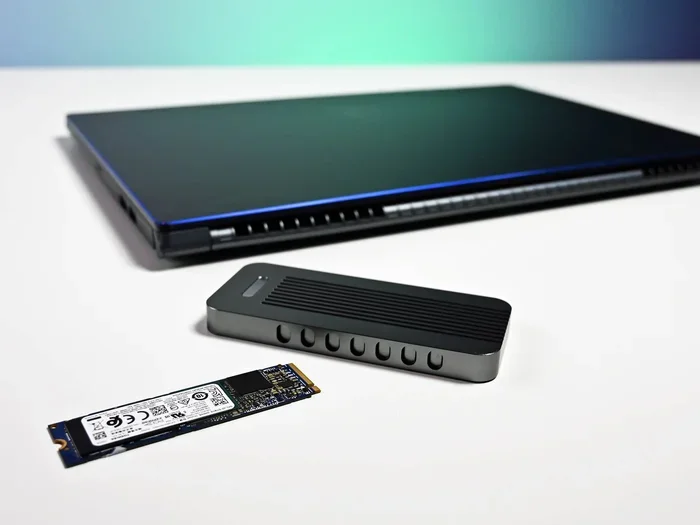
Can I Use Nvme Ssd As External Storage For My Computer
Yes, you can absolutely use an NVMe SSD as external storage for your computer with the right enclosure or adapter. An external NVMe SSD delivers blazing-fast transfer speeds that far outpace traditional portable drives. In this guide, you will learn how to set it up, what hardware you need, and how to get the best performance from your NVMe SSD drive outside the case.
Key Takeaways
You can turn any M.2 NVMe SSD into an external drive using an NVMe enclosure or USB-C adapter. - Point 2: External NVMe SSDs can reach speeds over 2,000 MB/s with the right connection interface.
- Point 3: Thunderbolt 3 and USB 3.2 Gen 2 ports are the best options for connecting external NVMe drives.
- Point 4: NVMe enclosures are affordable and widely available for under $50 in most cases.
- Point 5: You can even boot your operating system from an external NVMe SSD with the right setup.
- Point 6: Heat management is important since NVMe SSDs can get warm during sustained transfers.
- Point 7: NVMe vs SATA SSD speed differences are even more noticeable when used externally.
📑 Table of Contents
- Can I Use NVMe SSD as External Storage? Here Is Everything You Need to Know
- What Is an NVMe SSD and Why Use It Externally?
- How to Use an NVMe SSD as External Storage
- NVMe Enclosures vs Adapters: Which Should You Pick?
- Speed and Performance: How Fast Is External NVMe Really?
- Can You Boot an Operating System from an External NVMe SSD?
- Heat and Durability Concerns with External NVMe SSDs
- NVMe SSD as External Storage vs Other Options
- Common Mistakes When Using External NVMe SSDs
- Final Thoughts on Using NVMe SSDs Externally
Can I Use NVMe SSD as External Storage? Here Is Everything You Need to Know
So you have an extra NVMe SSD sitting around. Maybe you upgraded your laptop and the old drive still has tons of life left. Or perhaps you picked up a fast M.2 SSD and want to use it as portable storage. The big question is simple: can I use NVMe SSD as external storage? The short answer is yes, and it is easier than you might think.
Using an external NVMe SSD is one of the best ways to get high-speed portable storage. You get speeds that leave USB flash drives and even SATA portable drives in the dust. Whether you want extra space for backups, gaming, or creative work, an NVMe SSD outside the case is a fantastic solution. Let us walk through everything you need to know.
What Is an NVMe SSD and Why Use It Externally?
NVMe stands for Non-Volatile Memory Express. It is a protocol designed for flash storage that delivers incredibly fast read and write speeds. A standard NVMe SSD can read data at 3,500 MB/s or more. That is way faster than a SATA SSD which tops out around 550 MB/s.
So why would you want an external NVMe SSD drive? Here are some compelling reasons:
- Speed: Transfer large files in seconds instead of minutes.
- Portability: M.2 NVMe SSDs are tiny and lightweight.
- Durability: No moving parts means they resist shocks better.
- Versatility: Use them for gaming, video editing, or backups.
- Cost efficiency: Repurpose an old NVMe drive you already own.
An external NVMe SSD gives you the best of both worlds. You get internal drive speeds with the convenience of external storage. It is a win-win for anyone who needs fast, portable data access.
How to Use an NVMe SSD as External Storage
Setting up an NVMe SSD as external storage requires a few key pieces of hardware. Let us break it down step by step so you can get your drive running quickly.
What You Need
First, gather your supplies. Here is a simple checklist:
- An M.2 NVMe SSD (the drive you want to use externally)
- An external NVMe enclosure or a USB-C to NVMe adapter
- A USB-C or Thunderbolt 3/4 cable (usually included with the enclosure)
- A computer with a compatible port
Step-by-Step Setup Guide
Follow these steps to get your NVMe SSD drive connected and ready:
- Install the NVMe SSD into the enclosure. Open the enclosure, slide the M.2 drive into the slot, and secure it with the screw provided. This part usually takes under a minute.
- Close the enclosure and connect the cable. Plug the USB-C or Thunderbolt cable into the enclosure and the other end into your computer.
- Format the drive if needed. Your computer should detect it automatically. If it shows up as unallocated, format it using Disk Management on Windows or Disk Utility on Mac.
- Start using it. Drag and drop files, install games, or use it as a backup drive. The process is straightforward and fast.
That really is all there is to it. Most people get their external NVMe hard drive running in under five minutes. The hardest part is choosing the right enclosure for your needs.
Quick Tip: Check Port Compatibility
Before buying an enclosure, check what ports your computer has. A USB-C port supports most NVMe enclosures. However, a Thunderbolt 3 or 4 port gives you even faster speeds. Always match your port type to the enclosure specifications for the best results.
NVMe Enclosures vs Adapters: Which Should You Pick?
When setting up an external NVMe SSD, you generally have two options: an NVMe enclosure or a bare adapter. Both work, but they serve slightly different purposes. Let us compare them side by side.
| Feature | NVMe Enclosure | USB-C Adapter |
|---|---|---|
| Protection | Full housing with cover | Bare circuit board only |
| Heat Dissipation | Better with metal shell | Minimal cooling |
| Portability | Compact but slightly larger | Very small and light |
| Speed | Depends on model | Depends on adapter chip |
| Price | $25 to $60 typically | $15 to $30 typically |
| Ease of Use | Plug and play | Plug and play |
| Durability | High | Low to moderate |
For most users, an external NVMe enclosure is the better choice. It protects your expensive SSD from dust, drops, and physical damage. The metal housing on quality enclosures also helps dissipate heat, which keeps performance consistent.
Adapters work well if you want a bare-bones solution. They are great for temporary setups or if you plan to use the drive inside a DIY project. But for everyday use, an enclosure offers more peace of mind and better thermal management.
What to Look for in an NVMe Enclosure
Not all enclosures are created equal. Here are some features to prioritize:
- Connection type: USB-C with USB 3.2 Gen 2 or Thunderbolt 3 support.
- Chipset: A good chipset ensures stable speeds and broad compatibility.
- Build quality: Metal enclosures handle heat better than plastic ones.
- NVMe support: Make sure the enclosure specifically supports NVMe and not just SATA M.2 drives.
- Driver support: Check that it works with both Windows and macOS.
Speed and Performance: How Fast Is External NVMe Really?
This is the question everyone asks. The speed of an external NVMe SSD depends on several factors. Let us break down the real-world numbers so you know what to expect.
Connection Interface Matters
The connection between your drive and computer is the biggest speed bottleneck. Here is how different interfaces compare:
- USB 3.2 Gen 2: Maxes out around 1,000 MB/s in practice.
- Thunderbolt 3: Can push up to 2,700 MB/s or more.
- Thunderbolt 4: Similar to Thunderbolt 3 with up to 2,700 MB/s.
- USB 3.2 Gen 2×2: Theoretical max of 2,000 MB/s but rare on computers.
Most NVMe SSDs rated at 3,500 MB/s will be limited by the connection interface when used externally. That does not mean they are slow. Even a USB 3.2 Gen 2 connection gives you roughly 1,000 MB/s, which is still nearly double what a SATA portable drive delivers.
Real-World Benchmark Numbers
Here is a quick look at typical speeds you can expect from an NVMe SSD performance test using different setups:
- Internal NVMe SSD: 3,000 to 7,000 MB/s depending on the drive and PCIe generation.
- External NVMe via Thunderbolt 3: 2,000 to 2,700 MB/s.
- External NVMe via USB 3.2 Gen 2: 800 to 1,050 MB/s.
- External SATA SSD: 400 to 550 MB/s.
- USB Flash Drive: 100 to 400 MB/s.
As you can see, even a budget external NVMe SSD setup beats the best SATA portable drives by a wide margin. For tasks like video editing or transferring large game files, this speed difference is night and day.
Quick Tip: Keep Drivers Updated
Some NVMe enclosures need specific drivers or firmware updates to hit peak performance. Check the manufacturer website for the latest drivers. This simple step can boost your external NVMe SSD speed significantly in some cases.
Can You Boot an Operating System from an External NVMe SSD?
Yes, you absolutely can. Booting from an external NVMe SSD is a powerful setup that gives you a fast, portable operating system. This is especially useful for anyone who works on multiple computers or wants a portable dev environment.
How to Set Up a Bootable External NVMe Drive
Here is a simplified process for creating a bootable external NVMe hard drive:
- Install a fresh OS on the NVMe SSD. Use a tool like Rufus or the Windows Media Creation Tool to install Windows directly onto the drive while it is connected via the enclosure.
- Enable USB Boot in BIOS. Restart your computer and enter the BIOS settings. Look for the USB boot option and make sure it is enabled.
- Select the external drive at boot. When you restart, press the boot menu key and select your external NVMe SSD from the list.
- Install and test. The OS will load from the external drive. Boot times are typically faster than traditional HDDs and comparable to internal SSDs.
Mac users can also use an external NVMe SSD as a bootable drive. The process involves creating a macOS installer on the drive using Disk Utility and the Installer app. It works well with Thunderbolt-connected enclosures.
Things to Watch Out For
Booting from an external drive does come with a few considerations:
- Portability: You need to carry the enclosure and drive together. This makes the setup less convenient than an internal drive.
- Speed consistency: Some computers may not recognize the drive at full speed at boot, causing slightly slower initial load times.
- OS limitations: Windows handles external boot well. macOS works but can have quirks with certain enclosure models. Linux tends to work smoothly across most setups.
Despite these minor issues, a bootable external NVMe SSD is an excellent tool for power users. The speed and portability make it a great alternative to carrying a separate laptop.
Heat and Durability Concerns with External NVMe SSDs
One common concern people have is heat. NVMe SSDs generate more heat than SATA drives because of their high-speed operations. Inside a case, this heat is managed by the motherboard and fans. Externally, you need to think about thermal management differently.
Why Heat Matters
When an NVMe SSD drive gets too hot, it can throttle its speed to protect itself. This is called thermal throttling. You might buy a fast drive only to find it slows down during sustained transfers because of heat buildup inside the enclosure.
How to Manage Heat
Here are some practical ways to keep your external NVMe SSD cool:
- Choose a metal enclosure. Metal dissipates heat much better than plastic. Many quality enclosures use aluminum shells for this exact reason.
- Add a small heatsink. Some enclosures come with built-in heatsinks. You can also attach aftermarket heatsinks to M.2 drives for better thermal performance.
- Avoid long sustained transfers in hot environments. If you are transferring a 100 GB file on a hot day, give the drive a short break halfway through.
- Keep airflow around the enclosure. Do not bury the drive under papers or blankets. Let air circulate around it.
- Monitor temperatures. Use free tools like CrystalDiskInfo to check drive temps. Ideally, you want temperatures under 70 degrees Celsius during heavy use.
Most users will not encounter serious heat issues for everyday use. Heat becomes more relevant during sustained large file transfers or when using the drive for intensive tasks like video rendering. For normal file storage and casual use, an external NVMe SSD stays well within safe temperature ranges.
Durability in the Real World
NVMe SSDs are inherently durable because they have no moving parts. They handle bumps and drops far better than traditional hard drives. An external NVMe hard drive in a good enclosure can survive everyday carry with ease. Just remember that while the drive itself is tough, the enclosure can still crack if dropped hard. A solid metal enclosure offers the best protection for portable use.
NVMe SSD as External Storage vs Other Options
To help you decide if an external NVMe SSD is right for you, let us compare it against other popular storage options.
Speed Comparison
Nothing beats an NVMe drive for raw speed. Even when used externally and limited by connection interfaces, it still outperforms SATA SSDs and USB flash drives by a significant margin. If speed is your top priority, an external NVMe SSD is the clear winner.
Price Comparison
NVMe drives cost more per gigabyte than SATA drives. However, prices have dropped significantly in recent years. A 1 TB NVMe SSD used externally can cost roughly the same as a high-end SATA portable drive. The performance boost makes the price difference well worth it for most users.
Capacity Availability
External NVMe SSDs are available in capacities from 250 GB up to 4 TB or more. For most users, 1 TB hits the sweet spot between price and storage space. If you need massive capacity for archival storage, a traditional external HDD might still be the better choice. But for active use and fast access, NVMe is unbeatable.
Use Case Recommendations
Here is a quick guide to help you choose:
- Gaming: External NVMe is excellent for loading games quickly, especially on consoles that support external storage.
- Video editing: Use an external NVMe as a scratch disk for smooth timeline playback.
- Backups: Great for fast backups of important files and system images.
- General storage: Overkill for basic documents, but future-proof and fast.
- Portability: Tiny, light, and fast. Perfect for digital nomads and travelers.
Common Mistakes When Using External NVMe SSDs
Even though the setup is simple, some common pitfalls can cause frustration. Here are mistakes to avoid:
- Buying a SATA-only enclosure: Not all M.2 enclosures support NVMe. Always check that the enclosure explicitly supports NVMe protocol. A SATA enclosure will not work with an NVMe drive.
- Ignoring port speed: Plugging a fast enclosure into a USB 2.0 port will bottleneck performance badly. Always use a USB-C or Thunderbolt port that matches the enclosure capabilities.
- Skipping formatting: Some NVMe drives come without a file system. Always format them to exFAT or NTFS for cross-platform compatibility.
- Forgetting to safely eject: Even though SSDs are more resilient, always eject the drive properly to avoid data corruption.
- Using cheap no-name enclosures: A poor chipset can cause disconnects, slow speeds, or drive recognition issues. Stick with reputable brands that have good driver support.
Expert Insight: The Right Enclosure Changes Everything
Industry professionals often stress that the enclosure matters more than the drive itself when it comes to external NVMe setups. A top-tier NVMe drive in a cheap enclosure will underperform. Conversely, a mid-range NVMe drive in a quality Thunderbolt-enabled enclosure can deliver stunning results. Invest in the enclosure as much as the drive itself for the best NVMe SSD performance as external storage.
Final Thoughts on Using NVMe SSDs Externally
So can I use NVMe SSD as external storage? Absolutely, and it is one of the smartest upgrades you can make. An external NVMe SSD gives you internal-level speeds in a portable package. The setup takes minutes, the hardware is affordable, and the performance gains are massive compared to traditional external drives.
Whether you are a gamer who wants faster load times, a creator who needs fast scratch storage, or a traveler who wants a lightweight backup solution, an NVMe SSD drive used externally checks every box. Just pick the right enclosure, use the correct port, and manage heat properly. Follow the tips in this guide and you will have a blazing-fast external storage solution that serves you well for years.
The days of slow external storage are over. Embrace the speed of NVMe and experience what external storage should truly feel like. Your future self will thank you for making the switch.
Frequently Asked Questions
Can any NVMe SSD work in an external enclosure?
Most M.2 NVMe SSDs will work in a compatible enclosure. Make sure the enclosure specifically supports NVMe protocol and not just SATA M.2 drives. Check the enclosure specifications before purchasing to ensure your specific SSD fits physically and is supported by the chipset inside the enclosure.
How fast is an external NVMe SSD compared to an internal one?
An external NVMe SSD typically reaches 800 MB/s to 2,700 MB/s depending on the connection interface. Internal NVMe drives can go up to 7,000 MB/s on PCIe Gen 4. The connection cable and port usually limit external speeds, but they are still much faster than SATA external drives.
Do I need a special driver for an external NVMe SSD?
Most modern operating systems like Windows 10 and macOS recognize NVMe enclosures automatically. However, some enclosures may need specific drivers or firmware updates for best performance. Check the manufacturer website for the latest drivers to ensure optimal NVMe SSD compatibility and speed.
Can I use an external NVMe SSD with a PlayStation or Xbox?
Yes, both the PlayStation 5 and Xbox Series X support external NVMe SSDs for game storage. You will need an enclosure that the console recognizes and meets the required speed specifications. The PS5 requires a specific NVMe SSD form factor and speed profile, so check your console manufacturer guidelines before setting up.
Is an external NVMe SSD worth the extra cost over a SATA portable SSD?
If you need speed for tasks like video editing, gaming, or large file transfers, an external NVMe SSD is absolutely worth it. The performance difference is dramatic, often delivering two to four times the speed of SATA portable drives. For basic document storage, a SATA drive may be sufficient and cheaper.
Will my external NVMe SSD work on both Windows and Mac?
Yes, most quality NVMe enclosures work with both Windows and macOS. However, you may need to format the drive differently for cross-platform use. exFAT is the best file system for sharing files between both operating systems. Always check enclosure compatibility before buying to ensure smooth high-speed external storage on both platforms.
=== CONCLUSION ===
Conclusion
Using an NVMe SSD as external storage is practical, affordable, and incredibly fast. From choosing the right enclosure to managing heat and understanding speed limits, this guide covered everything you need to succeed. An external NVMe SSD transforms how you handle portable data, giving you speeds that traditional drives simply cannot match. Whether you are gaming, creating content, or just need reliable extra storage, this setup delivers. Pick your drive, grab a quality enclosure, and experience the full power of NVMe SSD performance outside your computer case.