Can I Use My Hp Laptop As A Monitor Instead Of A Screen
Yes, you can use your HP laptop as a monitor in certain situations. Most HP laptops only have HDMI output, but you can still connect another device to your screen using a capture card, USB-C, or screen mirroring. This guide walks you through every method, including pros, cons, and quick setup tips.
Have you ever wondered if you can use your HP laptop as a monitor instead of buying a new screen? Maybe your second monitor broke, or you are traveling and need an extra display. The good news is that it is possible in many cases. But the answer depends on your HP laptop model and the ports it has.
Most HP laptops are built to output video, not receive it. That means your laptop screen is designed to show what the laptop is doing, not what another device is sending. However, there are several clever workarounds that let you turn your HP laptop into a makeshift monitor. In this article, we will walk you through every method, so you can pick the one that works best for you.
Whether you have an HP Pavilion, HP Envy, or HP Omen, this guide covers it all. We will look at HDMI input options, USB-C connections, screen mirroring, and capture cards. By the end, you will know exactly how to use your HP laptop as a monitor and what to expect from each method.
Key Takeaways
- HDMI input is rare on HP laptops: Most models only support HDMI output, so you need a workaround like a capture card.
- USB-C and DisplayPort can help: Some newer HP laptops accept video input through USB-C or DisplayPort.
- Screen mirroring is the easiest option: Use Windows Miracast or third-party apps for wireless screen sharing.
- Capture cards offer the best quality: Devices like Elgato or cheap HDMI capture adapters let you use your laptop screen as a true monitor.
- Not all HP models support monitor mode: Check your specific model, such as HP Pavilion, HP Envy, or HP Omen, for input options.
- It is not a perfect replacement: Using a laptop as a monitor works for casual use but may have lag or resolution limits.
📑 Table of Contents
- Can I Use My HP Laptop As A Monitor?
- Method 1: Using a Capture Card
- Method 2: USB-C and DisplayPort Input
- Method 3: Wireless Screen Mirroring
- Using Your HP Laptop as a Second Screen
- HP Laptop Models and Their Monitor Capabilities
- Quick Tips for Best Results
- Common Mistakes to Avoid
- Expert Insights
- Key Takeaways
- Conclusion
Can I Use My HP Laptop As A Monitor?
The short answer is yes, but with some limitations. Most HP laptops do not have an HDMI input port. They only have an HDMI output port. This means you cannot plug a gaming console or a Blu-ray player directly into your laptop the way you would with a regular monitor.
However, that does not mean you are stuck. There are several ways to work around this limitation. You can use a capture card, try USB-C or DisplayPort input, or use wireless screen mirroring. Each method has its own pros and cons, which we will cover below.
Before you try any of these methods, check your specific HP laptop model. Some higher-end models from the HP Envy or HP Omen lines may support video input through certain ports. Your user manual or the HP support website can tell you what your laptop supports.
Why Most HP Laptops Lack HDMI Input
Here is something many people do not realize. HDMI ports on laptops are almost always output-only. This design choice makes sense because laptops are meant to send video to external displays, not receive it.
Adding an HDMI input would require extra circuitry inside the laptop. Manufacturers keep costs down by skipping this feature. So even if you see an HDMI port on your HP laptop, it is most likely only for output.
This is different from desktop computers or dedicated monitors, which often have both input and output HDMI ports. If you want a true HDMI input, you will need an external device to bridge the gap.
Method 1: Using a Capture Card
A capture card is the most reliable way to use your HP laptop as a monitor. A capture card receives video from an external device and sends it to your laptop screen through USB or software.
Here is how it works. You plug your HDMI source, like a PlayStation or a cable box, into the capture card. Then you connect the capture card to your laptop via USB. The laptop software displays the incoming video on your screen.
Capture cards come in many shapes and prices. Cheap USB capture adapters cost around 15 to 30 dollars. Higher-end options like the Elgato HD60 X cost more but offer better quality and lower lag.
Best Capture Cards for This Setup
- Generic USB HDMI Capture Adapter: Budget-friendly and easy to find online. Works well for basic needs.
- Elgato HD60 X: Premium option with excellent video quality and low latency.
- AVerMedia Live Gamer Mini: Compact and reliable, great for casual use.
- Roxio Game Capture HD Pro: A solid mid-range choice with easy setup.
Step-by-Step Setup
- Plug your HDMI source device into the capture card using an HDMI cable.
- Connect the capture card to your HP laptop using a USB cable.
- Install the capture card software on your laptop.
- Open the software and select the capture card as the input source.
- You should now see the external device on your laptop screen.
This method works well for gaming, watching movies, or using another computer as a secondary display. The main downside is a small amount of input lag, especially with cheaper adapters.
Method 2: USB-C and DisplayPort Input
Some newer HP laptops come with USB-C or Thunderbolt ports that can accept video input. This is not common, but it does exist on certain models. If your HP laptop has a USB-C port that supports DisplayPort Alt Mode, you might be able to use it as a monitor.
To check if your laptop supports this, look at the HP product specifications online. Search for your exact model number and look for terms like “display input” or “USB-C monitor mode.”
If your laptop does support USB-C input, you can use a USB-C cable to connect another device directly. Some docking stations also support this feature. They act as a bridge between your HDMI source and your laptop’s USB-C port.
HP Models That May Support This
- HP EliteBook series with Thunderbolt ports
- HP ZBook mobile workstations
- Certain HP Spectre models with full-feature USB-C
Even if your laptop does not natively support USB-C monitor mode, you can still use a docking station to expand your display options. Docking stations are a great tool for anyone who wants to connect multiple devices to their laptop.
Method 3: Wireless Screen Mirroring
If you do not want to deal with cables, wireless screen mirroring is a great option. Windows 10 and 11 have a built-in feature called Miracast that lets you mirror your screen wirelessly.
With Miracast, you can cast the screen of another Windows device onto your HP laptop. Both devices need to support Miracast, which most modern Windows laptops do. You just need to go to the Display Settings on your laptop and choose the “Connect to a wireless display” option.
Other Wireless Options
- SpaceDesk: A free software that turns your HP laptop into a secondary monitor over your local network.
- Duet Display: A paid app that offers low-latency wireless and wired connections.
- Chrome Remote Desktop: Works for basic screen sharing but has more lag than Miracast.
- Steam Remote Play: Great for streaming games from another PC to your laptop screen.
Wireless methods are convenient, but they come with a trade-off. You may notice a slight delay between the source device and what appears on your HP laptop screen. This lag is fine for watching videos but can be annoying for fast-paced gaming.
Using Your HP Laptop as a Second Screen
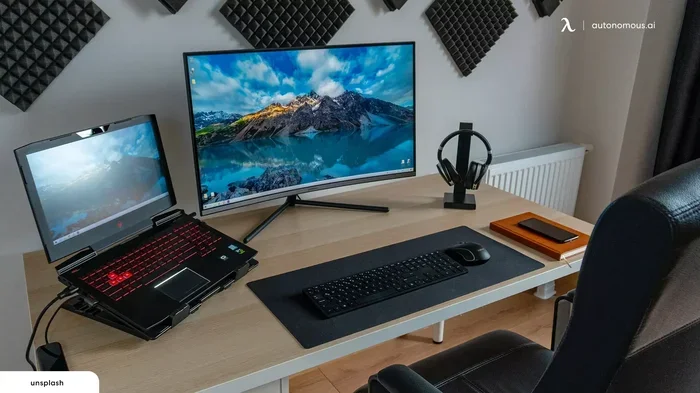
One of the most popular use cases is using your HP laptop as a second screen for your desktop computer. This setup lets you extend your workspace and boost productivity.
Software like SpaceDesk or Duet Display makes this very easy. You install the app on both your main PC and your HP laptop. Then you connect them over Wi-Fi or a USB cable. Your HP laptop screen becomes an extended display.
Pros and Cons of Using a Laptop as a Second Screen
- Pros: Free, convenient, no extra hardware needed, portable.
- Cons: Some lag, depends on Wi-Fi quality, laptop screen size may be smaller than a dedicated monitor.
This setup works great for multitasking. You can keep your main work on the big monitor and use the HP laptop for chat windows, reference materials, or video calls.
HP Laptop Models and Their Monitor Capabilities
Not all HP laptops are created equal when it comes to using them as a monitor. Here is a quick look at popular HP laptop lines and what they offer.
| HP Laptop Model | HDMI Input? | USB-C Monitor Mode? | Best Workaround |
|---|---|---|---|
| HP Pavilion | No | Rarely | Capture card or wireless mirroring |
| HP Envy | No | Some models yes | USB-C docking station |
| HP Omen | No | Some models yes | Capture card or SpaceDesk |
| HP EliteBook | No | Yes, on Thunderbolt models | USB-C direct connection |
| HP ZBook | No | Yes, on select models | USB-C or capture card |
As you can see, most HP laptops rely on workarounds rather than native monitor input. Always check your specific model before purchasing any extra equipment.
Quick Tips for Best Results
- Use a high-quality HDMI cable: Cheap cables can cause signal issues and poor image quality.
- Close unnecessary apps: Running too many programs on your HP laptop can slow down the display performance.
- Adjust display settings: Go to Windows Display Settings and match the resolution of your source device for the best picture.
- Use a USB 3.0 port or better: Older USB 2.0 ports may not provide enough bandwidth for smooth video.
- Keep your laptop plugged in: Using your laptop as a monitor drains the battery faster, especially with capture cards.
Common Mistakes to Avoid
Many people run into problems when trying to use their HP laptop as a monitor. Here are some common mistakes and how to avoid them.
- Plugging an HDMI source directly into the laptop HDMI port: This will not work because the port is output-only. You need a capture card or adapter.
- Using a cheap capture card with poor software: Some budget adapters come with buggy software that crashes or produces low-quality video.
- Ignoring Wi-Fi speed for wireless methods: A weak Wi-Fi connection causes lag and stuttering. Use a wired connection when possible.
- Not updating display drivers: Outdated drivers can cause compatibility issues with capture cards and mirroring software.
Expert Insights
According to tech experts, using a laptop as a monitor is a practical short-term solution but not a long-term replacement for a dedicated monitor. The laptop screen is optimized for battery life and portability, not for receiving external video signals.
If you find yourself doing this often, consider investing in a portable USB-C monitor. These lightweight displays are designed to work as external monitors and offer much better performance than a laptop screen used in this way. Brands like ASUS, AOC, and Lenovo make excellent portable monitors that pair well with HP laptops.
Another expert tip is to check if your HP laptop supports “display input” in the BIOS. Some business-class HP laptops, especially the EliteBook and ZBook lines, have hidden settings that enable video input through certain ports. You can access the BIOS by pressing F10 during startup.
Key Takeaways
- Capture cards are the most reliable method: They work with almost any HP laptop and any HDMI source device.
- USB-C input is available on select models: Check your HP laptop specs before buying a USB-C cable or docking station.
- Wireless mirroring is the easiest setup: Use Miracast, SpaceDesk, or Duet Display for a cable-free experience.
- Not all HP laptops support monitor mode: Your specific model determines which methods will work.
- Expect some trade-offs: Input lag, resolution limits, and battery drain are common when using a laptop as a monitor.
- A portable external monitor may be a better long-term solution: If you need this functionality often, a dedicated portable screen is worth the investment.
Conclusion
So, can you use your HP laptop as a monitor instead of a screen? The answer is yes, you can in most cases. Whether you choose a capture card, a USB-C connection, or wireless screen mirroring, there is a method that fits your needs and budget.
Keep in mind that each method has its own strengths and limitations. A capture card gives you the most flexibility but adds cost. Wireless mirroring is free and easy but may have lag. USB-C monitor mode is ideal but only works on select HP laptop models.
The key is to understand what your specific HP laptop supports and choose the method that matches your use case. Whether you are a gamer, a remote worker, or just someone who needs an extra screen, you now have the knowledge to make it happen.
Try one of these methods today and see how it works for you. With the right setup, your HP laptop can double as a perfectly functional monitor when you need it most.
Frequently Asked Questions
Can I plug a PlayStation directly into my HP laptop?
No, you cannot plug a PlayStation directly into the HDMI port of most HP laptops. The HDMI port on an HP laptop is output-only. You will need a capture card or a USB-C capture adapter to receive the video signal from your PlayStation on your laptop screen.
Does using my HP laptop as a monitor damage the screen?
No, using your HP laptop as a monitor does not damage the screen. The LCD panel is designed to receive and display video signals. However, running your laptop at full brightness for long periods may reduce battery life and cause slight warmth. It is safe to use this way for extended periods.
Can I use my HP laptop as a monitor for my desktop PC?
Yes, you can use your HP laptop as a second monitor for your desktop PC. Software like SpaceDesk or Duet Display lets you extend your desktop to your laptop screen over Wi-Fi or a USB cable. This is a great way to boost your workspace without buying a new monitor.
Is there any HP laptop that natively supports HDMI input?
Very few HP laptop models support native HDMI input. Some business-class models like the HP EliteBook may have display input capabilities through USB-C or DisplayPort, but true HDMI input is rare. Always check the exact specifications of your HP model before assuming it supports HDMI input.
What is the best free software to use my HP laptop as a monitor?
The best free option is SpaceDesk. It lets you use your HP laptop as an extended or mirrored display for another Windows PC over your local network. Another good free option is Windows Miracast, which supports wireless screen mirroring between compatible devices.
Will using my HP laptop as a monitor cause lag?
Some lag is possible, especially with wireless methods or cheap capture cards. Wired capture cards and USB-C connections tend to have the least lag. If you are using your laptop as a monitor for gaming, choose a high-quality capture card or a wired connection to minimize delay.