Can I Still Use My Laptop If The Fan Is Not Working
Yes, you can still use your laptop if the fan is not working, but only for a short time and with caution. A broken fan means your laptop cooling system is compromised, which can lead to overheating laptop problems, thermal throttle slowdowns, and even permanent hardware damage. In this guide, we will walk you through the risks, temporary fixes, and long-term solutions to keep your device safe and running smoothly.
Have you ever been in the middle of an important task when you notice your laptop has gone completely silent? No whirring, no humming. Just quiet. Then you check and realize your fan has stopped working. Panic sets in. Can I still use my laptop if the fan is not working? The short answer is yes, but with some serious caveats. In this article, we will explore everything you need to know about using a laptop with a broken fan. We will cover the risks, temporary solutions, and permanent fixes so you can make an informed decision.
Your laptop’s cooling system is one of its most important parts. Without it, heat builds up fast. Heat causes damage. And damage costs money. Whether you are a student, a professional, or just someone who enjoys browsing the web, understanding how to handle a broken fan can save you a lot of trouble. Let us dive right in.
Key Takeaways
- Short-term use is possible: You can still operate your laptop briefly, but extended use is risky without a working fan.
- Overheating is the biggest danger: High temperatures can cause thermal throttle and reduce your laptop performance significantly.
- Quick fixes help temporarily: Cleaning dust, using a cooling pad, and adjusting power settings can buy you some time.
- Permanent damage is real: Running a hot laptop for too long can fry your internal components and shorten your laptop lifespan.
- Fan replacement is often affordable: DIY replacement or professional repair can solve the problem and restore safe cooling.
- Prevention is simple: Regular laptop maintenance and good ventilation go a long way in avoiding fan issues.
📑 Table of Contents
What Happens When Your Laptop Fan Stops Working
Before we answer the big question, let us understand why the fan matters in the first place. Your laptop generates heat every single time you use it. The CPU and GPU are the biggest heat producers. The fan pulls cool air in and pushes hot air out. This process keeps your internal components at a safe temperature.
How a Laptop Fan Works
The fan is part of a larger cooling system. It works together with the heat sink and thermal paste. The heat sink sits on top of the CPU. It absorbs heat. The fan then blows that heat away. Without the fan, the heat has nowhere to go. It just builds up inside the laptop.
Think of it like a car engine. A car needs a radiator and a fan to stay cool. Remove those, and the engine will overheat fast. The same thing happens inside your laptop. The difference is that laptop components are much smaller and packed tightly together. There is very little room for heat to escape on its own.
Signs Your Fan Has Failed
How do you know if your fan has stopped working? Here are the most common signs:
- The laptop is completely silent even under heavy load.
- The bottom or keyboard area feels very hot to the touch.
- The screen flickers or the system slows down suddenly.
- You get error messages about high temperature.
- The laptop shuts down on its own without warning.
If you notice any of these signs, your laptop troubleshooting should start with checking the fan. A simple way to do this is to listen closely while the laptop is running. You should hear a gentle hum. If there is no sound at all, the fan may have stopped.
Can You Still Use Your Laptop With a Broken Fan
Here is the part you have been waiting for. Can I still use my laptop if the fan is not working? The honest answer is yes, you can use it. But how long and under what conditions matter a lot. Let us break this down.
Short-Term Use vs Long-Term Use
Using your laptop for a few minutes to check an email or write a short document is generally fine. The CPU temperature will rise, but not to dangerous levels in a short burst. However, if you try to game, edit video, or run heavy software, the heat will build up fast. Within minutes, your laptop could reach unsafe temperatures.
Short-term use means five to fifteen minutes of light work. Long-term use means anything beyond that. If you need to work for hours, a broken fan is a serious problem. You should not push your luck. The risks increase with every minute of use.
What Temperatures Are Safe
Most laptops operate safely between 50 and 75 degrees Celsius. When the temperature goes above 80 degrees, you enter the danger zone. Above 90 degrees, your laptop will likely thermal throttle. This means the system slows itself down to prevent damage. You will notice a big drop in laptop performance.
You can check your laptop’s temperature using free software like HWMonitor or Core Temp. These tools give you real-time readings. If your temperatures are climbing fast, stop using the laptop and let it cool down.
Risks of Running a Laptop Without a Working Fan
Using a laptop with a broken fan is not just inconvenient. It can cause real harm. Let us look at the main risks you face.
Overheating and Thermal Throttling
The most immediate risk is overheating. When the fan fails, heat has no way to escape. The laptop overheating triggers thermal throttle. Your processor slows down to protect itself. Your laptop feels sluggish. Apps take longer to open. Videos stutter. It is frustrating, and it gets worse the longer you use the device.
Thermal throttle is your laptop’s built-in safety mechanism. It is actually a good thing in the short term because it prevents immediate damage. But if your laptop is always throttling, you are losing performance and productivity.
Permanent Hardware Damage
Repeated overheating can cause permanent damage. The internal components are not designed to run at extreme temperatures for long periods. Here is what can go wrong:
- The CPU or GPU can become damaged beyond repair.
- The battery can swell or degrade faster.
- The motherboard can warp or fail.
- The screen may develop dark spots or lines.
- The hard drive or SSD can lose data.
These repairs can be expensive. In some cases, the cost of fixing a damaged laptop is close to the price of buying a new one. This is why addressing a broken fan quickly is so important.
Reduced Laptop Lifespan
Even if your laptop survives the overheating, constant heat exposure shortens its overall life. The laptop lifespan depends on how well you maintain it. A laptop that regularly overheats may only last two or three years instead of five or more. That is a big difference, especially if you invested in a quality device.
Quick Fixes and Temporary Solutions
If your fan is broken and you need to use your laptop right now, do not panic. There are several things you can do to reduce the heat and keep your device safe for a little while longer.
Cleaning the Fan and Vents
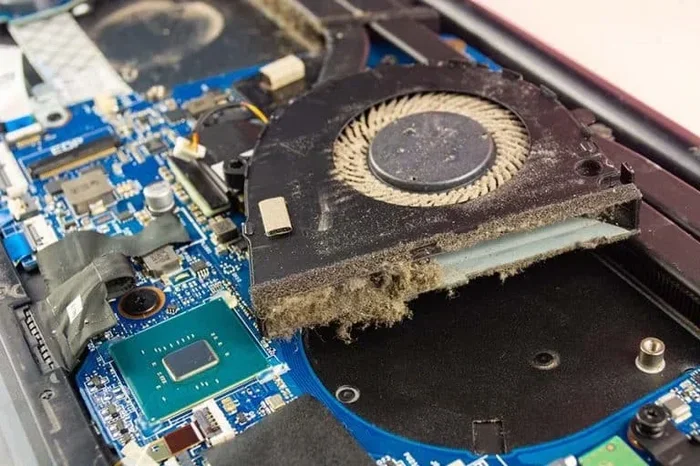
Sometimes the fan is not broken at all. It is just blocked by dust. Over time, dust and lint build up inside the laptop. This clogs the vents and stops the fan from spinning properly. A good cleaning can often fix the problem.
Here is how to clean your laptop safely:
- Turn off the laptop and unplug it.
- Use a can of compressed air to blow dust out of the vents.
- Hold the fan blade gently to prevent it from spinning too fast during cleaning.
- Wipe the exterior vents with a soft, dry cloth.
- Check for any visible blockages around the fan area.
If cleaning does not help, the fan motor itself may be dead. In that case, you will need to replace it or use other solutions.
Using a Cooling Pad
A cooling pad is one of the best temporary solutions. It is an external stand with built-in fans that blows cool air up into your laptop’s vents. It does not fix the broken internal fan, but it helps a lot with heat management.
Look for a cooling pad that matches the size of your laptop. Choose one with adjustable fan speeds. Some pads even come with built-in USB hubs, which is a nice bonus. A cooling pad can lower your laptop temperature by 5 to 15 degrees, which makes a big difference.
Adjusting Power Settings
Another easy trick is to reduce the workload on your laptop. Lowering the power settings reduces heat output. Here is what you can do:
- Switch to a power-saving mode or balanced plan.
- Lower the screen brightness.
- Close apps and programs you are not using.
- Avoid running multiple heavy programs at the same time.
- Turn off background processes that use CPU power.
These small changes add up. They can keep your laptop performance decent while reducing the risk of overheating.
Elevating the Laptop
A simple but effective trick is to elevate the back of your laptop. You can use a book, a stand, or even a pillow. Elevating the back improves airflow underneath the laptop. This helps heat escape more easily, even without a working fan.
Never use your laptop directly on a bed, couch, or carpet. These surfaces block the vents and trap heat. A hard, flat surface is always best.
When to Replace the Fan
Temporary fixes are great for a short-term solution. But eventually, you will need to replace the fan. Let us talk about when and how to do it.
DIY Fan Replacement
If you are handy with electronics, you can replace the fan yourself. The process varies by laptop model, but here are the general steps:
- Find the exact fan model for your laptop. Check the manufacturer’s website or your laptop manual.
- Purchase a replacement fan. They usually cost between 20 and 60 dollars.
- Remove the bottom panel of the laptop using a screwdriver.
- Disconnect the old fan from the motherboard.
- Remove any screws holding the old fan in place.
- Install the new fan and reconnect it.
- Replace the bottom panel and test the laptop.
Be careful during this process. Do not force any parts. If you feel stuck, it is okay to stop and seek help. Many laptop manufacturers also provide video tutorials on their support pages.
When to Seek Professional Help
If you are not comfortable opening your laptop, seek professional help. A qualified technician can diagnose the problem and replace the fan quickly. The cost of professional fan replacement is usually between 50 and 150 dollars, depending on the laptop model and your location.
Here are some signs that you should call a professional:
- The laptop still overheats after cleaning and using a cooling pad.
- You are not confident about opening the device.
- The laptop is still under warranty.
- You notice a burning smell or visible damage.
Do not ignore these warning signs. They could indicate a bigger problem that needs immediate attention.
How to Prevent Fan Problems in the Future
The best way to deal with a broken fan is to prevent it from happening in the first place. Good laptop maintenance habits can keep your cooling system working for years.
Regular Cleaning Routine
Make it a habit to clean your laptop every few months. Use compressed air to blow out dust from the vents. Keep your workspace clean and free of pet hair and crumbs. A clean laptop runs cooler and lasts longer.
Best Practices for Laptop Cooling
Follow these simple tips to keep your laptop cool:
- Always use your laptop on a hard, flat surface.
- Do not block the vents during use.
- Use a cooling pad for heavy tasks like gaming or video editing.
- Keep your laptop away from direct sunlight and heat sources.
- Update your BIOS and drivers. Sometimes manufacturers release updates that improve fan control.
- Check your BIOS settings for fan control options. Some laptops allow you to adjust fan curves manually.
These small habits make a huge difference over time. Your laptop lifespan will thank you.
Monitoring Your Laptop Temperature
Get into the habit of checking your laptop temperature regularly. Free tools like HWMonitor, Core Temp, or SpeedFan make this easy. Set up alerts for high temperatures. If you notice a pattern of rising heat, investigate before it becomes a serious problem. Early detection can save you from expensive repairs.
Conclusion
So, can I still use my laptop if the fan is not working? Yes, you can, but only for a short time and with caution. A broken fan means your laptop cooling system is not doing its job. The risks of overheating laptop problems, thermal throttle slowdowns, and permanent hardware damage are real. Use the temporary solutions we discussed to stay safe, and plan for a fan replacement as soon as possible.
Your laptop is a valuable investment. Taking care of its cooling system is one of the best things you can do to protect that investment. Clean the vents regularly, use a cooling pad when needed, and never ignore warning signs of overheating. With the right approach, you can keep your laptop running smoothly for years to come.
Do not wait until it is too late. If your fan is broken, take action today. Your laptop will perform better, last longer, and save you from costly repairs down the road.
Frequently Asked Questions
Is it safe to use a laptop without a fan for a few minutes?
Yes, it is generally safe for a few minutes of light use. However, you should avoid running heavy applications or games without a working fan. Even a few minutes of intense use can cause the temperature to spike quickly and stress your internal components.
How much does it cost to replace a laptop fan?
A replacement fan usually costs between 20 and 60 dollars if you buy it yourself. Professional replacement typically ranges from 50 to 150 dollars, depending on the laptop model and your location. It is much cheaper than replacing an entire motherboard or CPU that has been damaged by overheating.
Can dust cause a laptop fan to stop working?
Yes, dust buildup is one of the most common reasons fans fail or stop spinning properly. Dust clogs the vents and creates resistance on the fan blades. Regular cleaning with compressed air can prevent this problem and keep your cooling system working efficiently.
Will my laptop shut down if the fan stops working?
It might. Most modern laptops have built-in safety features that automatically shut down the system when temperatures reach dangerous levels. This is designed to protect your hardware, but it can interrupt your work and may indicate that your cooling system needs immediate attention.
Can a cooling pad replace a broken laptop fan?
A cooling pad is a great temporary solution, but it cannot fully replace a broken internal fan. It helps by providing extra airflow, but it does not address the root cause. You should still plan to repair or replace the internal fan as soon as possible to ensure long-term safety.
How do I check if my laptop fan is working?
You can check by listening for a gentle humming sound when the laptop is running. You can also use software like HWMonitor to watch your temperatures. If the temperature rises quickly even during light use, the fan may not be working properly. Opening the laptop and visually inspecting the fan is the most reliable method.