Can I Run Linux And Windows On Same Laptop For Sure
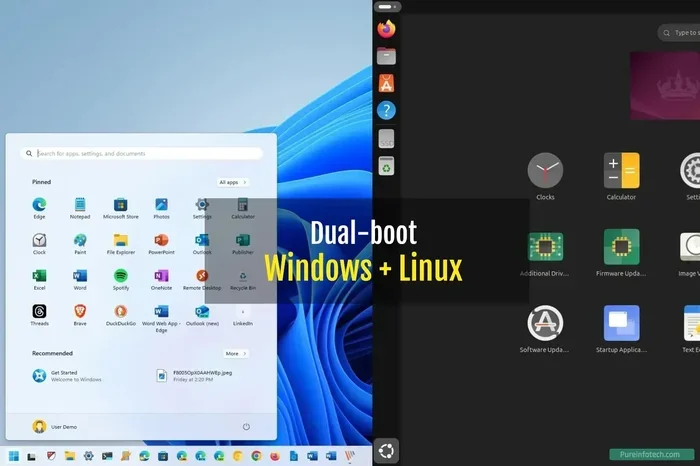
Yes, you can absolutely run Linux and Windows on the same laptop using dual boot, virtual machines, or Windows Subsystem for Linux. Each method has its own strengths, and the right choice depends on your needs, laptop specs, and how you plan to use both operating systems. This guide walks you through every option with clear steps and practical advice.
If you have been wondering whether you can run Linux and Windows on the same laptop, the short answer is yes. You can do it, and there are several ways to get it done. Whether you are a developer, a student, or just someone who wants to explore a new operating system, running both Linux and Windows on one machine opens up a world of possibilities.
Many people think they need two separate laptops to use two different operating systems. That is simply not true. With the right approach, your single laptop can run both Linux and Windows side by side. You just need to pick the method that fits your workflow and your laptop’s hardware.
In this article, we will walk you through every option. We will cover dual booting, virtual machines, and Windows Subsystem for Linux. We will also share tips, common mistakes to avoid, and expert advice to make the process smooth. By the end, you will know exactly which method works best for you.
Key Takeaways
- Dual booting lets you install both OSs on one laptop and choose which to use at startup.
- Virtual machines let you run Linux inside Windows without restarting your computer.
- WSL (Windows Subsystem for Linux) is the easiest option for developers who need Linux tools on Windows.
- Partitioning your hard drive is the most important step in a dual boot setup.
- Secure Boot and BIOS settings can affect how smoothly Linux runs alongside Windows.
- Performance varies by method, so pick the one that matches your use case.
📑 Table of Contents
- What Does It Mean to Run Linux and Windows on the Same Laptop?
- Method 1: Dual Booting Linux and Windows
- Method 2: Using a Virtual Machine
- Method 3: Windows Subsystem for Linux (WSL)
- Which Method Is Best for Your Laptop?
- Tips for Getting the Best Performance
- Common Questions About Running Linux and Windows Together
- Frequently Asked Questions
- Conclusion
What Does It Mean to Run Linux and Windows on the Same Laptop?
Running two operating systems on one laptop means you can use Windows for some tasks and Linux for others. You might use Windows for gaming or specific software. Then you could switch to Linux for coding, server work, or learning new skills. The best part is that both operating systems live on the same physical machine.
There are three main ways to make this happen. Each method has its own advantages and trade-offs. Let us look at them quickly before diving deeper.
- Dual Boot: You install both operating systems on separate partitions. You choose which one to boot at startup.
- Virtual Machine: You run one operating system inside the other using software like VirtualBox or VMware.
- WSL (Windows Subsystem for Linux): You run a Linux environment directly inside Windows without a full installation.
Each approach works well for different needs. A dual boot gives you full performance for both systems. A virtual machine is great for testing. WSL is perfect for developers who want Linux tools without leaving Windows. Let us explore each one in detail.
Method 1: Dual Booting Linux and Windows
Dual booting is the most popular way to run both operating systems on the same laptop. With this method, you create separate sections on your hard drive for each OS. When you turn on your laptop, a boot menu lets you pick which one to load.
How Dual Booting Works
The process starts with partitioning your hard drive. You shrink your Windows partition to make room for Linux. Then you install Linux on the free space. A bootloader called GRUB manages the startup process. It shows you a menu where you can choose between Windows and Linux each time you power on your laptop.
Here is a simple breakdown of the steps involved:
- Back up all your important files before you start.
- Create a bootable Linux USB drive using a tool like Rufus or Etcher.
- Shrink your Windows partition using Disk Management.
- Restart your laptop and enter the BIOS or UEFI settings.
- Disable Secure Boot if your Linux distro requires it.
- Boot from the USB drive and start the Linux installer.
- Choose the free space for installation and let the installer do its work.
- Reboot and use the GRUB menu to switch between operating systems.
Dual booting gives you full access to the hardware on both systems. Your Linux distribution will run at full speed, and so will Windows. There is no performance loss because you are not running anything virtually.
Best Linux Distributions for Dual Booting
Not all Linux distros are the same. Some are beginner-friendly, while others are geared toward advanced users. Here are a few great options for dual booting alongside Windows:
- Ubuntu: The most popular Linux distro. It is easy to install and has a large community for support.
- Linux Mint: Based on Ubuntu but with a more Windows-like interface. Great for newcomers.
- Fedora: A cutting-edge distro with the latest software and features.
- Pop!_OS: Made by System76. It is user-friendly and great for both work and play.
Common Mistakes When Dual Booting
Many people run into problems during a dual boot setup. Here are some mistakes to avoid:
- Forgetting to back up your data before partitioning.
- Not disabling Fast Startup in Windows, which can cause file system conflicts.
- Ignoring BIOS settings, especially Secure Boot.
- Installing Linux on the wrong partition and losing Windows data.
- Not creating a recovery USB for Windows in case something goes wrong.
Take your time with each step. Rushing through a dual boot setup is the number one cause of problems.
Method 2: Using a Virtual Machine
A virtual machine (VM) lets you run Linux inside Windows without restarting your computer. You use virtualization software to create a virtual computer within your real one. The VM acts like a separate computer with its own virtual hard drive and memory.
Popular Virtualization Software
Several free and paid tools make it easy to set up a virtual machine. Here are the most popular options:
- VirtualBox: Free and open source. It works on most Windows laptops and supports many Linux distros.
- VMware Workstation Player: Free for personal use. It offers smooth performance and good hardware support.
- Hyper-V: Built into Windows Pro and Enterprise editions. A powerful option for running virtual machines.
Pros and Cons of Virtual Machines
Virtual machines are convenient, but they come with trade-offs. Here is a quick comparison:
| Aspect | Virtual Machine | Dual Boot |
|---|---|---|
| Ease of Setup | Easy, no partitioning needed | Moderate, requires partitioning |
| Performance | Good, but shares host resources | Full native performance |
| Switching Between OSs | Instant, no restart needed | Requires reboot |
| Hardware Access | Limited, virtualized | Full direct access |
| Best For | Testing, light Linux use | Heavy Linux workloads |
As you can see, virtual machines are great for testing and light use. But if you need full performance, dual booting is the better choice.
Quick Tips for Running Linux in a VM
- Allocate at least 4 GB of RAM to your VM for smooth performance.
- Enable virtualization in your laptop BIOS before installing VM software.
- Use a lightweight Linux distro like Lubuntu if your laptop has limited RAM.
- Install Guest Additions or VMware Tools for better display and mouse integration.
Method 3: Windows Subsystem for Linux (WSL)
Windows Subsystem for Linux is Microsoft’s built-in solution for running Linux on Windows. It is not a full virtual machine. Instead, it runs a Linux kernel directly within Windows. This makes it lightweight, fast, and incredibly convenient.
How WSL Works
WSL lets you run a Linux command line inside Windows. You can use Linux tools, run Linux applications, and even use a Linux desktop environment. The best part is that you do not need to restart your computer or partition your hard drive.
There are two versions of WSL. WSL 1 translates Linux system calls to Windows ones. WSL 2 runs a real Linux kernel in a lightweight virtual machine. WSL 2 is faster, more compatible, and the recommended choice for most users.
Setting Up WSL on Your Laptop
Setting up WSL is surprisingly simple. Here is how to do it:
- Open PowerShell as Administrator.
- Run the command:
wsl --install - Restart your laptop when prompted.
- Choose a username and password for your Linux distribution.
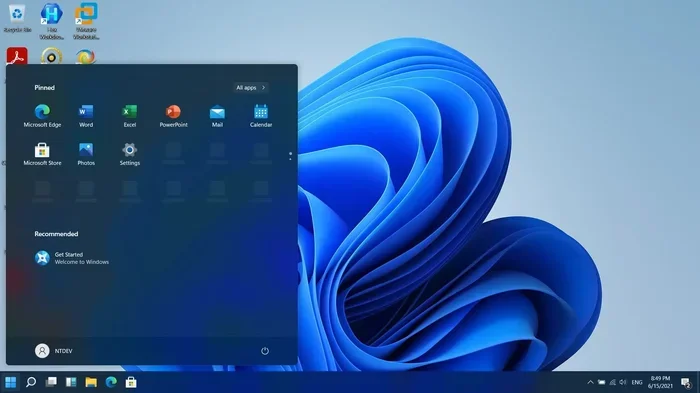
- Launch Linux from the Start Menu and start using it.
That is it. You now have a working Linux environment running inside Windows. You can install packages, run scripts, and use command line tools just like on a native Linux system.
Who Should Use WSL?
WSL is perfect for developers, students, and anyone who needs Linux tools but wants to stay in Windows. It is especially useful for web development, scripting, and learning Linux commands. However, WSL is not ideal for GUI-heavy Linux applications or tasks that need full hardware access.
Which Method Is Best for Your Laptop?
Choosing the right method depends on your laptop and what you want to do. Here is a simple guide to help you decide.
Choose Dual Boot If…
- You want full performance from both operating systems.
- You need direct access to hardware like GPUs or USB devices.
- You plan to use Linux as your primary OS for serious work.
- You have enough disk space for both partitions.
Choose a Virtual Machine If…
- You want to test Linux without making any changes to your laptop.
- You need to run Linux and Windows at the same time.
- Your laptop has at least 8 GB of RAM and a solid-state drive.
- You are learning Linux and want a safe environment to experiment.
Choose WSL If…
- You are a developer who needs Linux tools on Windows.
- You want a lightweight solution that does not require a restart.
- You mainly use the command line and do not need a full Linux desktop.
- You want the easiest setup with minimal configuration.
Each method has its place. Many power users actually use all three at different times. For example, you might use WSL for daily development work, dual boot for heavy Linux tasks, and a VM for testing software on different Linux distros.
Tips for Getting the Best Performance
No matter which method you choose, there are steps you can take to get the best performance from your laptop when running two operating systems.
Keep Your Laptop Cool
Running two operating systems puts extra stress on your hardware. Make sure your laptop has good ventilation. Use a cooling pad if you notice it getting hot during heavy workloads. Clean your fans and vents regularly to prevent dust buildup.
Manage Your Storage Wisely
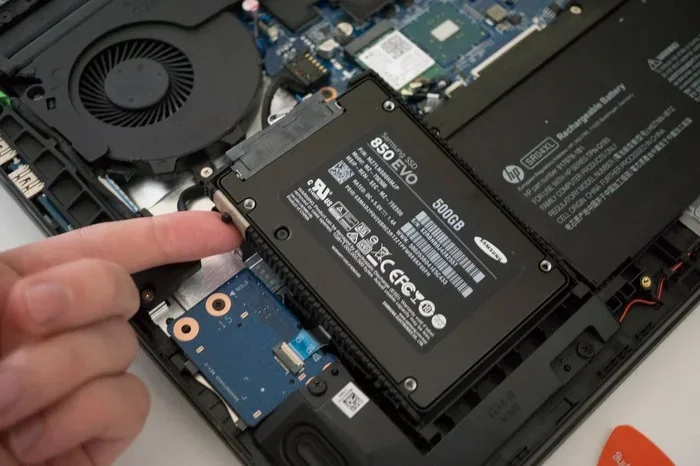
Both Windows and Linux need disk space to run properly. A good rule of thumb is to allocate at least 50 GB to Linux and keep at least 100 GB for Windows. Use a solid-state drive for the best experience. HDDs will slow down both operating systems significantly.
Update Both Operating Systems Regularly
Keeping both Windows and Linux up to date ensures you get the latest security patches and performance improvements. In Windows, go to Settings and check for updates. In Linux, use your package manager to update your system regularly.
Share Files Between Operating Systems
One of the challenges of running two operating systems is sharing files between them. Here are a few ways to handle this:
- Shared partition: Create a separate partition that both Windows and Linux can access.
- Network sharing: Use a shared folder over your local network.
- Cloud storage: Use services like Google Drive or OneDrive to sync files across both OSs.
- External drive: Use a USB drive formatted with a file system both OSs support, like exFAT.
Expert Insight: What Pros Recommend
Many Linux and Windows users who have been doing this for years share the same advice. Start with WSL if you are new to Linux. It lets you learn the basics without any risk to your Windows setup. Once you are comfortable, you can try a virtual machine or a full dual boot setup. This gradual approach helps you build confidence and avoid costly mistakes.
Another expert tip is to always keep a Windows recovery drive handy. If anything goes wrong during a Linux installation, you can use the recovery drive to fix your Windows boot. It is a small step that saves a lot of headaches.
Common Questions About Running Linux and Windows Together
People have a lot of questions when they first consider running Linux and Windows on the same laptop. Here are answers to the most common ones.
Frequently Asked Questions
Can I run Linux and Windows at the same time without dual booting?
Yes, you can. You can use a virtual machine like VirtualBox or VMware to run Linux inside Windows while using Windows normally. Another option is WSL, which runs a Linux environment directly within Windows. Neither requires you to restart your laptop to switch between the two systems.
Is it safe to install Linux alongside Windows?
It is generally safe as long as you follow the steps carefully. The biggest risk is during the partitioning process, where mistakes can affect your Windows installation. Always back up your important files before you begin. If you follow a trusted guide and take your time, the process goes smoothly.
Will running Linux slow down my Windows laptop?
Not necessarily. With dual booting, both operating systems run at full speed because you only use one at a time. With a virtual machine, performance depends on how much RAM and CPU you allocate to the VM. WSL is very lightweight and should not slow down your Windows laptop at all.
Can I remove Linux and go back to Windows only?
Yes, you can. If you dual booted, you can delete the Linux partition and restore the free space to your Windows partition. You may need to repair your Windows bootloader afterward, but tools like the Windows installation media can handle this easily. If you used WSL or a VM, simply uninstalling the Linux distribution is enough.
Do I need a powerful laptop to run Linux alongside Windows?
No, you do not need a high-end laptop. Even budget laptops with 4 GB of RAM and a basic processor can run Linux well. For virtual machines, 8 GB of RAM is recommended. For dual booting and WSL, even lower-spec laptops work just fine. Linux distributions like Lubuntu and Linux Mint are designed to run smoothly on older or less powerful hardware.
Which Linux distribution is easiest for beginners?
Ubuntu and Linux Mint are the most beginner-friendly options. They have large communities, plenty of tutorials, and user-friendly interfaces. Linux Mint in particular feels very similar to Windows, which makes the transition easier for new users. Both are free to download and install.
Conclusion
Running Linux and Windows on the same laptop is not only possible, it is easy once you know which method to use. Whether you choose dual booting, a virtual machine, or Windows Subsystem for Linux, each option gives you the power to use both operating systems on a single machine.
Dual booting gives you the best performance and full hardware access. Virtual machines offer flexibility and convenience for testing. WSL is the simplest and lightest option for developers and learners. The best method depends on your laptop, your needs, and your comfort level with technology.
Start with what feels right for you. You can always try a different method later. The beauty of having both Linux and Windows on one laptop is the freedom it gives you. You get the best of both worlds without needing two separate computers.
So go ahead, explore your options, and make the most of your laptop. With the right setup, you will be switching between Linux and Windows like a pro in no time.