How Do I Change My Comcast WiFi Security Settings Now
Changing your Comcast WiFi security settings is easier than you think. You can access your router settings through the xFi app or web portal to update passwords, encryption types, and network protections. This guide walks you through every step to keep your home network safe and secure.
Your home WiFi network is the gateway to everything you do online. Banking, streaming, shopping, and smart home devices all rely on a strong and secure connection. If your Comcast WiFi security settings are weak or outdated, your personal data is at risk. The good news is that updating those settings takes just a few minutes.
In this guide, we will walk you through every step to change your Comcast WiFi security settings right now. Whether you want to update your wireless security settings, switch to a better encryption type, or set up a guest network, we have you covered. No tech degree required. Just follow along and you will have a safer network in no time.
Many people never touch their router settings after the initial setup. That is a big mistake. Default passwords and older encryption protocols leave your network wide open. Taking a few simple steps to strengthen your network security key can make a huge difference. Let us get started.
Key Takeaways
- Access your settings easily: Use the xFi app or web portal to manage your Comcast WiFi security.
- WPA3 is the best choice: Always pick the latest encryption type for maximum protection.
- Change default passwords: Never keep the factory-set admin or WiFi passwords.
- Guest networks add safety: Isolate visitors from your main network with a separate SSID.
- Regular updates matter: Check your security settings every few months.
- Router placement affects security: A well-placed router reduces unauthorized access risks.
- You can change your router: If Comcast equipment limits you, consider buying your own router.
📑 Table of Contents
Why Your Comcast WiFi Security Matters
Your WiFi network carries sensitive information every single day. Think about all the devices connected to it. Phones, laptops, smart TVs, and even doorbell cameras pass data through your router. If someone gains unauthorized access, the consequences can be serious.
Hackers can steal personal files, monitor your browsing habits, or use your network for illegal activity. A weak WiFi security protocol makes all of this possible. Many people leave their networks using the default WEP or even open settings without a password. This is like leaving your front door wide open.
Comcast provides decent equipment, but the default settings are not always the most secure option. Taking control of your wireless network setup ensures that only trusted devices can connect. It also gives you peace of mind every time you go online.
Common WiFi Security Threats
Understanding the risks helps you take them seriously. Here are the most common threats to home WiFi networks:
- Unauthorized access: Neighbors or strangers using your network without permission.
- Man-in-the-middle attacks: Hackers intercepting data between your devices and the internet.
- Malware distribution: Infected devices spreading viruses across your network.
- Identity theft: Stealing login credentials and personal information.
- Bandwidth theft: Slow internet speeds caused by others using your connection.
Each of these threats can be prevented with proper network protection settings. The first step is knowing how to access and update those settings on your Comcast equipment.
How to Access Your Comcast Router Settings
Before you can change anything, you need to get into your router. Comcast uses the xFi gateway, which makes this process straightforward. You have two main ways to access your settings: through the app or through a web browser.
Method 1: Using the xFi App
The xFi app is the easiest way to manage your Comcast WiFi. Here is how to do it:
- Download the xFi app from the App Store or Google Play.
- Log in with your Comcast account credentials.
- Tap on the “Gateway” or “Network” tab.
- Look for the “WiFi” or “Security” section.
- From there, you can change passwords, encryption types, and more.
The app gives you a clean, simple interface. It is perfect for beginners who want to adjust their wireless security settings without digging through complex menus.
Method 2: Using the Web Portal
If you prefer a computer, the web portal offers more detailed options:
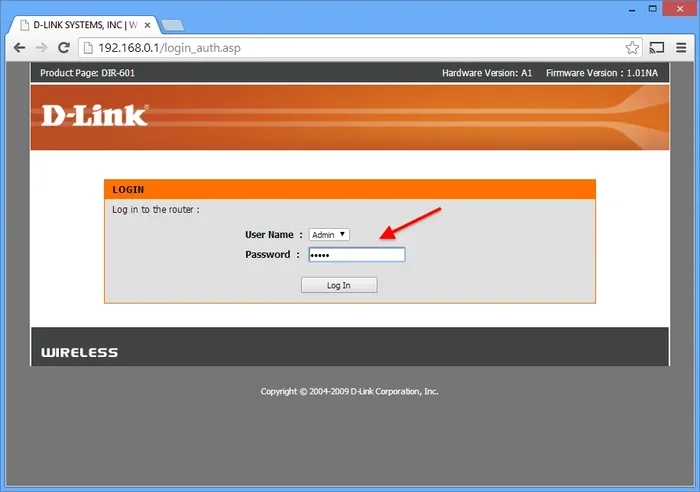
- Open a browser and type 10.0.0.1 in the address bar.
- Enter your admin username and password. These are usually on a sticker on the back of your gateway.
- Navigate to the “Wireless” or “WiFi” settings section.
- Look for “Security Settings” or “Encryption Type.”
- Make your changes and save.
Pro tip: If you have changed your admin password before and forgot it, you can reset the gateway by pressing the small reset button on the back for 10 seconds. This will restore factory settings, so use it as a last resort.
Understanding WiFi Encryption Types
Not all encryption is created equal. When you change your Comcast WiFi security settings, you will see several encryption options. Knowing what each one means helps you make the best choice.
| Encryption Type | Security Level | Status |
|---|---|---|
| WEP | Very Weak | Outdated |
| WPA (TKIP) | Weak | Deprecated |
| WPA2 (AES) | Good | Still Widely Used |
| WPA3 | Excellent | Recommended |
WPA3: The Gold Standard
WPA3 is the latest and most secure encryption protocol available. It protects against brute-force attacks and encrypts every connection individually. If your Comcast gateway supports WPA3, you should always choose it when changing your WiFi security settings.
WPA2: Still Solid
WPA2 with AES encryption remains a strong choice. Most devices in the world still use it, and it provides reliable protection. If your older devices cannot connect to WPA3, using WPA2 is a perfectly fine option.
What to Avoid
Never use WEP or WPA with TKIP. These are outdated and can be cracked in minutes. If your router still uses these, change them immediately. Your wireless security settings should always be set to WPA2 or WPA3.
Step-by-Step Guide to Changing Your Security Settings
Now that you understand the basics, let us walk through the actual process of changing your settings. Follow these steps carefully.
Step 1: Change Your WiFi Password
Your Comcast WiFi password is the first line of defense. If it is something simple like “password123” or your street address, change it now. A strong password should be at least 12 characters long and include a mix of letters, numbers, and symbols.
Use the xFi app or web portal to update your WiFi password. Make sure to write it down somewhere safe. Every device in your home will need to reconnect with the new password.
Step 2: Update Your Encryption Type
Go to your wireless settings and select WPA3 or WPA2. Save the changes and test your connection. Most modern devices will connect without any issues, but very old devices might need a firmware update or may not support newer protocols.
Step 3: Change Your Network Name (SSID)
Your network name, also called the SSID, is what people see when they search for WiFi. Change it from the default Comcast name to something unique. This makes your network less recognizable to attackers. You can also disable SSID broadcast if you want an extra layer of privacy, though this is optional.
Step 4: Set Up a Guest Network
A guest network keeps visitors separate from your main network. This means your smart home devices, computers, and personal files stay protected even when friends or family connect to your WiFi. You can set this up in the same wireless settings section.
Give your guest network a different name and password. Keep the encryption type the same as your main network for consistency.
Step 5: Update Your Admin Password
Your router has its own admin password that controls access to the settings. The default password is printed on your gateway. Anyone who can access your network can log into the router if you never change this. Set a strong, unique admin password to prevent unauthorized changes to your Comcast WiFi security settings.
Advanced Security Features to Enable
Beyond the basics, Comcast gateways offer several advanced features that boost your network security. These are worth exploring once you have your basic settings locked down.
Firewall Settings
Your Comcast gateway includes a built-in firewall. Make sure it is turned on. The firewall blocks unauthorized incoming traffic and adds a layer of defense between your devices and the internet. You can check this in the advanced settings section of your web portal.
MAC Address Filtering
MAC address filtering lets you create a whitelist of devices that are allowed to connect. Every device has a unique MAC address. By enabling this feature, you can ensure that only your trusted devices join your network. This is an extra security measure, not a replacement for strong passwords.
Parental Controls
Comcast xFi offers parental controls that let you manage access by device. You can block certain websites, set time limits, and pause internet access for specific devices. While these are not strictly security features, they add another layer of control over your network.
Firmware Updates
Keep your gateway firmware up to date. Comcast pushes updates automatically, but it is worth checking periodically. Firmware updates fix security vulnerabilities and improve performance. An outdated router is an easy target for hackers.
Common Mistakes to Avoid
Even with the best intentions, people make mistakes when managing their WiFi security. Here are the most common ones:
- Using the default admin password: This is the number one mistake. Always change it.
- Setting your WiFi password to something obvious: Birthdays, pet names, and simple sequences are easy to guess.
- Leaving WEP encryption enabled: This provides almost no real protection.
- Not updating your password regularly: Change it at least once a year.
- Ignoring firmware updates: These often include critical security patches.
- Sharing your password carelessly: Only share it with people you trust.
Avoiding these mistakes keeps your network secure and your data safe. A little attention goes a long way when it comes to network security key management.
When to Consider Upgrading Your Equipment
Sometimes the best way to improve your WiFi security is to upgrade your hardware. Comcast equipment works well for most households, but it may not offer the latest features. If you find that your gateway does not support WPA3 or lacks advanced security options, it might be time to look at alternatives.
You can buy your own router for internet and connect it to your Comcast modem. This gives you more control over your wireless network setup and access to the latest security features. Many modern routers support WPA3, automatic updates, and advanced firewall options that Comcast gateways may not offer.
Just make sure your new router is compatible with Comcast’s network. Some ISPs require specific modem configurations. Check with Comcast before making a purchase to avoid any compatibility issues.
If you decide to expand your network, devices like mesh systems can help. You can connect deco mesh WiFi to existing router setups to extend coverage throughout your home while maintaining strong security settings across all access points.
Also, consider your router placement. A well-positioned router improves both signal strength and security. Keep it in a central location in your home and avoid placing it near windows where the signal can leak outside. You can also boost your WiFi signal outside if needed, but always ensure any external access points are secured with strong passwords and encryption.
Final Thoughts
Changing your Comcast WiFi security settings is one of the simplest and most impactful things you can do for your home network. It takes just a few minutes and provides lasting protection for all your connected devices. Start with a strong password, choose the right encryption type, and enable any advanced features your gateway supports.
Make it a habit to review your settings every few months. Technology evolves, and so do the threats. Staying proactive keeps your network safe and your personal data secure. You do not need to be a tech expert to take these steps. Anyone can do it with the right guidance.
Your home network is your digital home. Treat it with the same care you would give your physical home. Lock the doors, set the alarm, and keep your wireless security settings up to date. Your future self will thank you.
Frequently Asked Questions
How do I log into my Comcast router to change security settings?
You can log in using the xFi app or by visiting 10.0.0.1 in your web browser. Enter your Comcast admin credentials to access the settings panel. If you have not changed the admin password, check the sticker on the back of your gateway for the defaults.
What is the best WiFi encryption type for Comcast networks?
WPA3 is the best option if your Comcast gateway supports it. WPA2 with AES encryption is a strong second choice. Avoid WEP and WPA with TKIP, as these are outdated and easily compromised.
Can I change my Comcast WiFi password without resetting the router?
Yes, you can change your WiFi password anytime through the xFi app or web portal without resetting anything. Simply navigate to the wireless settings, enter a new password, and save. All your devices will need to reconnect with the new password.
Why is my WiFi password still weak after I changed it?
Make sure you are using a strong password with at least 12 characters, including uppercase letters, lowercase letters, numbers, and symbols. Avoid common words or personal information. Also check that your encryption type is set to WPA2 or WPA3 for full protection.
How often should I update my Comcast WiFi security settings?
You should review your security settings at least every three to six months. Update your password if you suspect unauthorized access, and always install firmware updates when they become available. Regular checks keep your network safe.
Is it safe to use the same WiFi password for my guest network?
It is better to use a different password for your guest network. This isolates visitors from your main devices and personal data. Keep the encryption type the same, but use a unique password for added security.