How Do I Activate Wi Fi Direct On Other Devices Easily
Wi Fi Direct lets you connect devices without a router, making file sharing, printing, and screen mirroring fast and simple. This guide shows you exactly how to activate Wi Fi Direct on Android, iPhone, Windows, Mac, printers, and smart TVs. Follow our easy steps and get connected in minutes.
Have you ever wanted to share a file between two devices without using the internet? Or maybe you need to print a document directly from your phone without connecting to a router. Wi Fi Direct makes all of this possible. It is a powerful wireless technology that lets devices talk to each other directly, without needing a central router or internet connection. In this guide, we will walk you through exactly how to activate Wi Fi Direct on other devices, step by step.
Whether you are using an Android phone, an iPhone, a Windows laptop, or even a smart TV, the process is simpler than you might think. Wi Fi Direct activation takes just a few taps on most devices. You will be sharing files, printing documents, and casting content in no time. Let us dive in and explore everything you need to know about this handy feature.
Key Takeaways
- Wi Fi Direct works on most modern devices: Android phones, iPhones, Windows PCs, Macs, printers, and smart TVs all support it.
- Activation is simple: You just toggle a setting or use a built-in feature on your device.
- No internet or router is needed: Wi Fi Direct creates a direct peer-to-peer connection between two devices.
- Transfer speeds are fast: Wi Fi Direct can move files much quicker than Bluetooth or email.
- Troubleshooting is easy: Most issues are solved by updating software or toggling Wi Fi off and on.
📑 Table of Contents
- What Is Wi Fi Direct and Why Should You Use It?
- How to Activate Wi Fi Direct on Android Devices
- How to Activate Wi Fi Direct on iPhone and iPad
- How to Activate Wi Fi Direct on Windows and Mac Computers
- How to Activate Wi Fi Direct on Printers and Smart TVs
- Troubleshooting Common Wi Fi Direct Issues
- Wi Fi Direct vs Other Wireless Technologies
- Final Thoughts
What Is Wi Fi Direct and Why Should You Use It?
Wi Fi Direct is a wireless technology that lets two devices connect to each other directly. Think of it as a peer-to-peer connection that does not need a router or internet service. One device acts as a host, and the other connects to it. This is different from your regular Wi Fi connection, which usually requires a router to manage the network.
Here are some great reasons to use Wi Fi Direct:
- Fast transfer speeds: You can move large files much faster than with Bluetooth or email.
- No internet needed: You do not need a working internet connection to share files between devices.
- Wireless file transfer: Send photos, videos, documents, and more without cables.
- Wide device support: Many printers, TVs, phones, and computers support Wi Fi Direct enabled features.
- Easy to set up: Most devices have a simple toggle or menu option to turn it on.
Many people confuse Wi Fi Direct with Bluetooth. While both technologies allow device-to-device connections, Wi Fi Direct is much faster and has a longer range. If you have ever asked yourself, are Wi Fi and Bluetooth the same frequency, the answer is no. Wi Fi Direct uses the 5 GHz band, which gives it more speed and less interference.
How to Activate Wi Fi Direct on Android Devices
Android phones and tablets make it very easy to use Wi Fi Direct. Most Android devices running version 4.0 or newer have this feature built in. Here is how to turn it on and use it.
Step-by-Step Guide for Android
- Open your Settings app. Look for the gear icon on your home screen or app drawer.
- Tap on Wi Fi. This is usually found under Network or Connections settings.
- Tap the three dots or menu button. This is usually in the top-right corner of the screen.
- Select Wi Fi Direct or Wi Fi Direct Settings. The exact name varies by phone brand.
- Tap on Wi Fi Direct to turn it on. Your phone will start searching for nearby devices.
- Select the device you want to connect to. Both devices need to have Wi Fi Direct turned on.
- Accept the connection request on the other device. You may need to enter a PIN or confirm a pairing.
Once connected, you can share files, print documents, or mirror your screen. For example, if you want to connect my Wi Fi directly to my TV, you can use Wi Fi Direct to cast content from your phone to a compatible smart TV without needing a router. This is a great way to share photos on a big screen during a gathering.
Quick Tips for Android Users:
- Make sure both devices are within 200 feet of each other for the best connection.
- Turn off Wi Fi and Bluetooth on both devices if you are having trouble pairing. You can have Wi Fi and Bluetooth on at the same time, but sometimes toggling them off and on helps reset the connection.
- Keep your phone updated. Older Android versions may not support the latest Wi Fi Direct features.
- If your phone does not show the Wi Fi Direct option, try going to Settings > Connections > Wi Fi > Menu > Wi Fi Direct.
Which Android Brands Support Wi Fi Direct?
Most major Android brands support Wi Fi Direct. Samsung, Google Pixel, LG, Motorola, and OnePlus all include this feature. Samsung phones often call it Wi-Fi Direct in the connection settings. Some brands may place the option under a different menu, but the basic steps are the same across all devices.
How to Activate Wi Fi Direct on iPhone and iPad
Apple devices handle Wi Fi Direct a bit differently than Android. iPhones and iPads do not have a toggle called “Wi Fi Direct” in their settings. Instead, Apple uses AirDrop and AirPrint, which are built on similar peer-to-peer connection technology. However, you can still activate direct wireless connections on iOS devices.
Using AirDrop for Direct Device Connections
AirDrop is Apple’s version of Wi Fi Direct. It lets you share files, photos, and links directly between Apple devices without a router. Here is how to set it up:
- Open Control Center. Swipe down from the top-right corner of your screen.
- Tap and hold the connectivity block. This includes Wi Fi, Bluetooth, and Airplane Mode.
- Tap AirDrop. Choose either “Contacts Only” or “Everyone.”
- Make sure Wi Fi and Bluetooth are both on. AirDrop needs both of these to work, even if you are not connected to a network.
- Select the person or device you want to share with. The other device will receive a prompt to accept the transfer.
Quick Tips for iPhone and iPad Users:
- AirDrop works between iPhones, iPads, and Mac computers. You can even connect my phone to Alexa for smart home tasks, though Alexa does not use Wi Fi Direct for file sharing.
- If AirDrop is not working, toggle Airplane Mode on and off to reset your wireless connections.
- Make sure both devices are close to each other and have Wi Fi Direct compatible software.
Can iPhone Use Wi Fi Direct for Printing?
Yes! iPhones can connect directly to Wi Fi Direct printers using AirPrint. Many HP, Canon, and Epson printers support Wi Fi Direct and work with iPhones. You simply select the printer from the print menu, and your iPhone handles the rest. No router or internet connection is needed for the print job.
How to Activate Wi Fi Direct on Windows and Mac Computers
Desktop and laptop computers also support Wi Fi Direct, though the setup process is a bit different depending on your operating system. Whether you use Windows or Mac, you can create direct device connections for file sharing and printing.
Activating Wi Fi Direct on Windows
Windows 10 and Windows 11 have built-in support for Wi Fi Direct through a feature called “Wi-Fi Direct” or “Bluetooth and Wi-Fi Direct.” Here is how to activate it:
- Click the Start menu and go to Settings.
- Select Network and Internet.
- Click on Wi Fi.
- Look for Wi Fi Direct or Direct Connection options. Windows may list available Wi Fi Direct devices nearby.
- Select the device you want to connect to.
- Follow the on-screen prompts to complete the pairing.
On Windows, you can also use the Wi-Fi Direct feature through the Wi-Fi Direct virtual adapter. This creates a software-based Wi Fi Direct connection that works like a mobile hotspot for device-to-device communication.
Activating Wi Fi Direct on Mac
Mac computers use AirDrop for peer-to-peer connections, similar to iPhones. Macs running macOS Mountain Lion or newer support AirDrop natively. Here is how to use it:
- Open Finder.
- Click AirDrop in the left sidebar.
- Set your visibility to “Everyone” or “Contacts Only.”
- Drag and drop files onto the recipient’s profile.
- The recipient will receive a prompt to accept the transfer.
Macs also support Wi Fi Direct printing through AirPrint. You can connect my Apple phone to a projector or other display device using direct wireless connections, though this often requires a compatible adapter or dock.
Comparison: Wi Fi Direct on Different Platforms
| Platform | Feature Name | Best For | Setup Difficulty |
|---|---|---|---|
| Android | Wi-Fi Direct | File sharing, printing, screen mirroring | Easy |
| iPhone/iPad | AirDrop / AirPrint | Apple-to-Apple sharing and printing | Very Easy |
| Windows | Wi-Fi Direct / Wi-Fi Direct Virtual Adapter | File sharing, direct printing | Moderate |
| Mac | AirDrop / AirPrint | File sharing, printing | Very Easy |
| Smart TVs | Wi-Fi Direct / Screen Mirroring | Streaming content from phones | Easy |
How to Activate Wi Fi Direct on Printers and Smart TVs
Wi Fi Direct is incredibly useful for printers and smart TVs. You can print documents directly from your phone or cast videos from your tablet to your TV without needing a home router. Let us look at how to activate Wi Fi Direct on these devices.
Activating Wi Fi Direct on Printers
Many modern printers support Wi Fi Direct, including models from HP, Canon, Epson, and Brother. This feature lets you print directly from your phone or laptop without connecting to a network. Here is how to set it up:
- Check if your printer supports Wi-Fi Direct. Look for a Wi-Fi Direct logo on the printer or check the manual.
- Turn on Wi-Fi Direct on the printer. Usually, you press a dedicated Wi-Fi Direct button on the printer’s control panel.
- Wait for the printer to create a network. The printer will display a network name (SSID) and password.
- On your phone or computer, go to Wi-Fi settings.
- Select the printer’s network from the list.
- Enter the password when prompted.
- Open the document you want to print and select the printer.
Quick Tips for Printer Users:
- Some printers let you print even while connected to Wi Fi Direct and your regular network at the same time.
- If you are having trouble finding the printer’s network, make sure you are within range. Wi Fi Direct range is typically around 200 feet.
- You can also use the printer manufacturer’s app to simplify the setup process.
Activating Wi Fi Direct on Smart TVs
Smart TVs from Samsung, LG, Sony, and Vizio often support Wi Fi Direct or screen mirroring protocols. This lets you display your phone’s screen on the TV without cables. Here is how to activate it:
- On your TV, go to Settings and look for Screen Mirroring or Wi-Fi Direct.
- Turn on Screen Mirroring or Wi-Fi Direct.
- On your phone, go to Wi-Fi settings and look for the TV’s network.
- Connect to the TV’s Wi-Fi Direct network.
- Open the content you want to share and cast it to the TV.
Many people also use Wi Fi Direct to connect Roku to their cell phone for streaming content. Roku devices use a direct wireless connection to mirror your phone’s screen, making it easy to share photos, videos, and apps on a larger display.
If you are wondering whether you can use Wi Fi Direct while traveling, the answer is yes. You do not need an internet provider to use Wi Fi Direct. You can get Wi-Fi without an internet provider and still enjoy direct device connections. This is perfect for flights, camping trips, or anywhere without a network.
Troubleshooting Common Wi Fi Direct Issues
Even though Wi Fi Direct is easy to use, you might run into issues from time to time. Here are the most common problems and how to fix them.
Device Not Showing Up in the List
If the device you want to connect to does not appear in the Wi-Fi Direct list, try these steps:
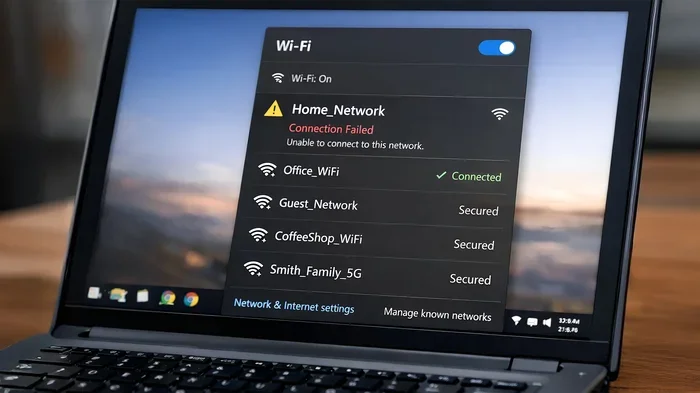
- Turn Wi-Fi Direct off and back on on both devices.
- Make sure both devices are within range. About 200 feet is the typical limit.
- Restart both devices. A simple reboot often fixes connection issues.
- Check for software updates. Outdated software can cause compatibility problems.
Connection Drops Frequently
If your Wi-Fi Direct connection keeps dropping, here are some things to try:
- Move closer to the other device. Walls and furniture can weaken the signal.
- Turn off other wireless devices nearby that might be causing interference.
- Check if other devices are using the same frequency band. Wi-Fi Direct uses the 5 GHz band, which can be crowded in apartment buildings.
- Forget the device and reconnect. This clears any saved connection data that might be causing issues.
Slow Transfer Speeds
If file transfers are slower than expected, try these fixes:
- Make sure both devices support the same Wi-Fi Direct standard. Older devices may only support Wi-Fi Direct 1.0, which is slower.
- Close other apps running in the background. This frees up resources for the transfer.
- Check battery saver mode. Some phones slow down Wi-Fi Direct to save power.
Expert Insight: One of the biggest mistakes people make with Wi-Fi Direct is leaving Bluetooth on while trying to pair. While you can have Wi-Fi and Bluetooth on at the same time, turning off Bluetooth temporarily during Wi-Fi Direct setup often helps the connection establish faster and more reliably.
Wi Fi Direct vs Other Wireless Technologies
To really understand the value of Wi-Fi Direct, it helps to compare it with other wireless technologies. Here is a quick look at how Wi-Fi Direct stacks up against the alternatives.
Wi-Fi Direct vs Bluetooth: Wi-Fi Direct is much faster than Bluetooth. While Bluetooth 5.0 can transfer data at about 2 Mbps, Wi-Fi Direct can reach speeds of 250 Mbps or more. Wi-Fi Direct also has a longer range. However, Bluetooth uses less battery, so it is better for small, frequent transfers.
Wi-Fi Direct vs Mobile Hotspot: A mobile hotspot shares your phone’s internet connection with other devices. Wi-Fi Direct does not share internet; it creates a direct connection between devices. If you want to share files without using data, Wi-Fi Direct is the better choice.
Wi-Fi Direct vs NFC: Near Field Communication (NFC) works only at very close range, usually within a few centimeters. Wi-Fi Direct works at much longer distances and is much faster. NFC is better for quick tasks like tap-to-pay, while Wi-Fi Direct is better for file transfers and printing.
Final Thoughts
Wi-Fi Direct is one of the most useful wireless features on modern devices. Whether you want to share files, print documents, cast videos, or connect peripherals, Wi-Fi Direct gives you a fast, reliable, and wireless connection without needing a router or internet service. The activation process is straightforward on virtually every device, from Android phones and iPhones to Windows PCs, Macs, printers, and smart TVs.
Remember that Wi-Fi Direct works best when both devices are close together, have the latest software updates, and are not blocked by thick walls or other wireless interference. If you run into issues, the troubleshooting tips in this guide should help you get back on track quickly.
Now that you know how to activate Wi-Fi Direct on other devices, you can start sharing files, printing documents, and casting content with ease. Try it out today and experience the convenience of direct device-to-device wireless connections. Once you start using Wi-Fi Direct, you will wonder how you ever managed without it.