How Do I Access My Cox Wifi Router and Find the Password
Finding your Cox wifi router login and password is easier than you think. This guide walks you through accessing your router admin panel, changing your network name, and recovering your wifi password in just a few simple steps. Whether you are a new Cox customer or have been using their service for years, you will learn how to take control of your home network.
Have you ever stood in front of your Cox wifi router and thought, “I really need to get in here”? Maybe you want to change your network name, update the password, or just figure out why your internet is acting up. Whatever the reason, accessing your router is not as scary as it sounds. In this guide, we will walk you through every step in plain, simple language.
Your router admin panel is the control center for your home network. From there, you can change your wifi password, adjust signal strength, set up guest networks, and much more. Most people never touch these settings, but knowing how to access them gives you real power over your internet experience. Let us get started.
Key Takeaways
- Access your Cox router: Use the default gateway IP address to reach the admin login page.
- Find your wifi password: Check the sticker on your router or log in to the admin panel.
- Change default credentials: Always update your admin username and password for security.
- Boost your signal: Adjust wireless settings from the router dashboard for better coverage.
- Reset if needed: A factory reset can fix most access problems quickly and easily.
📑 Table of Contents
- What Is a Cox Wifi Router and Why Do You Need to Access It?
- How to Find Your Cox Router IP Address
- How to Log In to Your Cox Router Admin Panel
- How to Find Your Cox Wifi Password
- How to Adjust Router Settings for Better Performance
- Troubleshooting Common Access Issues
- Should You Buy Your Own Router Instead of Using the Cox Provided One?
- Final Thoughts on Accessing Your Cox Wifi Router
What Is a Cox Wifi Router and Why Do You Need to Access It?
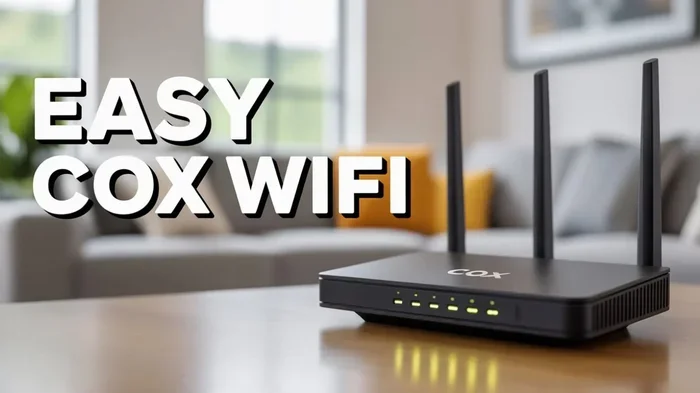
A Cox wifi router is the device that takes the internet signal from your modem and spreads it wirelessly throughout your home. It is the little box with blinking lights that probably sits in a corner or on a shelf. Without it, none of your devices — phones, laptops, smart TVs — would be able to connect to the internet without a cable.
Accessing your router lets you do several important things:
- View or change your wifi password and network name (SSID)
- Check connected devices and see who is using your network
- Update security settings to keep hackers out
- Adjust channel settings to improve speed and reduce interference
- Set up parental controls or guest networks
- Troubleshoot connection issues without calling support
Most Cox routers come pre-configured, which means they work right out of the box. But the default settings are not always the most secure or the best for your home. Taking a few minutes to access your router and tweak a few settings can make a big difference in your daily internet use.
Why Most People Never Touch Their Router Settings
Here is the honest truth. Most people do not access their router because it seems complicated. The thought of typing in an IP address and seeing a login screen filled with technical terms can feel intimidating. But the truth is, accessing your router settings page is really just like logging into a website. Once you know the steps, it takes less than two minutes.
How to Find Your Cox Router IP Address
Before you can log in, you need to know the IP address of your router. This is the address your browser uses to find the admin page. Every router has one, and for Cox routers, it is usually very straightforward to find.
Finding the Default Gateway on Windows
On a Windows computer, follow these steps:
- Click the Start menu and type “cmd” in the search bar
- Open the Command Prompt app
- Type
ipconfigand press Enter - Look for the line that says “Default Gateway” — that number is your router IP address
For most Cox routers, the default gateway is 192.168.0.1 or 192.168.1.1. Write this number down or keep it handy.
Finding the Default Gateway on Mac
If you use a Mac, the process is just as simple:
- Open System Preferences
- Click on Network
- Select your active connection (Wi-Fi or Ethernet)
- Click “Advanced” and go to the TCP/IP tab
- Look for “Router” — that is your IP address
Finding the IP Address on Your Phone
You can also find your router IP on a phone. On Android, go to Settings, then Network, then Wi-Fi, and tap on your connected network. Look for the gateway address. On iPhone, go to Settings, then Wi-Fi, tap the “i” icon next to your network, and scroll down to find the router address.
Once you have the IP address, open any web browser and type it into the address bar at the top. Press Enter, and you should see the router login page.
How to Log In to Your Cox Router Admin Panel
Now that you have the IP address, it is time to log in. This is where many people get stuck, so let us make it really clear.
Default Login Credentials for Cox Routers
Cox routers come with default login credentials printed on a sticker on the back or bottom of the device. The sticker usually shows:
- Default username: admin or user
- Default password: admin, password, or a custom string printed on the sticker
- Default network name (SSID): usually starts with “Cox” or “CoxNet”
Type these credentials into the login page. If you have never changed them, they should work every time. Once logged in, you will see the main dashboard with all your router settings.
What to Do If the Default Password Does Not Work
Sometimes the default password does not work. This usually happens if someone — maybe a previous tenant or a tech support rep — changed it. Here is what you can do:
- Check the router sticker again for any custom password
- Call Cox support and they can help you recover or reset the credentials
- Perform a factory reset by pressing and holding the small reset button on the back of the router for about 10 seconds
Keep in mind that a factory reset will erase all your custom settings, including your wifi password and network name. So only do this as a last resort.
Changing Your Admin Password for Security
Once you are logged in, the first thing you should do is change the admin password. This keeps strangers from accessing your router settings. Look for a section called “Administration,” “System,” or “Management” in the dashboard. Create a strong password that uses a mix of letters, numbers, and symbols. Write it down and keep it somewhere safe.
How to Find Your Cox Wifi Password
Now let us talk about the wifi password. This is the password your devices use to connect to your wireless network. It is different from the admin password that lets you into the router settings.
Where to Find the Default Wifi Password
The default wifi password is almost always printed on a sticker on the back or bottom of your Cox router. Look for labels that say “Wi-Fi Password,” “Network Key,” or “Wireless Key.” It is usually a long string of letters and numbers.
If you have already changed the password and forgotten it, do not worry. You can find it by logging into the admin panel:
- Go to the router settings page using your IP address
- Log in with your admin credentials
- Look for “Wireless Settings” or “Wifi Settings”
- The password field may show dots or the actual password, depending on your router model
Some Cox router models let you view the password directly. Others may require you to re-enter a new one. Either way, you are in control now.
How to Change Your Wifi Password
Changing your wifi password is one of the best things you can do for network security. Here is how:
- Log in to your router admin panel
- Navigate to “Wireless Settings” or “Security”
- Find the “Password” or “Passphrase” field
- Enter your new password — make it at least 12 characters long
- Click “Save” or “Apply”
- Reconnect all your devices with the new password
After changing the password, every device in your home will need to reconnect. This takes a few minutes but is well worth the extra security.
How to Adjust Router Settings for Better Performance
Once you are inside the admin panel, you can do more than just find or change your password. You can actually improve how your network performs every day.
Change Your Network Name (SSID)
The default network name that Cox assigns is usually something generic like “CoxNet-AB12.” Changing it makes your network easier to identify and gives you a sense of ownership. Go to the “Wireless Settings” section, look for “SSID” or “Network Name,” and type in something you like. Avoid using personal information like your last name or address.
Optimize Your Wireless Channel
Your router broadcasts on a specific wireless channel. In crowded neighborhoods, many routers might use the same channel, which slows everyone down. In the admin panel, look for “Channel” settings under the wireless section. Try switching to a less crowded channel and see if your speed improves. You can also use a free app like Wifi Analyzer to see which channels are least used in your area.
Update Your Router Firmware
Router firmware is the software that runs your device. Manufacturers release updates that fix bugs, improve speed, and patch security holes. Look for a “Firmware Update” or “System Update” section in the admin panel. If an update is available, install it. Your router will usually restart automatically.
Set Up a Guest Network
If friends or family visit often, consider setting up a guest network. This gives them internet access without letting them see your main network or connected devices. Look for “Guest Network” in the settings, turn it on, set a separate password, and save. It is a simple way to keep your main network private.
Want to learn more about getting the most out of your home network? Check out our guide on how to boost your Wi-Fi signal outside for helpful tips.
Troubleshooting Common Access Issues
Sometimes things do not go as planned. Here are the most common problems people face when trying to access their Cox router and how to fix them.
Cannot Reach the Router Login Page
If typing the IP address does not bring up the login page, try these fixes:
- Make sure you are connected to the Cox network (not using mobile data)
- Double-check the IP address — try both 192.168.0.1 and 192.168.1.1
- Restart your router by unplugging it for 30 seconds and plugging it back in
- Try a different web browser
- Disable any VPN you might be using
Forgot Admin Password
If you changed the admin password and forgot it, a factory reset is your best option. Use a paperclip or pen to press and hold the reset button on the back of the router for 10 to 15 seconds. The router will restart and return to its default settings. You will need to set up your network again from scratch.
Slow Internet After Accessing Router Settings
If your internet feels slower after changing settings, double-check that you saved your changes correctly. Also, make sure you did not accidentally change the channel to one that is more congested. If all else fails, a factory reset followed by careful reconfiguration usually solves the problem.
Should You Buy Your Own Router Instead of Using the Cox Provided One?
Many Cox customers use the router that Cox provides. These routers work fine, but they are not always the best option. If you have been thinking about upgrading, you might want to consider buying your own router. Here are a few things to consider:
- Better performance: Modern routers offer faster speeds and better range
- More features: You get access to advanced settings and newer technology
- No monthly rental fee: Cox charges a monthly fee for their router, which adds up over time
- Full control: You own the device and can customize it however you want
If you want to explore this option, check out our article on whether you can buy your own router for internet. It covers everything you need to know before making the switch.
Also, keep in mind that changing your router is not the only way to improve your network. Sometimes a simple adjustment to your current setup — like repositioning the router or updating the firmware — makes a huge difference.
Final Thoughts on Accessing Your Cox Wifi Router
Accessing your Cox wifi router does not have to be a daunting task. With the right IP address, a few clicks, and the default credentials from the sticker on your device, you can be inside the admin panel in under five minutes. Once there, you have the power to change your wifi password, adjust your network name, improve your signal, and boost your security.
Take a few minutes today to log in and explore your settings. You will be surprised at how much control you already have. And if you ever get stuck, remember that a factory reset can almost always fix things. Your home network is your network — own it.
For more tips on managing your internet setup, also check out our guide on how to change your Wi-Fi router if you are considering upgrading your hardware.
Frequently Asked Questions
What is the default IP address for a Cox wifi router?
The most common default IP addresses for Cox routers are 192.168.0.1 and 192.168.1.1. You can also find the address printed on a sticker on the back or bottom of your router. If neither works, you can check your computer’s network settings to find the default gateway address.
Where can I find the default wifi password for my Cox router?
The default wifi password is printed on a sticker on the back or bottom of your Cox router. Look for labels like “Wi-Fi Password,” “Network Key,” or “Wireless Key.” If you have already changed the password and forgotten it, you can log into the router admin panel to view or reset it.
How do I reset my Cox router if I forgot the admin password?
Press and hold the small reset button on the back of your router with a paperclip or pen for about 10 to 15 seconds. The router will restart and return to factory settings. Remember that this erases all custom settings, including your wifi password and network name, so you will need to set everything up again.
Can I change my Cox wifi password from my phone?
Yes, you can. As long as your phone is connected to the Cox wifi network, open a web browser and type your router IP address into the address bar. Log in with your admin credentials, go to the wireless settings section, and change the password. All connected devices will need to reconnect with the new password.
Is it safe to access my router settings on a public wifi network?
No, it is not safe. Always access your router admin panel using a secure, private network connection. Public wifi networks can be less secure and may expose your login credentials to potential threats. Use your home network or a trusted connection when making router changes.
What should I do if I cannot reach the router login page at all?
First, make sure you are connected to the Cox wifi network. Then double-check the IP address and try both 192.168.0.1 and 192.168.1.1. Restart your router by unplugging it for 30 seconds, try a different browser, and make sure no VPN is running. If none of these work, contact Cox support for further assistance.
=== CONCLUSION ===
Accessing your Cox wifi router is a simple process that anyone can do. You now know how to find the IP address, log in with the default credentials, locate your wifi password, and make important changes to your network settings. These skills put you in control of your home internet experience.
Take action today. Log in to your router, update your password, and explore the settings. A few small changes can lead to a faster, safer, and more reliable internet connection for everyone in your home. You have got this.