How Can I Tell If Someone Is Using My Verizon Wi Fi
Wondering if someone is piggybacking on your Verizon Wi-Fi? You can check your router’s device list, monitor your internet speed, and look for unusual activity signs. Protecting your network is easier than you think — you just need to know where to look and what to do.
Your Verizon Wi-Fi connection is yours. But what happens when someone else starts using it without your knowledge? It is frustrating, right? You pay for your internet, and you expect to get the full speed and data you signed up for. Yet sometimes, things feel slow. Devices act strange. And you start wondering — is someone else tapping into your network?
The good news is that you do not need to be a tech expert to figure this out. There are clear signs that someone is using your Verizon Wi-Fi without permission. And more importantly, there are simple steps you can take to stop it. In this guide, we will walk you through exactly how to tell if someone is using your network, how to check your connected devices, and how to lock things down so nobody else can sneak in.
Let us start with the basics. Your Wi-Fi network works like a highway. When you connect your phone, laptop, or smart TV, you are a car on that road. But if someone else gets on without your knowledge, traffic builds up. Everything slows down. That is the core idea behind bandwidth theft. And it happens more often than you might think.
Key Takeaways
- Check your router’s admin panel: The fastest way to see connected devices is through your Verizon router settings.
- Slow internet is a red flag: If your speeds drop suddenly, someone may be using your network without permission.
- Change your Wi-Fi password regularly: This is the simplest and most effective way to kick off unauthorized users.
- Enable network encryption: WPA3 or WPA2 keeps your network safe from casual intruders.
- Set up a guest network: This keeps your main network private while still letting visitors get online.
- Monitor data usage: Unusual data spikes can signal that someone else is on your network.
📑 Table of Contents
- Why Does It Matter If Someone Uses Your Verizon Wi-Fi?
- How to Check If Someone Is Using Your Verizon Wi-Fi
- How to Secure Your Verizon Wi-Fi Network
- Can Someone Use My Verizon Wi-Fi Without a Password?
- What to Do If You Cannot Remove an Unauthorized User
- How to Prevent Future Wi-Fi Intrusions
- Expert Insights on Wi-Fi Security
- Key Takeaways
- Frequently Asked Questions
- Conclusion
Why Does It Matter If Someone Uses Your Verizon Wi-Fi?
You might think, “So what if someone is using my Wi-Fi? I still get internet.” But there are real reasons to care. First, your internet speed takes a hit. Every device on your network shares the available bandwidth. More devices means slower speeds for everyone. Second, there is a security risk. If someone is on your network, they could potentially access shared files, monitor your online activity, or even use your connection for illegal activities. Third, you are paying for a set amount of data and speed. Why let someone else enjoy it for free?
Common Signs of Unauthorized Wi-Fi Usage
So how do you know if someone is sneaking onto your network? Here are the most common signs:
- Your internet slows down unexpectedly: This is the number one clue. If your speeds drop during times when you are not doing anything unusual, something is up.
- Your router lights blink oddly: Most routers have indicator lights that show activity. If the lights flash heavily when you are not using the internet, another device may be online.
- Unknown devices show up in your network list: This is the most direct evidence. We will cover how to check this below.
- Your data usage spikes: If your Verizon bill or data tracker shows higher usage than usual, someone may be streaming or downloading on your network.
- Your files or settings change: This is rare but serious. If shared folders or printer settings act strangely, someone may have deeper access.
How to Check If Someone Is Using Your Verizon Wi-Fi
Now let us get into the practical part. How do you actually find out if someone is on your network? There are several methods, and they range from super easy to slightly more technical. You do not need special tools for most of them.
Method 1: Check Your Router’s Admin Panel
The most reliable way to see who is connected to your Verizon Wi-Fi is through your router’s admin panel. Here is how you do it:
- Open a web browser on any device connected to your network.
- Type your router’s IP address into the address bar. For most Verizon routers, this is 192.168.1.1 or 192.168.0.1.
- Log in with your admin username and password. These are usually printed on a sticker on the back of your router.
- Look for a section called “Connected Devices,” “Device List,” or “Attached Devices.”
- Review the list. You should see all devices currently online.
If you see devices you do not recognize, someone is using your network. You can also check your Wi-Fi settings in your device settings to see previously connected networks and devices.
Method 2: Use the Verizon Smart Home Manager App
If you have the Verizon Smart Home Manager app (or the Fios app), you can check connected devices right from your phone. Here is what to do:
- Open the app on your phone.
- Go to the “Network” or “Internet” section.
- Look for “Connected Devices” or “My Network.”
- You will see a list of all devices currently online, along with their names and IP addresses.
This method is the easiest for most people. The app gives you a clean, simple list that is much easier to read than a router admin page. If you notice devices you do not own, you have your answer.
Method 3: Monitor Your Internet Speed
Running a speed test is not a direct way to find intruders, but it can give you strong clues. Here is the process:
- Go to a speed test site like Speedtest.net or Fast.com.
- Run a test when you are the only one using the internet.
- Write down your download and upload speeds.
- Run another test when you suspect someone else is on the network.
- Compare the results.
If your speeds drop significantly during off-peak hours (when you are the only one home), something is likely using your bandwidth. You can also boost your Wi-Fi signal outside to ensure your network covers only your intended area and reduce the chance of neighbors connecting.
Method 4: Look for Unusual Network Activity
Some routers have built-in tools to monitor network activity. Check your router’s dashboard for:
- Active connections at unusual times
- High data usage from unknown IP addresses
- Frequent connection attempts from outside your household
These signs do not always mean someone is stealing your Wi-Fi, but they are worth investigating. You can also delete unwanted Wi-Fi networks from your device’s memory to keep your connection list clean and organized.
How to Secure Your Verizon Wi-Fi Network
Once you have confirmed that someone is using your network without permission, it is time to take action. The goal is to make your Verizon Wi-Fi as secure as possible so unauthorized users cannot get back in.
Change Your Wi-Fi Password
This is the single most effective step you can take. A strong password keeps strangers out. Here is what makes a good password:
- At least 12 characters long
- A mix of uppercase and lowercase letters
- Numbers and special characters
- No common words or personal information
Avoid using “password123” or your street address. Those are the first guesses hackers and neighbors will try. After you change your password, every device will need to reconnect with the new one. This immediately kicks off anyone who does not have the updated password.
Update Your Router’s Admin Password
Many people forget that their router has its own admin password, separate from the Wi-Fi password. If someone knows your router admin password, they can change settings, add devices, and even open your network up. Go into your router settings and change the admin password to something strong and unique.
Enable WPA3 or WPA2 Encryption
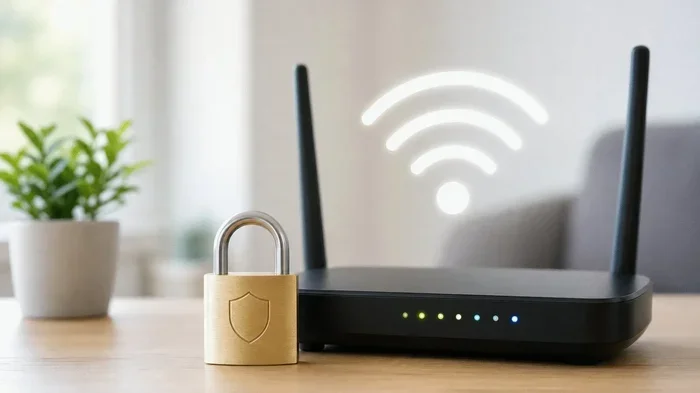
Encryption is what scrambles the data on your network so others cannot read it. Most modern Verizon routers support WPA3 encryption, which is the most secure option available. If your router does not support WPA3, WPA2 is the next best choice. Never use WEP — it is outdated and easily cracked. Here is how to check your encryption setting:
- Log into your router admin panel.
- Find the “Wireless Settings” or “Security” section.
- Look for the encryption type.
- Select WPA3 or WPA2.
- Save your changes.
Set Up a Guest Network
A guest network is a separate Wi-Fi network for visitors. It keeps your main network private while still letting guests get online. Here is why this matters:
- Guests do not need your main Wi-Fi password.
- They cannot access shared files or printers on your main network.
- If a guest device is compromised, it stays isolated from your personal devices.
You can set up a guest network through your router admin panel. Give it a different name and password from your main network. This is one of the best practices for network security that many people overlook.
Turn Off WPS (Wi-Fi Protected Setup)
WPS is a feature that lets you connect devices by pressing a button or entering a PIN. It sounds convenient, but it is actually a security weakness. Hackers can exploit WPS to gain access to your network. Go into your router settings and disable WPS. It takes a few extra seconds to connect a new device, but it is worth the extra protection.
Keep Your Router Firmware Updated
Router manufacturers release firmware updates to fix security vulnerabilities. If your router is running outdated firmware, it may have known weaknesses that attackers can exploit. Check for updates regularly in your router admin panel or through the Verizon app. Most modern routers also offer automatic updates — make sure this feature is turned on.
Can Someone Use My Verizon Wi-Fi Without a Password?
Yes, they can — if your network is not properly secured. If your Wi-Fi is open or uses weak encryption like WEP, anyone within range can connect. Even WPA2 networks can be vulnerable if the password is weak. This is why it is so important to use a strong password and the right encryption type. You can also learn more about how unsecured networks are accessed to understand the risks better.
Some people leave their networks open on purpose to share with neighbors. While this is a kind gesture, it opens the door to anyone in range — including people with bad intentions. If you want to share your connection, a guest network with a strong password is a much safer approach.
What to Do If You Cannot Remove an Unauthorized User
Sometimes you change your password and update your settings, but you still see unknown devices on your network. What then? Here are some steps to take:
- Restart your router: A full reboot can clear active connections and force devices to re-authenticate with the new password.
- Change your Wi-Fi password again: If the first password change did not work, the intruder may have found a way back in. Try a completely different, longer password.
- Disable remote management: This feature allows access to your router from outside your home. Turn it off unless you specifically need it.
- Contact Verizon support: If you have tried everything and still see unauthorized devices, Verizon can help. They may be able to identify the issue or suggest additional security measures.
- Consider a network scan tool: Apps like Fing or NetSpot can scan your network and identify all connected devices. They are free and easy to use.
How to Prevent Future Wi-Fi Intrusions
Security is not a one-time fix. It is an ongoing habit. Here are some habits to keep your Verizon Wi-Fi safe over the long term:
- Review your connected devices monthly: Make it a habit to check your device list every few weeks. This helps you catch intrusions early.
- Never share your password publicly: Avoid posting your Wi-Fi password on social media or in public places.
- Use a strong, unique router admin password: Do not use the default admin credentials that come with your router.
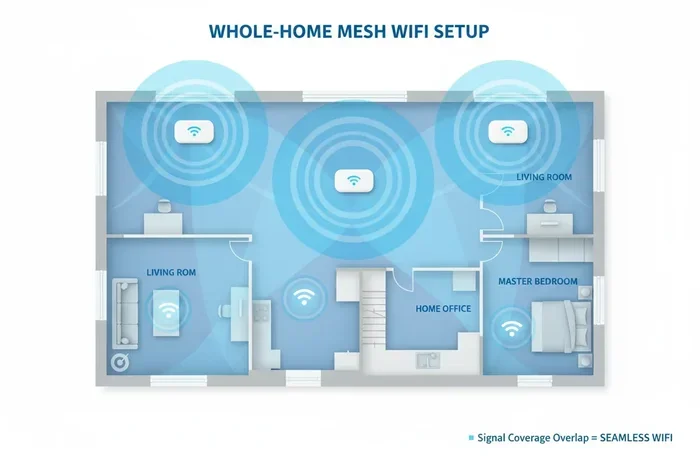
- Place your router in a central location: This limits the range of your signal and reduces the chance of outsiders connecting from outside your home.
- Consider a mesh network system: Mesh systems offer better security features and easier management than traditional routers.
- Monitor your data usage: Keep an eye on your Verizon bill for unexpected spikes in data usage.
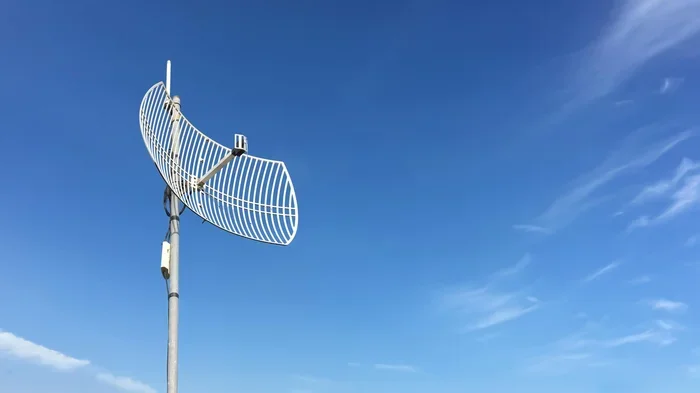
You can also add an external antenna to your router to better control signal direction and reduce the area your Wi-Fi reaches beyond your home. This is a great physical security measure that complements your digital protections.
Expert Insights on Wi-Fi Security
Cybersecurity experts agree that the most common Wi-Fi security failures come down to three things: weak passwords, outdated firmware, and disabled encryption. A study by the Federal Trade Commission found that many home users never change their router’s default settings. This makes their networks easy targets. The good news is that taking even basic steps — like changing your password and enabling WPA2 or WPA3 — dramatically reduces your risk.
Experts also recommend segmenting your home network. This means keeping smart home devices (like cameras and smart bulbs) on a separate network from your personal computers and phones. If one device is compromised, the others stay safe. It is an extra layer of protection that is easy to set up and well worth the effort.
Key Takeaways
- Check your router’s admin panel regularly: This is the most direct way to see all devices connected to your Verizon Wi-Fi.
- Watch for slow speeds and unusual activity: These are the most common signs of unauthorized usage.
- Use strong passwords and WPA3 encryption: These are your first line of defense against Wi-Fi intruders.
- Set up a guest network: Keep visitors separate from your main network for better security.
- Disable WPS and remote management: These features create vulnerabilities that attackers can exploit.
- Keep your firmware updated: Updates patch security holes that hackers can use to access your network.
- Monitor your data usage: Unexpected spikes can be an early warning sign of unauthorized use.
Frequently Asked Questions
Can I see a list of all devices connected to my Verizon Wi-Fi?
Yes. You can view all connected devices through your router’s admin panel or the Verizon Smart Home Manager app. Look for sections labeled “Connected Devices” or “Device List.” Each device will show its name, IP address, and connection status. If you see anything you do not recognize, it may be an unauthorized user.
What should I do if I find an unknown device on my network?
First, change your Wi-Fi password immediately. This will disconnect the unknown device and prevent anyone else from joining. Next, check your router settings and make sure WPA3 or WPA2 encryption is enabled. If the unknown device keeps appearing, restart your router and contact Verizon support for further assistance.
Can someone hack my Wi-Fi even with a password?
It is possible but much harder with a strong password and proper encryption. Weak passwords and outdated encryption (like WEP) are the most vulnerable. Using WPA3 or WPA2 with a strong, unique password makes it extremely difficult for anyone to hack into your network. Regular firmware updates also help close security gaps.
How do I know if my neighbor is using my Wi-Fi?
The most common sign is slower internet speeds, especially when your neighbor is likely home and online. You can confirm by checking your router’s device list for unfamiliar device names. Many routers show the device’s MAC address or brand name, which can help you identify if it belongs to a neighbor’s household.
Is it legal for someone to use my Wi-Fi without permission?
In most areas, using someone else’s Wi-Fi without permission is considered unauthorized access and may violate local laws or terms of service with your internet provider. It is important to secure your network not just for performance reasons but also to protect yourself from potential legal or security issues that could arise from someone else’s activity on your connection.
Should I hide my Wi-Fi network name (SSID) to keep it private?
Hiding your SSID adds a small layer of obscurity, but it is not a strong security measure on its own. Determined attackers can still find hidden networks. Instead, focus on using strong passwords, WPA3 encryption, and a guest network. These steps provide far better protection than simply hiding your network name.
Conclusion
Finding out that someone is using your Verizon Wi-Fi without permission is annoying, but it is also fixable. You now know the signs to look for, the methods to check your connected devices, and the steps to secure your network. From changing your password and enabling strong encryption to setting up a guest network and keeping your firmware updated, you have all the tools you need to protect your connection.
The most important thing to remember is that network security is not a set-it-and-forget-it task. It requires regular attention and good habits. Check your device list occasionally, use strong passwords, and stay alert to changes in your internet performance. With these practices in place, you can enjoy fast, private, and secure internet every day — and rest easy knowing that your Verizon Wi-Fi is truly yours.