How Can I See All IP Addresses Connected To My WiFi
Finding all IP addresses connected to your WiFi is easier than you think. You can check your router admin panel, use a free network scanner app, or view your device list in just a few minutes. This guide walks you through every method step by step, so you can spot unknown devices and keep your wireless network safe and secure.
If you have ever wondered who else might be using your wireless network, you are not alone. Many people want to know how can I see all IP addresses connected to my WiFi. The good news is that you do not need to be a tech expert to find out. Whether you suspect someone is piggybacking on your internet or you simply want to see all your connected gadgets, there are a few straightforward ways to check.
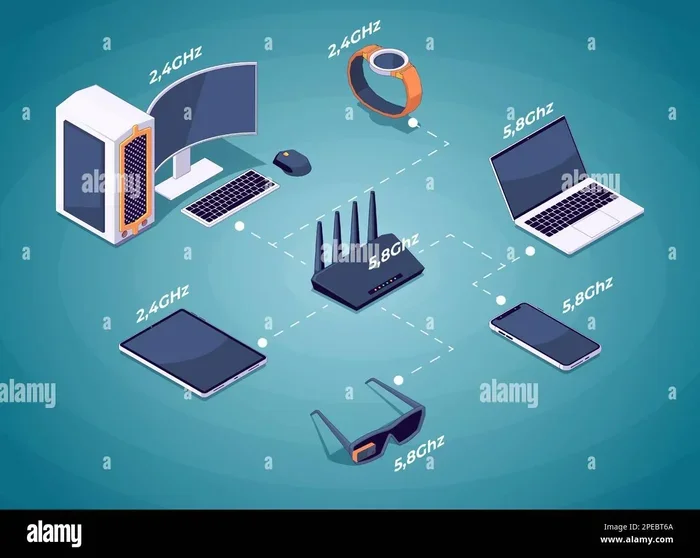
Your WiFi network connects more devices than you might think. Phones, tablets, laptops, smart TVs, and even smart home gadgets all use your internet connection. Each device gets a unique IP address that helps your router send data to the right place. Knowing what those addresses are gives you better control over your network. In this article, we will walk you through every method step by step. You will learn how to find your router settings, use free apps, and keep your network safe from strangers.
Key Takeaways
- Router Admin Panel: The fastest way to view all connected IP addresses on your WiFi network.
- Network Scanner Apps: Free tools like Fing and Advanced IP Scanner make checking devices easy.
- Check Regularly: Monitoring your connected devices helps catch unauthorized users early.
- Security Matters: A strong password and updated router settings protect your internet connection.
- Multiple Methods Exist: You can use your router, a mobile app, or your computer to find IP addresses.
📑 Table of Contents
- Why Checking Your Connected IP Addresses Matters
- How to Find Your Router Admin Panel
- Using Network Scanner Apps to Find All IP Addresses
- Checking IP Addresses Through Your Computer
- What to Do If You Spot an Unknown Device
- Preventing Unauthorized Access to Your WiFi
- Common Mistakes People Make When Checking IP Addresses
- Final Thoughts
Why Checking Your Connected IP Addresses Matters
Your WiFi network is like a digital doorway to your home. If someone walks through that door without permission, they can slow down your internet, access your files, or even spy on your online activity. Checking the IP addresses on your network helps you spot any unwanted guests. When you know what devices should be connected, it becomes much easier to notice something suspicious.
Beyond security, monitoring your connected devices helps with troubleshooting. If your internet is running slow, too many gadgets using bandwidth could be the cause. You might also run into an IP conflict, which happens when two devices try to use the same address. Seeing all your IP addresses lets you fix these issues quickly and keep your internet running smoothly.
What Is an IP Address?
An IP address is like a home address for your devices. Every gadget that connects to the internet needs one. There are two types you will see most often: IPv4 and IPv6. IPv4 addresses look like 192.168.1.1, while IPv6 addresses are longer and use letters and numbers. Your router assigns these addresses automatically through a process called DHCP. Understanding this basics makes the rest of the process much simpler.
How to Find Your Router Admin Panel
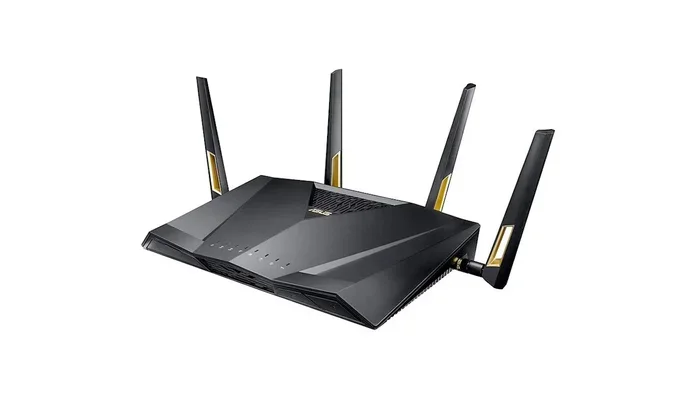
The router admin panel is the control center for your wireless network. From here, you can see every device that has connected to your internet. Think of it as the master list of all connected IP addresses on your WiFi.
Step-by-Step Guide to Accessing Your Router
First, you need to find your router IP address. This is also called your default gateway. On most computers, you can find it by opening your settings and looking at your network details. On Windows, type cmd into your search bar and type ipconfig. Look for the Default Gateway line. On a Mac, go to System Settings and click on your WiFi network. The router address usually looks like 192.168.1.1 or 192.168.0.1.
Once you have the address, open your web browser and type it into the URL bar. Press Enter. You will see a login page. Most routers use admin as the username and password as the password. If you have never changed these, the default login info is often printed on a sticker on the back of your router. If you have changed them and forgot, you may need to reset your router to factory settings.
After logging in, look for a section called Connected Devices, Device List, or DHCP Client List. Different router brands use different names, but they all serve the same purpose. You will see a list of every device connected to your network, along with its IP address and MAC address. Write down the ones you recognize and flag anything that looks unfamiliar.
If you are having trouble finding the right section, check your router manual or visit the manufacturer website. Popular brands like Netgear, TP-Link, and ASUS all have helpful online guides. You can also look into Can I Change My Wi Fi Router if you are considering upgrading to a newer model with better device management features.
Using Network Scanner Apps to Find All IP Addresses
Not everyone feels comfortable digging through router settings. The good news is that you can use a network scanner app on your phone or computer to see all connected IP addresses in seconds. These tools are free, easy to use, and very effective for network monitoring.
Top Free Network Scanner Apps
Fing is one of the most popular network scanner apps available. It works on both Android and iPhone. Simply download the app, open it, and it will scan your wireless network automatically. Within seconds, you will see a list of all connected devices, their IP addresses, and even the manufacturer name. Fing also runs a security check and tells you if your network has any vulnerabilities.
Advanced IP Scanner is a great option for Windows users. It is a free desktop application that scans your entire network and shows you every device with its IP address. You can even remotely access shared folders on other devices if you need to. The interface is clean and simple, making it perfect for beginners.
Angry IP Scanner is another solid choice that works on Windows, Mac, and Linux. It is lightweight and fast. You just enter an IP range, and it scans every address in that range. Any device that responds shows up in the results with its IP address and hostname.
These apps make it incredibly easy to answer the question of how can I see all IP addresses connected to my WiFi. You do not need to log into your router or mess with any complicated settings. Just open the app and let it do the work for you.
Quick Tips for Using Network Scanners
- Run the scan when you know all your devices are turned on for the most accurate results.
- Compare the device list with the physical gadgets in your home.
- Save the scan results so you can track changes over time.
- Update your scanner app regularly to get the latest features and security patches.
Checking IP Addresses Through Your Computer
You can also find connected IP addresses directly from your computer without downloading any extra software. This method works well if you prefer to keep things simple and built-in.
On Windows
Open your Command Prompt by typing cmd into the search bar. Type arp -a and press Enter. This command shows your ARP table, which lists all the IP addresses that your computer has communicated with on the local network. Each entry includes an IP address and a corresponding MAC address. This is a quick way to see what devices are active on your WiFi network right now.
Another option on Windows is to open PowerShell and type Get-NetNeighbor. This gives you similar results and can be easier to read. Both methods are completely free and do not require any third-party tools.
On Mac
On a Mac, open Terminal and type arp -a. This shows the same ARP table as on Windows. You can also go to System Settings, click on WiFi, and then click on your network name. From there, you can see a list of connected devices and their IP addresses. Mac users can also download free apps like LanScan for a more visual experience.
On iPhone and Android
Most phones do not have a built-in way to see all IP addresses on the network. However, you can use the network scanner apps mentioned above. Fing works great on both iPhone and Android. It gives you a clean, easy-to-read list of every device and its IP address with just one tap.
If you want to improve your overall WiFi experience, you might also check out Can I Boost My Wi Fi Signal Outside for tips on extending your wireless coverage to every corner of your home.
What to Do If You Spot an Unknown Device
Finding a device on your network that you do not recognize can be unsettling. Before you panic, take a moment to investigate. Not every unknown device means someone is stealing your WiFi. Sometimes a smart home gadget or a visitor phone connects automatically and shows up as unfamiliar.
How to Identify Unknown Devices
Look at the MAC address of the unknown device. Every gadget has a unique MAC address that tells you the manufacturer. You can search the MAC address online to find out what type of device it is. For example, if the MAC address starts with Samsung, you might be looking at a smart TV or a phone. If you still cannot identify it, try turning off your devices one by one and rescanning. When a device disappears from the list, you know which one it was.
Steps to Remove Unwanted Devices
If you confirm that an unknown device does not belong on your network, take action right away. The first step is to change your WiFi password. Use a strong password with a mix of letters, numbers, and symbols. Go to your router admin panel and update the wireless security settings. All previously connected devices will be kicked off, and only devices with the new password can reconnect.
You should also enable WPA3 encryption if your router supports it. WPA3 is the latest and most secure WiFi encryption standard. If your router only supports WPA2, that is still fine, but WPA3 adds an extra layer of protection. Next, check if your router firmware is up to date. Manufacturers regularly release updates that fix security flaws. Look for a Firmware Update option in your router settings and install any available updates.
Consider setting up a guest network for visitors. This keeps your main network private while still letting guests get online. A guest network uses a separate password and isolates visitors from your main devices. This is a simple but effective way to improve your network security.
When to Call a Professional
If you continue to see unknown devices even after changing your password and updating your router, it might be time to seek help. A persistent intruder could be using advanced techniques to bypass your security. Contact your internet service provider or a network security specialist for assistance. They can run deeper diagnostics and help you lock down your connection.
Preventing Unauthorized Access to Your WiFi
Prevention is always better than cure when it comes to network security. Taking a few simple steps now can save you a lot of trouble later. Here are some of the best ways to keep your WiFi network safe and your IP addresses private.
Change Your Default Router Login
Most routers come with a default admin username and password. Hackers know these defaults by heart. The first thing you should do after setting up a new router is change the admin login credentials. Pick a strong, unique password that you do not use anywhere else. Store it somewhere safe, like a password manager.
Disable WPS
WPS, or Wi-Fi Protected Setup, is a feature that lets you connect devices by pressing a button or entering a PIN. While convenient, WPS has known security vulnerabilities. Hackers can exploit it to gain access to your network. Go to your router settings and turn off WPS. You can still connect new devices by entering the WiFi password manually.
Turn Off Remote Management
Remote management lets you access your router settings from outside your home. Unless you specifically need this feature, turn it off. This reduces the number of ways someone can reach your router and your connected devices. You can find this option in your router admin panel under Remote Access or Remote Management.
Regularly Monitor Your Network
Make it a habit to check your connected devices once a month. You can use a network scanner app or log into your router admin panel. Regular monitoring helps you catch unauthorized access early before it becomes a bigger problem. Think of it as checking the locks on your doors every few weeks.
Keeping your WiFi secure also means keeping your internet connection fast and reliable. If you ever wonder whether your current setup is working as well as it could, you might explore Can I Find My Wi Fi Password In Settings to make sure your credentials are stored safely and accessible when you need them.
Common Mistakes People Make When Checking IP Addresses
Even with the best intentions, people often make mistakes when trying to see all IP addresses on their WiFi network. Avoiding these common errors can save you time and frustration.
- Not checking all connected devices: Some devices connect temporarily and disconnect quickly. Run multiple scans at different times of the day for a complete picture.
- Ignoring IPv6 addresses: Many people only look at IPv4 addresses and miss IPv6 connections. Check both to get the full view of your network.
- Forgetting to restart the router: Sometimes old connections linger in your router memory. A quick restart clears these and gives you a fresh device list.
- Using outdated scanner tools: Make sure your network scanner app or router firmware is up to date. Outdated tools may not detect newer devices or protocols.
- Skipping the MAC address check: The MAC address is your best clue for identifying unknown devices. Always cross-reference it with the manufacturer name.
Final Thoughts
Knowing how can I see all IP addresses connected to my WiFi is one of the most useful skills you can learn for managing your home network. Whether you use your router admin panel, a free network scanner app, or built-in computer commands, the process is simpler than most people think. The key is to check regularly and take action whenever you spot something suspicious.
Your WiFi network is the backbone of your connected home. Every smart device, from your phone to your thermostat, relies on it. By keeping an eye on the IP addresses connected to your network, you protect your personal data, your internet speed, and your peace of mind. Take a few minutes today to run a scan and see what is on your network. You might be surprised by what you find, and even more surprised by how easy it is to fix any issues you discover.
Stay proactive about your network security. Update your passwords, keep your firmware current, and make it a routine to check your connected devices. A little effort goes a long way in keeping your wireless network safe, fast, and fully under your control.
Frequently Asked Questions
Can I see all IP addresses on my WiFi without logging into my router?
Yes, you can. Network scanner apps like Fing, Advanced IP Scanner, and Angry IP Scanner let you see all connected IP addresses without touching your router settings. Simply download the app, connect to your WiFi, and run a scan. The app will display every device and its IP address in seconds.
What should I do if I find an unknown device on my WiFi network?
First, try to identify the device by checking its MAC address online. If you still cannot recognize it, change your WiFi password immediately. This will kick off any unauthorized devices. You should also update your router firmware and enable the latest security encryption available.
How often should I check the IP addresses connected to my WiFi?
It is a good habit to check your connected devices at least once a month. However, if you notice your internet slowing down or see any suspicious activity, run a scan right away. Regular monitoring helps you catch problems early and keep your network secure.
Can someone hack my WiFi just by knowing my IP address?
Knowing your IP address alone is not enough for a hacker to break into your network. However, an open or weakly protected WiFi network can be exploited. Always use WPA3 or WPA2 encryption, set a strong password, and keep your router firmware updated to stay protected.
Do I need any special software to see all IP addresses on my network?
No special software is required. You can use free apps like Fing on your phone or built-in tools like the arp -a command on your computer. These tools are easy to use and give you a complete list of connected IP addresses in just a few minutes.
What is the difference between an IP address and a MAC address?
An IP address is a network address assigned to your device by your router. It changes depending on your network. A MAC address is a permanent hardware identifier built into your device by the manufacturer. It stays the same no matter what network you connect to. Both are useful for identifying devices on your WiFi network.