How Can I Connect My PC To The Internet Without Ethernet
You can connect your PC to the internet without Ethernet using several simple methods like a USB Wi-Fi adapter, mobile hotspot, or portable Wi-Fi device. This guide walks you through each option step by step so you can get online fast. Whether you live in a rental, travel often, or just lost your cable, there is a wireless solution that fits your needs.
Staying connected matters more than ever. Whether you work from home, stream movies, or just browse the web, a reliable internet connection is essential. But what happens when your PC does not have a built-in wireless connection and you do not want to use an Ethernet cable?
The good news is that how can I connect my PC to the internet without Ethernet has several practical answers. You do not need to be a tech expert to get started. With the right tools and a little guidance, you can be browsing the web wirelessly in no time. This guide covers every method you can try today.
From USB Wi-Fi adapters to mobile hotspots, the options are simpler than most people think. Each method has its own benefits depending on your situation. Let us dive into the best ways to get your PC online without a single cable.
Key Takeaways
- USB Wi-Fi adapters are the easiest and most affordable way to add wireless internet to any desktop PC.
- Mobile hotspots let you use your smartphone’s data plan to get your PC online without any cables.
- Portable Wi-Fi devices offer a dedicated wireless connection that works anywhere with cellular coverage.
- Buying your own router gives you more control and can save money compared to renting from your ISP.
- Getting Wi-Fi without an internet provider is possible through public networks, tethering, or community options.
- Connecting straight to a modem can sometimes provide wireless access if your modem has built-in Wi-Fi.
- Checking your PC’s wireless capabilities first saves time and money before buying any extra equipment.
📑 Table of Contents
- Why You Might Need Internet Without Ethernet
- Method 1: Use a USB Wi-Fi Adapter
- Method 2: Create a Mobile Hotspot
- Method 3: Connect to Available Wi-Fi Networks
- Method 4: Use a Portable Wi-Fi Device
- Method 5: Set Up a Wireless Router Without Ethernet
- Troubleshooting Common Wireless Connection Issues
- Which Method Is Right for You
- Final Thoughts
Why You Might Need Internet Without Ethernet
There are many reasons you might want to skip the Ethernet cable. Maybe your desktop PC is far from the router. Perhaps you live in a rental where running cables is not allowed. Or you could be traveling and need a quick connection on the go.
Whatever the reason, wireless internet for PC gives you freedom and flexibility. You can place your computer anywhere in the room without worrying about cable length. You also avoid the hassle of drilling holes or running wires along baseboards.
Common Situations Where Wireless Is a Must
- Rental homes or apartments where drilling holes for Ethernet is not permitted.
- Large rooms or multiple floors where running a long cable is impractical.
- Traveling or temporary setups like hotels, cabins, or coworking spaces.
- Damaged Ethernet ports on your PC that need repair.
- Older desktop computers that were built before wireless became standard.
Understanding your situation helps you pick the best wireless method. Some solutions work great at home, while others are perfect for on-the-go use. Let us explore each option in detail.
Method 1: Use a USB Wi-Fi Adapter
A USB Wi-Fi adapter is the most popular and affordable way to add wireless internet to any PC. It plugs right into a USB port and gives your computer the ability to connect to Wi-Fi networks. If you have ever asked yourself how can I connect my PC to the internet without Ethernet, this is usually the first answer you will find.
These small devices are plug-and-play in most cases. You do not need to open your computer or install complicated hardware. Just plug it in, install the driver software, and you are ready to search for networks.
How to Choose the Right USB Wi-Fi Adapter
Not all adapters are the same. Here are some things to look for when buying one:
- Wi-Fi standard: Look for Wi-Fi 5 or Wi-Fi 6 for the fastest speeds.
- USB 3.0 compatibility: This ensures you get the best speeds available.
- Range: If your router is far away, pick an adapter with a strong external antenna.
- Size: Some adapters are tiny and portable, which is great for travel.
Many users wonder if they can get a Wi-Fi card for their computer instead. While internal Wi-Fi cards work well, USB adapters are much easier to install and use. They are the go-to choice for most people who want a quick wireless fix.
Step-by-Step Setup
- Plug the USB Wi-Fi adapter into an available port on your PC.
- Wait for Windows to recognize the device and install basic drivers.
- Visit the manufacturer’s website if you need to download the latest driver.
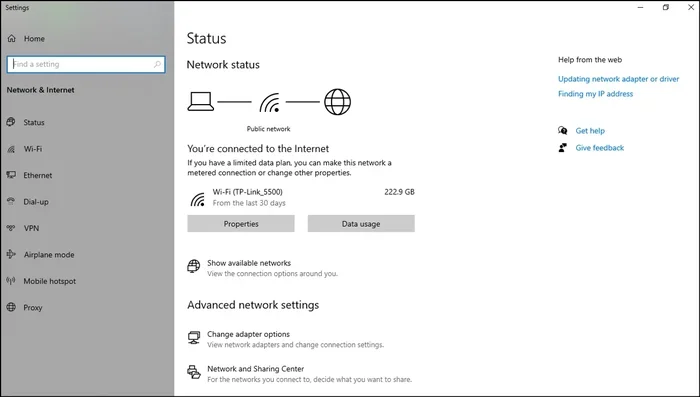
- Click the Wi-Fi icon in your taskbar and select your network.
- Enter your password and click Connect.
That is it. You are now wirelessly connected. If your signal is weak, try moving the adapter closer to a USB port on the front of your computer case for better reception.
Method 2: Create a Mobile Hotspot
A mobile hotspot turns your smartphone into a wireless router. Your PC connects to your phone’s internet through Wi-Fi, Bluetooth, or a USB cable. This method is perfect when you need internet right away and do not have a Wi-Fi network available.
Both Android and iPhone devices support hotspot features. The setup is straightforward and does not require any extra equipment. You just need a data plan that allows tethering.
How to Set Up a Hotspot on Your Phone
Here is how to get your mobile hotspot running:
- On Android: Go to Settings, then Network and Internet, then Hotspot and Tethering. Turn on the Wi-Fi hotspot and set a password.
- On iPhone: Go to Settings, then Personal Hotspot. Toggle it on and set a password.
- On your PC: Open Wi-Fi settings, find your phone’s hotspot name, and connect using the password you created.
Mobile hotspots work great for everyday browsing, video calls, and streaming. However, they use your phone’s data plan, so keep an eye on your usage. If you have unlimited data, you can use this method without worries.
Pros and Cons of Using a Mobile Hotspot
| Pros | Cons | Best For |
|---|---|---|
| No extra equipment needed | Uses your phone’s data plan | Temporary internet needs |
| Works anywhere with cell service | Can drain your phone battery | Travel and emergencies |
| Easy to set up in minutes | Speeds depend on cell coverage | Quick connections on the go |
| No monthly extra cost if data is unlimited | Not ideal for heavy downloads | Light browsing and work tasks |
Many people also ask if they can get portable Wi-Fi instead of using their phone as a hotspot. Portable Wi-Fi devices are a dedicated option that we will cover next.
Method 3: Connect to Available Wi-Fi Networks
Sometimes the simplest answer is right in front of you. Many homes, offices, coffee shops, and public spaces offer free Wi-Fi. If your PC has a wireless adapter built in, you can connect to these networks easily.
Before you connect to any public network, make sure you protect your privacy. Use a VPN if possible and avoid entering sensitive information on open networks. Public Wi-Fi is convenient but can be less secure than your home network.
Finding Wi-Fi Networks Near You
Here are some places where you can often find free Wi-Fi:
- Public libraries and community centers
- Coffee shops and fast-food restaurants
- Shopping malls and airports
- Hotels and motels (often free for guests)
- Municipal parks and government buildings
If you want to access Wi-Fi at home without paying for a traditional internet plan, you might explore options like getting Wi-Fi without an internet provider. There are community networks and other creative solutions that can help you stay connected without a monthly bill.
Tips for Safe Public Wi-Fi Use
- Always use a VPN to encrypt your connection.
- Avoid logging into bank accounts or entering passwords on open networks.
- Turn off file sharing on your PC before connecting.
- Forget the network after you are done to prevent auto-connecting.
- Keep your firewall enabled and antivirus software up to date.
Following these tips keeps your data safe while you enjoy the convenience of free wireless internet. Public networks are a great temporary solution when you need to get online quickly.
Method 4: Use a Portable Wi-Fi Device
A portable Wi-Fi device, also called a mobile hotspot device or Mi-Fi, is a small gadget that creates your own wireless network using cellular data. It works just like a mobile hotspot but does not drain your phone battery or use your phone’s data plan directly.
These devices are small enough to fit in your pocket. You insert a SIM card, turn it on, and your PC can connect to it just like any Wi-Fi network. They are perfect for people who travel frequently or need reliable internet in areas with poor Wi-Fi coverage.
Who Should Use a Portable Wi-Fi Device
- Frequent travelers who need internet in hotels, airports, and trains.
- Rural users where home broadband is slow or unavailable.
- Remote workers who need a stable connection for video calls.
- Families on the go who need multiple devices connected at once.
Portable Wi-Fi devices require a data plan from a mobile carrier. Plans vary in price and data limits. You can often find affordable monthly options that give you enough data for browsing, streaming, and working from home.
If you are considering this route, you might also look into buying your own router for a home setup. Routers give you more control over your home network and can work with portable devices to extend your coverage.
Method 5: Set Up a Wireless Router Without Ethernet
You might be surprised to learn that you can set up a wireless router without an Ethernet connection from your ISP. Some modern modems come with built-in Wi-Fi capabilities. If your modem has Wi-Fi built in, you can connect to it directly and start browsing wirelessly.
You can also connect straight to a modem if it supports wireless connections. Many people do not realize their modem already has Wi-Fi built in. Check the back panel or the manual to see if your modem has a Wi-Fi indicator light or antenna.
Steps to Set Up a Router Without Ethernet
- Check if your modem has built-in Wi-Fi capability.
- If it does, connect your PC to the modem’s Wi-Fi network directly.
- If it does not, you can still set up a wireless router using a different connection method.
- Some routers support setup through a mobile app without needing a wired connection first.
- Once the router is configured, connect your PC to the new wireless network.
This method works best when you have a modem that supports wireless output. If your modem only has an Ethernet port, you will need one of the other methods we covered above. But many modern modems are now offering built-in wireless, which makes the setup much simpler.
Having your own wireless router at home gives you the freedom to place it anywhere. You get better coverage and stronger signals compared to relying on a modem alone. Plus, you can manage your network settings and passwords without calling your internet provider.
Troubleshooting Common Wireless Connection Issues
Even with the best setup, you might run into connection problems. Slow speeds, dropped signals, and connection failures are common but usually easy to fix. Let us look at some quick solutions.
Your PC Cannot Find Any Wi-Fi Networks
This usually means your wireless adapter is not working properly. Try these steps:
- Make sure your USB Wi-Fi adapter is plugged in firmly.
- Restart your PC and check if the adapter is recognized.
- Update your wireless adapter drivers through Device Manager.
- Make sure Wi-Fi is turned on in your PC settings.
Slow Internet Speeds on Wireless
Wireless connections are usually slower than Ethernet. But if your speeds are very slow, try these fixes:
- Move closer to your router or hotspot.
- Switch to the 5 GHz band if your router supports it.
- Reduce the number of devices connected to the same network.
- Update your router firmware and wireless adapter drivers.
Connection Keeps Dropping
A connection that drops frequently can be frustrating. Here is what to check:
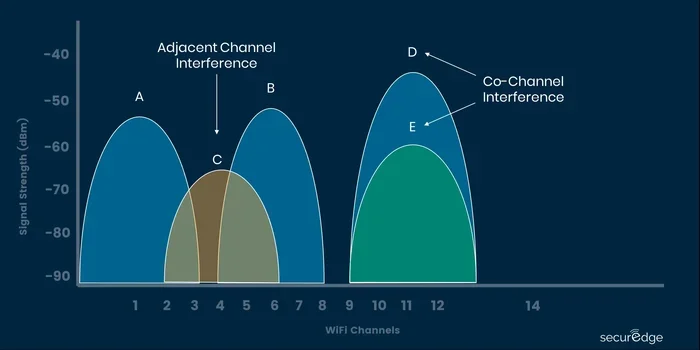
- Interference from other electronics like microwaves or baby monitors.
- Outdated wireless adapter drivers on your PC.
- Your router may need a restart or firmware update.
- Your distance from the router may be too far for a stable signal.
If you live in a larger home, you might consider boosting your Wi-Fi signal to improve coverage throughout your space. Signal boosters and range extenders can make a big difference in connection stability.
Most wireless issues have simple fixes. Start with the basics like restarting your devices and updating drivers before moving on to more advanced troubleshooting steps.
Which Method Is Right for You
Choosing the right method depends on your needs and situation. Here is a quick guide to help you decide:
| Method | Cost | Best For | Speed | Ease of Setup |
|---|---|---|---|---|
| USB Wi-Fi Adapter | $10-$50 | Home desktop PCs | Fast | Very Easy |
| Mobile Hotspot | Free (uses data) | Temporary or travel use | Medium | Very Easy |
| Public Wi-Fi | Free | Quick browsing on the go | Varies | Very Easy |
| Portable Wi-Fi Device | $50-$200 + plan | Frequent travelers | Fast | Easy |
| Wireless Router Setup | $30-$100 | Home long-term use | Fast | Moderate |
Each method has its place. For most home users, a USB Wi-Fi adapter is the best starting point. It is cheap, easy to set up, and gives you reliable wireless speeds. For travelers, a mobile hotspot or portable Wi-Fi device works best.
No matter which method you choose, connecting your PC to the internet without Ethernet is easier than you think. You do not need expensive equipment or technical skills. Just pick the method that fits your situation and follow the steps above.
Final Thoughts
Getting your PC online without an Ethernet cable is more accessible than ever. You have multiple paths to choose from, and each one works well for different situations. Whether you grab a cheap USB adapter or set up a mobile hotspot, the wireless world is open to you.
Start with the method that matches your budget and needs. Test it out, and adjust if needed. Most people find that one solution works perfectly for their lifestyle. The key is to just get started and enjoy the freedom of wireless internet.
Now that you know your options, you can make a smart choice and get connected today. No cables required. No complicated setup. Just simple, reliable wireless internet for your PC.
Frequently Asked Questions
Can I connect my PC to Wi-Fi without a Wi-Fi adapter?
No, your PC needs some form of wireless capability to connect to Wi-Fi. If your computer does not have a built-in wireless adapter, you can add one using a USB Wi-Fi dongle. These adapters are inexpensive and plug right into a USB port for instant wireless access.
Is it safe to use a mobile hotspot for my PC?
Yes, it is generally safe as long as you take basic precautions. Set a strong password for your hotspot, avoid accessing sensitive accounts on public networks, and keep your phone’s software updated. Using a VPN adds an extra layer of security when connecting through a hotspot.
How fast is a USB Wi-Fi adapter compared to Ethernet?
Modern USB Wi-Fi adapters, especially those supporting Wi-Fi 5 or Wi-Fi 6, can reach speeds close to Ethernet. For most everyday tasks like browsing, streaming, and video calls, the difference is barely noticeable. Heavy downloads and competitive gaming may still benefit from a wired connection.
Can I get Wi-Fi without paying for an internet provider?
Yes, there are ways to access Wi-Fi without a traditional internet provider. You can use public Wi-Fi networks, mobile hotspots, or community internet programs. Some areas also have municipal wireless networks that offer free or low-cost internet access to residents.
What is the cheapest way to connect my PC to the internet wirelessly?
A USB Wi-Fi adapter is the cheapest option, often costing between $10 and $30. You already have access to a Wi-Fi network, so there are no additional monthly costs. This makes it the most budget-friendly way to go wireless with your desktop PC.
Can I use my phone’s hotspot data plan for my PC every day?
You can, but it depends on your data plan. If you have unlimited data, daily hotspot use is fine. If your plan has a limited data cap, heavy daily use can quickly eat through your allowance. Monitor your usage and consider a dedicated portable Wi-Fi device if you rely on hotspot access frequently.