Does My iPhone Have 5GHz Wi Fi Here Is How You Check
Not all iPhones support 5GHz Wi-Fi, and knowing which band your device uses can make a huge difference in your wireless experience. This guide walks you through exactly how to check whether your iPhone has 5GHz Wi-Fi capability, which models support it, and how to switch between frequency bands. You will also learn tips to boost your wireless connectivity and get the best Wi-Fi speed from your network.
Have you ever wondered whether your iPhone can tap into the faster 5GHz wireless frequency? It is a question that comes up more often than you might think, especially as home networks become more complex. The short answer is that most modern iPhones do support 5GHz Wi-Fi, but the exact capability depends on your specific iPhone model and the wireless router you are using.
In this guide, we will walk you through every step to find out if your device can connect to the 5GHz band. You will learn how to check your network settings, understand the difference between 2.4GHz and 5GHz, and get practical tips to improve your wireless connectivity. Whether you are at home or setting up a new wireless router, this article has you covered.
The world of wireless technology can feel confusing at times. There are different frequency bands, Wi-Fi standards, and router types to keep track of. But do not worry. We will break it all down into simple, easy-to-follow steps. By the end of this article, you will know exactly what your iPhone can do and how to get the most out of your home network.
Key Takeaways
- iPhone 5 and later models support 5GHz Wi-Fi: Most modern iPhones can connect to the 5GHz frequency band.
- You can check your Wi-Fi band in Settings: The process is quick and does not require any extra apps.
- Dual-band routers offer both 2.4GHz and 5GHz: Understanding the difference helps you choose the right band for your needs.
- 5GHz offers faster speeds but shorter range: It is ideal for streaming, gaming, and large file downloads.
- Router compatibility matters: Make sure your wireless router supports 5GHz for the best results.
- Switching bands can solve connectivity issues: If your Wi-Fi is slow, trying the other frequency band may help.
📑 Table of Contents
- What Is 5GHz Wi-Fi and Why Does It Matter?
- Which iPhone Models Support 5GHz Wi-Fi
- How to Check if Your iPhone Is Connected to 5GHz
- How to Switch Between 2.4GHz and 5GHz on Your iPhone
- Benefits of Using 5GHz Wi-Fi on Your iPhone
- Common Problems and How to Fix Them
- Expert Tips to Get the Most Out of 5GHz Wi-Fi
- Final Thoughts
What Is 5GHz Wi-Fi and Why Does It Matter?
Wi-Fi operates on different frequency bands. The two most common ones are 2.4GHz and 5GHz. Each band has its own strengths and weaknesses. Understanding them helps you make smarter choices about your wireless connectivity.
The 2.4GHz Band
The 2.4GHz band has been around for a long time. It offers a wider range and can penetrate walls and obstacles more easily. However, it tends to be slower and more crowded. Many household devices use this frequency, including microwaves, baby monitors, and Bluetooth devices. All of this can cause interference and slow down your Wi-Fi speed.
The 5GHz Band
The 5GHz band is newer and faster. It provides higher bandwidth and less interference. This makes it perfect for activities like streaming 4K video, online gaming, and video calls. The trade-off is that 5GHz signals do not travel as far as 2.4GHz signals. They also have a harder time getting through thick walls. So if you are far from your wireless router, the 5GHz connection might be weaker.
Dual-Band Routers
Most modern routers are dual-band. This means they broadcast both 2.4GHz and 5GHz networks. Your phone can connect to either one depending on your needs and signal strength. If you want the fastest possible speeds and you are close to the router, 5GHz is the way to go. If you need coverage across a larger area, 2.4GHz might serve you better.
Which iPhone Models Support 5GHz Wi-Fi
Apple has included 5GHz support in most iPhones for many years now. Here is a breakdown of which models can connect to the 5GHz frequency band.
iPhone Models With 5GHz Support
- iPhone 5 and newer: All iPhones starting from the iPhone 5 support 5GHz Wi-Fi. This includes the iPhone 5S, iPhone 6, iPhone 6 Plus, iPhone 7, iPhone 8, iPhone X, iPhone XR, iPhone XS, iPhone 11, iPhone 12, iPhone 13, iPhone 14, and iPhone 15 series.
- iPhone SE (1st generation and later): The first-generation iPhone SE and all newer versions also support 5GHz.
Older Models Without 5GHz
Only the iPhone 3GS and iPhone 4 do not support 5GHz. These devices are very old and no longer receive software updates from Apple. If you are still using one of these, you are limited to the 2.4GHz band.
Why Your iPhone Model Matters
Knowing your iPhone model is important because it determines which Wi-Fi standards your device can use. Newer iPhones support Wi-Fi 6 (802.11ax) and Wi-Fi 6E, which offer even faster speeds on the 5GHz band. If you have a recent iPhone, you are in great shape for taking advantage of the latest wireless technology.
How to Check if Your iPhone Is Connected to 5GHz
Now that you know which models support 5GHz, let us look at how to actually check what band your iPhone is currently using. The process is simple and takes just a few seconds.
Method 1: Check Your Wi-Fi Network Name
Many wireless routers broadcast separate network names for each band. For example, your router might show “HomeNetwork” for 2.4GHz and “HomeNetwork_5G” for the 5GHz band. If you see a “_5G” or “5GHz” in the network name, you are connected to the faster band.
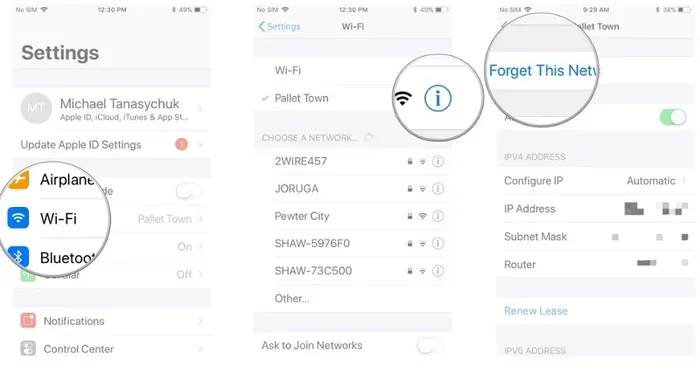
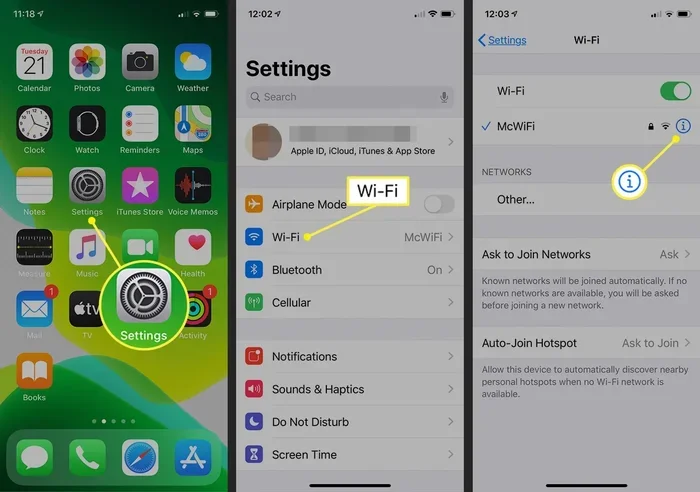
Method 2: Use Your iPhone Settings
You can also check your connection details directly on your device. Here is how:
- Open the Settings app on your iPhone.
- Tap on Wi-Fi.
- Find the network you are connected to and tap the small “i” icon next to it.
- Look at the network details. While the exact band is not always displayed here, you can see your IP address and other connection info.
Method 3: Use a Third-Party App
If you want more detailed information, you can download a Wi-Fi analyzer app from the App Store. Apps like “Wi-Fi Analyzer” or “Network Analyzer” show you exactly which frequency band you are connected to. They also display signal strength, channel usage, and nearby networks. This is especially helpful if you are trying to optimize your Wi-Fi signal and Wi-Fi coverage.
Quick Tips for Checking Your Band
- Restart your iPhone if the network details seem unclear.
- Move closer to your router to see if your speeds improve, which indicates a 5GHz connection.
- Check your router settings to see if both bands are enabled and what their network names are.
How to Switch Between 2.4GHz and 5GHz on Your iPhone
Sometimes your iPhone might automatically connect to the 2.4GHz band even when the 5GHz band is available. This can happen if you are far from the router or if the 5GHz signal is weak. Here is how you can manually switch between bands.
Forget the Network and Reconnect
The easiest way to force a switch is to forget the network and reconnect. Go to Settings > Wi-Fi, tap the “i” icon next to your network, and select “Forget This Network.” Then reconnect by selecting the network again. Your iPhone will choose the best available band based on signal strength.
Disable Auto-Join for One Band
Some routers allow you to disable one band temporarily. If you want your iPhone to connect only to 5GHz, you can turn off the 2.4GHz band in your router settings. Just keep in mind that this will reduce your overall wireless coverage. Devices farther from the router may lose connection.
Why Switching Bands Can Help
If you are experiencing slow speeds or frequent disconnections, switching to a different band can often solve the problem. The 5GHz band is less congested and offers faster Wi-Fi speed. The 2.4GHz band is better for longer distances and through walls. Try both and see which works best for your situation.
Also, if you are having trouble connecting to any Wi-Fi network at all, you might want to check if you can find your Wi-Fi password in your settings first. Sometimes connection issues are simply caused by an incorrect password.
Benefits of Using 5GHz Wi-Fi on Your iPhone
Now that you know how to check and switch bands, let us talk about why you should care about 5GHz in the first place. There are some real, noticeable benefits that make a difference in your daily use.
Faster Speeds
This is the biggest advantage. 5GHz Wi-Fi can deliver significantly faster data rates than 2.4GHz. If you are downloading apps, streaming movies, or video calling, you will notice the difference. The higher bandwidth of 5GHz means less buffering and smoother performance.
Less Interference
Because fewer devices use the 5GHz band, you experience less interference from neighboring networks and household electronics. This leads to a more stable and reliable connection. If you live in an apartment building or a crowded neighborhood, this is especially important.
Better for High-Bandwidth Activities
Activities like 4K video streaming, online gaming, and large file transfers benefit greatly from 5GHz. These activities need a fast and consistent connection. The 2.4GHz band simply cannot keep up with the demand.
Improved Network Performance
When your iPhone uses 5GHz, it takes some of the load off the 2.4GHz band. This can improve performance for all devices on your network. Think of it as opening a new lane on a busy highway. Everyone gets a smoother ride.
If you want to extend your Wi-Fi coverage to areas of your home with weak signals, you might want to look into whether you can boost your Wi-Fi signal outside your home. A stronger signal means better connectivity across all frequency bands.
Common Problems and How to Fix Them
Even with a 5GHz-capable iPhone, you might run into issues from time to time. Here are some common problems and their solutions.
iPhone Won’t Connect to 5GHz Network
If your iPhone refuses to connect to the 5GHz band, try these steps:
- Make sure your router is broadcasting a 5GHz network.
- Restart both your iPhone and your router.
- Update your iPhone to the latest version of iOS.
- Check that your router firmware is up to date.
- Try forgetting the network and reconnecting.
Slow Speeds on 5GHz
If you are connected to 5GHz but still experiencing slow speeds, the problem might be with your router or internet plan. Try moving closer to the router to rule out signal strength issues. You can also check if other devices on the same network are using a lot of bandwidth. If the problem persists, you might want to consider changing your Wi-Fi router to a newer model that supports the latest standards.
iPhone Connects to 2.4GHz Instead of 5GHz
This is a common issue, especially with dual-band routers. Your iPhone might choose 2.4GHz because it has a stronger signal at your current location. To force a 5GHz connection, you can either move closer to the router or temporarily disable the 2.4GHz band on your router.
Intermittent Disconnections
If your iPhone keeps dropping the 5GHz connection, interference might be the culprit. Try changing the Wi-Fi channel on your router. You can also check if any new electronic devices in your home are causing interference. A Wi-Fi analyzer app can help you identify the least congested channel.
For more help managing your home network, you might also want to check out whether you can connect a Wi-Fi 6 mesh system to your existing Wi-Fi 5 router. This can significantly improve coverage and speed throughout your home.
Expert Tips to Get the Most Out of 5GHz Wi-Fi
Getting the best performance from your 5GHz connection is not just about your iPhone. Your router placement, settings, and even your internet plan all play a role. Here are some expert-backed tips to help you maximize your wireless connectivity.
Place Your Router in a Central Location
The position of your router affects signal strength. Place it in a central, open area of your home. Avoid putting it in a closet, behind a TV, or near thick walls. The closer you are to the router, the stronger your 5GHz signal will be.
Keep Your Router Firmware Updated
Router manufacturers regularly release firmware updates that improve performance and fix bugs. Check your router’s admin panel periodically to see if updates are available. This simple step can make a big difference in your Wi-Fi speed and stability.
Use the Latest Wi-Fi Standards
If your router supports Wi-Fi 6 or Wi-Fi 6E, make sure your iPhone is also running a compatible version of iOS. These newer standards offer better performance on the 5GHz band, especially in crowded environments. They also provide improved bandwidth management for multiple devices.
Limit the Number of Connected Devices
Every device connected to your network uses some of the available bandwidth. If too many devices are connected, your speeds can drop. Consider disconnecting devices you are not actively using. You can also set up a guest network for visitors to keep your main network fast.
Consider a Mesh Wi-Fi System
If you have a large home or experience dead zones, a mesh Wi-Fi system can help. These systems use multiple nodes to spread Wi-Fi coverage evenly throughout your home. They work well with 5GHz and can automatically steer your devices to the best band.
Final Thoughts
So, does your iPhone have 5GHz Wi-Fi? If you own an iPhone 5 or any model newer than that, the answer is almost certainly yes. Checking which band you are connected to is easy, and switching between bands can solve many common connectivity issues. The 5GHz band offers faster speeds, less interference, and a better experience for high-bandwidth activities.
Take a few minutes to check your network settings today. You might be surprised at how much better your wireless experience can be with just a simple band switch. A little knowledge goes a long way when it comes to getting the most out of your wireless technology.
Remember, your wireless router and your iPhone both play a role in your overall Wi-Fi performance. Keep both updated, place your router wisely, and do not be afraid to experiment with different settings. Once you experience the speed and reliability of a strong 5GHz connection, you will wonder how you ever managed without it.
Frequently Asked Questions
How do I know if my iPhone is connected to 5GHz Wi-Fi?
The easiest way is to check your network name. If it includes “5G” or “5GHz” in the name, you are connected to the 5GHz band. You can also use a Wi-Fi analyzer app from the App Store to see detailed information about your connection, including the frequency band and signal strength.
Can I use 5GHz Wi-Fi on an older iPhone?
Yes, as long as your iPhone is the iPhone 5 or a newer model. The iPhone 5 was the first Apple device to support 5GHz Wi-Fi. Older models like the iPhone 4 and iPhone 3GS only support the 2.4GHz band and cannot connect to 5GHz networks.
Is 5GHz Wi-Fi better than 2.4GHz for iPhone?
It depends on your needs. 5GHz offers faster speeds and less interference, making it ideal for streaming, gaming, and large downloads. However, 2.4GHz has a longer range and penetrates walls better. For most users, 5GHz is the better choice when you are within range of your router.
Why does my iPhone keep switching between 2.4GHz and 5GHz?
Your iPhone automatically switches between bands to maintain the best possible connection. If the 5GHz signal is weak, it will fall back to 2.4GHz for a more stable connection. This is normal behavior and helps ensure you stay connected even when you move around your home.
Do I need a special router for 5GHz Wi-Fi?
Yes, your router must support 5GHz to take advantage of the faster band. Most modern routers are dual-band and support both 2.4GHz and 5GHz. If your router is older and only supports 2.4GHz, you will not be able to connect to 5GHz networks regardless of your iPhone model.
Can I force my iPhone to only use 5GHz Wi-Fi?
You cannot force this directly from your iPhone settings. However, you can disable the 2.4GHz band on your router, which will leave 5GHz as the only available option. Just keep in mind that this reduces your wireless coverage area, so devices farther from the router may lose their connection.
=== CONCLUSION ===
Knowing whether your iPhone supports 5GHz Wi-Fi is a simple but valuable piece of knowledge. It can transform your online experience, giving you faster speeds, smoother streaming, and a more reliable connection. Most iPhones from the iPhone 5 onward support this faster frequency band, so you are likely already equipped to take advantage of it.
Use the methods in this guide to check your current connection, switch between bands when needed, and troubleshoot any issues that come up. Pair these steps with smart router placement and regular firmware updates, and you will be well on your way to getting the best possible wireless connectivity from your iPhone.
Take action today. Check your network settings, try the 5GHz band, and feel the difference. Your faster, more reliable Wi-Fi experience is just a few taps away.