Does Las Vegas Airport Terminal 3 Have Wi Fi Access
Yes, Las Vegas Airport Terminal 3 offers free Wi-Fi access to all travelers. The airport provides a wireless internet network called “LAS Free Wi-Fi” that lets passengers browse, stream, and stay connected while waiting for flights. Connecting is simple, fast, and requires no password in most cases, making it easy for everyone to get online right away.
Traveling through Las Vegas Airport Terminal 3 can be stressful enough without worrying about staying connected. Whether you are catching a flight to a conference or heading home after a Vegas vacation, having reliable internet access makes a huge difference. The good news is that Las Vegas Airport Terminal 3 does have Wi-Fi, and it is free for all passengers.
In this guide, we will walk you through everything you need to know about the wireless internet at Terminal 3. We will cover how to connect, what speeds to expect, security tips, and what to do if the connection gives you trouble. By the end, you will feel confident about staying online during your next trip through this busy airport.
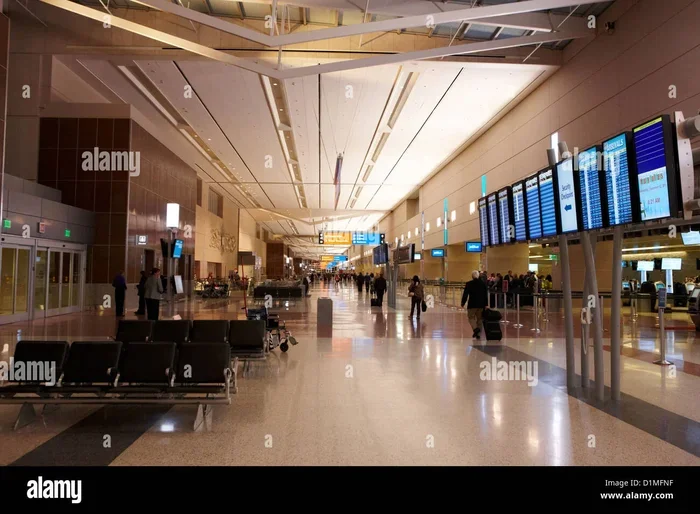
Harry Reid International Airport (formerly McCarran) serves millions of travelers each year. Terminal 3 handles a large portion of domestic and international flights. The airport management knows that modern travelers depend heavily on their devices. That is why they invested in a robust Wi-Fi network designed to keep passengers connected from check-in to boarding.
Key Takeaways
- Free Wi-Fi is available: Terminal 3 at Harry Reid International Airport offers complimentary wireless internet to all passengers.
- Easy connection process: You can connect by selecting the network and agreeing to terms on a login page.
- Coverage is solid throughout the terminal: Most gates, lounges, and seating areas have reliable signal strength.
- Speed is decent for browsing and streaming: Users report acceptable speeds for emails, social media, and light video watching.
- Security matters: Use a VPN when possible and avoid sensitive transactions on public airport networks.
- Portable Wi-Fi options exist: If the airport Wi-Fi is weak, consider a portable hotspot device as a backup.
- Troubleshooting tips help: Simple fixes like resetting network settings can resolve most connection issues.
📑 Table of Contents
- What You Need to Know About Wi-Fi at Las Vegas Airport Terminal 3
- How to Connect to the Airport Wi-Fi Network
- Wi-Fi Speed and Coverage Across Terminal 3
- Tips for Staying Connected While Traveling
- Common Wi-Fi Problems and How to Fix Them
- Is Airport Wi-Fi at Terminal 3 Safe and Secure
- Comparing Terminal 3 Wi-Fi to Other Airport Options
- Final Thoughts
What You Need to Know About Wi-Fi at Las Vegas Airport Terminal 3
The wireless network at Terminal 3 is operated by the airport authority. It is part of a broader effort to improve the traveler experience. The network name you will see on your device is “LAS Free Wi-Fi.” This network is available throughout the terminal, including gates, restaurants, shops, and waiting areas.
One of the best things about this network is that it is completely free. You do not need to pay any monthly fee or sign up for a long-term plan. Just walk into Terminal 3, turn on your device, and you are ready to go. This is especially helpful for travelers who did not plan ahead for internet access.
Who Can Access the Network
Anyone passing through Terminal 3 can use the Wi-Fi. Whether you are a frequent flyer, a first-time visitor to Las Vegas, or someone connecting through on a layover, you have full access. There are no restrictions based on airline, ticket class, or membership status.
The network supports multiple devices at once. So if you are traveling with family or colleagues, everyone can connect their phones, tablets, and laptops. The airport has designed the network to handle high traffic volumes, especially during peak travel times.
What the Network Looks Like on Your Device
When you open your Wi-Fi settings, look for a network named “LAS Free Wi-Fi.” The signal strength will vary depending on your location in the terminal. Areas closer to the central seating zones tend to have the strongest wireless signal. Near the gates, the connection is also usually very good.
Sometimes you might see other network names floating around. These could be networks from nearby businesses or devices. Always make sure you select the official “LAS Free Wi-Fi” network to avoid connecting to an unauthorized source.
How to Connect to the Airport Wi-Fi Network
Connecting to the Wi-Fi at Terminal 3 is straightforward. The process takes less than a minute. Here is a step-by-step guide to help you get online quickly.
Step-by-Step Connection Guide
- Turn on your device Wi-Fi. Go to your settings and enable wireless connectivity.
- Scan for available networks. Look for “LAS Free Wi-Fi” in the list.
- Tap or click on the network name. Your device will attempt to connect.
- A login or welcome page will appear. This page may ask you to agree to terms of use or enter your email.
- Accept the terms. Some users just need to click “Connect” or “Accept.” Others may need to verify an email address.
- You are now online. Your browser should load normally, and you can start browsing.
If you run into any issues during this process, do not worry. We will cover troubleshooting in a later section. The most common problem is the login page not loading automatically. In that case, try opening any website in your browser. This usually triggers the redirect to the airport Wi-Fi portal.
Troubleshooting Connection Issues
Sometimes the login page does not pop up right away. This can happen if your device remembers a previous network connection. Try “forgetting” the network in your Wi-Fi settings and then reconnecting. This forces your device to pull up a fresh login page.
Another common fix is toggling your Wi-Fi off and back on. This simple step resets your wireless connection and often resolves the issue. If neither of these works, restarting your device usually does the trick.
For travelers who have trouble connecting, it might help to check if your device Wi-Fi settings need adjusting. Some older devices have trouble with captive portals, which are the login pages airports use. In those cases, try using a different browser or clearing your browser cache first.
Wi-Fi Speed and Coverage Across Terminal 3
Speed matters when you are trying to get work done or stream a movie before your flight. The Wi-Fi at Terminal 3 generally delivers decent speeds for most everyday tasks. However, performance can vary based on several factors.
What Speeds Can You Expect
Most users report download speeds between 10 and 30 Mbps on the airport network. This is fast enough for checking email, browsing the web, and scrolling through social media. Video calls work reasonably well, though you might experience slight lag during peak hours.
Streaming video is possible but not always smooth. If you want to watch a movie or TV show, expect some buffering during busy travel times. The network bandwidth is shared among all connected users, so speeds dip when the terminal is crowded.
Where Is the Signal Strongest
Coverage is generally strong throughout Terminal 3, but some areas perform better than others. Here is a quick breakdown:
- Central seating areas: Excellent signal strength. These zones are designed with built-in Wi-Fi access points.
- Near gates: Good to strong signal. Most gates have dedicated wireless access points mounted overhead.
- Restaurants and food courts: Moderate to strong signal. Dining areas usually have good coverage.
- Restrooms and corridors: Weaker signal. Thick walls and distance from access points can reduce strength.
- Near the baggage claim: Moderate signal. This area can get congested with many devices at once.
If you need the strongest possible connection, sit near the central seating area or close to a gate. These spots tend to have the best wireless coverage and bandwidth. If you are working on something important, pick your seat wisely before you settle in.
Tips for Staying Connected While Traveling
Airport Wi-Fi is convenient, but it is not always perfect. Smart travelers prepare ahead of time to stay connected no matter what. Here are some practical tips that will help you get the most out of your internet access at Terminal 3.
Download Offline Content Before You Go
One of the best habits you can build is downloading content before your trip. Movies, music, podcasts, and even documents can be saved to your device ahead of time. This way, you have entertainment even if the airport Wi-Fi is slow or unavailable.
This is especially useful for long layovers or delays. You will not be stuck bored if the network gets crowded. A little preparation goes a long way toward keeping you entertained and productive.
Consider a Portable Hotspot as a Backup
If you rely heavily on internet access, consider bringing a portable hotspot device. These small gadgets create your own personal mobile internet connection using cellular networks. They work independently of airport Wi-Fi, so you always have a backup.
You can learn more about portable Wi-Fi options in our guide on getting a portable Wi-Fi device. These devices are especially useful for travelers who need reliable connectivity for work or video calls.
Use a VPN for Extra Security
Public Wi-Fi networks, including those at airports, can be risky from a security standpoint. Other users on the same network might try to intercept your data. A virtual private network, or VPN, encrypts your internet traffic and keeps your information safe.
Many reputable VPN services offer apps that are easy to install on phones and laptops. Turn on the VPN before you connect to the airport network. This adds a strong layer of protection without slowing down your connection too much.
Charge Your Devices Before You Sit Down
This might sound obvious, but running out of battery while trying to use airport Wi-Fi is frustrating. Terminal 3 has plenty of charging stations, but they can be crowded. Charge your devices fully before you head to the terminal, and bring a portable charger just in case.
Know Where to Find Power Outlets
Terminal 3 has power outlets scattered throughout the terminal. Some gates have built-in charging stations at every seat. The central seating areas also feature plenty of outlets near the tables. Finding a spot with both Wi-Fi and power is easy if you know where to look.
Common Wi-Fi Problems and How to Fix Them
Even the best airport networks can cause headaches sometimes. Here are the most common problems travelers face at Terminal 3 and how to solve them.
Login Page Not Loading
This is the number one issue travelers report. The captive portal, which is the login page, sometimes does not appear automatically. To fix this, open any website in your browser. Type in any URL and hit enter. The login page should appear.
If it still does not show up, try clearing your browser cache. Sometimes old cookies or cached data interfere with the redirect. Using a different browser can also help in these situations.
Connection Keeps Dropping
Weak signal strength can cause your connection to drop frequently. Moving closer to a gate or the central seating area often fixes this. Also, make sure your device is not in airplane mode accidentally.
If your device keeps switching between networks, go to your Wi-Fi settings and tell it to stay connected to “LAS Free Wi-Fi.” Some devices automatically connect to stronger nearby networks, which can pull you off the airport connection.
Slow Speeds During Peak Hours
The airport network slows down when many people are using it at the same time. This is normal for any shared public network. If you need faster speeds, try connecting during off-peak hours, such as early morning or late evening.
Another trick is to close apps and background processes on your device. This frees up bandwidth for the tasks that matter most to you. Streaming in lower quality also helps when the network is congested.
Device Not Detecting the Network
Rarely, a device might not see the “LAS Free Wi-Fi” network at all. First, make sure Wi-Fi is turned on and that you are not in airplane mode. Restarting your device can also help detect hidden or new networks.
If the problem persists, your device’s network adapter might need a quick reset. On most laptops, you can do this through the network settings. On phones, toggling airplane mode on and off usually resets the wireless adapter.
Is Airport Wi-Fi at Terminal 3 Safe and Secure
Security is a valid concern when using any public Wi-Fi network. The good news is that the airport takes network safety seriously. However, no public Wi-Fi is completely risk-free, so you should take precautions.
What the Airport Does to Keep You Safe
The airport network uses basic security measures to protect users. The captive portal filters some malicious traffic. The network is monitored for unusual activity. However, these measures are standard and not foolproof.
Because the network is open and free, it is accessible to everyone in the terminal. This means other users could potentially attempt to intercept data. This is true of virtually all public Wi-Fi networks, not just at airports.
What You Should Do to Protect Yourself
Use a VPN whenever possible. This encrypts your data and makes it much harder for anyone to snoop on your activity. Avoid accessing sensitive accounts, like banking, on public Wi-Fi without a VPN.
Stick to websites that use HTTPS. You can check for the padlock icon in your browser address bar. Avoid downloading large files or clicking on suspicious links while connected to the airport network.
Turn off file sharing and AirDrop on your devices before connecting. This prevents other users on the same network from accessing your files. These small steps make a big difference in keeping your data safe.
Comparing Terminal 3 Wi-Fi to Other Airport Options
Las Vegas Airport has multiple terminals, and each offers Wi-Fi access. Here is a quick comparison of what you can expect.
- Terminal 1: Also offers “LAS Free Wi-Fi” with similar speeds and coverage. Good for Southwest and other domestic carriers.
- Terminal 3: The network we have covered in this article. Strong coverage and free access for all passengers.
- International Terminal (Concourse D): Offers the same free Wi-Fi. Speeds may vary slightly due to the building layout.
Across all terminals, the airport uses the same network name and connection process. This means you will have a consistent experience no matter which terminal you are in. The wireless internet at Harry Reid International Airport is designed to be user-friendly and accessible.
For travelers who need even more reliable internet, some airport lounges offer their own dedicated networks. These lounge networks tend to have faster speeds and fewer users. If you have access to a lounge, this can be a great option for getting work done or enjoying smooth video calls.
Final Thoughts
Las Vegas Airport Terminal 3 definitely has Wi-Fi access, and it is free for all travelers. The connection process is simple, the coverage is solid, and the speeds are good enough for most tasks. Whether you need to check email, browse the web, or catch up on a show before your flight, the airport has you covered.
Remember to take basic security precautions, download offline content as a backup, and consider a portable hotspot if you need guaranteed connectivity. With these tips in mind, you will stay connected and stress-free throughout your time at Terminal 3.
Traveling through Las Vegas Airport does not have to mean going offline. The free Wi-Fi at Terminal 3 makes it easy to stay in touch with work, family, and entertainment while you wait for your flight. Safe travels, and enjoy staying connected.
Frequently Asked Questions
Is the Wi-Fi at Las Vegas Airport Terminal 3 really free?
Yes, the Wi-Fi at Terminal 3 is completely free for all passengers. There are no hidden fees, no subscription required, and no time limits. You simply connect to the “LAS Free Wi-Fi” network and agree to the terms of use.
How fast is the Wi-Fi at Las Vegas Airport Terminal 3?
Speeds typically range from 10 to 30 Mbps, which is fast enough for browsing, email, and light streaming. During peak travel times, speeds may drop due to high usage. For heavy tasks like large file downloads, the connection may feel slower.
Do I need a password to connect to the airport Wi-Fi?
No, you do not need a password. The network is open, and you connect by selecting “LAS Free Wi-Fi” and agreeing to the terms on the login page. If a password is ever required, it will be displayed on the login portal.
Can I use the Wi-Fi at Terminal 3 for video calls?
Yes, you can use the Wi-Fi for video calls, but quality may vary. The connection works well for apps like Zoom and FaceTime during off-peak hours. During busy times, you might experience slight lag or reduced video quality.
Is it safe to use the airport Wi-Fi for banking?
It is best to avoid banking on public Wi-Fi unless you are using a VPN. The airport network is open, which means your data could potentially be intercepted. Use a VPN or wait until you are on a secure network for sensitive transactions.
What should I do if the airport Wi-Fi is not working?
First, try forgetting the network and reconnecting. If that does not work, toggle your Wi-Fi off and on, or restart your device. You can also try opening a browser to trigger the login page. If all else fails, consider using a portable hotspot as a backup connection.
=== CONCLUSION ===
Las Vegas Airport Terminal 3 has Wi-Fi access that is free, easy to use, and available throughout the terminal. Whether you are a business traveler or a tourist heading home, staying connected has never been simpler. The network is designed to handle the demands of modern travelers, from checking emails to streaming content.
Remember the tips we shared: connect to “LAS Free Wi-Fi,” use a VPN for security, download offline content as a backup, and consider a portable hotspot if you need more reliability. These small steps will make your airport experience smoother and more enjoyable.
Next time you pass through Terminal 3, you will know exactly how to get online and stay connected. Safe travels, and happy browsing at Las Vegas Airport.