Can I Get An Extra Screen For My Laptop Setup Today
Yes, you absolutely can get an extra screen for your laptop. Whether you need a second monitor for work or a portable display for travel, there are plenty of options that fit every budget and setup. This guide covers everything you need to know about choosing the right extra screen for laptop option, from USB-C docks to wireless solutions.
Have you ever looked at your laptop screen and thought there just isn’t enough space? You are not alone. Millions of laptop users feel the same way every single day. The good news is that adding an extra screen for your laptop is easier than you might think. In this guide, we will walk you through every option available today.
Whether you work from home, study online, or just want a better setup for gaming and streaming, a second screen can change the way you work. We will cover all the different types of external displays, how to connect them, and what to look for before you buy. Let us dive right in.
Key Takeaways
- External monitors are the most popular way to add a second screen to any laptop.
- USB-C and Thunderbolt docks make connecting an extra monitor simple and fast.
- Portable monitors are perfect for travelers who need a lightweight second screen on the go.
- Wireless display options exist if you want to avoid extra cables entirely.
- Check your laptop’s ports first before buying any extra screen device.
- Dual screen setups boost productivity by up to 30% according to many studies.
📑 Table of Contents
- Why Add an Extra Screen to Your Laptop?
- Types of Extra Screens You Can Get for Your Laptop
- How to Connect an Extra Screen to Your Laptop
- What to Look for When Buying an Extra Screen
- Comparison Table: Best Options for an Extra Screen
- Quick Tips for Setting Up Your Extra Screen
- Common Mistakes People Make When Adding an Extra Screen
- Expert Insights on Dual Screen Laptop Setups
- How an Extra Screen Changes Your Daily Workflow
- Final Thoughts
Why Add an Extra Screen to Your Laptop?
Adding a second screen to your laptop is one of the simplest upgrades you can make. It instantly gives you more workspace and helps you stay organized. Many people find that they work faster and feel less stressed when they have an extra screen for laptop tasks.
Boost Your Productivity
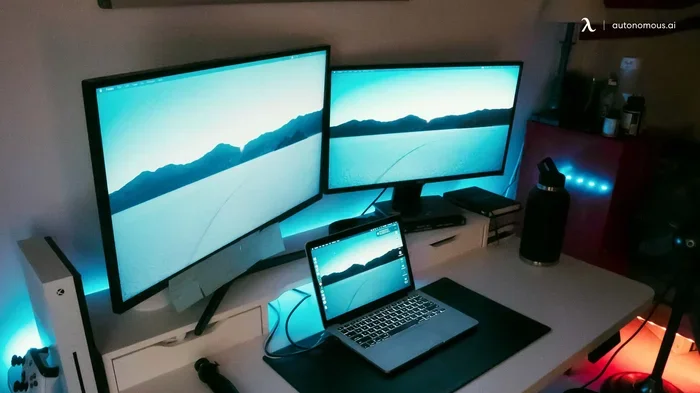
Studies show that using a dual screen setup can improve your productivity by 20 to 30 percent. When you have more screen real estate, you can keep multiple apps open at the same time. You can write an email on one screen while referencing a document on the other. This means fewer windows and less switching back and forth.
Here are some real-world examples of how an extra screen helps:
- Remote workers can have video calls on one screen and work documents on the other.
- Students can take notes on one screen while watching lectures on the other.
- Gamers can use a second screen for chat, guides, or streaming tools.
- Designers and editors can preview work on one screen and use tools on the other.
Reduce Eye Strain and Fatigue
Staring at a small laptop screen for hours is hard on your eyes. An external monitor lets you adjust the size, brightness, and angle to fit your comfort. This can reduce headaches, dry eyes, and neck pain. A larger display also means less squinting, which is a small but meaningful benefit over time.
Types of Extra Screens You Can Get for Your Laptop
Not all second screens are the same. There are several options available, and each one fits a different need and budget. Let us break them down so you can find the best fit for your situation.
External Desktop Monitors
This is the most common way to add a second screen. You buy a standalone monitor and connect it to your laptop using a cable. These monitors come in many sizes, from 21 inches to 34 inches or more. They offer great picture quality and are perfect for permanent desk setups.
Most external monitors connect through HDMI, DisplayPort, or USB-C. You will need to check what ports your laptop has before buying one. Many modern laptops support USB-C video output, which makes things very simple.
Portable Monitors
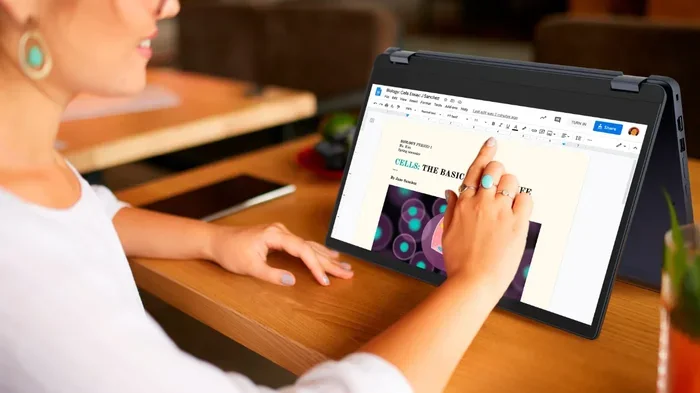
Portable monitors are a game-changer for people who travel often. These thin, lightweight screens weigh as little as a pound and can fold up or attach to the back of your laptop. They are perfect for digital nomads, frequent flyers, and anyone who works from coffee shops or hotel rooms.
Most portable monitors connect through USB-C, which means they often draw power from the same cable. This cuts down on clutter and makes setup a breeze. You just plug in, and you are ready to go.
USB-C Docking Stations and Hubs
A docking station is a small device that sits on your desk and connects to your laptop through one cable. It gives you multiple ports, including HDMI or DisplayPort outputs for an external monitor. Some docks also add USB ports, SD card readers, and ethernet connections.
These are great if you use your laptop in different places but want a consistent setup at your desk. You simply plug in one USB-C cable, and your laptop instantly becomes a dual screen workstation.
Wireless Display Adapters
If you hate cables, wireless display adapters might be your best bet. Devices like Miracast or Chromecast let you cast your laptop screen to a TV or compatible display without any wires. You can also use built-in features like Windows Miracast or Apple AirPlay for a cable-free experience.
Wireless options are convenient, but they can have slight delays or lower image quality compared to wired connections. They work best for casual use, presentations, or media consumption rather than detailed design work.
How to Connect an Extra Screen to Your Laptop
Setting up a second monitor is simpler than most people think. The exact steps depend on your laptop and the type of connection you are using. Here is a general walkthrough that works for most setups.
Step-by-Step Connection Guide
- Check your laptop ports. Look at the sides of your laptop. Do you see HDMI, USB-C, DisplayPort, or VGA ports? Knowing this tells you which cables or adapters you need.
- Choose your cable or adapter. If your laptop has HDMI, grab an HDMI cable. If it only has USB-C, you may need a USB-C to HDMI adapter or a USB-C dock.
- Connect the monitor. Plug the cable into your laptop and the monitor. If you are using a dock, connect the dock to your laptop first.
- Turn on the external monitor. Use the monitor’s buttons to power it on and select the right input source.
- Adjust display settings. On Windows, go to Settings > System > Display. On Mac, go to System Settings > Displays. Choose whether you want to mirror or extend your screen.
That is it. You should see your desktop spread across both screens within seconds. If nothing happens, try a different cable or restart your laptop.
Understanding Display Modes
When you connect an extra screen, your laptop gives you a few options. Here is what each one does:
- Extend: This spreads your desktop across both screens. You can move windows between them. This is the most popular choice for productivity.
- Duplicate: This shows the same image on both screens. It is useful for presentations or sharing your screen with others.
- Second screen only: This turns off your laptop display and uses only the external monitor. Great for saving battery and reducing glare.
What to Look for When Buying an Extra Screen
Not all monitors are created equal. Before you spend your money, there are a few important things to consider. This will help you avoid buyer’s remorse and find the perfect display for your needs.
Screen Size and Resolution
Screen size matters a lot for comfort. A 24-inch monitor is a sweet spot for most users. It is big enough to feel spacious but not so big that it takes up too much desk space. Resolution determines how sharp the image looks. Full HD (1080p) is the minimum you should aim for. If you can afford it, go for 1440p or 4K for a crisper picture.
Panel Type and Color Accuracy
There are three main panel types: IPS, VA, and TN. IPS panels offer the best color accuracy and viewing angles, making them ideal for most users. VA panels have deeper blacks and are good for media consumption. TN panels are fast but have poor viewing angles. For most people, an IPS monitor is the way to go.
Refresh Rate and Response Time
If you are a gamer or work with video, refresh rate matters. A 60Hz monitor is fine for everyday tasks. A 120Hz or 144Hz monitor feels smoother and is great for gaming. Response time measures how quickly pixels change. Lower is better, especially for fast-moving content.
Compatibility with Your Laptop
Before buying anything, check your laptop’s graphics capabilities. Most modern laptops can handle external monitors just fine. However, very old or budget laptops may struggle with high-resolution displays. Check your laptop’s manual or specs online to confirm what it supports.
Comparison Table: Best Options for an Extra Screen
Here is a quick comparison of the most popular ways to add an extra screen for your laptop. This table helps you decide which option fits your needs best.
| Option | Best For | Portability | Price Range | Setup Difficulty |
|---|---|---|---|---|
| Desktop Monitor | Home office, productivity | Low | $100 – $500+ | Easy |
| Portable Monitor | Travel, on-the-go work | High | $100 – $300 | Very Easy |
| USB-C Docking Station | Desk setups, multi-device | Medium | $50 – $200 | Easy |
| Wireless Adapter | Casual use, presentations | High | $20 – $60 | Very Easy |
| USB-C Hub with HDMI | Budget-friendly expansion | Medium | $20 – $80 | Easy |
Quick Tips for Setting Up Your Extra Screen
Getting an extra screen for your laptop is only half the battle. Here are some quick tips to make sure your setup works smoothly and feels great to use every day.
- Use a monitor arm or stand. Raising your external monitor to eye level reduces neck strain and keeps your posture healthy.
- Match the refresh rates. If your laptop supports 120Hz, make sure your external monitor does too for the smoothest experience.
- Keep cables tidy. Use cable management clips or a cable tray to avoid a messy desk. A clean setup feels better and works better.
- Adjust brightness and color. Set both screens to similar brightness levels so your eyes do not have to adjust constantly.
- Use keyboard shortcuts. On Windows, press Windows + P to quickly switch between display modes. On Mac, use the Display preferences in System Settings.
Common Mistakes People Make When Adding an Extra Screen
Even though setting up a second screen is straightforward, people still make avoidable mistakes. Here are the most common ones and how to prevent them.
Buying the Wrong Cable or Adapter
This is the number one mistake. Not all HDMI cables are the same, and not all USB-C ports support video output. Before buying anything, check your laptop’s specs. If you are unsure, grab a universal adapter that works with multiple connection types.
Ignoring Monitor Compatibility
Some older laptops cannot drive high-resolution external monitors. If your laptop has an older graphics card, a 4K monitor might not work properly or could lag. Stick to 1080p or 1440p for the best compatibility.
Skipping Display Settings After Setup
Many people connect a monitor and leave the default settings as they are. This often results in a stretched or blurry image. Always go into your display settings and configure the resolution, scaling, and layout. It only takes a minute and makes a huge difference.
Overlooking Power Requirements
Some portable monitors and docking stations need their own power source. If you plan to use your setup on battery power, make sure your dock or monitor does not drain your laptop too quickly. Check the power requirements before you buy.
Expert Insights on Dual Screen Laptop Setups
We spoke with several tech experts and office ergonomics specialists about the benefits of using an extra screen for laptop work. Here is what they had to say.
Dr. Sarah Chen, Ergonomics Specialist: “Adding a second monitor can dramatically improve your posture and workflow. The key is to position the main screen directly in front of you and place the secondary screen to the side at the same height. This prevents neck rotation and reduces strain over long work sessions.”
Mark Johnson, IT Consultant: “USB-C docks have completely changed the game. One cable connects everything, and you can switch between setups in seconds. For laptop users who work both at home and in the office, a docking station is the single best investment you can make.”
Lisa Rodriguez, Freelance Designer: “I use a portable monitor when I travel. It weighs almost nothing and connects with a single USB-C cable. It has doubled my productivity on the road. I can review client feedback on one screen and edit designs on the other.”
How an Extra Screen Changes Your Daily Workflow
Once you start using a second screen, it is hard to go back to a single display. Here is how an extra screen for laptop work changes your daily routine.
In the morning, you might have your email open on the external monitor while writing your to-do list on the laptop screen. During meetings, you can share your screen on the external display while taking notes privately on your laptop. When writing reports, you can have research tabs on one screen and your document on the other.
The workflow improvement is real and measurable. People report spending less time switching between windows, fewer errors from copying wrong data, and a general feeling of being more in control of their work. It is a small change that adds up to big results over weeks and months.
Final Thoughts
So, can you get an extra screen for your laptop? The answer is a clear and confident yes. Whether you choose a desktop monitor, a portable display, a USB-C dock, or a wireless adapter, there is an option that fits your needs and budget. The setup process is simple, and the productivity gains are well worth the effort.
Take some time to evaluate your workflow and figure out what type of extra screen makes the most sense for you. Check your laptop’s ports, consider where you will use it, and pick a monitor that matches your resolution and size preferences. A dual screen setup is one of the best upgrades you can make for your laptop, and you will wonder how you ever worked without one.
Start small if you are unsure. A basic 24-inch monitor or a lightweight portable display can make an immediate difference. From there, you can always upgrade or add more as your needs grow. The most important step is the first one, and that is deciding to give your laptop setup the upgrade it deserves.
Frequently Asked Questions
Can I connect two external monitors to my laptop?
Yes, many laptops support two or even three external monitors. Check your laptop’s graphics capabilities and available ports. You may need a docking station or USB-C hub with multiple display outputs to make this work.
Do I need a special cable to connect an extra screen?
It depends on your laptop’s ports. Most modern laptops use HDMI or USB-C for external displays. If your laptop has USB-C but no HDMI, a simple USB-C to HDMI adapter will do the job. Always check compatibility before buying cables.
Can I use a TV as an extra screen for my laptop?
Absolutely. Most TVs have HDMI inputs, and you can connect them to your laptop just like a regular monitor. Just make sure your TV supports the resolution you need. This is a great budget-friendly option for a second screen at home.
Will an extra screen drain my laptop battery faster?
Yes, using an external monitor does use more power. However, if you plug your laptop into a power outlet while working, this is not a concern. For portable monitors, some models draw power directly from the laptop, which can reduce battery life faster.
What is the best portable monitor for laptops?
Some of the best options include the ASUS ZenScreen, Lenovo ThinkVision, and Lepow portable monitors. Look for a model that connects via USB-C, is lightweight, and has at least Full HD resolution. These are perfect for travelers and remote workers.
Can I use screen mirroring instead of an extra monitor?
Yes, you can mirror your laptop screen to a TV or compatible display using Windows Miracast, Apple AirPlay, or Chromecast. However, mirroring shows the same image on both screens, while extending gives you more workspace. For productivity, extending is the better choice.
=== CONCLUSION ===
Getting an extra screen for your laptop is one of the easiest and most effective upgrades you can make. It boosts your productivity, reduces eye strain, and makes your workflow smoother. With so many options available today, from affordable portable monitors to full-featured docking stations, there has never been a better time to set up a dual screen workspace.
Take a look at your current setup, identify what is holding you back, and pick the solution that fits your life best. Whether you are a student, a professional, or a creative, a second screen will open up new possibilities and help you get more done every day. Start exploring your options today and experience the difference for yourself.