How To Close Your Laptop Yet Still Use An External Monitor
The answer to Can I Close My Laptop And Still Use External Monitor is yes. You can use clamshell mode to close your laptop and work on a bigger screen. This guide covers setup steps for Windows and Mac, cables, docking stations, and tips to avoid common mistakes.
Can I Close My Laptop And Still Use External Monitor? Absolutely. This is a question many laptop users ask every day. The answer is a simple yes. You just need to enable a feature called clamshell mode. This lets you close the lid and keep the external monitor running. You get a bigger screen without the bulk of an open laptop. Many people use this setup at a desk. It saves space and reduces glare. It also helps your laptop stay cooler.
The key is to adjust your power settings. Otherwise, the laptop might go to sleep when you close the lid. I will show you exactly how to do this in a few simple steps. You will learn about cables, docking stations, and best practices. By the end, you will have a smooth closed-laptop workspace. Let us get started.
Key Takeaways
- Yes, you can close your laptop and use an external monitor: Clamshell mode lets you work with the lid closed and a bigger screen.
- Change your power settings: Prevent sleep mode when the lid is closed on both Windows and Mac.
- Use the right cable or docking station: HDMI, USB-C, or DisplayPort connections are key for a seamless setup.
- Keep your laptop cool: Use a stand and avoid blocking vents to prevent overheating during long sessions.
- Add an external keyboard and mouse: You will need these when the laptop lid is shut.
- A docking station simplifies everything: One cable connects your monitor, power, and peripherals.
- Follow the step-by-step guide: Setup takes just a few minutes and works on most laptops.
📑 Table of Contents
Can I Close My Laptop And Still Use External Monitor? Here’s the Answer
Yes, you can. Can I Close My Laptop And Still Use External Monitor is a question with a straightforward answer. You just need to enable clamshell mode. This feature lets you close the lid and keep the external monitor running. It works on most Windows and Mac laptops. You will need an external monitor, a power source, and a keyboard and mouse. Once set up, you get a bigger screen without the bulk of an open laptop.
Many people use this setup at a desk. It saves space and reduces glare. You can close the laptop to protect the screen. It also helps your laptop stay cooler. The key is to adjust your power settings. Otherwise, the laptop might go to sleep when you close the lid. I will show you exactly how to do this in a few simple steps.
What Happens When You Close Your Laptop
By default, closing your laptop lid triggers sleep mode. The computer shuts down to save power. This is great for travel. But it is not what you want when you have an external monitor. You need to change this behavior. This is called the lid close action. You can set it to do nothing, hibernate, or shut down. For clamshell mode, you want it to do nothing.
The Clamshell Mode Explained
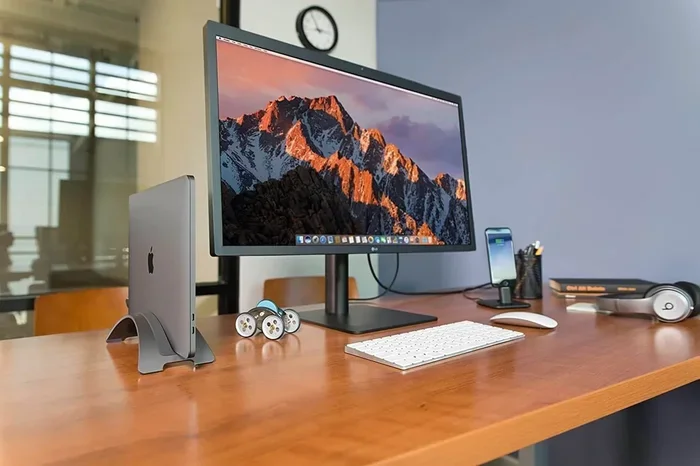
Clamshell mode means the laptop is closed but still awake. The external monitor shows the display. The laptop’s keyboard and touchpad are off. You use an external keyboard and mouse. The laptop acts like a mini desktop. It still runs all your programs. You can charge the battery at the same time. This setup is perfect for a workspace. You get a dual-screen feel with just one screen.
Why Closing the Lid Can Trigger Sleep
Your laptop is designed to sleep when closed. This prevents accidental key presses. It also saves battery. But when you want to use an external monitor, sleep is a problem. You have to open the lid to wake it. That defeats the purpose. So you must change the power settings. This is a quick fix that takes less than a minute.
Quick Tip
Check your power settings first. Go to Control Panel > Power Options. Click “Choose what closing the lid does.” Set it to “Do nothing.” This is the most important step. Without this, your laptop will sleep every time you close the lid.
How to Set Up Your Closed-Laptop Workspace
Setting up a closed-laptop workspace is easy. You need a few things. First, an external monitor. Second, a way to connect it. Third, a keyboard and mouse. You also need your laptop charger. I will walk you through each part. This setup works for home offices, dorm rooms, and small desks.
Picking the Perfect External Monitor
Choose a monitor that fits your desk. A 24-inch monitor is great for everyday tasks. A 27-inch monitor gives you more space. Consider the resolution. Full HD (1080p) is enough for most people. 4K is nice but not required. Make sure the monitor has the right ports. Look for HDMI, USB-C, or DisplayPort. Most modern laptops support these. A good external monitor makes a big difference in your productivity.
Cables and Connections
You need a cable to link your laptop to the monitor. The type of cable depends on your laptop’s ports. Here is a quick comparison of common connection types.
| Connection Type | Best For | Speed | Notes |
|---|---|---|---|
| HDMI | Most laptops and monitors | Good for 1080p and 4K | Very common, affordable cables |
| USB-C / Thunderbolt | Modern laptops, fast data | Supports 4K and beyond | One cable can charge and display |
| DisplayPort | High-refresh-rate gaming | Best for 144Hz and 4K | Common on PC monitors |
| VGA (older) | Legacy devices | Standard definition only | Avoid if possible |
USB-C is the most convenient. It can carry video, data, and power through one cable. If your laptop has USB-C, use a USB-C to USB-C or USB-C to HDMI cable. A docking station makes this even easier. It turns one port into many.
Docking Stations Made Easy
A docking station is a hub that connects to your laptop. It has multiple ports for your monitor, keyboard, mouse, and charger. You plug one cable into the laptop. Then you connect everything else to the dock. This is perfect for clamshell mode. When you close the lid, everything stays connected. You just close the lid and keep working. A docking station also helps with cable management. It keeps your desk tidy.
Quick Tip
Keep your laptop cool. Closed laptops can heat up. Use a laptop stand or cooling pad. This lifts the laptop and allows air to flow. Avoid placing it on a soft surface like a bed. Good airflow keeps your laptop running smoothly.
Common Mistake
Forgetting to plug in the charger. Clamshell mode uses more battery because the laptop is awake. Always keep your laptop plugged in when using an external monitor. You do not want it to die mid-work.
Expert Insight
A monitor arm can improve your posture. It lets you position the screen at eye level. This reduces neck strain. You can also free up desk space. A simple monitor arm is a great investment for any closed-laptop setup.
Step-by-Step Guide to Enabling Closed-Lid Mode
Now you know the answer to “Can I Close My Laptop And Still Use External Monitor.” Here is how to actually do it. I will cover Windows and Mac. The steps are simple. You will be up and running in minutes.
Can I Close My Laptop And Still Use External Monitor on Windows?
Yes, Windows makes it easy. Follow these steps to change the lid close action.
- Click the Start menu. Type “Control Panel” and open it.
- Go to “Hardware and Sound.” Then click “Power Options.”
- On the left side, click “Choose what closing the lid does.”
- You will see two drop-down menus: “On battery” and “Plugged in.”
- Set both to “Do nothing.”
- Click “Save changes.”
Now close your laptop lid. The external monitor should stay on. Your laptop will not sleep. If it does, check the power plan. Make sure you applied the setting to both battery and plugged-in modes. This simple change unlocks clamshell mode on any Windows laptop.
Can I Close My Laptop And Still Use External Monitor on a Mac?
Mac users have a slightly different path. macOS does not have a direct “do nothing” option for the lid. But you can use clamshell mode with a few tweaks.
- Connect your external monitor to your Mac.
- Plug in your Mac charger. This is required for clamshell mode.
- Connect an external keyboard and mouse. You can use Bluetooth or USB.
- Close the laptop lid. The Mac should go to sleep.
- Press any key on the external keyboard. The Mac will wake up.
- The external monitor will now display your desktop.
Mac clamshell mode works automatically once the external display is connected and the Mac is charging. You do not need to change system settings. Just make sure the lid is closed and the Mac is awake before you close it. If it does not work, try unplugging the charger and plugging it back in.
When Your Laptop Still Sleeps: Troubleshooting
Sometimes the laptop still goes to sleep even after you change the settings. Do not worry. This is a common issue. Here are a few fixes.
- Check the power plan. Make sure you changed the setting for both “On battery” and “Plugged in.”
- Update your drivers. Go to Device Manager and update your display adapter drivers.
- Disable fast startup. In Windows, go to Power Options and turn off “Turn on fast startup.”
- Restart your laptop. A simple restart can apply pending changes.
- Check the monitor input. Make sure the monitor is set to the correct input source (HDMI 1, USB-C, and so on).
If you follow these steps, your laptop will stay awake with the lid closed. The external monitor will keep displaying your work. You can now enjoy a bigger screen without opening the laptop.
Best Practices for a Smooth Closed-Laptop Setup
A closed-laptop setup is great, but you need to follow some best practices. This keeps your laptop safe and your workflow smooth. I have learned these tips from years of using clamshell mode.
Keeping Your Laptop Cool
Laptops vent heat through the bottom and sides. When the lid is closed, those vents can get blocked. This causes overheating. Overheating can slow down your laptop. It can even damage internal parts. Always use a hard, flat surface. A laptop stand helps a lot. Avoid using the laptop on a pillow or blanket. Even a simple cooling pad can make a big difference.
Keyboard and Mouse Options
You need an external keyboard and mouse when the lid is closed. You have many choices. A wireless keyboard and mouse reduce cable clutter. Bluetooth keyboards work great with both Windows and Mac. Some people prefer a compact keyboard to save desk space. A mouse with a scroll wheel makes browsing easier. You can also use a trackpad, but a mouse is more precise. Choose what feels comfortable for you.
Managing Cables
One cable is all you need if you use a docking station. Without a dock, you have a power cable, a monitor cable, and maybe a USB hub. Cable management keeps your desk tidy. Use cable ties or a cable tray. This prevents tangles. It also makes it easy to disconnect when you need to move. Good cable management also protects your connections from wear and tear.
Quick Tip
Label your cables. Use small tags or colored tape. This helps you know which cable is for the monitor, power, or peripherals. It saves time when troubleshooting.
Common Mistake
Blocking the laptop’s vents. Never place a closed laptop on a soft surface. The vents need open air. Use a hard desk or a cooling pad. This simple habit extends your laptop’s lifespan.
Expert Insight
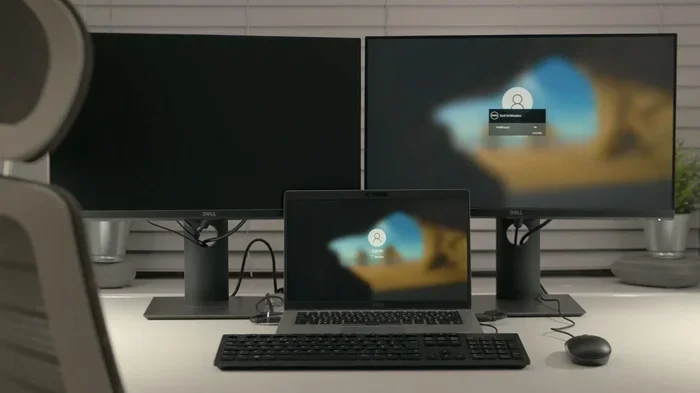
Use a dual-monitor setup for maximum productivity. You can connect two external monitors to your laptop. Close the laptop and use both screens. This is perfect for coding, video editing, or trading. Just make sure your laptop’s graphics card can handle two displays. Most modern laptops can. A dual-screen setup with the laptop closed is a game-changer for multitasking.
Final Thoughts
So, can you close your laptop and still use an external monitor? Yes, you can. Can I Close My Laptop And Still Use External Monitor is a question with a straightforward answer. You just need the right setup and a few minutes to configure your power settings. Clamshell mode gives you a big screen, saves desk space, and keeps your laptop safe. Whether you use Windows or Mac, the steps are simple. Just remember to keep your laptop plugged in, use a docking station if possible, and keep the vents clear.
Once you try this setup, you will not go back to working with an open laptop. It is more comfortable, more organized, and more productive. Give it a try today. You will wonder how you ever worked without it.
Frequently Asked Questions
Do I need a special laptop to use clamshell mode?
Most modern laptops support clamshell mode. You just need to change the power settings. Older laptops may also work. Check your laptop’s manual if you are unsure.
Can I use my laptop’s built-in keyboard when the lid is closed?
No, the built-in keyboard and touchpad turn off when the lid is closed. You must use an external keyboard and mouse. This is a key part of the setup.
Will closing my laptop damage the screen?
No, closing the laptop is safe. It actually protects the screen from dust and accidental bumps. Just make sure the laptop is clean before you close it.
Do I need a docking station for clamshell mode?
No, a docking station is optional but very helpful. You can connect your monitor directly with a cable. A dock simplifies cable management and adds extra ports.
Why does my laptop overheat in clamshell mode?
Closed laptops trap heat if vents are blocked. Use a laptop stand or cooling pad. Keep the laptop on a hard, flat surface to allow airflow.
Can I use an external monitor with my laptop closed on a Mac?
Yes, Mac supports clamshell mode. Connect the monitor, plug in the charger, and attach an external keyboard. Close the lid, then wake the Mac with the external keyboard.