Can A Chromebook Be Used As A Regular Laptop Every Day
Many people wonder if a Chromebook can truly replace a regular laptop for daily use. The answer is yes, for most everyday tasks like web browsing, email, and streaming. This guide covers everything you need to know about using a Chromebook as your main computer every single day.
You have probably wondered whether a Chromebook can be used as a regular laptop for your daily needs. Maybe you are tired of your old computer slowing down. Or maybe you want something lighter and more affordable. The truth is, Chromebooks have changed a lot over the past few years. They are no longer just basic web browsers. Today, they can handle real work, entertainment, and just about everything else you need.
But can you truly ditch your Windows laptop or Mac and switch to a Chromebook for everyday use? That is exactly what we are going to explore in this guide. We will look at what you can do, what you cannot do, and who benefits most from making the switch. By the end, you will have a clear picture of whether a Chromebook is the right laptop replacement for your lifestyle.
Let us start by understanding what a Chromebook actually is and how it works under the hood. This foundation will make everything else much easier to follow.
Key Takeaways
- Yes, a Chromebook can work as a daily laptop: For most people, a Chromebook handles everyday tasks like web browsing, email, and streaming with ease.
- Chrome OS is lightweight and fast: It boots up in seconds and runs smoothly even on modest hardware.
- Google Workspace and Android apps cover most needs: You can edit documents, manage files, and use thousands of apps.
- Battery life is a major advantage: Many Chromebooks last 8-12 hours on a single charge.
- It is not ideal for heavy gaming or specialized software: Users who need Windows-only programs may struggle.
- Budget-friendly options are widely available: You can find solid Chromebooks starting under $300.
- Offline mode has improved significantly: Many apps and files now work without an internet connection.
📑 Table of Contents
- What Is a Chromebook and How Does It Work?
- Can A Chromebook Be Used As A Regular Laptop for Everyday Tasks?
- What Can You Do on a Chromebook Every Day?
- Chromebook vs Regular Laptop: Key Differences
- Who Should Use a Chromebook as Their Main Laptop?
- Tips for Making a Chromebook Work for You Every Day
- Conclusion
What Is a Chromebook and How Does It Work?
A Chromebook is a laptop that runs on Chrome OS, a lightweight operating system built by Google. Unlike Windows or macOS, Chrome OS is designed around cloud computing. This means most of your work happens online, stored on Google servers rather than on your device’s hard drive.
The idea behind a Chromebook is simple. You get a fast, secure, and lightweight device that relies on the internet for most tasks. It boots up in seconds. It stays fast over time. And it does not need the powerful — and expensive — hardware that traditional laptops require.
How Chrome OS Differs from Windows and macOS
The operating system is the biggest difference. Windows and macOS are heavy. They come with lots of built-in software, background processes, and system requirements. Chrome OS, on the other hand, is stripped down and efficient. It focuses on the web browser as the main tool and builds everything else around it.
Here is a quick look at the core differences:
- Chrome OS is designed for web-first computing. Most apps run in the browser.
- Windows supports a huge library of desktop software, including games and professional tools.
- macOS offers a polished ecosystem for Apple users with strong creative and productivity apps.
Because Chrome OS is so lightweight, it can run well on budget-friendly hardware. You do not need a powerful processor or lots of RAM to get a smooth experience. This is a big reason why Chromebooks are so popular in schools and businesses.
What Hardware Powers a Chromebook
Most Chromebooks come with modest hardware compared to traditional laptops. You will typically find Intel Celeron or MediaTek processors, 4 to 8 GB of RAM, and 32 to 128 GB of storage capacity. But do not let these numbers fool you.
Because Chrome OS does not need to run heavy background processes, these specs are more than enough for everyday computing. The processor speed matters less when the operating system itself is so efficient. Many users are surprised at how smoothly a Chromebook handles daily tasks despite its modest internals.
Most Chromebooks also feature solid battery life, often lasting 8 to 12 hours on a single charge. The lightweight device design means they are easy to carry around all day. And many models come with a touchscreen display, adding versatility for media consumption and casual use.
Can A Chromebook Be Used As A Regular Laptop for Everyday Tasks?
The short answer is yes. A Chromebook can be used as a regular laptop for the vast majority of daily tasks. But the longer answer depends on what you need your computer to do. Let us break this down honestly.
If your daily routine involves checking email, browsing the web, managing documents, streaming videos, and video conferencing, a Chromebook will serve you well. In fact, for many users, a laptop replacement like a Chromebook is all they will ever need.
However, if you rely on specialized software like Adobe Premiere Pro, heavy video games, or certain Windows-only enterprise applications, a Chromebook may fall short. The key is understanding your own needs and matching them to what a Chromebook can deliver.
What the Average User Actually Needs
Let us think about what the average person does on a computer every day. Most of these tasks are perfectly suited for a Chromebook:
- Web browsing — Chrome OS is built around the Chrome browser, so this is its strongest suit.
- Email and messaging — Gmail, Google Chat, Slack, and Microsoft Outlook all work great on Chrome OS.
- Document editing — Google Docs, Sheets, and Slides handle most office work with ease.
- Video calls — video conferencing tools like Zoom, Google Meet, and Microsoft Teams run smoothly.
- Media streaming — Netflix, YouTube, Spotify, and other streaming services work perfectly.
- Social media — All major platforms are accessible through the browser or Android apps.
As you can see, the list covers a lot of ground. For many people, these are the only tasks they need a computer for. And a Chromebook handles every single one of them very well.
Real-World Daily Use Cases
Let us look at a few real-world scenarios to make this more concrete.
Scenario 1: A college student. A student needs to write papers, research online, attend virtual lectures, and stream entertainment. A Chromebook with Google Workspace handles all of this. The battery life lasts through a full day of classes. The lightweight design fits easily in a backpack.
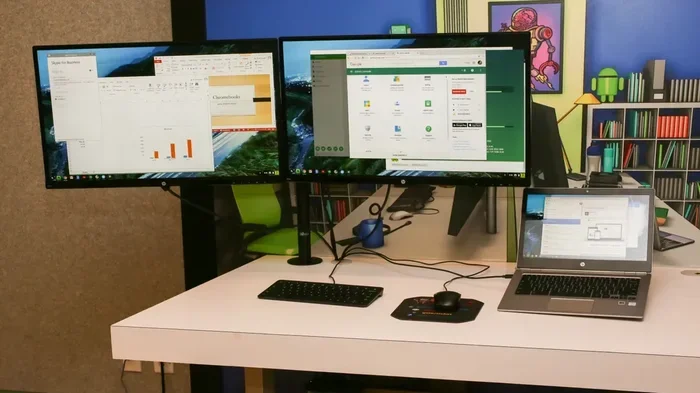
Scenario 2: A remote worker. Someone working from home needs to attend video meetings, manage emails, create spreadsheets, and collaborate with a team. A Chromebook with a touchscreen display and good webcam makes this a breeze. Google Workspace and Microsoft 365 web apps cover all productivity needs.
Scenario 3: A casual home user. Someone who mainly browses the web, watches videos, checks social media, and does occasional online shopping. A Chromebook is more than enough for this use case. It is simple, fast, and secure.
In all three scenarios, a Chromebook serves as a fully functional laptop. The user experience is smooth, and the device handles the workload without any issues.
- Make sure your internet connection is reliable, since most Chromebook tasks depend on the web.
- Enable offline mode for Google Docs and other apps so you can work without Wi-Fi.
- Use a Chromebook with at least 8 GB of RAM for the best multitasking experience.
What Can You Do on a Chromebook Every Day?
A Chromebook is not just for basic tasks anymore. The Chrome OS ecosystem has grown significantly, and now you can do a surprising amount on a Chromebook every single day. Let us explore the main categories of daily use.
Work and Productivity Tasks
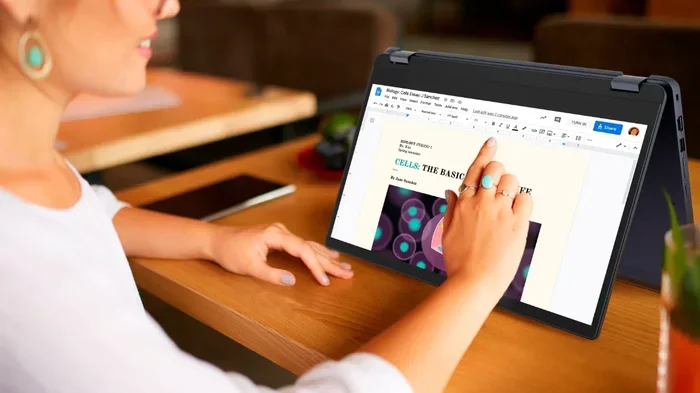
Productivity is where Chromebooks really shine. Google Workspace — which includes Docs, Sheets, Slides, and Drive — is built right into Chrome OS. These tools are free, powerful, and work seamlessly in a browser. You can create spreadsheets, write reports, build presentations, and store everything in the cloud.
But what about Microsoft Office? You can use Microsoft 365 through the browser. The web versions of Word, Excel, and PowerPoint work well for most tasks. They are not as feature-rich as the desktop versions, but for everyday use, they are more than sufficient.
Many Microsoft Office alternatives also exist on Chrome OS. Apps like OnlyOffice and LibreOffice (through Linux support) give you more options if you need advanced formatting or features.
Entertainment and Media
Chromebooks are excellent for entertainment. The streaming media experience is smooth and enjoyable. Netflix, Hulu, Disney+, and YouTube all run perfectly in the Chrome browser. You can also download the Android versions of these apps from the Google Play Store for an even better experience.
Music lovers will appreciate Spotify, YouTube Music, and Apple Music, all of which work well on Chrome OS. Gaming is another area where Chromebooks have improved. While they are not meant for heavy PC gaming, you can play casual games, browser-based games, and even some Android titles from the Play Store.
Communication and Video Calls
Staying connected is easy on a Chromebook. Video conferencing tools like Zoom, Google Meet, and Microsoft Teams all have web versions that work flawlessly. You can join meetings, share your screen, and chat with colleagues without any issues.
The keyboard experience on most Chromebooks is comfortable for long typing sessions. The keys are well-spaced and responsive. Combined with a built-in microphone and webcam, a Chromebook is a solid tool for remote work and online communication.
File Management and Storage
Managing files on a Chromebook is straightforward. The built-in file management tool lets you browse local files and cloud storage from one place. Google Drive integration is seamless, and you can also connect external drives, USB sticks, and SD cards.
Most Chromebooks come with 100 GB of Google Drive storage for the first year, and you can always upgrade your Google One plan. For users who prefer local storage, models with 64 GB or 128 GB of internal storage are available.
- Assuming you cannot work offline — many apps now support offline mode.
- Expecting the same performance as a high-end Windows laptop — Chromebooks are optimized for different tasks.
- Overlooking the importance of a good internet connection for the best experience.
Chromebook vs Regular Laptop: Key Differences
Understanding the differences between a Chromebook and a regular laptop is essential for making the right choice. Let us compare them across the most important categories.
| Feature | Chromebook | Regular Laptop (Windows/Mac) |
|---|---|---|
| Operating System | Chrome OS (lightweight, web-focused) | Windows or macOS (full-featured, heavier) |
| Performance | Fast for everyday tasks on modest hardware | Handles heavy tasks but needs more powerful hardware |
| Battery Life | 8-12 hours typically | 4-8 hours typically |
| Software Compatibility | Browser apps, Android apps, some Linux apps | Full desktop software library |
| Price Range | $200-$600 for most models | $400-$2000+ depending on specs |
| Storage | 32-128 GB local, heavy cloud reliance | 256 GB-1 TB+ local storage |
| Security | Built-in virus protection, auto updates | Requires third-party antivirus in most cases |
| Boot Time | 5-10 seconds | 30-60 seconds |
| Offline Capability | Limited but improving | Full offline functionality |
| Best For | Web browsing, office work, students, casual users | Gaming, creative work, professional software |
Performance and Speed
When it comes to everyday computing tasks, a Chromebook often feels faster than a similarly priced Windows laptop. This is because Chrome OS is optimized for the hardware it runs on. There is no bloatware, no heavy background processes, and no system slowdowns over time.
A regular laptop with a Core i5 processor and 8 GB of RAM will outperform a Chromebook in heavy tasks like video editing or running complex software. But for web browsing, document editing, and media consumption, the difference is barely noticeable.
Software and App Support
The software compatibility gap is the biggest limitation of a Chromebook. Chrome OS cannot run native Windows or Mac applications. Instead, it relies on web apps, Android apps, and Linux applications (on supported models).
For most users, this is not a problem. The Google Play Store offers hundreds of thousands of Android apps. And Linux support opens up even more possibilities, including full desktop Linux applications. But if you need a specific Windows-only program, a Chromebook will not work for you.
Who Should Use a Chromebook as Their Main Laptop?
Not everyone needs a traditional laptop. A Chromebook is the right choice for certain types of users. Let us look at who benefits most from using a Chromebook as their primary device.
Best Candidates for a Chromebook
You should strongly consider a Chromebook if any of these describe you:
- Students who need a device for writing papers, researching, and attending online classes.
- Remote workers who primarily use web-based tools like Google Workspace, Slack, and Zoom.
- Casual users who browse the web, check email, and stream media for entertainment.
- Budget-conscious buyers who want a reliable computer without spending $800 or more.
- Travelers who value lightweight devices with excellent battery life.
- Families who need affordable devices for kids or shared use.
For these users, a Chromebook is a practical and cost-effective laptop replacement. It delivers everything they need without the extra cost and complexity of a traditional laptop.
Who Should Stick with a Regular Laptop
On the other hand, a Chromebook may not be the best fit if you:
- Need to run Windows-only software like Adobe Photoshop, AutoCAD, or specialized enterprise tools.
- Are a hardcore gamer who wants to play AAA titles with high graphics settings.
- Do heavy video or audio editing that requires professional-grade software.
- Rely heavily on offline access to large files and applications.
- Need extensive local storage for large media files and projects.
For these users, a regular laptop with Windows or macOS remains the better choice. The software compatibility and raw performance of a traditional laptop simply cannot be matched by a Chromebook.
Tips for Making a Chromebook Work for You Every Day
If you have decided to make the switch, or if you are still exploring your options, these practical tips will help you get the most out of your Chromebook. Following these guidelines will make your everyday computing experience smoother and more productive.
Quick Tips for New Users
- Learn the keyboard shortcuts. Chromebooks have their own set of shortcuts that make navigation much faster. For example, Ctrl + Shift + Q locks your screen, and Search + Shift + periods opens the emoji picker.
- Use Google Drive effectively. Since cloud storage is central to Chrome OS, get comfortable organizing your files in Google Drive. It makes everything accessible from any device.
- Explore the Google Play Store. Many users do not realize that Chromebooks can run Android apps. This opens up a huge world of additional tools and entertainment options.
- Enable offline mode. Go to Settings and turn on offline access for Google Docs and other apps. This ensures you can still work even when your Wi-Fi goes down.
- Keep your Chromebook updated. Chrome OS updates automatically and silently. These updates bring new features and security patches, so let them install when prompted.
Common Mistakes to Avoid
Here are some pitfalls that new Chromebook users often fall into:
- Expecting it to work exactly like a Windows laptop. The interface and workflow are different. Give yourself time to adjust and learn the new way of doing things.
- Ignoring cloud storage options. Chromebooks are designed to work with the cloud. Relying solely on local storage will limit your experience.
- Buying a model with too little RAM. A Chromebook with only 4 GB of RAM can feel sluggish when you have many browser tabs open. Aim for 8 GB if your budget allows.
- Underestimating the importance of a good internet connection. While offline capabilities have improved, a reliable Wi-Fi connection is still essential for the best experience.
- Use a Chromebook sleeve or case to protect it during transport.
- Set up a Bluetooth mouse for a more comfortable experience during long work sessions.
- Use the shelf (taskbar) wisely — pin your most-used apps for quick access.
Conclusion
The question of whether a Chromebook can be used as a regular laptop every day has a clear answer for most people: yes, it can. Chromebooks have evolved into capable, reliable, and affordable devices that handle the tasks most users care about. From web browsing and email to document editing and video calls, a Chromebook delivers a smooth and satisfying everyday computing experience.
The key is understanding what you need from your computer. If your daily tasks revolve around the web, cloud-based tools, and communication apps, a Chromebook is an excellent choice. It is fast, secure, lightweight, and budget-friendly. On the other hand, if you need specialized software or heavy processing power, a traditional laptop remains the better option.
The laptop replacement potential of a Chromebook is real. Millions of users around the world rely on their Chromebooks for work, school, and entertainment every single day. With the right expectations and a little adjustment, you can too. Give a Chromebook a chance, and you might be surprised at how well it fits into your daily routine.
Frequently Asked Questions
Can I use Microsoft Word on a Chromebook?
Yes, you can use Microsoft Word on a Chromebook through the web browser. Microsoft offers free web versions of Word, Excel, and PowerPoint that work well in Chrome OS. You can also install the Android version of Microsoft Word from the Google Play Store for a more full-featured experience.
Is a Chromebook good for students?
Chromebooks are excellent for students. They are affordable, lightweight, and have long battery life. Students can use Google Docs for writing assignments, Google Sheets for data projects, and Google Slides for presentations. The simple and secure Chrome OS also makes them easy to manage in school environments.
Can you play games on a Chromebook?
You can play casual and browser-based games on a Chromebook. The Google Play Store also offers thousands of Android games. However, Chromebooks are not designed for heavy PC gaming or running graphics-intensive games. Cloud gaming services like GeForce Now can also work on supported Chromebook models.
Do Chromebooks work without internet?
Chromebooks work best with an internet connection, but many apps and services now support offline mode. Google Docs, Sheets, and Slides can all be used offline once you enable the feature. You can also watch downloaded videos and use some Android apps without Wi-Fi. However, the full Chrome OS experience relies heavily on an internet connection.
How long does a Chromebook last?
A Chromebook typically lasts 8 to 12 hours on a single charge, depending on the model and usage. The lightweight Chrome OS and efficient hardware contribute to this impressive battery life. Users who primarily browse the web and use lightweight apps will get closer to the upper end of this range.
Are Chromebooks secure against viruses?
Chromebooks are among the most secure laptops available. Chrome OS has built-in virus protection and automatic updates that keep the system secure. The sandboxing architecture isolates each browser tab, preventing malware from spreading. While no device is completely immune to threats, Chromebooks are significantly safer than traditional laptops for everyday use.