Do I Need Home Wi Fi For Chromecast Everything Explained
Do I Need Home Wi-Fi For Chromecast? The short answer is yes, but there are workarounds. A Chromecast device needs a network connection to stream content, but you can use a mobile hotspot, guest mode, or cast without a traditional home network. This guide covers every scenario so you can set up your streaming device with confidence.
Have you ever plugged in a Chromecast device, stared at the screen, and wondered if you really need a home network to get it working? You are not alone. Many people buy a Google Chromecast streaming device, set it up at a friend’s house, or use it in a rental, and suddenly the big question hits them.
Do I need home Wi-Fi for Chromecast? The answer is more nuanced than a simple yes or no. A Chromecast needs a network connection to stream content from services like Netflix, YouTube, or Spotify. But there are clever workarounds. You can use a mobile hotspot, leverage Guest Mode, or even cast local files in certain situations. This guide breaks down every scenario so you know exactly what to do.
Whether you are setting up your first streaming device or troubleshooting an existing one, this article has you covered. We will walk through setup steps, alternatives, and practical tips. By the end, you will have a clear picture of your options. Let us dive in.
Key Takeaways
- Home Wi-Fi is the standard way: Most Chromecast setups require a wireless network for streaming video and audio.
- You can use a mobile hotspot: Your phone’s hotspot can replace home Wi-Fi in a pinch.
- Guest Mode lets nearby devices cast: You do not always need the same network if devices are close together.
- Offline casting is limited: Some local files can be cast without internet, but streaming services need a connection.
- Bluetooth is not a direct option: Chromecast does not use Bluetooth for content streaming.
- Router settings matter: A strong signal and proper configuration make a big difference in streaming quality.
- Guest mode has limits: It works best for quick, simple casting from nearby devices.
📑 Table of Contents
- What Is a Chromecast and How Does It Work?
- Do You Really Need Home Wi-Fi for Chromecast?
- Using Chromecast Without a Traditional Home Network
- Setting Up Chromecast With and Without Wi-Fi
- Pros and Cons of Using Chromecast Without Home Wi-Fi
- Expert Tips for the Best Chromecast Experience
- Key Takeaways
- Conclusion
What Is a Chromecast and How Does It Work?
A Chromecast is a small streaming device made by Google. You plug it into your TV’s HDMI port, connect it to a network, and then send content from your phone, tablet, or computer to the TV. Think of it as a bridge between your device and your screen.
How Chromecast Connects to Your Network
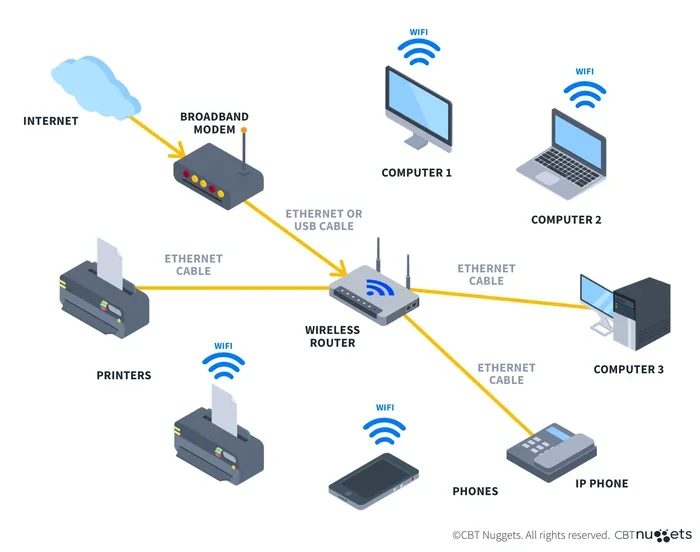
When you first set up a Chromecast, it asks you to join a wireless network. This is usually your home Wi-Fi network. The device uses this connection to pull content from the internet. Without a network, it cannot reach streaming apps or online videos.
The Chromecast talks to your phone or computer using the same Wi-Fi network. This is called screen mirroring or casting. Your device sends a link to the Chromecast, and the Chromecast goes and fetches the content directly. This is why both devices need to be on the same local network in most cases.
What the Chromecast Needs to Function
Here is a quick look at what your Chromecast needs to work properly:
- A TV with an HDMI port to plug the device in.
- A wireless network or a mobile hotspot for internet access.
- A smartphone, tablet, or computer to control casting.
- A Wi-Fi password if you are connecting to a protected network.
- A Google account for initial setup and app access.
Notice that a home Wi-Fi network is not the only way. A mobile hotspot counts too. But some form of internet connection is almost always required for streaming content from online services.
Do You Really Need Home Wi-Fi for Chromecast?
The honest answer depends on what you want to do. If you want to watch Netflix, YouTube, or any other online streaming service, yes, you need a network connection. But that connection does not have to be a home Wi-Fi network. Let us break this down.
When Home Wi-Fi Is Essential
Home Wi-Fi is the easiest and most reliable way to use a Chromecast. Here are situations where you really need it:
- Streaming from online services: Netflix, Hulu, Disney+, and Spotify all require an internet connection.
- Screen mirroring from your phone: Casting your phone screen works best on the same wireless network.
- Using voice commands: Google Assistant features work through your home Wi-Fi connection.
- Multi-room audio: If you want to sync music across multiple Chromecast Audio devices, home Wi-Fi is key.
- Firmware updates: Your streaming device needs the network to download updates.
In all these cases, a stable home Wi-Fi network makes everything smoother. The Chromecast relies on a consistent connection to deliver high-quality video and audio.
When You Can Skip Home Wi-Fi
There are real situations where you can use a Chromecast without a traditional home network. Here are the most common ones:
- You are traveling: You can use your phone’s mobile hotspot to create a temporary network.
- You are at a friend’s house: Guest Mode allows nearby devices to cast without joining the same network.
- You want to play local files: You can cast videos stored on your device without an internet connection in some cases.
- Your home internet is down: A mobile hotspot from your phone can save the day.
- You are in a temporary setup: A rental apartment or a hotel room might not have a permanent wireless network for you.
So the answer to Do I Need Home Wi-Fi For Chromecast is really: it depends on your situation. Home Wi-Fi is the standard path, but alternatives exist.
Using Chromecast Without a Traditional Home Network
Not having a home Wi-Fi network does not mean you cannot use your Chromecast. There are several practical workarounds. Let us explore each one in detail.
Mobile Hotspot as an Alternative
A mobile hotspot turns your smartphone into a mini wireless router. Your Chromecast can connect to it just like it connects to home Wi-Fi. Here is how it works:
- Turn on the hotspot feature on your phone.
- Set a Wi-Fi network name and Wi-Fi password.
- On your Chromecast, go to Settings and connect to your phone’s hotspot.
- Make sure your casting device is also connected to the same hotspot.
- Start streaming!
This method works great for travel or when your home internet is temporarily down. The only catch is that it uses your phone’s data. Streaming video eats up data fast, so keep an eye on your plan.
Guest Mode and Nearby Device Casting
Guest Mode is a handy feature that lets nearby devices cast to your Chromecast without being on the same wireless network. This is perfect for parties or when you are visiting friends.
Here is how Guest Mode works:
- Your Chromecast broadcasts a signal that nearby devices can see.
- A friend with their phone can detect the Chromecast and cast content directly.
- No need to share your Wi-Fi password or join your home network.
Guest Mode is not perfect for long streaming sessions. It works best for quick casts and short videos. But for casual use, it is a great workaround.
Offline Casting Options
Can you cast content without any internet at all? In some cases, yes. You can cast local files stored on your device using certain apps. For example, some media players let you push video files from your phone to your Chromecast over a direct Wi-Fi Direct connection.
However, this is not the same as streaming from Netflix or YouTube. You cannot access online services without an internet connection. Offline casting is best for personal media files like downloaded movies or music.
Setting Up Chromecast With and Without Wi-Fi
Setting up a Chromecast is usually straightforward. But the process changes depending on whether you have a home Wi-Fi network or are using an alternative. Let us walk through both paths.
Step-by-Step Wi-Fi Setup
Here is how to set up your Chromecast with a home wireless network:
- Plug the Chromecast into your TV’s HDMI port.
- Download the Google Home app on your phone.
- Open the app and tap Add Device.
- Select Chromecast from the list.
- Choose your home Wi-Fi network from the list.
- Enter your Wi-Fi password.
- Wait for the setup to complete.
- Name your Chromecast and you are done.
Make sure your phone is connected to the same Wi-Fi network during setup. This is the most common setup and it works reliably for most users.
Alternatives Setup Process
Setting up a Chromecast without home Wi-Fi requires a few extra steps. Here is what to do with a mobile hotspot:
- Turn on your phone’s hotspot and note the network name and password.
- Plug the Chromecast into your TV.
- Open the Google Home app.
- When prompted, select your phone’s hotspot as the wireless network.
- Enter the hotspot password.
- Complete the setup as normal.
- Now both your phone and Chromecast are on the same hotspot network.
This method takes a few extra minutes but works just as well. The Chromecast does not know or care whether the network comes from a router or a phone. It just needs a connection.
Pros and Cons of Using Chromecast Without Home Wi-Fi
Every option has trade-offs. Using a Chromecast without a traditional home network has both benefits and limitations. Let us weigh them.
Benefits of Going Without Home Wi-Fi
- Flexibility: You can use your Chromecast anywhere with a phone and a hotspot.
- No router needed: You skip the equipment and setup of a home network.
- Privacy: You do not have to share your home Wi-Fi password with guests.
- Portability: Great for travel, cabins, or temporary living situations.
- Quick setup: A mobile hotspot can be ready in minutes.
Limitations You Should Know
- Data usage: Streaming video on a mobile hotspot can quickly eat through your data cap.
- Speed limits: Hotspot speeds are often slower than a home dual-band Wi-Fi connection.
- Range issues: Your phone’s hotspot has a shorter range than a home router.
- Battery drain: Running a hotspot drains your phone battery fast.
- Not ideal for large households: A hotspot may struggle with multiple devices streaming at once.
- No smart home integration: Some features like Google Assistant work best with a home network.
Keep these in mind when deciding how to use your Chromecast. For a quick movie night, a hotspot works fine. For a permanent setup, home Wi-Fi is the better choice.
Expert Tips for the Best Chromecast Experience
Whether you use home Wi-Fi or an alternative, these tips will help you get the most out of your Chromecast.
Optimizing Your Wi-Fi Signal
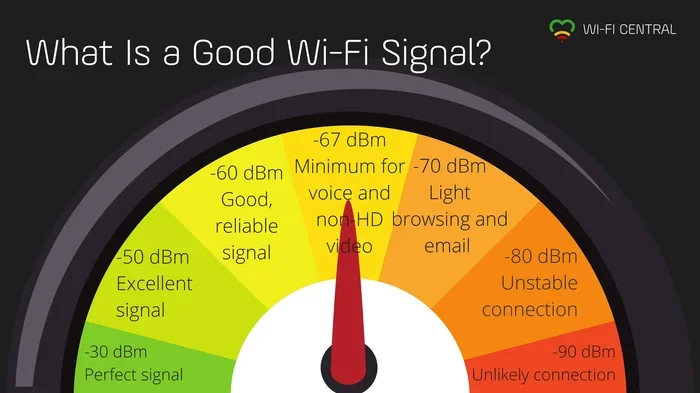
A strong signal makes all the difference in streaming quality. Here are some quick tips:
- Place your router close to your TV. Walls and distance weaken the signal.
- Use the 5 GHz band if your router supports it. It is faster and less crowded.
- Restart your router regularly to keep things running smoothly.
- Avoid interference from microwaves, baby monitors, and other devices.
- Update your router firmware to get the best performance.
If you are using a mobile hotspot, stay close to your phone. The further away you move, the weaker the signal becomes.
Troubleshooting Common Issues
Even with the best setup, you can run into problems. Here are common issues and quick fixes:
- Chromecast won’t connect: Restart both your Chromecast and your router. Check your Wi-Fi password.
- Buffering or stuttering: Move closer to the router or switch to the 5 GHz band.
- Cast button missing: Make sure your phone and Chromecast are on the same network.
- Slow setup: A weak wireless network signal can slow things down. Move the Chromecast closer to the router.
- Guest Mode not working: Make sure Guest Mode is enabled in the Google Home app settings.
Most issues come down to a weak or unstable network connection. Fix that, and your Chromecast will work like a charm.
Key Takeaways
- Home Wi-Fi is the standard way: Most Chromecast setups require a wireless network for streaming video and audio.
- You can use a mobile hotspot: Your phone’s hotspot can replace home Wi-Fi in a pinch.
- Guest Mode lets nearby devices cast: You do not always need the same network if devices are close together.
- Offline casting is limited: Some local files can be cast without internet, but streaming services need a connection.
- Bluetooth is not a direct option: Chromecast does not use Bluetooth for content streaming.
- Router settings matter: A strong signal and proper configuration make a big difference in streaming quality.
- Guest Mode has limits: It works best for quick, simple casting from nearby devices.
Conclusion
So, do I need home Wi-Fi for Chromecast? The answer is clear now. A home Wi-Fi network is the easiest and most reliable way to use your Chromecast. It gives you access to all streaming services, smooth screen mirroring, and full use of Google Assistant features.
But you are not stuck. A mobile hotspot, Guest Mode, or offline casting can fill the gaps when you do not have a traditional home network. Each option has its strengths and weaknesses, and now you know what they are.
The key is to match your setup to your needs. If you are at home, set up a strong Wi-Fi connection and enjoy seamless streaming. If you are on the go, a hotspot will do the job. And if you are at a friend’s place, Guest Mode has you covered.
Your Chromecast is a versatile little device. It adapts to your situation. Now that you know all the options, you can set it up with confidence and enjoy your favorite shows and music wherever you are.
Frequently Asked Questions
Can I use Chromecast without any Wi-Fi at all?
You can cast local files stored on your device without an active internet connection in some cases. However, streaming from online services like Netflix or YouTube always requires a network connection. A mobile hotspot can serve as your network even without home Wi-Fi.
Does Chromecast use Bluetooth to connect?
No, Chromecast does not use Bluetooth for streaming content. It relies on a Wi-Fi network or a mobile hotspot to communicate with your phone and fetch content from the internet. Bluetooth is not part of the casting process.
Can I cast to Chromecast from a different network?
Guest Mode allows nearby devices to cast without being on the same Wi-Fi network. However, for the best experience and full feature access, both your casting device and the Chromecast should be on the same network.
How much data does streaming on Chromecast use?
Streaming quality affects data usage. Standard definition uses about 1 GB per hour. HD can use up to 3 GB per hour, and 4K can go beyond 7 GB per hour. If you are using a mobile hotspot, keep an eye on your data plan to avoid extra charges.
Can I set up Chromecast with just a mobile hotspot?
Yes, you can. During setup, simply connect your phone to your own mobile hotspot and select that network when the Chromecast asks for a Wi-Fi network. Both devices will connect to the hotspot and work normally.
Why is my Chromecast not showing up on my device?
This usually happens when your phone and Chromecast are not on the same Wi-Fi network. Check that both are connected to the same network. Also make sure Guest Mode is enabled if you are trying to cast from a different network. Restarting both devices often fixes the issue quickly.