Can You Use A Wi Fi Card On A Motherboard Right Here
Yes, you can absolutely use a WiFi card on a motherboard to add wireless connectivity to your desktop or laptop. Whether you choose an M.2 WiFi card, a PCIe wireless adapter, or a USB WiFi dongle, the process is straightforward and affordable. This guide covers every method, compatibility check, and installation step you need. You will learn about WiFi standards, driver setup, and common mistakes to avoid.
Can you use a WiFi card on a motherboard? The short answer is yes. Whether you are building a new PC or upgrading an older one, adding wireless internet capability is one of the easiest and most affordable upgrades you can make. A WiFi card connects your computer to a wireless network, giving you the freedom to browse, stream, and game without plugging in an Ethernet cable.
Many modern motherboards come with built-in WiFi already included. But if your motherboard does not have this feature, do not worry. You have several options to add wireless connectivity. From M.2 WiFi cards to PCIe adapters and USB dongles, there is a solution for every budget and skill level. This guide walks you through everything you need to know about using a WiFi card on a motherboard.
We will cover the different types of WiFi cards, how to install them, compatibility checks, driver setup, and common mistakes to avoid. By the end of this article, you will feel confident adding wireless networking to any PC. Let us dive in.
Key Takeaways
- WiFi cards work on most motherboards: You can add wireless networking to almost any desktop or laptop with an available slot.
- M.2 WiFi cards are the most popular choice: They offer great performance and easy installation without using a PCIe slot.
- USB WiFi adapters are the simplest option: No internal installation needed, perfect for beginners or quick setups.
- Check compatibility first: Not all motherboards support every WiFi card type, so verify your slot and BIOS settings before buying.
- Driver installation is essential: A WiFi card will not work properly without the correct driver software installed.
- WiFi 6 and WiFi 6E cards offer the best speeds: They provide faster wireless internet and better performance in crowded networks.
- Internal WiFi cards outperform USB adapters: For stable, high-speed connections, an internal WiFi card is the better investment.
📑 Table of Contents
- What Is a WiFi Card and How Does It Work?
- Types of WiFi Cards for Motherboards
- Can You Use a WiFi Card on Any Motherboard?
- How to Install a WiFi Card on a Motherboard
- WiFi Standards Explained: WiFi 5, WiFi 6, and WiFi 6E
- Common Mistakes When Using a WiFi Card on a Motherboard
- Quick Tips for the Best WiFi Performance
- Expert Insights: WiFi Card vs Built-in WiFi
- Conclusion
What Is a WiFi Card and How Does It Work?
A WiFi card is a small hardware component that allows your computer to connect to wireless networks. It sends and receives radio signals through an antenna, communicating with your router to establish a wireless internet connection. Think of it as the bridge between your PC and the wireless world.
WiFi cards come in different shapes and sizes. Some are small M.2 modules that plug directly into the motherboard. Others are larger PCIe cards that fit into expansion slots. And some are simple USB adapters that you plug into any available USB port. Each type serves the same basic purpose but offers different levels of performance and convenience.
How Wireless Connectivity Works
When you connect to a WiFi network, the WiFi card transmits data using radio waves. These waves travel through the air and reach your router. The router then sends data back to the WiFi card. This two-way communication happens incredibly fast, allowing you to browse the internet, stream videos, and video call friends in real time.
Modern WiFi cards support the latest wireless standards, including WiFi 5, WiFi 6, and WiFi 6E. These standards determine the maximum speed and range of your wireless connection. A WiFi 6 card, for example, offers much faster speeds and better performance in crowded environments compared to older WiFi 4 or WiFi 5 cards.
Key Components of a WiFi Card
Every WiFi card has a few essential parts that work together to deliver wireless internet:
- The wireless module: This is the brain of the WiFi card. It processes all wireless signals and handles data transmission.
- The antenna: The antenna sends and receives radio waves. Some WiFi cards have internal antennas, while others have external ones for better signal strength.
- The interface connector: This connects the WiFi card to the motherboard. It could be an M.2 slot, a PCIe slot, or a USB connection.
- The WiFi driver: This is the software that tells your operating system how to communicate with the WiFi card. Without the correct driver, the card will not work.
Types of WiFi Cards for Motherboards
Not all WiFi cards are the same. Understanding the different types helps you choose the right one for your setup. Each type has its own advantages and best use cases.
M.2 WiFi Cards
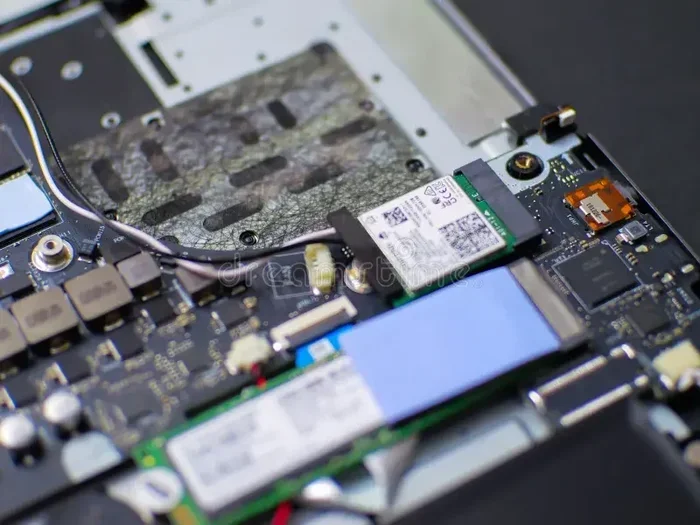
M.2 WiFi cards are the most popular choice for desktop PCs today. They are small, compact modules that plug directly into an M.2 slot on the motherboard. Most modern motherboards have at least one M.2 slot available, making this a convenient option.
M.2 WiFi cards typically include a WiFi module and a Bluetooth module in a single package. This means you get both wireless internet and Bluetooth connectivity from one small card. Popular M.2 WiFi cards include the Intel AX210 and the MediaTek MT7921, both of which support the latest WiFi 6 and WiFi 6E standards.
One of the biggest advantages of M.2 WiFi cards is that they do not take up a PCIe slot. This leaves your expansion slots free for other components like graphics cards or sound cards. They also have a low profile, which makes them ideal for small form factor builds.
PCIe WiFi Cards
PCIe WiFi cards are larger expansion cards that plug into a PCIe slot on the motherboard. They have been around for a long time and remain a reliable option for adding wireless connectivity. PCIe WiFi cards usually come with external antennas that you mount on the back of your PC case.
These cards tend to offer excellent signal strength because of their larger antennas and direct PCIe connection. They are a great choice if you need a strong, stable wireless connection for gaming or heavy file transfers. Some high-end PCIe WiFi cards also support WiFi 6E, which uses the 6 GHz band for faster speeds.
The main downside of PCIe WiFi cards is their size. They take up a PCIe slot that could be used for other expansion cards. They also add more bulk to your PC build, which may not be ideal for compact cases.
USB WiFi Adapters
USB WiFi adapters, also called WiFi dongles, are the simplest way to add wireless connectivity. You just plug them into any available USB port, and they work immediately in most cases. No internal installation is required, and no technical expertise is needed.
USB WiFi adapters come in two styles. Some are small, discreet sticks that stay hidden behind your PC. Others are larger adapters with external antennas for better signal reception. The larger ones generally offer better performance than the small stick-style adapters.
USB WiFi adapters are perfect for people who want a quick and easy solution. They are also portable, so you can use them with a laptop or a desktop PC. However, they usually do not match the performance of internal WiFi cards, and they take up a USB port.
Can You Use a WiFi Card on Any Motherboard?
In most cases, yes. But compatibility depends on a few key factors. Before buying a WiFi card, you should check your motherboard to make sure it can support the card you want to install.
Checking for M.2 Slots
If you want to install an M.2 WiFi card, you need an M.2 slot on your motherboard. Most modern motherboards have at least one M.2 slot, but some budget boards may not include one. Check your motherboard manual or look at the board itself to find an M.2 slot.
M.2 slots come in different sizes, but most WiFi cards use the key B or key M configuration. The Intel AX210, for example, uses an M.2 key E slot, which is common on most consumer motherboards. Make sure your M.2 slot matches the key type of your WiFi card.
Checking for PCIe Slots
If you are considering a PCIe WiFi card, you need an available PCIe slot on your motherboard. Most desktop motherboards have several PCIe slots, so finding an open one is usually easy. Just make sure the slot is not occupied by another card like a graphics card or sound card.
PCIe WiFi cards work with PCIe x1, x4, and x16 slots. A PCIe x1 slot is the most common and works perfectly fine for most WiFi cards. Even if you have a PCIe x16 slot, a WiFi card will work in it with an adapter.
BIOS and UEFI Settings
Some motherboards require you to enable the M.2 slot or onboard WiFi in the BIOS settings before a WiFi card will work. This is especially common with M.2 WiFi cards. Access your BIOS by restarting your PC and pressing the designated key, usually Delete or F2, during boot.
Look for settings related to M.2 slots or onboard devices. Make sure the relevant slot is enabled. Save your changes and exit the BIOS. Your WiFi card should now be recognized when you boot into Windows.
USB Port Compatibility
USB WiFi adapters work with virtually any USB port on any motherboard. Whether you have USB 2.0, USB 3.0, or USB-C, a USB WiFi adapter will function. However, for the best speeds, use a USB 3.0 or USB 3.1 port, as these offer faster data transfer rates than USB 2.0 ports.
How to Install a WiFi Card on a Motherboard
Installing a WiFi card is easier than most people think. Whether you choose an M.2 card, a PCIe card, or a USB adapter, the process is straightforward. Here is a step-by-step guide for each type.
Installing an M.2 WiFi Card
Follow these steps to install an M.2 WiFi card on your motherboard:
- Turn off your PC and unplug it from the power outlet.
- Open the PC case by removing the side panel.
- Locate an available M.2 slot on the motherboard.
- Remove the M.2 heatsink or cover if one is installed.
- Insert the M.2 WiFi card at a 30-degree angle into the slot.
- Press the card down gently and secure it with the small screw.
- Reattach the M.2 heatsink if your motherboard has one.
- Close the PC case and plug your PC back in.
- Boot into your operating system and install the WiFi driver.
Once the driver is installed, your PC should automatically detect available WiFi networks. You can now connect to your wireless internet just like any other device.
Installing a PCIe WiFi Card
Here is how to install a PCIe WiFi card:
- Power off your PC and unplug it from the wall.
- Remove the side panel of your PC case.
- Find an available PCIe slot on the motherboard.
- Remove the corresponding rear expansion slot cover on the case.
- Align the PCIe WiFi card with the slot and press it in firmly.
- Secure the card with the screw that holds the expansion bracket.
- Attach the WiFi antennas to the card’s connectors.
- Close the case and power on your PC.
- Install the WiFi driver from the manufacturer’s website or the included disc.
After the driver installation, position the antennas for the best signal reception. Point them vertically or at a slight angle for optimal wireless coverage.
Installing a USB WiFi Adapter
USB WiFi adapters are the simplest to install. Just plug the adapter into any available USB port on your PC. Windows usually installs a basic driver automatically. For the best performance, download the latest driver from the manufacturer’s website and install it manually.
WiFi Standards Explained: WiFi 5, WiFi 6, and WiFi 6E
When shopping for a WiFi card, you will encounter different WiFi standards. Understanding these standards helps you choose the right card for your needs.
WiFi 5 (802.11ac)
WiFi 5 is the older standard that most people still use today. It offers speeds up to 3.5 Gbps and works on the 5 GHz band. WiFi 5 is perfectly fine for everyday browsing, streaming, and casual gaming. If you have a small home and a modern router, WiFi 5 will serve you well.
WiFi 6 (802.11ax)
WiFi 6 is the current mainstream standard and offers significant improvements over WiFi 5. It provides faster speeds, lower latency, and better performance in crowded environments. WiFi 6 supports both the 2.4 GHz and 5 GHz bands, making it versatile for different use cases.
If you are buying a new WiFi card today, WiFi 6 is the best choice for most users. It offers excellent performance and is backward compatible with older WiFi standards.
WiFi 6E (802.11ax Extended)
WiFi 6E is the newest standard and adds support for the 6 GHz band. This band is less crowded, which means faster speeds and more stable connections. WiFi 6E cards are ideal for power users, gamers, and anyone who needs the absolute best wireless performance.
However, WiFi 6E requires a WiFi 6E compatible router to take advantage of the 6 GHz band. If your router only supports WiFi 5 or WiFi 6, a WiFi 6E card will still work but will not use the 6 GHz band.
Common Mistakes When Using a WiFi Card on a Motherboard
Even though installing a WiFi card is straightforward, some common mistakes can cause problems. Here are the ones to watch out for.
Forgetting to Install the Driver
This is the most common mistake. A WiFi card will not work without the correct driver. After installing the hardware, always download and install the latest driver from the manufacturer’s website. Do not rely on Windows to find the driver automatically, as it often installs an outdated version.
Using the Wrong M.2 Key
M.2 slots come in different key types, and not all of them support WiFi cards. Using the wrong key type can damage your card or prevent it from working. Always double-check that your M.2 slot uses the key E configuration, which is standard for WiFi cards.
Ignoring Antenna Placement
If your WiFi card comes with external antennas, where you place them matters. Tucking them behind the PC case or placing them too close to metal objects can weaken your signal. Position your antennas in an open area for the best wireless coverage.
Buying an Incompatible Card
Not every WiFi card works with every motherboard. Before purchasing, check the motherboard manual for supported WiFi card types and slots. Also make sure your operating system is compatible with the card you are buying.
Skipping the BIOS Check
Some users install an M.2 WiFi card and wonder why it does not show up in Windows. Often, the issue is that the M.2 slot is disabled in the BIOS. Always check your BIOS settings and enable the relevant slot before troubleshooting further.
Quick Tips for the Best WiFi Performance
Want to get the most out of your WiFi card? Follow these simple tips:
- Keep your drivers updated: Manufacturers regularly release driver updates that improve performance and fix bugs. Check for updates every few months.
- Position your router wisely: Place your router in a central location, away from walls and metal objects, for the strongest signal.
- Use the 5 GHz band: The 5 GHz band is faster and less congested than the 2.4 GHz band. Use it whenever possible for streaming and gaming.
- Avoid USB 2.0 ports for USB adapters: USB 2.0 limits the speed of your WiFi adapter. Always use a USB 3.0 port for the best performance.
- Update your router firmware: A router with outdated firmware may not support the latest WiFi standards. Keep your router firmware up to date.
- Consider a WiFi mesh system: If you have a large home, a WiFi mesh system can extend your wireless coverage and reduce dead zones.
Expert Insights: WiFi Card vs Built-in WiFi
Many modern motherboards come with built-in WiFi. So why would you need to add a separate WiFi card? The answer comes down to flexibility and performance.
Built-in WiFi is convenient because it requires no installation. However, the WiFi module in a motherboard is often a basic or older model. It may not support the latest WiFi 6 or WiFi 6E standards. Adding a separate WiFi card lets you upgrade to the newest wireless technology and enjoy faster speeds and better range.
Another advantage of a separate WiFi card is that it is easier to replace or upgrade. If your built-in WiFi becomes outdated, you are stuck with it. But with a separate WiFi card, you can simply swap it out for a newer model when better technology becomes available.
For most users, adding a WiFi card to a motherboard is a smart investment. It gives you better performance, more flexibility, and the ability to future-proof your PC.
Conclusion
So, can you use a WiFi card on a motherboard? Absolutely. Whether you choose an M.2 WiFi card, a PCIe adapter, or a simple USB dongle, adding wireless connectivity to your PC is easy and affordable. You just need to check compatibility, install the card correctly, and set up the right driver.
Understanding the different types of WiFi cards and WiFi standards helps you make the best choice for your needs. WiFi 6 and WiFi 6E cards offer the best performance today, and they are backward compatible with older routers and networks. Avoid common mistakes like skipping driver installation or using the wrong M.2 key, and you will have a smooth experience.
Adding a WiFi card to your motherboard is one of the simplest and most rewarding PC upgrades you can do. It transforms a wired-only PC into a wirelessly connected machine in just a few minutes. Follow the steps in this guide, and you will be browsing the wireless internet in no time.
Frequently Asked Questions
Do I need a WiFi card if my motherboard has built-in WiFi?
Not necessarily. If your motherboard already has built-in WiFi and it meets your speed and performance needs, you do not need a separate card. However, a dedicated WiFi card can offer better speeds, newer standards like WiFi 6 or WiFi 6E, and easier upgrade paths in the future.
Can I use a WiFi card on a laptop motherboard?
Yes, many laptops use internal WiFi cards that can be upgraded. Laptop WiFi cards are usually M.2 format and are easy to replace. Check your laptop manual for compatible card types before purchasing a replacement or upgrade.
Is a USB WiFi adapter as good as an internal WiFi card?
USB WiFi adapters are convenient and easy to use, but they generally do not match the performance of internal WiFi cards. Internal cards have better signal strength, lower latency, and faster speeds. USB adapters are great for quick setups but are not ideal for demanding tasks like online gaming or 4K streaming.
What WiFi standard should I look for when buying a WiFi card?
WiFi 6 is the best choice for most users today. It offers excellent speeds, low latency, and good compatibility with modern routers. If you want the latest technology and have a WiFi 6E router, consider a WiFi 6E card for access to the faster 6 GHz band.
Do I need to install drivers for a WiFi card?
Yes, drivers are essential for a WiFi card to work properly. While Windows may install a basic driver automatically, you should always download the latest driver from the manufacturer’s website. Updated drivers improve performance, fix bugs, and ensure the best compatibility.
Can I use a WiFi card and an Ethernet cable at the same time?
Yes, you can use both a WiFi card and an Ethernet connection simultaneously. Your operating system will manage both connections, and you can choose which one to use for internet traffic. Some users even use both for load balancing or failover purposes.