Do HDMI Switches Work Both Ways And Here Is The Answer
Standard HDMI switches do not work both ways. They route signals in one direction only, from multiple input devices to a single display. If you need true bidirectional signal flow, you will need an HDMI matrix or an AV receiver instead.
Key Takeaways
- HDMI switches are unidirectional: They route signals from inputs to a display, not the other way around.
- Bidirectional HDMI requires special hardware: Standard switches cannot send signals back from a display to a source device.
- HDMI switches and splitters serve opposite purposes: A switch combines many inputs into one output, while a splitter does the reverse.
- HDMI matrices and AV receivers support two-way signal flow: These are the right tools for bidirectional device connectivity.
- Always check HDMI version compatibility: Using the wrong version can cause signal degradation and poor display resolution.
- EDID and HDCP handshake issues are common: Choose a switch that properly passes through this data to avoid connectivity problems.
- Match your switch to your actual needs: Count your devices, check your display resolution, and plan for future upgrades.
📑 Table of Contents
- What Is an HDMI Switch and How Does It Work?
- Do HDMI Switches Work Both Ways?
- HDMI Switches vs HDMI Splitters: What Is the Difference?
- When You Need a Bidirectional HDMI Solution
- Quick Tips for Using HDMI Switches Correctly
- Common Mistakes People Make with HDMI Switches
- How to Choose the Right HDMI Switch for Your Needs
- Conclusion
What Is an HDMI Switch and How Does It Work?
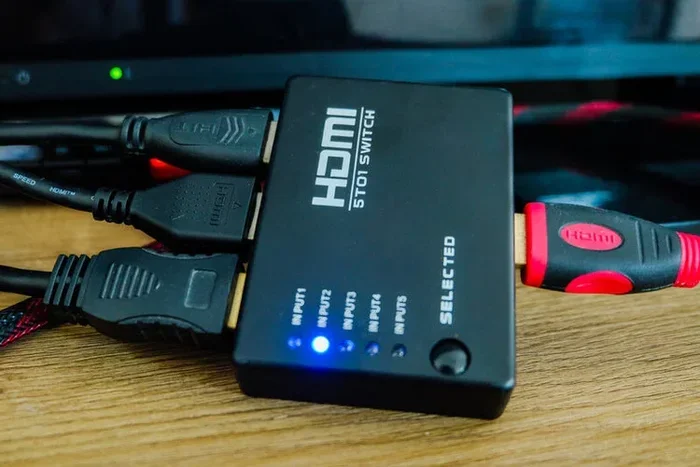
If you have multiple devices and only a few HDMI ports on your TV or monitor, you know the frustration. An HDMI switch solves this problem by letting you connect several source devices to a single display. But how does it actually work?
Think of an HDMI switch like a traffic director for audio and video signals. You plug in your gaming console, Blu-ray player, and streaming stick into the switch. Then you use a single cable from the switch to your TV. The switch routes the signal from the device you select to your screen.
Most HDMI switches come with a remote control or a button on the unit itself. You press a button, and the switch changes which device is sending its signal to your display. Some advanced models even switch automatically based on which device is turned on.
The technology behind an HDMI switch is simpler than it sounds. It passes the HDMI signal from the selected input to the output port. It does not convert or alter the signal in most cases. It just routes it from one path to another.
How Signal Routing Works in an HDMI Switch
When you press the input button on your HDMI switcher, it changes the internal connection. The switch connects the selected input port to the output port. This creates a direct path for the audio and video signal to travel.
The switch does not process or compress the signal. It simply acts as a bridge. This is why a good quality HDMI switch can pass through 4K resolution and HDR without any loss in quality.
Some switches also handle EDID handshake and HDCP copy protection. These are important for making sure your devices communicate properly. Without proper EDID support, you might get no signal or a black screen when you change inputs.
Common Types of HDMI Switches
Not all HDMI switches are the same. Here are the most common types you will find on the market:
- Manual HDMI switches: You press a button or use a remote to change inputs. These are affordable and reliable for most setups.
- Automatic HDMI switches: These detect which device is active and switch to it automatically. Very convenient for daily use in a busy home theater setup.
- 4K HDMI switches: Designed to handle 4K resolution and HDR content. Essential for modern display devices that support high display resolution.
- HDMI switches with audio extraction: These can split the audio signal to a separate output. Useful for connecting to a soundbar or AV receiver.
Do HDMI Switches Work Both Ways?
This is the question most people ask, and the answer is not a simple yes or no. HDMI switches are designed to work in one direction by default. They take signals from multiple inputs and send one signal to a single output. This is called unidirectional signal flow.
But what if you want to send a signal in the opposite direction? Can an HDMI switch work both ways? Let us break this down clearly so you understand exactly what is happening with your device connectivity.
Understanding Input and Output Direction
In a standard HDMI switch, the signal flows in one direction only. It goes from the input devices to the display. The switch does not send signals back from the display to the source devices.
For example, if you have a switch connected to your TV, the switch sends the audio and video from your game console to the TV. But it does not send a signal from the TV back to the console. The signal path is strictly one way through each HDMI port on the switch.
This is how almost all consumer HDMI switches are built. They are not designed to reverse the signal flow. If you need bidirectional signal flow, a standard switch will not do the job. You need a different type of device entirely.
What Bidirectional HDMI Actually Means
Bidirectional HDMI means the device can send and receive signals in both directions. This is different from a standard HDMI switch which only routes signals one way from input to output.
True bidirectional capability requires special hardware. The device must be able to handle signals flowing from the display back to the source. This is needed for things like HDMI-CEC control signals and USB data that travels back through the cable.
Some advanced HDMI switchers support limited bidirectional features. They can pass through CEC commands that let you control multiple devices with one remote. But they still do not reverse the main audio and video signal path. The core signal routing remains unidirectional.
If someone tells you their HDMI switch works both ways, they might be referring to CEC functionality. Or they might be confusing a switch with a different type of device altogether. It is important to understand the difference before you make a purchase.
HDMI Switches vs HDMI Splitters: What Is the Difference?
Many people confuse HDMI switches with HDMI splitters. These are two very different devices with opposite functions. Understanding the difference is key to solving your connectivity problem and getting the right device for your home theater setup.
| Feature | HDMI Switch | HDMI Splitter |
|---|---|---|
| Signal Direction | Multiple inputs to one output | One input to multiple outputs |
| Primary Use | Connect many devices to one display | Send one source to multiple displays |
| Works Both Ways? | No (standard models) | No (standard models) |
| Signal Flow | Unidirectional | Unidirectional |
| Common Confusion | People think it reverses signal | People think it combines signals |
An HDMI splitter takes one signal and copies it to two or more displays. A switch does the opposite. It takes multiple signals and sends one to a single display.
Neither device works both ways in the true sense of the word. They both have a fixed signal direction built into their design. If you need a device that can reverse signal flow, you need something different entirely.
When You Need a Switch vs a Splitter
Here is a simple way to remember the difference. If you have many devices but one screen, you need a switch. If you have one device but many screens, you need a splitter.
For a home theater setup with a console, a Blu-ray player, and a streaming box, use a switch. For a digital sign or a mirror TV that shows the same content on two screens, use a splitter.
Some people buy the wrong device because they do not understand the difference. This leads to frustration and wasted money. Always check your needs before purchasing any HDMI switcher or splitter for your device connectivity setup.
When You Need a Bidirectional HDMI Solution
There are real-world situations where you need signal flow in both directions. In these cases, a standard HDMI switch will not work. You need a different solution that supports true bidirectional HDMI capability.
Home Theater Setups That Need Two-Way Signal Flow
Imagine you have an AV receiver connected to your TV and your soundbar. You want to send audio from your TV back to the receiver for processing. This requires the signal to flow from the TV back to the receiver through the HDMI port.
A standard HDMI switch cannot handle this type of return path. You need an HDMI matrix or an AV receiver with built-in switching. These devices support two-way signal routing and can handle complex audio and video paths between multiple source devices and display devices.
Another example is a setup where you want to use your TV’s tuner or smart features while routing through a switch. The TV needs to send a return signal to the source device. This is where bidirectional capability matters most in everyday use.
Common Scenarios for Bidirectional Use
Here are some situations where you might think you need an HDMI switch that works both ways:
- HDMI-CEC control: You want to turn on your Blu-ray player using your TV remote. This requires a return signal path through the HDMI cable.
- USB device sharing: You want to connect a USB device to a display and have it recognized by a source device on the other end.
- Ethernet passthrough: You want the network connection to flow in both directions through the HDMI cable for smart device features.
- Audio return channel (ARC): You need audio to flow from the TV back to a soundbar or AV receiver without a separate cable.
In all these cases, a regular HDMI switch will not help. You need a device specifically designed for bidirectional device connectivity and two-way signal routing between your source devices and display devices.
Quick Tips for Using HDMI Switches Correctly
Using an HDMI switch the right way can save you from headaches and poor performance. Here are some practical tips that make a big difference in your daily experience with device connectivity.
Avoiding Signal Degradation
Signal degradation is one of the biggest problems people face with HDMI switches. If your picture looks fuzzy or your audio drops out, the switch might be the culprit. Long cable runs through a switch can weaken the signal significantly.
Use short, high-quality HDMI cables whenever possible. Keep your cable runs under 15 feet for best results, especially when passing through a switch. The more connections in the chain, the more chances for signal loss.
Also, make sure your switch supports the HDMI version you need. If you have a 4K TV, you need a switch that supports HDMI 2.0 or higher. An older switch that only supports HDMI 1.4 will not pass through 4K content properly, and you will lose display resolution quality.
Here are some quick tips to keep in mind:
- Always check the HDMI version compatibility before buying any switch.
- Use certified HDMI cables to avoid unnecessary connection issues.
- Keep firmware updated if your switch has a web interface or companion app.
- Avoid daisy-chaining multiple switches together in the same signal path.
- Power your switch properly if it requires external power for best performance.
Getting the Best Performance from Your Switch
To get the best display resolution and audio quality, follow these simple steps. First, connect all your devices before powering anything on. This helps the switch establish proper EDID handshake with each connected device right from the start.
Second, test each input individually before relying on the switch daily. Make sure every device shows a clean picture and clear sound through the switch. Third, label your inputs if you have many devices connected. This saves time when you need to switch sources quickly.
Finally, do not overload your switch. If a switch is rated for 4 inputs, do not try to connect five devices. Overloading can cause signal issues and even damage the unit over time. Treat your HDMI switcher with care and it will serve you well for years.
Common Mistakes People Make with HDMI Switches
Even experienced users make mistakes with their HDMI switcher setups. Knowing what to avoid can save you time, money, and frustration. Here are the most common errors and how to steer clear of them.
Ignoring EDID and HDCP Handshake Issues
EDID stands for Extended Display Identification Data. It is how your display tells the source device what resolutions and formats it supports. HDCP is High-bandwidth Digital Content Protection, which prevents unauthorized copying of copyrighted content.
When you connect a new device through a switch, the EDID handshake can fail. This results in no picture or a low-resolution image on your display device. The most common cause is a switch that does not properly pass through EDID information from the display to the source device.
To avoid this, buy a switch that explicitly supports EDID and HDCP passthrough. Cheap switches often strip out this data, causing compatibility issues with your source device and display device. Always check the product specifications before you buy.
Buying the Wrong Switch for Your Needs
One of the biggest mistakes is buying a switch that does not match your HDMI version requirements. If you have a 4K TV and a 4K Blu-ray player, you need a switch rated for 4K at 60Hz. A cheaper switch that only supports 1080p will bottleneck your entire setup.
Another common mistake is ignoring the number of ports you actually need. It is tempting to buy a 2-input switch to save money, but you will likely regret it when you add another device to your collection. Plan ahead and get a switch with extra ports.
Also, some people do not consider whether they need a powered switch or a passive one. Passive switches do not need external power but may not support the latest HDMI features or handle high bandwidth. Powered switches handle more data and newer HDMI specifications with ease.
How to Choose the Right HDMI Switch for Your Needs
Choosing the right HDMI switch does not have to be overwhelming. Focus on these key factors and you will find the perfect match for your device connectivity needs.
First, determine how many devices you need to connect. Count all your source devices including game consoles, streaming boxes, Blu-ray players, and computers. Add one or two extra ports for future devices you might add later.
Second, check what resolution your display supports. If you have a 4K TV, make sure the switch supports 4K at 60Hz and HDR. If you only have a 1080p display, a basic switch will work fine and save you money.
Third, decide between manual and automatic switching. Automatic switches are more convenient but cost a bit more. Manual switches are simpler and more affordable for everyday use in most home theater setups.
Fourth, consider whether you need extra features like audio extraction or Ethernet passthrough. These features add convenience but also increase the price. Only pay for features you will actually use in your daily routine.
Finally, read reviews before you buy. Look for feedback on signal quality, reliability, and ease of use. A well-reviewed HDMI switcher from a reputable brand will save you from frustration and give you peace of mind with your device connectivity setup.
Conclusion
So, do HDMI switches work both ways? The short answer is no. Standard HDMI switches are designed for unidirectional signal flow. They take signals from multiple inputs and route one to your display. They do not send signals back from the display to the source devices.
If you need bidirectional device connectivity, you need to look at different solutions. HDMI matrices, AV receivers, and certain advanced switchers can handle two-way signal routing. But a basic HDMI switch will not do the job on its own.
Understanding the difference between a switch, a splitter, and a matrix is essential. Each device serves a unique purpose in your home theater setup and device connectivity arrangement. Choose the right tool for the job, and your setup will work flawlessly every time.
The next time you shop for an HDMI switch, keep these points in mind. Know your signal flow needs, check the HDMI version compatibility, and invest in quality gear. Your audio and video experience will be much better for it. Make the right choice today and enjoy seamless connectivity across all your devices.
Frequently Asked Questions
Can I use an HDMI switch to send a signal from my TV back to a soundbar?
No, a standard HDMI switch cannot send signals in reverse. The signal flow is one way, from input devices to the display. For audio return, you need an AV receiver or a device with HDMI ARC support built in.
What is the difference between a bidirectional HDMI switch and a regular one?
A bidirectional HDMI switcher can route signals in both directions between devices. A regular switch only sends signals from inputs to a single display output. True bidirectional switches are rare and usually cost more because they require advanced internal hardware.
Do HDMI splitters work both ways too?
No, HDMI splitters work in the opposite direction of switches but are still unidirectional. A splitter takes one input and copies it to multiple outputs. It does not reverse signal flow or combine signals from multiple displays back into one source.
Will a cheap HDMI switch cause signal degradation?
Yes, cheap HDMI switches are more likely to cause signal degradation. They often lack proper EDID passthrough and HDCP support. This can result in lower display resolution, audio dropouts, or no signal at all when you switch between source devices.
Can an HDMI switch support 4K resolution if it works both ways?
Support for 4K resolution depends on the HDMI version the switch supports, not on whether it is bidirectional. A standard unidirectional switch can support 4K just fine. Bidirectional capability is a separate feature related to signal routing direction, not display resolution.
What should I buy if I need true two-way HDMI signal flow?
If you need true two-way signal flow, consider an HDMI matrix or an AV receiver with built-in switching. These devices support bidirectional device connectivity and can route audio and video signals in both directions between multiple source devices and display devices.