Do All My HDMI Ports Support 4K Resolution and Quality
Do All My HDMI Ports Support 4K? The answer depends on your HDMI version, cable quality, and source device. Not every port delivers the same 4K resolution and video quality. This guide helps you check your ports, pick the right cable, and fix common 4K HDMI problems fast.
Have you ever plugged a device into your HDMI port and wondered, do all my HDMI ports support 4K? It is a question many people ask, especially when they have multiple ports on their TV, monitor, or home theater setup. The short answer is no, not all HDMI ports support 4K resolution and quality. Different ports use different versions of the HDMI standard, and each version handles 4K differently.
Understanding which ports can handle 4K saves you from frustration, blurry images, and wasted money on the wrong cables. Whether you are setting up a new 4K TV, connecting a gaming console, or building a home office with an ultrawide monitor, knowing your port capabilities matters. This guide walks you through everything you need to know about HDMI ports and 4K support.
We will cover how to check your ports, which HDMI versions matter, what cables you need, and how to fix common problems. By the end, you will feel confident about your setup and know exactly what your ports can do. Let us dive in and clear up the confusion around HDMI ports and 4K quality.
Key Takeaways
- Not all HDMI ports support 4K: Older HDMI versions like 1.4 may only handle 4K at 30Hz, which is not ideal for gaming or fast content.
- HDMI version is everything: HDMI 2.0 supports 4K at 60Hz, while HDMI 2.1 unlocks 4K at 120Hz and beyond for the best experience.
- Your cable matters just as much: Using the wrong HDMI cable can block 4K entirely, even if your port supports it.
- Check your device settings: Sometimes the port is fine but the output settings are set to a lower resolution by default.
- HDCP and bandwidth play a role: Copy protection and data limits can affect whether 4K content plays correctly.
- Multiple ports may differ: Even on the same device, different HDMI ports can support different versions and capabilities.
📑 Table of Contents
Understanding HDMI Ports and 4K Support
Not every HDMI port on your TV or monitor was built the same way. The ability to display 4K resolution depends on the HDMI version the port supports. Think of it like a highway, the wider the road, the more data it can carry at once. A narrow road causes traffic jams, and a narrow HDMI port causes pixel jams and slow video quality.
4K resolution means a display has about 8.3 million pixels, four times more than standard 1080p. Pushing that many pixels requires a strong connection. Older HDMI ports simply were not designed to handle that kind of display resolution. When you try to push 4K through an old port, you may get a blank screen, a low-resolution image, or a signal that keeps dropping.
What Makes a Port 4K-Compatible?
Three main factors determine whether an HDMI port can handle 4K:
- HDMI version – Newer versions support higher bandwidth, which is essential for 4K and High Dynamic Range content.
- Cable quality – Even the best port will struggle with a low-quality or outdated HDMI cable.
- Source device capability – Your source device, like a Blu-ray player or laptop, must also output a 4K signal.
All three pieces need to work together. If one is weak, your video quality will suffer. You might see a blank screen, a low-resolution image, or no signal at all. This is why it helps to understand each piece before you buy or upgrade anything.
Why HDMI Version Matters for 4K
The HDMI version is the biggest factor in 4K support. Each new version brought improvements in bandwidth, color support, and extra features. Here is a quick look at how versions differ:
- HDMI 1.4 – Can support 4K at 30Hz. This works for movies but feels sluggish for gaming or fast-moving content.
- HDMI 2.0 – Handles 4K at 60Hz smoothly. This is the sweet spot for most 4K TV setups and everyday viewing.
- HDMI 2.1 – Supports 4K at 120Hz and even 8K. This is for serious gamers and home theater enthusiasts who want the best video quality.
The higher the version, the better the video quality and smoother the motion. If you want the best experience, always check which version your port supports before buying gear. A simple label on the back of your TV can save you hours of frustration.
Do All My HDMI Ports Support 4K? How to Check
Figuring out whether your ports handle 4K is easier than you might think. You do not need to be a tech expert. A few simple checks will tell you everything you need to know about your HDMI port capabilities.
Check the Port Labeling on Your Device
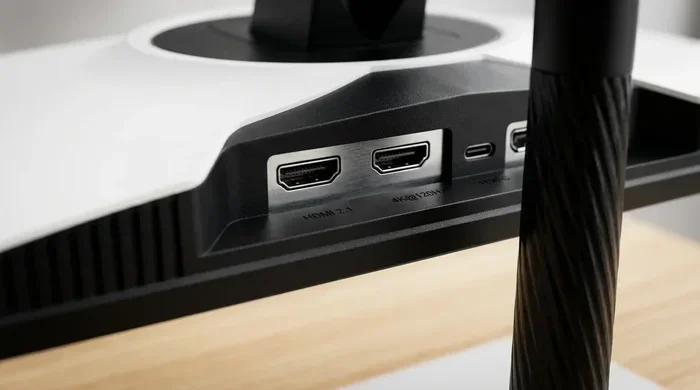
Many manufacturers put version labels right on the device or near the ports. Look for tiny text like “HDMI 2.0” or “HDMI 2.1” printed on the TV back, monitor, or AV receiver. If you see “HDMI 1.4” or no label at all, the port may only support 4K at 30Hz or lower.
Some devices use colored ports to indicate capability. For example, a blue port might mean it supports HDMI 2.0 or higher. Check your device manual if you are unsure. You can also visit the manufacturer website and look up your model number. The specs page will list every HDMI port and its version.
Check Your Device Settings
You can also check through your device settings. On most 4K TVs and monitors:
- Go to Settings > Display > Resolution.
- Look for the current display resolution and supported options.
- If 4K or Ultra HD is not listed as an option, the port may not support it.
On a PC, right-click the desktop and select Display Settings. Scroll down to Display Resolution. If 3840 x 2160 (which is 4K) appears as an option, your port and cable can handle it. If it does not appear, try a different HDMI port or a different cable.
Quick Tip: If your device has multiple HDMI ports, test each one individually. Some ports on the same device may support different versions. For example, one port might be HDMI 2.0 while another is HDMI 1.4. Always use the port labeled for the highest version when you want 4K quality.
HDMI Versions and Their 4K Capabilities
This is where things get interesting. Each HDMI version brings different capabilities to the table. Understanding these differences helps you make smart buying decisions and avoid compatibility headaches with your 4K setup.
HDMI 1.4 and 4K
HDMI 1.4 was released in 2009 and was the first version to introduce 4K support. However, it only supports 4K at 30Hz. That means 30 frames per second, which is fine for watching movies but not ideal for gaming or sports where smooth motion matters.
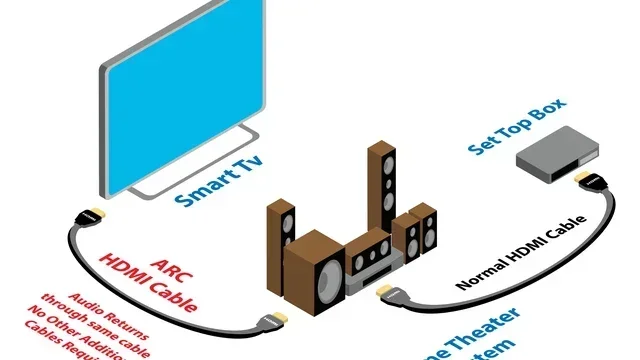
HDMI 1.4 also introduced ARC (Audio Return Channel), which lets audio travel back through the same cable to a soundbar or receiver. This was a big deal at the time but is now standard on newer versions. If you have an older device with only HDMI 1.4 ports, you can still watch 4K content, but the experience will not be as smooth. Fast action scenes may look choppy or blurry.
HDMI 2.0 and 4K
HDMI 2.0 arrived in 2013 and was a game-changer for 4K content. It supports 4K at 60Hz, which means 60 frames per second. This makes motion look smooth and natural, perfect for 4K TV viewing and casual gaming.
HDMI 2.0 also brought wider color depth and better chroma subsampling. This means richer, more vibrant colors on your screen. If you watch a lot of nature documentaries or action movies, you will notice the difference in video quality. Most 4K TVs sold between 2014 and 2019 use HDMI 2.0 ports. It is still perfectly capable of delivering excellent 4K video quality for everyday use.
HDMI 2.1 and 4K
HDMI 2.1 is the latest standard, released in 2017. It is built for the future with massive bandwidth up to 48 Gbps. This allows 4K at 120Hz, 4K at 240Hz, and even 8K resolution. If you want the absolute best display resolution, this is the version to have.
HDMI 2.1 also introduced several exciting features:
- VRR (Variable Refresh Rate) – Reduces screen tearing during gaming for a smoother experience.
- ALLM (Auto Low Latency Mode) – Automatically switches to game mode for the best video quality and response time.
- eARC (Enhanced Audio Return Channel) – Supports advanced audio formats like Dolby Atmos through your HDMI cable.
- Dynamic HDR – Adjusts High Dynamic Range frame by frame for stunning contrast and color.
If you are a serious gamer with a PlayStation 5, Xbox Series X, or high-end PC, HDMI 2.1 ports are essential. They deliver the smoothest, most immersive 4K experience available today. The refresh rate and bandwidth make a real difference in how your content looks and feels.
Comparison Table: HDMI Versions and 4K Support
| HDMI Version | Max 4K Support | Bandwidth | Best For |
|---|---|---|---|
| HDMI 1.4 | 4K at 30Hz | 10.2 Gbps | Basic 4K movie watching |
| HDMI 2.0 | 4K at 60Hz | 18 Gbps | 4K TV, casual gaming |
| HDMI 2.1 | 4K at 120Hz+ | 48 Gbps | Gaming, home theater, future-proofing |
As you can see from the table, not all HDMI ports are created equal. The version makes a huge difference in what you can do with 4K content. Always match your HDMI version to your needs before making a purchase.
Expert Insight: When buying a new TV or monitor, always check which HDMI version each port supports. Manufacturers often put the most capable ports in specific locations. For example, on many 4K TVs, the port labeled “HDMI 2” or “HDMI 3” is the HDMI 2.1 port, while others are HDMI 2.0. Check the user manual or the manufacturer website to be sure.
The Role of HDMI Cables in 4K Quality
Even the best HDMI port will not deliver great 4K quality with the wrong cable. The cable is just as important as the port itself. Many people buy expensive 4K TVs and then wonder why the picture looks blurry. Often, the culprit is an old or cheap HDMI cable that cannot carry the data needed for 4K resolution.
Not All HDMI Cables Are Created Equal
Different HDMI cables support different amounts of bandwidth. A cable designed for HDMI 1.4 cannot handle the data demands of 4K at 60Hz. Here is what you need to know about each cable type:
- Standard HDMI Cable – Supports up to 1080p. Not suitable for 4K at all.
- High Speed HDMI Cable – Supports 4K at 30Hz. Good for basic 4K movie watching but not gaming.
- Premium High Speed HDMI Cable – Supports 4K at 60Hz with HDR. This is the go-to for most 4K setups and everyday use.
- Ultra High Speed HDMI Cable – Supports 4K at 120Hz, 8K, and full HDR. Required for HDMI 2.1 features and the best video quality.
Always look for the “Ultra High Speed” label on the cable packaging if you want full 4K performance. The cable will also have a number on it, usually “48 Gbps,” which tells you the bandwidth capacity. Do not rely on the cable length or thickness alone. Certification matters more than appearance.
Which Cable Do You Need for 4K?
The cable you need depends on what you plan to do with your setup:
- Watching 4K movies on a 4K TV – A Premium High Speed cable is enough. It handles 4K at 60Hz with HDR easily and is affordable.
- Gaming on a console or PC – Go with an Ultra High Speed cable. You want 4K at 120Hz and low latency for the best video quality and responsive gameplay.
- Using ARC or eARC for audio – Any High Speed or higher cable will work. But for eARC with Dolby Atmos, an Ultra High Speed cable is recommended to handle the extra data.
Do not fall for marketing hype. A cable labeled “4K” is not always the same as a certified Ultra High Speed cable. Look for the official certification logos on the packaging. A good HDMI cable is a small investment that makes a big difference in your 4K experience.
Common Mistakes: One of the biggest mistakes people make is using an old HDMI cable from a previous setup. Cables that worked fine for 1080p will not deliver the same 4K video quality. Always upgrade your cable when you upgrade your display or source device. It costs very little and saves you from endless troubleshooting.
Common Devices and Their HDMI 4K Support
Different devices have different HDMI port capabilities. Knowing what your gear supports helps you plan your setup and avoid buying the wrong equipment. Here is a closer look at common devices and how they handle 4K over HDMI.
4K TVs and Monitors
Most modern 4K TVs have at least two HDMI 2.0 ports and one HDMI 2.1 port. The HDMI 2.1 port is usually clearly labeled and often located on the side of the TV for easy access. This is the port you want to use for gaming consoles or PCs that need 4K at 120Hz.
If you have a 4K monitor for your PC, check the specs carefully. Many budget monitors only have HDMI 1.4 or HDMI 2.0 ports. This limits you to 4K at 30Hz or 60Hz respectively. For the smoothest display resolution on a PC, look for monitors with HDMI 2.1 or DisplayPort 1.4. The right port makes your Ultra HD content look its best.
Gaming Consoles and PCs
Gaming consoles are some of the hungriest 4K devices. The PlayStation 5 and Xbox Series X both support 4K at 120Hz, which means they require HDMI 2.1 ports and Ultra High Speed cables to reach their full potential. Plugging these consoles into an HDMI 1.4 port will limit you to 4K at 30Hz, which is a huge downgrade.
On the PC side, your graphics card determines 4K output. Most modern graphics cards from NVIDIA and AMD support 4K at 60Hz or higher. But your HDMI port on the GPU must also support the right version. Many high-end graphics cards now include HDMI 2.1 ports, but older models may only have HDMI 2.0. Always check both your GPU and your monitor for compatibility.
Other devices like gaming consoles, streaming sticks (Apple TV 4K, Roku Ultra), and Blu-ray players also vary in their 4K HDMI support. Always check the device specifications before purchasing. A quick look at the box or the manufacturer website saves you from disappointment.
Quick Tip: If your gaming console or source device has multiple output options, try both HDMI and DisplayPort. Sometimes DisplayPort offers better 4K performance on PCs, especially for high refresh rates. Also, make sure your HDCP version is up to date to avoid copy protection errors when streaming 4K content.
Troubleshooting 4K Issues on HDMI Ports
Even with the right ports and cables, you might run into 4K problems. Do not panic. Most issues have simple fixes. Here are the most common problems and how to solve them step by step.
Why Is My 4K Signal Not Working?
Several things can cause a 4K signal to fail on your HDMI port:
- Wrong cable – An older cable cannot carry the bandwidth needed for 4K at 60Hz or higher. This is the most common cause.
- Wrong port – You might be plugged into an HDMI 1.4 port that only supports 4K at 30Hz or does not support 4K at all in some cases.
- HDCP issues – HDCP (High-bandwidth Digital Content Protection) is a copy protection system. If your cable or port does not support the right HDCP version, 4K content from streaming services may not play or may show a black screen.
- Device settings – The source device might be set to output 1080p instead of 4K. Check the output settings on your source device.
Quick Fixes for 4K HDMI Problems
Before you call support or buy new gear, try these simple fixes in order:
- Swap the cable – Replace your HDMI cable with a certified Ultra High Speed cable. This fixes most 4K issues instantly.
- Try a different port – Plug into a different HDMI port on your TV or monitor. The port you are using may not support 4K.
- Check the source settings – Go into your device settings and manually set the output to 4K or Ultra HD. Sometimes the device defaults to a lower resolution.
- Power cycle everything – Unplug your TV, source device, and any receivers. Wait 30 seconds and plug them back in. This refreshes the HDMI handshake.
- Update firmware – Some devices need firmware updates to properly support 4K over HDMI. Check the manufacturer website for updates.
Most 4K HDMI issues are solved with a new cable or a port swap. It is rarely a hardware problem. Start with the simplest fix and work your way up.
Common Mistakes: Do not use cheap, uncertified cables from unknown brands. They often fail to deliver the bandwidth needed for 4K and HDR. Stick with reputable brands and look for official certification marks on the packaging. Also, do not ignore HDCP errors. They are a sign that your setup cannot handle protected 4K content, and you need to upgrade a component.
Final Thoughts on HDMI Ports and 4K Quality
So, do all my HDMI ports support 4K? The answer depends on your specific setup. Not every port on every device can handle 4K resolution and quality. The HDMI version, the cable you use, and your source device all play a role in whether you get the full 4K experience.
The good news is that checking your setup is straightforward. Look at your port labels, check your device settings, and make sure you have the right cable. With the right combination, you can enjoy stunning 4K video quality on any 4K TV, monitor, or projector. A little knowledge goes a long way.
Invest in HDMI 2.1 ports and Ultra High Speed cables if you are into gaming or want to future-proof your setup. For casual 4K viewing, HDMI 2.0 and a Premium High Speed cable will serve you well. The key is knowing what you have and what you need. Do not guess, check.
Take a few minutes today to check your HDMI ports. You might be surprised at what you find. A small upgrade to the right cable or port can transform your 4K experience from frustrating to fantastic. Your eyes will thank you every time you turn on your 4K TV or gaming console. Make the switch, enjoy the quality, and never look back.
Frequently Asked Questions
Can I use an old HDMI cable for 4K?
It depends on the cable type. Old standard HDMI cables only support up to 1080p and cannot carry a 4K signal. You need at least a High Speed or Premium High Speed HDMI cable for 4K at 30Hz or 60Hz. For the best results with HDMI 2.1 features, use an Ultra High Speed cable.
Why does my 4K TV show 1080p on some HDMI ports?
This usually means the port you are using does not support 4K resolution or the cable cannot handle the bandwidth. Check the port label and try a different port or a certified 4K HDMI cable. Also verify the source device output settings are set to 4K.
Does HDMI 2.0 support HDR?
Yes, HDMI 2.0 supports basic HDR and High Dynamic Range content. However, HDMI 2.1 offers Dynamic HDR, which adjusts HDR settings frame by frame for better contrast and color. If you want the full HDR experience, HDMI 2.1 is the way to go.
What is the difference between ARC and eARC on HDMI ports?
ARC (Audio Return Channel) lets audio travel from your TV back to a soundbar or receiver. eARC (Enhanced Audio Return Channel) supports advanced audio formats like Dolby Atmos and uncompressed audio. eARC is only available on HDMI 2.1 ports and requires an Ultra High Speed cable for best results.
Can I split a 4K signal across multiple HDMI ports?
Not directly. A standard HDMI splitter may downgrade the 4K signal to 1080p because it cannot pass the full bandwidth. If you need to split 4K content, look for an active 4K HDMI splitter that supports the required HDMI version and bandwidth for your setup.
Do all streaming devices support 4K over HDMI?
No, not all streaming devices support 4K. Devices like the Apple TV 4K and Roku Ultra support 4K HDR, but older or budget models may only output 1080p. Always check the device specifications and make sure it outputs 4K resolution before purchasing.
=== CONCLUSION ===
Do all my HDMI ports support 4K? Now you know the answer is not always. Your HDMI version, cable quality, and source device all determine whether you get true 4K resolution and quality. Take the time to check your ports, upgrade your cable if needed, and enjoy the stunning video quality that 4K has to offer.