Comcast Cable Blank Screen Help Stop The Frustration
Dealing with a Comcast cable blank screen can be incredibly frustrating, but the good news is that most causes are simple to fix. This guide walks you through every step of troubleshooting your Comcast cable blank screen help needs, from checking cables to contacting support. You will learn quick fixes, expert tips, and proven methods to get your TV working again fast.
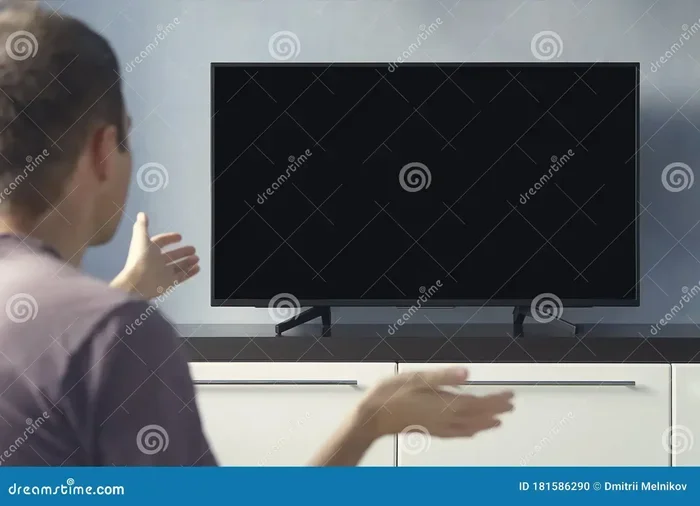
There is nothing more annoying than sitting down to watch your favorite show and seeing nothing but a blank screen. If you are dealing with this problem right now, you are not alone. A Comcast cable blank screen issue affects thousands of households every single day. The good news is that most of the time, the fix is simpler than you think. This guide will walk you through every step to get your TV back up and running.
Whether your screen goes black suddenly or it has been a recurring problem, this Comcast cable blank screen help guide has you covered. We will look at the most common causes, the best fixes, and when it is time to call for professional support. By the end of this article, you will have the knowledge and confidence to tackle this problem head-on. Let us get started and stop the frustration for good.
Key Takeaways
- Loose or damaged cables are the most common cause of a blank screen on your Comcast setup.
- A simple power cycle can resolve the issue in under two minutes.
- Checking your input source and HDMI connection often solves display problems quickly.
- Firmware updates and signal outages are less common but important to rule out.
- Knowing when to call Comcast support saves time and prevents further damage.
- Preventive habits like regular cable checks keep your TV running smoothly.
📑 Table of Contents
- What Causes a Comcast Cable Blank Screen
- How to Fix a Comcast Cable Blank Screen
- When to Call Comcast Customer Support
- Comcast Cable Box Models and Common Blank Screen Issues
- Preventing Future Blank Screen Problems
- Expert Tips for a Better Viewing Experience
- Common Mistakes People Make When Fixing a Blank Screen
- Frequently Asked Questions
- Conclusion
What Causes a Comcast Cable Blank Screen
A blank screen on your Comcast setup can come from many different sources. Understanding the root cause is the first step toward a fix. Below are the most common reasons your TV might show nothing but darkness.
Loose or Damaged Cables
The number one culprit behind a blank screen is a loose or damaged cable. Over time, HDMI cords and coaxial cables can wear out. They might get bumped, pulled, or frayed. Even a slightly loose connection can cut off the signal completely. This is why checking your cables should always be your first move.
Power Issues with Your Cable Box
Sometimes the problem is not the TV at all. Your Comcast cable box might not be getting power. A tripped power strip, a faulty outlet, or a worn-out power cable can all cause this. If the box is not turning on, your screen will stay blank no matter what you do.
Wrong Input Source
This one catches a lot of people off guard. If your TV is set to the wrong input, it will not display anything from your cable box. Maybe someone accidentally pressed the input button on the remote. Or maybe the TV updated and reset the default input. Either way, this is an easy fix once you know what to look for.
Signal Outages and Service Disruptions
Comcast does experience occasional signal outages. These can affect your entire neighborhood or just your home. During an outage, your cable box might show a blank screen or a “no signal” message. Checking the Comcast service status online can tell you if this is the issue.
Outdated Firmware or Software
Your Comcast cable box runs on software just like your phone. When that software is out of date, problems can arise. A blank screen is one possible symptom of outdated firmware. Fortunately, most boxes update automatically, but sometimes they need a little help.
How to Fix a Comcast Cable Blank Screen
Now that you know the common causes, let us get into the fixes. Each step below is designed to be simple and actionable. Try them in order, and you will likely solve the problem without needing to call anyone.
Step 1: Check All Cable Connections
Start by unplugging every cable connected to your Comcast box and TV. Look closely at each one. Do you see any visible damage? Are any of the connectors bent or corroded? Plug them back in firmly, making sure each one clicks into place. This alone fixes the problem for many people.
Here is a quick checklist to follow:
- Check the coaxial cable from the wall to the box.
- Inspect the HDMI cable from the box to the TV.
- Look at the power cable connected to the box.
- Make sure none of the cables are pinched or crushed under furniture.
Step 2: Power Cycle Your Equipment
A power cycle is one of the most effective fixes for a Comcast cable blank screen. It resets all the connections and clears temporary glitches. Here is how to do it right:
- Turn off your TV and Comcast cable box.
- Unplug both devices from the wall outlet.
- Wait at least 30 seconds.
- Plug the cable box back in first.
- Wait for the box to fully boot up.
- Turn on your TV and select the correct input.
This simple process works surprisingly well. Many users report that their screen comes back immediately after a power cycle. It is always worth trying before anything else.
Step 3: Verify the TV Input Source
Your TV can receive signals from many different sources. These include cable boxes, streaming devices, gaming consoles, and antennas. If the TV is set to the wrong one, you will see a blank screen. Use your TV remote to press the “Input” or “Source” button. Cycle through the options until you find the one connected to your Comcast box.
A quick tip: HDMI ports are often labeled. Check the back of your TV or the input menu to find which port your cable box uses. If you are not sure, try each HDMI port one at a time.
Step 4: Restart Your Comcast Cable Box
Sometimes the box itself needs a fresh start. You can do this without unplugging everything. Simply press and hold the power button on the front of the cable box for about 10 seconds. The box should turn off and then restart automatically. Wait a minute or two for it to fully reload, and then check your screen.
Step 5: Update Your Cable Box Software
Keeping your cable box software up to date is important. Outdated software can cause display issues, including a blank screen. To check for updates, go to the settings menu on your cable box. Look for a section called “System Update” or “Software Update.” If an update is available, let it install completely before turning the box back on.
Step 6: Try a Different HDMI Cable
If you have tried everything else, the HDMI cable itself might be faulty. HDMI cables wear out over time, and a damaged cable will not carry a signal properly. Borrow an HDMI cable from another device and test it with your Comcast box. If the screen comes to life, you have found your problem. Replace the old cable with a new one.
When to Call Comcast Customer Support
Most blank screen issues can be fixed at home. But there are times when you need professional help. Knowing when to call Comcast support can save you a lot of frustration and wasted effort.
Signs You Need Professional Help
You should contact Comcast support if any of the following apply to your situation:
- You have tried all the steps above and the screen is still blank.
- Your cable box makes unusual sounds or flashes error lights.
- You see a “Signal Loss” or “Error” message that does not go away.
- Your entire neighborhood is experiencing the same issue.
- The cable box feels hot to the touch or smells unusual.
How to Reach Comcast Support Effectively
When you call Comcast, having some information ready will make the process faster. Have your account number handy. Know the model number of your cable box. Be ready to describe the exact problem and the steps you have already tried. This shows the support team that you have done your homework, and it helps them help you more quickly.
You can reach Comcast support through their website, mobile app, or by phone. The Xfinity My Account app is especially useful. It lets you check for outages, chat with support, and even schedule a technician visit right from your phone.
Comcast Cable Box Models and Common Blank Screen Issues
Different Comcast cable box models can have different quirks. Understanding your specific model can help you troubleshoot more effectively. Below is a quick comparison of common issues across popular Comcast box models.
| Box Model | Common Issue | Best Fix |
|---|---|---|
| Xfinity X1 | Blank screen after update | Force restart by holding power button |
| Xfinity XG1 | HDMI handshake failure | Replace HDMI cable or try a different port |
| Xfinity XR11 | Remote not waking the box | Replace batteries or re-pair the remote |
| Xfinity XR5 | No signal after power outage | Power cycle all equipment |
| Xfinity XG2 | Firmware stuck during update | Contact Comcast support for a remote reset |
Knowing your model helps you narrow down the cause. If you are not sure which model you have, check the sticker on the back or bottom of the box. The model number is printed clearly there.
Preventing Future Blank Screen Problems
The best way to deal with a Comcast cable blank screen is to prevent it from happening in the first place. A few simple habits can keep your setup running smoothly for months or even years.
Keep Your Cables in Good Condition
Inspect your cables regularly. Look for fraying, bending, or discoloration. Replace any cable that looks damaged, even if it still seems to work. A cable that is starting to fail can cause intermittent problems that are hard to diagnose.
Keep Your Equipment Ventilated
Your Comcast cable box generates heat while it runs. If it is tucked inside a closed cabinet or stacked on top of other devices, it can overheat. Overheating can cause all sorts of issues, including a blank screen. Make sure there is at least a few inches of space around your box on all sides.
Keep Software Up to Date
As mentioned earlier, software updates fix bugs and improve performance. Make sure your cable box is set to update automatically whenever possible. This small step can prevent many common problems.
Use a Surge Protector
Power surges can damage your cable box and TV. A good surge protector absorbs excess voltage and keeps your equipment safe. It is a small investment that can save you a lot of money and hassle in the long run.
Expert Tips for a Better Viewing Experience
Beyond fixing a blank screen, there are things you can do to improve your overall Comcast TV experience. These tips come from years of troubleshooting and customer feedback.
Use the Xfinity Stream app as a backup. If your cable box gives you trouble, you can still watch live TV and on-demand content through the Xfinity Stream app on your phone, tablet, or computer. This is a great temporary solution while you work on fixing the box.
Label your cables. It sounds simple, but labeling your cables makes troubleshooting much faster. Use small tags or colored tape to mark which cable goes where. When a problem comes up, you will know exactly which connection to check first.
Keep a spare HDMI cable on hand. HDMI cables are inexpensive and they fail more often than you might think. Having a spare in your junk drawer means you can swap it out in seconds instead of waiting for a new one to arrive.
Restart your box once a month. Just like your computer, your cable box benefits from a regular restart. A monthly power cycle clears out temporary files and keeps everything running smoothly. Set a reminder on your phone to make it a habit.
Do not ignore error messages. If your screen shows a code or message, write it down. Those codes contain valuable clues about what is wrong. When you call Comcast support, having the error code ready will speed up the process significantly.
Common Mistakes People Make When Fixing a Blank Screen
Even with the best intentions, people often make mistakes when trying to fix a blank screen. Avoiding these common errors can save you time and prevent bigger problems.
Mistake 1: Assuming the TV is broken. Most of the time, the TV is fine. The problem is with the cable box or the connections. Always check the box and cables first before concluding the TV itself is the issue.
Mistake 2: Not waiting long enough. After a power cycle, it can take a minute or two for the cable box to fully restart. Do not assume it is not working just because nothing appears right away. Give it time to boot up completely.
Mistake 3: Using the wrong HDMI port. If you have multiple HDMI ports on your TV, make sure you are using the one connected to the cable box. Switching to the wrong port is one of the most common reasons for a blank screen.
Mistake 4: Ignoring outage notices. Before you spend hours troubleshooting, check if there is a known outage in your area. Comcast posts outage information on their website and app. If there is an outage, your efforts are better spent waiting for the service to come back.
Mistake 5: Opening the cable box. Never open the cable box yourself. It contains sensitive electronics and doing so can void your warranty. Always let a professional handle internal repairs.
Frequently Asked Questions
Why does my Comcast screen go blank randomly?
A blank screen that comes and goes is often caused by a loose cable connection or a signal interference issue. Check all your cable connections first. If the problem persists, it could be a signal strength problem that requires a technician visit from Comcast.
How do I know if my Comcast cable box is broken?
If your cable box does not turn on at all, shows no lights, or displays persistent error messages even after a power cycle, it may be broken. Try using a different HDMI cable and power outlet first. If none of those steps work, contact Comcast support for a replacement box.
Can a power outage damage my Comcast cable box?
Yes, power outages and surges can sometimes damage your cable box. Using a surge protector greatly reduces this risk. If your box stops working after a storm or power outage, unplug it, wait 30 seconds, and plug it back in to see if it recovers.
How long does it take for a Comcast cable box to restart?
A full restart usually takes about 1 to 2 minutes. The lights on the front of the box will change as it boots up. Wait until the home screen appears before trying to use it. Do not unplug it during the restart process.
Is there a way to fix a blank screen without calling Comcast?
Yes, in most cases you can fix a blank screen on your own. Start by checking your cables, power cycling your equipment, and verifying the TV input source. These steps resolve the issue for the majority of users. Only call Comcast if none of these fixes work.
What should I do if my Comcast cable box shows no signal?
A “no signal” message usually means the box is not receiving a signal from Comcast. Check all cable connections, restart the box, and check for service outages in your area. If the problem continues, contact Comcast support for further troubleshooting or a possible equipment replacement.
Conclusion
A Comcast cable blank screen is frustrating, but it is almost always fixable. The key is to stay calm and work through the steps one at a time. Start with the simplest fixes like checking cables and power cycling your equipment. Move on to more advanced steps if those do not work. And do not hesitate to call Comcast support when you need professional help.
Remember that Comcast cable blank screen help is available to you every step of the way. The tips and fixes in this guide have helped thousands of viewers get back to their favorite shows. With a little patience and the right approach, you can solve this problem too. Keep your cables in good shape, keep your software updated, and enjoy a clear, reliable TV experience every day.
Do not let a blank screen ruin your evening. Take action today, follow the steps in this guide, and get your Comcast setup working perfectly again. You have got this.